
1. Introduction
ContrastWright™ checks the color contrast of the text in PDF files against the Web Content Accessibility Guidelines, WCAG 2.2, and can fix the text that fails. It is a command-line tool, contrastwright, for macOS and Windows: you run it from Terminal or a Command Prompt, from a script, or on a server that checks documents as they arrive. ContrastWright Studio, Appligent's desktop app for the same work, runs this same tool for every check and fix it makes.
This guide is for anyone who runs the tool directly: to check a folder of PDFs overnight, to fix the reports a system produces before they are published, or to build contrast checking into another program.
What the tool does
Every command starts with a verb, which says what to do:
| Verb | What it does |
|---|---|
| check | Measures the contrast of every piece of visible text in a PDF against what is behind it, and writes a report: text to read, CSV for a spreadsheet, or JSON for a program. It never changes the PDF. Without a verb, check is assumed. |
| repair | Measures, then writes a copy of the PDF with the failing text recolored, each color moved only as far as it has to go to pass. It never writes over its input. |
| contrast | Judges one pair of colors, the text's and the background's, without reading a PDF. |
| render | Draws one page of a PDF as a PNG picture, with the numbers that map a finding's position onto it. |
| license | Says which license the tool finds, and whether it lets repair run. |
A first check and a first fix look like this:
contrastwright check -i report.pdf
contrastwright repair -i report.pdf -o report_contrast.pdf
What it decides, and what it does not
The tool decides two WCAG success criteria for the visible text in a PDF: 1.4.3 Contrast (Minimum), at Level AA, and 1.4.6 Contrast (Enhanced), at Level AAA. It measures each run of text against what is actually painted behind it on the page, at the size a reader sees it, in the colors the page shows, and says exactly where every failure is, what its colors and ratio are, and which color would pass.
It does not decide 1.4.11 Non-text Contrast, 1.4.1 Use of Color or 1.4.5 Images of Text, the contrast of text inside pictures, of text on a gradient or pattern whose color changes across a letter, of annotations or of form fields, or anything about what a document means. The text and JSON reports say so at their end. A clean report is therefore not a claim that a document conforms to WCAG: it says that the text the tool measured has enough contrast, and nothing more.
How a fix works
A fix changes the color of the failing text, not the design of the page. It keeps the color's hue and saturation and moves only its lightness, darker on a light background and lighter on a dark one, so a brand's blue stays blue. It writes the new color in the color space the text was set in, so text in CMYK stays CMYK and text in a color profile keeps it. It does not repaint backgrounds, change spot colors, or change text whose background it could only estimate: those failures are reported for a person to fix, with a suggested color where one exists (Chapter 8).
The changes can be reviewed before they are made. The tool can write its proposed changes to a file, grouped by color pair, and a person or a program can approve, refuse or recolor each one before the fix makes exactly those (Chapter 9). Large text can be kept in its color and outlined instead (Chapter 10), and a limit can hold back any change that would move a color further than a design allows (Chapter 11).
ContrastWright and ContrastWright Studio
ContrastWright, the command-line tool, and ContrastWright Studio, the desktop app, are two products, each with its own license. ContrastWright Studio shows a check's findings on their pages, lets a person choose each fix, and saves the same reports this tool writes. Every check and fix it makes, the tool can make from the command line, because the app makes them by running the tool. ContrastWright Studio has a Users Guide of its own.
Conventions in this guide
- Commands, options and file names are written as you type them, such as contrastwright check -i report.pdf -l aaa. Examples on their own lines are set in a fixed-width font.
- Colors are written as the tool writes them: a hexadecimal code such as #767676, giving the red, green and blue amounts of the color as it is seen on screen.
- A contrast ratio is written as the tool writes it, such as 4.49:1, cut to two decimal places, never rounded (Chapter 3).
- Where macOS and Windows differ, both are given. Terminal and a Command Prompt or PowerShell window are called a terminal.
- The tool's own words, in its messages and reports, are quoted exactly as it prints them.
2. Installing and Running the Tool
This chapter says what the tool needs, where it is installed, and how a command is put together: its verb, its options, and the quoting that keeps colors and file names intact on each system.
What you need
| Item | What and where |
|---|---|
| A Mac or a PC | A Mac with Apple silicon running macOS 15 Sequoia or later, or a PC with 64-bit Windows 10 or Windows 11. |
| The tool, on a Mac | /Applications/Appligent/ContrastWright/contrastwright, where the ContrastWright installer puts it. That file is a small launcher: it sets up the Adobe PDF Library the tool is built on, then runs the tool, so the command works from any folder. |
| The tool, on Windows | C:\Program Files\Appligent\contrastwright.exe, where Setup puts it, beside the Adobe PDF Library. Setup adds that folder to the PATH, so contrastwright runs from any Command Prompt or PowerShell window opened after the install. |
| A license, for repair | check, contrast and render run without a license. repair needs one: Chapter 14 says how to see the license the tool finds. |
Running it on a Mac
Open Terminal and give the command by its full path:
/Applications/Appligent/ContrastWright/contrastwright check -i report.pdf
To type only contrastwright, add its folder to your PATH once. In Terminal's usual shell, zsh, add this line to the file .zprofile in your home folder, then open a new Terminal window:
export PATH="/Applications/Appligent/ContrastWright:$PATH"
The examples in this guide are written that way, as contrastwright alone.
Running it on Windows
Open a Command Prompt or a PowerShell window after the install, and type the command:
contrastwright check -i report.pdf
A window that was already open before the install still has the old PATH: open a new one. A script that must not depend on the PATH can name the tool in full, "C:\Program Files\Appligent\contrastwright.exe", in double quotes because of the space.
How a command is built
The first word after contrastwright is the verb: check, repair, contrast, render or license. Without one, check is assumed. Options follow, each a dash and a letter or two dashes and a word, and most take a value after a space:
contrastwright check -i report.pdf -l aaa -f csv -o findings.csv
contrastwright repair --input report.pdf --output fixed.pdf --level aa
The short and long forms of an option are the same option: -i and --input, -o and --output, -f and --format, -l and --level, -p and --pages, -v and --verbose. Options can come in any order. A misspelled option, or a value the tool cannot use, stops the run with exit 1 and a message that names it, usually before anything is read:
contrastwright: unknown level "zz" (use aa or aaa)
Quoting colors and file names
Put a color in double quotes:
contrastwright contrast --fg "#949494" --bg "#ffffff"
Unquoted, a # begins a comment in PowerShell and in a shell script, and the color is lost. Double quotes work everywhere: in Terminal, in a shell script, in PowerShell and in the Command Prompt, which does not take single quotes as quotes.
Put a file name that holds spaces in double quotes too, such as -i "Annual Report.pdf". On a Mac a file name can hold any character. On Windows, use names whose characters the system's own code page holds, as accented Latin letters are on a Western-language Windows: the tool reads its arguments in that code page.
A long command can be carried onto a second line. In Terminal and in a shell script, end the first line with a backslash; in PowerShell, with a backtick (`); in the Command Prompt, with a caret (^). This guide uses the backslash:
contrastwright check -i "Annual Report.pdf" -l aa --large 18 \
    -f text -o "Annual Report - contrast report (AA).txt"
The version and the help
contrastwright --version prints the tool's version, the day it was built and the version of the PDF library it uses, and exits:
contrastwright 1.0 (Nov 15 2026), APDFL21.0.0a
check and repair print the same line at the start of their output, so a saved log says which tool made it. contrast, render and license print one line of JSON and nothing else, so a program can read their output whole.
contrastwright -h, or --help, lists every verb and every option with its default. It is the quickest reference when this guide is not to hand.
Files the tool writes
Of your files, the tool writes only those a command names: a report, a fixed copy, a file of proposed changes, a picture. It never writes over the PDF it is reading, however the name is spelled, and no two files a command writes may be the same file (Chapter 4).
3. Contrast and WCAG 2.2
Contrast is the difference in lightness between text and what is behind it. WCAG measures it as a contrast ratio, computed from the relative luminance of the two colors: a number from 1:1, for text the same color as its background, to 21:1, for black text on white. The higher the ratio, the more readers can read the text, whatever their eyesight, screen or lighting.
The contrast ratio
Only lightness counts, not hue. A red and a green of the same lightness have a ratio near 1:1, however different they look to most readers, and they look alike to a reader who cannot tell red from green. That is why the colors the tool proposes keep the hue of the original and change only how light or dark it is.
A few examples, as the tool measures them on a white background:
| Text color | Ratio | At Level AA |
|---|---|---|
| #000000 (black) | 21.00:1 | Passes at every level. |
| #595959 | 7.00:1 | Passes, at Level AAA too. |
| #767676 | 4.54:1 | Passes: the lightest gray that does. It fails Level AAA, which asks 7:1. |
| #777777 | 4.47:1 | Fails, by a hair, as normal text. |
| #949494 | 3.03:1 | Fails as normal text; passes as large text, which needs 3:1. |
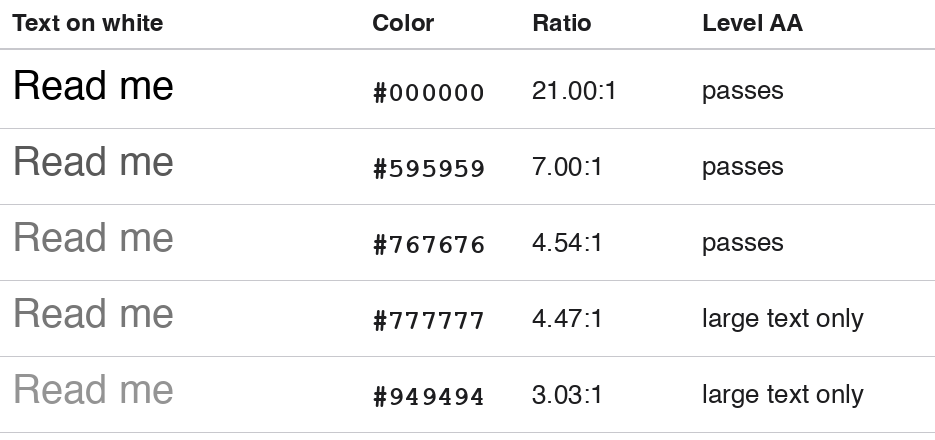
Figure 1. Five grays as text on white, with the ratios the contrast verb gives them: #000000 at 21.00:1, #595959 at 7.00:1 and #767676 at 4.54:1 pass at Level AA; #777777 at 4.47:1 and #949494 at 3.03:1 pass only as large text.
The contrast verb gives these numbers for any pair, at once and without a PDF (Chapter 12):
contrastwright contrast --fg "#777777" --bg "#ffffff"
What WCAG asks of text
WCAG 2.2 sets two contrast success criteria for text, one at each of its upper levels of conformance. The tool checks against one of them at a time: Level AA unless you give -l aaa.
| Level | Success criterion | Normal text | Large text |
|---|---|---|---|
| AA | 1.4.3 Contrast (Minimum) | 4.5:1 | 3:1 |
| AAA | 1.4.6 Contrast (Enhanced) | 7:1 | 4.5:1 |
Level AA is the level most accessibility laws and policies require. A ratio must be met, and is never rounded up to: #777777 reaches 4.478:1, and fails a requirement of 4.5:1, as WCAG's own explanation of the criterion says it must.
How ratios are printed
The tool's messages, its text report and its CSV report print every ratio cut to two decimal places, never rounded: 4.4999:1 prints as 4.49:1. So a failing ratio never prints as high as the ratio it needs, and one that passes never prints below it. The JSON report, the file of proposed changes and the contrast verb keep the full value, such as 4.47808945, for a program to compare exactly.
Large text
Large text needs less contrast. WCAG counts text as large from 18 points, or from 14 points when it is bold. The tool measures the size a reader sees, after every scaling the page applies, so a 6-point font drawn four times its size is 24-point text. --large moves the size from which text counts as large, such as --large 20; bold text then counts as large from 4 points below it, 16 points. Whether text is bold is read from its font, never from an outline drawn round it.
Translucent text
Text painted partly transparent is measured as a reader sees it: its color blended with what is behind it, at its opacity. Black text at 50% opacity on white is seen as a mid gray, #808080, and measured at 3.97:1, not at the 21:1 of black; at that opacity no color passes as normal text, not even black. The report gives both colors: the one the PDF names, which is the one you will find in the document's source and the one a fix changes, and the one that is seen.
Colors as the page draws them
A PDF can name a color in many ways: as red, green and blue amounts, as a gray, as cyan, magenta, yellow and black inks, through a color profile, or as a named spot ink. What a reader sees is what the page draws, and for some of these that is not what simple arithmetic says. Black ink at 50% is drawn as #949599, which reaches 2.99:1 on white, where the textbook formula says #808080 and 3.94:1. So the tool measures CMYK colors, CMYK in a color profile, spot inks, and every color on a page that blends in CMYK, as the Adobe PDF Library draws them, and reports the color drawn beside the color the PDF names, such as C=0 M=0 Y=0 K=50. Chapter 7 says more.
Text WCAG does not require to pass
WCAG exempts some text from its contrast requirements: text that is pure decoration, text that is part of a logo or brand name, text that is part of an inactive control, and text in a picture that also holds significant other content. The tool recognizes one kind by itself: the row of dots or dashes a table of contents draws from an entry to its page number, a leader, which it skips and counts on its own (Chapter 6). It cannot tell the others from the rest of the text, and measures them. A finding of this kind is correct arithmetic, but it may not be a failure of the success criterion: decide each one.
Remember: A clean result is not a conformance claim. It says that the text the tool could measure meets the ratio you asked for, at the level you chose. Conformance with WCAG takes every other success criterion as well.
4. Checking a PDF
check measures the contrast of every piece of visible text in a PDF and reports what fails. It reads the PDF and writes nothing to it. This chapter gives its options and the files it can write; Chapter 5 says how to read what it writes.
A first check
contrastwright check -i report.pdf
With only -i, the tool checks every page at Level AA and prints its text report in the terminal, after its version line. It exits 0 when nothing failed and 2 when something did (Chapter 15), so a script can tell the two apart without reading the report.
This is what a check finds on the first page of a sample report. Each failure's box is drawn from the JSON report onto a picture of the page that render made (Chapter 13).
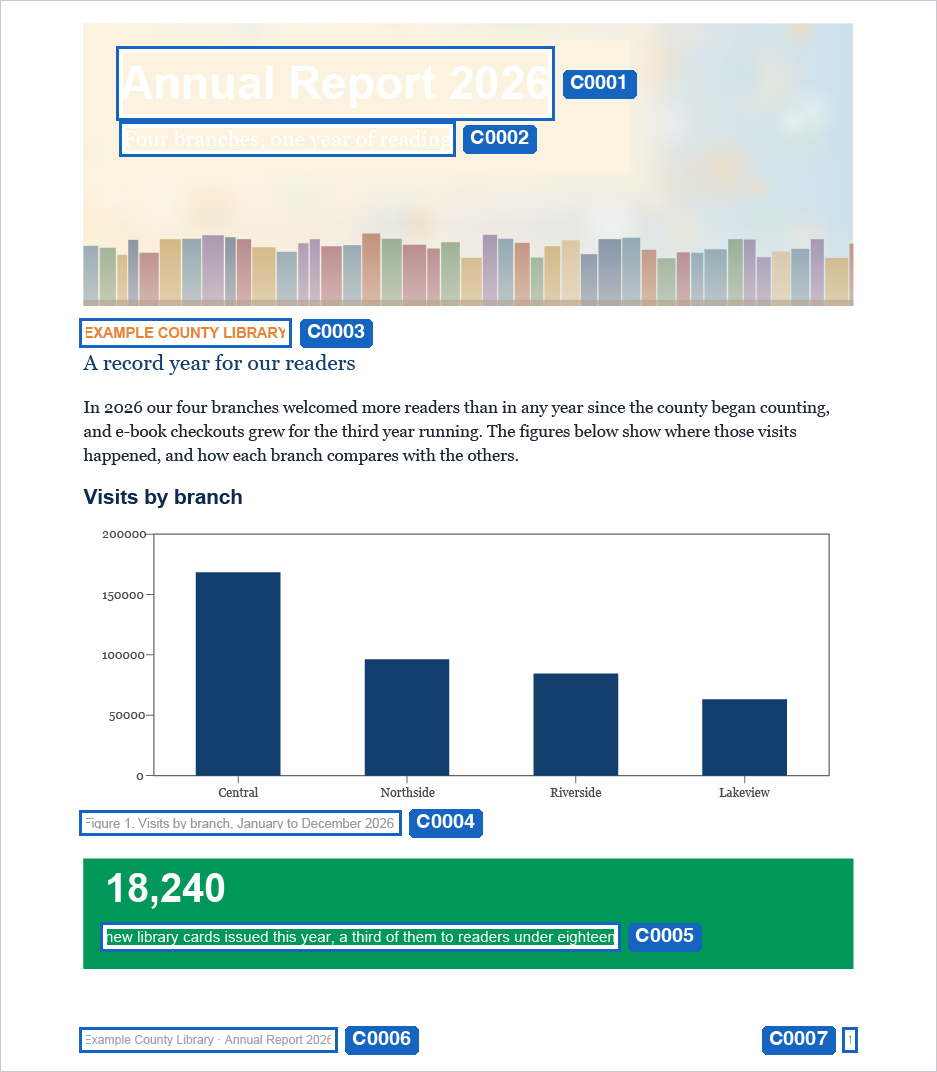
Figure 2. The first page of a sample report, Annual Report 2026.pdf, as check sees it: each of its seven failures boxed and labeled with its id, C0001 to C0007. They are the title and subtitle on the photograph, the library's name, a chart's caption, the text on the green panel, the footer and the page number.
To keep the report, name a file with -o. To write CSV or JSON instead of text, add -f:
contrastwright check -i report.pdf -o report-contrast.txt
contrastwright check -i report.pdf -f csv -o report-contrast.csv
contrastwright check -i report.pdf -f json -o report-contrast.json
CSV and JSON always go to a file: -f csv and -f json need -o.
Options for check
| Option | Meaning |
|---|---|
| -i, --input F | The PDF to check (required). |
| -o, --output F | Where the report goes; without it, the text report is printed. |
| -f, --format W | text, json or csv (text without it). JSON and CSV need -o. |
| --json F, --csv F, --text F | Also write the report in that format to F, from the same check (below). |
| --colors W | How the text and CSV reports name colors: hex (without it), or document, as the PDF names them, such as C=100 M=0 Y=70 K=20, R=0 G=151 B=87, Gray K=40 or L=55 a=-45 b=20. A JSON report always holds both. |
| -l, --level W | aa or aaa (aa without it). |
| -p, --pages L | The pages to check, such as 3, 2-7 or 1,4,9-12 (every page without it). Pages count from 1. |
| --large PT | The point size from which text counts as large (18 without it); bold text from PT minus 4. |
| --dpi N | The resolution of the drawing of a page used to measure text over pictures (150 without it). |
| --no-raster | Never draw a page: report what the page content cannot settle as not measured (Chapter 7). |
| --emit-ops F | Also write the changes a repair would make, grouped by color pair, to F (Chapter 9). |
| --strokes outline | Also offer, beside each recolor, to keep large text's color and outline its letters in a color that reads (Chapter 10). |
| --outline-small | With --strokes outline: offer normal-size text an outline too. |
| --max-shift L | Hold back a recolor that would move a text color's lightness by more than L, a value between 0 and 1 such as 0.15 (Chapter 11). |
| -v, --verbose | Say what is being measured, page by page, and what could not be (Chapter 15). |
| -h, --help | Show every option. |
Choosing the level and the pages
-l aaa checks against Level AAA, 1.4.6 Contrast (Enhanced), which asks 7:1 of normal text and 4.5:1 of large text. Without it, the check is at Level AA. A report says which level it was made at, and the same text can pass at one and fail at the other.
-p checks some pages only. The page numbers are the PDF's own, counting from 1, whatever numbers the pages print on themselves: -p 3 is the third page of the file. A list can mix pages and ranges, -p 1,4,9-12. A report of some pages still gives the document's page count, and its findings carry their pages' numbers. A page number past the end of the document checks nothing, and the run still exits 0: its report counts no runs measured.
Reading pictures and gradients
Most text is measured from the page content alone. Where text sits on a picture, a gradient, or anything else whose color the content cannot settle, the tool draws the page at --dpi, 150 dots per inch unless you say otherwise, and samples the pixels under the text. A higher resolution samples smaller letters better and takes longer. --no-raster turns the drawing off: such text is then reported as not measured, which is faster, and every answer the report gives can be traced to the page content. Chapter 7 says how the background is found.
Several reports from one check
-f and -o write the report in one format. --json, --csv and --text each write it again, in that format, to a file of its own, beside whatever -f and -o write:
contrastwright check -i report.pdf -f json -o report.json \
    --csv report.csv --text report.txt
The document is checked once, and each file holds exactly what a check of its own in that format would have written, so a large document need not be checked once per format. --colors document names the colors in every text and CSV file alike. Without -o, check still prints the text report in the terminal. If one of the files cannot be written, the others are written all the same, the reason is printed, and the run exits 1.
Nothing it writes can be its input
The tool never writes over the PDF it reads. Every file a run would write is compared with the input as a file, not as a name, before anything is read: another spelling of the same path, a link to it, or the same name in other capitals on a disk that ignores case all count as the input, and the run stops with exit 1, having written nothing:
contrastwright: -o names the input file itself (report.pdf); the input is
never written over
No two outputs may be one file either: -o report.json --json report.json is refused before anything is read. The tool's messages are on one line; the line above is broken only to fit this page.
Exit codes
| Exit | Meaning |
|---|---|
| 0 | The check ran, and nothing failed. A warning alone, such as a page that is only a picture (Chapter 6), leaves it 0. |
| 2 | The check ran, and found contrast failures. |
| 1 | The tool could not do its job: the file could not be opened, an option was wrong, or a report could not be written. The reason is on its last line that starts “contrastwright:”. |
An exit of 0 is not a pass by itself: it is also 0 when some text could not be measured, or none was. Read the report's measured counts before calling a file clean (Chapter 5).
5. Reading the Reports
check writes one report, in one of three formats: text to read, CSV for a spreadsheet, and JSON for a program. All three hold the same findings from the same measurement. This chapter goes through each.
The text report
This is the text report of a one-page file with five failures, the first two shown:
Color contrast report: report.pdf
  pages 1   target WCAG 2.2 Level AA   large text at 18.0pt (14pt bold)
  text runs measured 164, skipped 1 (invisible or blank)

  5 failures, 0 warnings:

  Page 1
    C0001  1.4.3 (Contrast (Minimum), Level AA)
         4.29:1 for normal text (#7a7a7a on #ffffff); 4.50:1 required
         text: "FAIL 4.29:1 - #7a7a7a is one step lighter and misses it."
         at [64.0 615.5 333.0 630.2]  11.0pt  backdrop page-default
         suggest #767676 (same hue) to reach 4.50:1

    C0002  1.4.3 (Contrast (Minimum), Level AA)
         3.03:1 for normal text (#949494 on #ffffff); 4.50:1 required
         text: "FAIL 3.03:1 - #949494 clears the large-text bar but this run..."
         at [64.0 602.3 388.1 617.0]  11.0pt  backdrop page-default
         suggest #767676 (same hue) to reach 4.50:1
Its first lines say what was checked: the file, its page count, the level, and the size from which text counted as large. The counts line says how many runs of text were measured, and how many were not, and why (below). Then come the failures and warnings, page by page, and at the end two lines say what the check covers and what it does not.
Each finding gives:
| Line | What it says |
|---|---|
| C0001 1.4.3 (…) | The finding's id, and the success criterion it fails at the level checked. Failures are numbered C0001, C0002 and on, in page order; warnings W0001 and on. |
| 4.29:1 for normal text … | The ratio, whether the text counted as normal or large, its color on its background, and the ratio it needed. |
| text: "…" | The text itself, cut short after 60 bytes: about 60 characters of English text, fewer of accented or other scripts. |
| at [x0 y0 x1 y1] | Where it is on the page: its box in PDF points, 72 to the inch, in the page's own coordinates, which usually start at its lower left corner, before any rotation or cropping. Then the size a reader sees, “bold” when it is, and how its background was found (Chapter 7). |
| suggest #767676 … | A color of the same hue that passes, and the ratio it must reach. A fix uses it. It is given wherever such a color exists, also for a finding a fix will not change by itself (Chapter 8). Text in a spot ink, and text no color of its hue can make pass, have no suggestion, and no such line. |
Other lines appear where they apply: the outline of text that has one, the Outline fix with --strokes outline (Chapter 10), and how far a change would move with --max-shift (Chapter 11).
A finding is a place
A PDF does not store words or lines. It stores runs of text, each drawn in one go with one font, one size and one color. A run can be a whole line, a single word or part of one, depending on how the PDF was made: a kerned “Yellow” can arrive as four runs, “Y”, “e”, “ll” and “ow”. The tool measures each run, but it reports the pieces of one stretch of a line that fail alike as one finding: the same colors, background, size, ratio and suggestion, drawn one after another along one line, each starting within half the font's size of where the last one ends. A passing run between them, another color, or the gap between two columns keeps two findings apart.
So a report lists what a reader sees, words and lines, and a long document's thousands of runs give far fewer findings. A fix changes every run of a finding, and counts runs, so a repair's own count is usually higher than the report's: “Recolored 55 text runs on 1 page” for this file's 5 failures.
What was not measured
The counts line says what the check did not measure, so a clean report can be told from one that saw little:
| Count | What it counts |
|---|---|
| text runs measured N | The runs measured against their background. |
| undetermined N | Runs whose background could not be settled, or whose color could not be read. They are not findings, and they are never counted as passing (Chapter 7). |
| skipped N (invisible or blank) | Runs a reader cannot see: invisible text, text painted fully transparent or at no size, runs of nothing but spaces. With some hidden under a shape painted over them, it says how many (Chapter 6). |
| leaders skipped N (decoration) | The dots or dashes a table of contents draws to its page numbers. |
| halos skipped N (text stroked under text) | Copies of text drawn under it as an outline, which are decoration, not text. |
| image-only pages N | Pages that are only a picture: the words in the picture are pixels, and were not measured. |
A count of zero is left out, except for the runs measured.
The CSV report
-f csv writes one row per finding, after a header row, for a spreadsheet or a database:
id,page,severity,criterion,ratio,required,foreground,background,
fontSize,bold,largeText,backdrop,suggested,left,bottom,right,top,
text,colorSpace,components
The header is one line in the file; it is broken here to fit the page. ratio and required are cut to two places, as in the text report. left, bottom, right and top are the finding's box in PDF points. text is quoted and whole, and colors named as the document names them (--colors document) are quoted too. severity is error for a failure and warning for a warning. A warning's row carries its message in text, with the measurement columns empty. The CSV has no lines saying what was checked: those are in the text and JSON reports.
The JSON report
-f json writes one object, for a program to read. Its members:
| Member | What it holds |
|---|---|
| tool, filename, pageCount, wcagLevel | The tool that wrote it, the file checked, the document's page count, and the level, "AA" or "AAA". |
| measured | The counts: runs, undetermined, skipped, leaders, rasterUsed (whether any page was drawn to find a background), imageOnlyPages (their numbers), and hidden and halos when there are any. |
| summary | The findings by severity: error, warning and info. |
| findings | One object per finding (below). |
| checked, notChecked | What the check covers and what it does not, as the text report's last two lines say. |
With --strokes outline the report also holds strokes and outlineSmall, and with --max-shift it holds maxShift.
A finding's members:
| Member | What it holds |
|---|---|
| id, page, severity | As in the text report. check is "text-contrast" for a failure, "image-only-page" for that warning. |
| criterion, criterionName, clause | The success criterion, such as "1.4.3", its name, such as "Contrast (Minimum)", and a reference with its level, such as "WCAG22:1.4.3 (AA)". |
| message, messageDocument | The finding in a sentence, and the same sentence with its colors as the document names them. |
| text | The text, cut after 200 bytes with “...” added; pieces of one finding are joined, with a space where a word ends. The CSV report carries it whole. |
| fontSize, bold, largeText | The size a reader sees, in points, whether the font is bold, and whether the text counted as large. |
| foreground, background | The text's color and its background's, as hex codes, as the page draws them. |
| foregroundDocument, backgroundDocument | The same colors as the document names them (below). |
| colorSpace, components | The color space the text's color is written in, such as DeviceRGB, DeviceCMYK, ICCBased or Separation, and how many components it has. A fix keeps it. |
| ratio, required | The ratio, at full precision, and the ratio needed. |
| backdrop | How the background was found: page-default, content-fill, raster or halo (Chapter 7). A warning for an image-only page has undetermined, and its color, ratio and size members hold placeholders. |
| bbox | The box, [x0, y0, x1, y1] in PDF points, covering every run of the finding. |
| runs | How many runs the finding joins, when it is more than one. |
| fixable, fixAction | Whether repair would fix it by itself, and how: "recolorText", or "" when it would not. Text on a layer that is off is marked fixable, but a repair leaves it (Chapter 8). |
| suggested, suggestedDocument | A passing color of the same hue, as a hex code and as a fix would write it; absent where there is none. |
| opKey | The change this finding belongs to in a file of proposed changes (Chapter 9). |
Some members appear only where they apply:
| Member | When |
|---|---|
| alpha, seen | Translucent text: its opacity, and its color as seen, blended with its background, which is what the ratio is measured from. foreground stays the color the PDF names. |
| ink, tint | Text in a spot ink: the ink's name and its tint, from 0 to 1. Its message names them, such as “PANTONE 200 C at 100%”. |
| outline, outlineDocument | Text that is filled and outlined: the outline's color as the page draws it, and as the document names it. |
| outlineSuggested, outlineSuggestedDocument | What a fix writes into that outline with the suggestion. |
| edge, edgeColor, edgeWidth, edgeRatio, edgeIsLetter | Text with an outline, or with a copy stroked under it: which edge it is, its color, its width in points, its ratio, and whether it is wide enough to count as part of the letter (Chapter 6). |
| outlineFix | With --strokes outline: the Outline fix, with its color and width, or the reason there is none (Chapter 10). |
| shift, overShift | With --max-shift: how far a recolor would move the color's lightness, and whether that is more than the limit (Chapter 11). |
New members are added beside the ones already there, so a program reading the report should ignore members it does not know.
Colors as the document names them
The hex codes are what the arithmetic needs, and what a screen shows. They are not what a print designer set. So every color a report gives also comes in the document's own words, the way a design application names a swatch:
| Color space | Named as |
|---|---|
| CMYK, and CMYK in a profile | C=0 M=0 Y=0 K=42 |
| RGB, and RGB in a profile | R=0 G=151 B=87 |
| Gray | Gray K=42, as black ink, the way gray is counted in print |
| Lab | L=60 a=0 b=0 |
| A spot ink | PANTONE 200 C 100%: the ink and its tint |
| The bare page | paper white |
| A background drawn from a rendering | rendered R=202 G=217 B=236, since no document names it |
The JSON report always carries both. check --colors document puts the document's words in the text report's message and suggestion lines and in the CSV's color columns; --colors hex, the default, keeps the hex codes there.
6. What Is Measured, and What Is Not
The tool measures text a reader can see, against what is behind it. This chapter says which text that is: what is skipped, how outlined text and text with a halo are judged, what a page that is only a picture gets, and what the tool does not check at all.
Text a reader cannot see
A run of text is skipped, and counted under skipped, when a reader cannot see it:
- It is invisible: drawn in the invisible mode, such as the hidden layer of words that character recognition lays over a scanned page, or used only as a clipping path.
- It is painted fully transparent, or at no size.
- It is in the spot ink named None, which marks nothing.
- It is nothing but spaces: ordinary, no-break, em, thin or ideographic spaces, tabs, line breaks or zero-width spaces, as the font says. A character the font says nothing about is not known to be blank, so it is measured.
Text is hidden when a filled shape painted after it covers all of it, and the page as drawn shows nothing but that shape where the text is: a legend left behind a panel, or a page number a sidebar is painted over. Such text is skipped, and counted twice: under skipped, and of those as hidden, so a report can say there is some. A reader cannot see it, but a screen reader may still read it out.
The shape must be opaque, in a color the tool can read, painted plainly over the text, without blending or a soft mask, and the drawing of the page must show only the shape's color across the whole of the text's box. So text stays measured under a shape that covers only part of it, that lets it show through, that is clipped short or that sits on a layer that is turned off, and so does text under a picture or a gradient. With --no-raster the page is not drawn, and no text is taken as hidden.
Leaders
The row of dots a table of contents draws from an entry to its page number tells a reader nothing, and WCAG exempts text that is pure decoration. So a leader is not measured: it is counted under leaders skipped, apart from the other skipped runs. A run is a leader when it is one leader character repeated, with nothing but spaces besides: a period, a middle dot, a one- or two-dot leader, an ellipsis, a low line, a hyphen or a dash. It must repeat at least five times, or the PDF must mark it as a layout artifact, which is how PDF says a mark is purely typographical decoration.
Five, because punctuation makes shorter runs of these characters that are text: a period or a dash on its own, three periods for an ellipsis, a table's “..” for “not available”, a dash typed as “--”. Other artifacts are measured as text: a running header, a footer and a page number are marked as artifacts too, and they need contrast like any other text.
Outlined text
WCAG 2.2's definition of the contrast ratio has a note on letters with a border: a narrow border round a letter is taken as part of the letter, and a wide border that fills in the letters' inner shapes is a halo, taken as the background. It names no width, so the tool sets these:
- An outline counts as the letter from 0.5 points wide, as drawn on the page, and only when it is solid. Text that is both filled and outlined passes when either its fill or its outline reads against the background: an outline that makes pale text readable counts, and a failing outline round a fill that reads does not fail.
- The width is the outline as drawn, after every scaling the page applies.
- An outline never makes text bold. Whether text is bold is read from its font, so an outline cannot lower its own requirement to the large-text ratio.
- A finding still reports the fill's ratio and color. The outline is named beside them, in the edge members of the JSON report and a line in the text report.
Text with a halo
A halo is text's own letters stroked under it: the fill paints over the stroke, so the letters keep their shape, and the stroke shows only round them. A copy of a run is taken as its halo when it draws the same letters with the same font, size and spacing, stroked solid, opaque and plainly, with nothing but other such copies drawn between the two.
- The copy is decoration, not text: it is counted under halos skipped, and not measured.
- A halo that reaches at least 0.5 points, or 6% of the font's size if that is more, beyond the letters is the text's background: 0.72 points at 12-point text. The text is measured against the halo's own color, whatever lies under it, so text on a photograph or a gradient can be measured, and fixed, against its halo. Its finding says backdrop halo.
- A narrower halo is an outline drawn under the text, and counts as part of the letter, as above.
A page that is only a picture
A slide exported as one picture, a scanned page, a brochure page that is one placed image: the words on it are pixels, and a tool that measures text has nothing to measure. Such a page is named, so that a clean report cannot hide it. A page is taken as only a picture when pictures cover at least 90% of it and the text that can be measured covers less than 1% of it, which allows for the slide number a picture slide often keeps as live text.
The page gets a warning, W0001 and on, not a failure: its check is image-only-page, under 1.4.5 Images of Text at Level AA, with the picture's extent as its box and a message saying how much the pictures cover and what text there is. The text report counts these pages under the runs, and lists the warnings with the failures. Nothing in the picture is measured or fixed; live text on the page, such as its number, is measured as usual. A check that finds only warnings still exits 0. 1.4.5 itself is not decided: the warning says where a person has to look.
What is not checked
The tool checks success criteria 1.4.3 and 1.4.6 for visible text whose background can be resolved. The text and JSON reports say what it does not check:
- 1.4.11 Non-text Contrast: the contrast of icons, charts, borders and controls;
- 1.4.1 Use of Color, and 1.4.5 Images of Text;
- text inside pictures, and text drawn as shapes, such as lettering converted to outlines in a design application;
- text under gradients or patterns whose background changes across a letter;
- annotations and form fields;
- any criterion about what the document means.
A picture of half a page with a caption, or a figure with its labels drawn into it, holds text that is not measured either, and only the report's last lines say so.
7. Finding What Is Behind the Text
A contrast ratio is only as good as the background it is measured against, and a PDF has no background color. There is only the order in which things are painted: under a piece of text there may be the bare page, a filled shape, a picture, a gradient, or several of those on top of one another. This chapter says how the tool finds what is behind each run, and what it reports when it cannot.
Two ways, in order
- From the page content. The tool looks through what was painted before the text, topmost first, and takes the first thing that wholly contains the run. Contains, not overlaps: a shape under half a run leaves the other half over something else, and one ratio for both would be a fiction. A shape contains what its outline paints, not its bounding box, so a caption inside a hole in a frame is measured on whatever shows through the hole. When nothing is painted under the run, the background is the bare page, which is white. Most text is settled this way, and every such answer can be traced to the page content.
- From a rendering. When the content does not settle it, because the text is on a picture, a gradient, a translucent shape, a shape that covers only part of it, or a color the tool cannot read, the tool draws the page and samples the color under the run. It ignores pixels close to the text's own colors, its fill's and its outline's, so the letters cannot vote for their own background. A background very close to the text's color is ignored with them (Chapter 16).
When neither settles it, the run is counted as undetermined: not measured, and never counted as passing. --no-raster turns the second way off, so every answer can be traced to the page content, at the cost of more undetermined runs. --dpi sets the resolution of the drawing, 150 dots per inch unless you say otherwise.
Where a run crosses more than one background, the worst part is reported, not the largest, so long as it covers at least a tenth of what was sampled: a line that is readable for most of its length and unreadable at its end is still unreadable.
What a finding's backdrop says
Each finding says how its background was found, so you can judge how far to trust it:
| Backdrop | What it means |
|---|---|
| page-default | Nothing is painted under the text: the bare page shows through. |
| content-fill | An opaque filled shape under the text, whose color was read from the page content. |
| raster | Found by drawing the page and sampling under the text. |
| halo | The text's own letters stroked under it, wide enough to be its background (Chapter 6). |
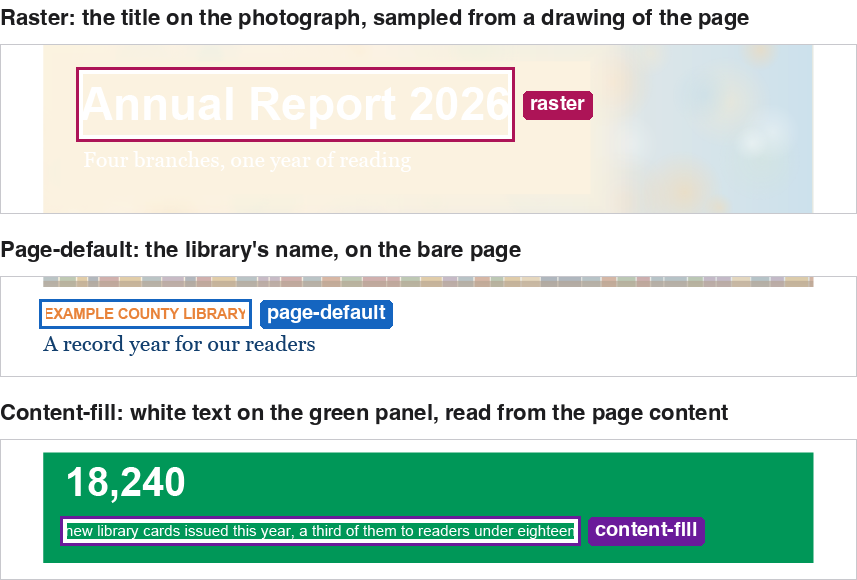
Figure 3. Three failures on the sample report's first page, each boxed and named by how its background was found: raster for the white title on the photograph, page-default for the library's name on the bare page, and content-fill for the white text on the green panel.
A fix acts only on findings whose background was read from the page content: page-default, content-fill or halo. A raster background, which is what text on a picture or a gradient gets, is measured well enough to report a failure and propose a color, but not well enough to rewrite a file unattended (Chapter 8).
Colors as the page draws them
Some colors are not drawn as their numbers say. The Adobe PDF Library, which the tool is built on, draws CMYK through a color profile, so 50% black ink is drawn as #949599, 2.99:1 on white, where the textbook formula says #808080 and 3.94:1. Measured by the formula, a mid-gray in ink would pass where the page shows it failing. So the tool draws these colors, once each, the way the page draws them, and measures what is drawn, both as text and as the background under it:
- every CMYK color, and every CMYK color in a profile, through that profile;
- a device color on a page that names a default color space for its family, which the page draws it in;
- every color, gray and RGB included, on a page that blends its transparency in a color space other than RGB;
- every spot ink, at its tint (below).
A CMYK color keeps its components in the report: its foregroundDocument still says C=0 M=0 Y=0 K=55, and the hex beside it is the color drawn. A color that cannot be drawn is not measured: the textbook formula is never used in its place, since the formula is what gives the false pass. Gray, RGB and Lab colors on a page that does not blend are drawn exactly as computed, so they are computed.
Spot inks
A spot color, such as a PANTONE ink, is drawn through a function in the file that says what the ink looks like, and only drawing it says which color that is. So the tool draws each ink once, at its tint, in the document's own definition of it, and measures text in it as drawn on screen. An opaque panel in a spot ink settles the background of the text on it from the page content, like any other filled shape. A spot ink's finding names the ink and its tint, such as “PANTONE 200 C at 100%, drawn #c12031”.
The color measured is the one a viewer shows without Overprint Preview: overprinting is not simulated, and how the ink prints on press is not the question.
Gradients
A gradient has no one color: it changes from point to point across the area it fills. So text on a gradient is measured from a rendering, like text on a picture, unless it has a halo wide enough to be its background (Chapter 6). Where the gradient's colors change across a single letter, no one ratio describes the text, which is why the report's last lines name text under shadings or patterns as not checked.
Colors the tool cannot read
Text in a color the tool cannot read is counted as undetermined: several inks at once (DeviceN), a palette of indexed colors, a pattern, or a color profile whose values are not plain 0 to 1 components. A filled shape in one of these is sampled from a rendering, like a picture. Lab colors are converted properly, through the color's own white point, and measured.
The size of a run's box
Both ways of finding the background ask about the run's box, and a PDF gives a run the height its font declares. Some fonts declare a box far taller than any letter they draw, which would reach a band of color well above or below the line. So a box that reaches further than a letter can is drawn in to the font's own ascent and descent. A box already within reach is left as it is, its width is never changed, and nothing is ever made larger.
8. Fixing a PDF
repair measures a PDF as check does, then writes a copy with the failing text recolored. It changes nothing unless asked, and never writes over its input. This chapter says what a repair changes, what it leaves for a person, and how to see its changes before it makes them.
A first fix
contrastwright repair -i report.pdf -o report_contrast.pdf
-o is required, and must not be the input, however it is spelled (Chapter 4). The repair prints its version line, then a line saying what it did, the file it wrote, and the check report of the input as it was before the repair:
Recolored 55 text runs on 1 page
Wrote report_contrast.pdf
The line counts runs, not findings: a finding can be several runs (Chapter 5). When some changes were outlined, it says so: “Recolored 4 text runs and outlined 6 on 1 page”, or “Outlined 6 text runs on 1 page” when nothing was recolored (Chapter 10). It always writes -o: when nothing could be fixed, the copy has no changes, saved again, so not byte for byte the same file, and the line says “Recolored 0 text runs on 0 pages”. A repair exits 2 whenever the input had failures, whatever it did about them, and 0 when the input had none, so its exit code says nothing about what it fixed: check the copy to see what is left.
contrastwright check -i report_contrast.pdf
On the sample report, a repair changes every failure but the two on the photograph:
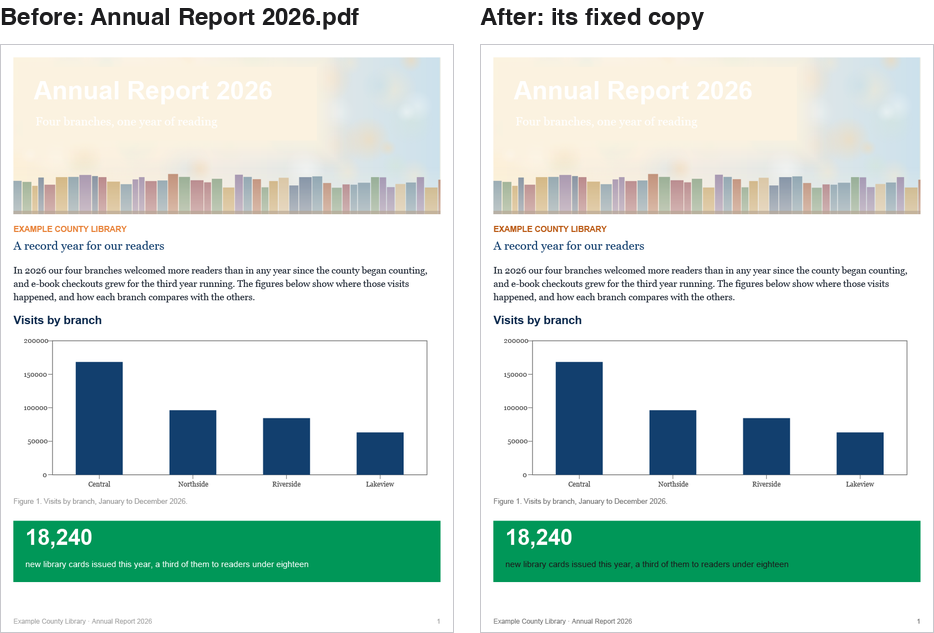
Figure 4. The sample report's first page before and after a plain repair, side by side. In the fixed copy the library's name, the chart's caption, the footer and the page number are darker, and the text on the green panel is near-black, #1c1c1c. The white title and subtitle on the photograph are unchanged: their background was sampled from a rendering, so they are left for a person.
Options for repair
repair takes every option check takes (Chapter 4), so it measures the way check would, and these:
| Option | Meaning |
|---|---|
| -o, --output F | The fixed copy to write (required). It must not be the input. |
| --report F | Also write the check report of the input, as it was before the repair, to F, in the format -f names. Without it, the text report is printed. |
| --dry-run | List the changes that would be made, and write no PDF. The reports the command asks for, such as --report, are still written. |
| --ops F | Make only the changes a reviewed file of proposed changes approves (Chapter 9). |
| --signed W | A signed document: refuse, the default, or warn, which writes it anyway (below). |
| --product C, --ticket T | The product the repair runs for, and the ticket ContrastWright Studio gives it (Chapter 14). |
Seeing the changes first
--dry-run measures, lists each change it would make, and writes no PDF:
  would recolor C0001 on page 1: #7a7a7a -> #767676 (12 runs)
  would recolor C0002 on page 1: #949494 -> #767676 (14 runs)

Would recolor 55 text runs on 1 page (dry run, nothing written)
To choose which changes are made, and to what color, review them in a file first: Chapter 9.
What a repair changes
A repair changes the color of failing text; it does not change the design of the page. It keeps the color's hue and saturation and moves only its lightness, as far as the text needs to pass, darker on a light background and lighter on a dark one. It writes the new color into the text's own color space, with only the numbers changed: text in CMYK stays CMYK, a gray stays a gray, and a color in a profile keeps its profile, which matters in a PDF/A file that would not allow a new RGB color.
- CMYK text keeps its inks. Darker adds black, with cyan, magenta and yellow as they were; lighter screens every ink back toward the paper, the way a tint of a swatch is made. Text in black ink alone stays in black ink alone. The new color is written in whole percents, and is exactly the color the report suggested: C=0 M=0 Y=0 K=66, not a mix of inks that a press would have to register.
- Every color the text's drawing mode paints is changed: the outline of text drawn only as an outline, and both the fill and the outline of text drawn with both. Each keeps its own color space, and the outline is judged as the page draws it.
- Every run of a finding is changed, and judged, at its own opacity and against its own background.
What a repair will not do
- Repaint a background. That changes the design of the page; darkening a word does not.
- Touch a spot (Separation) color. A spot tint is a press decision, with a plate and a cost behind it. Text in a process color on a spot panel is fixed like text on any panel: its own color changes, and the panel's ink never does.
- Change text whose background was sampled from a rendering or a picture. That is good enough to report a failure and propose a color, not good enough to rewrite a file unattended.
- Write a color into a space that cannot hold it: Lab, several inks at once (DeviceN), an indexed palette, or a gray outline round colored text. Lab text is measured and given a suggestion, but never rewritten.
- Write a signed document, or one whose security settings do not allow changes (below).
- Change text on a layer that is off in the document's default view. A reader never sees it there, so it stays reported, unchanged, and the repair names it.
- Outline text, unless a reviewed file chose the Outline fix for it (Chapter 10).
Those failures are reported for a person to fix, with a suggested color where one exists: a spot ink has none, because an ink has no lightness to move, and the designer chooses another. The repair says how many it left:
1 finding had no safe machine fix and is reported only.
Signed and protected documents
Any change to a signed document, even a faithful copy, leaves its signatures unable to verify. So a repair refuses a signed document, with exit 1, and writes nothing:
contrastwright: the document is signed (1 signature), and any change leaves
it unable to verify (--signed warn writes it anyway); nothing was written
--signed warn writes the copy anyway, and says so: sign it again afterwards. A document whose security settings do not allow it to be changed is refused the same way, and --signed does not change that:
contrastwright: the document's security settings do not allow it to be
changed; nothing was written
The messages are on one line; they are broken here to fit the page.
After a repair
Check the copy. A finding the repair left for a person is still there, and so is any text no color of its hue can make pass. A repair rewrites the content of each page it changes, and the PDF library joins neighboring runs that end up in the same color, so a copy often reports fewer runs than its original: a file of 683 runs can come back with 251. That is the same text, written more compactly, not text that was lost.
9. Reviewing the Changes Before a Fix
A plain repair makes every change the tool considers safe. A reviewed repair makes only the changes a person approved, each to the color they chose. The tool writes its proposed changes to a file; a person, or a program, reviews the file; and a repair given the reviewed file makes exactly those changes, after measuring every one again.
contrastwright check  -i report.pdf --emit-ops ops.json
contrastwright repair -i report.pdf -o fixed.pdf --ops ops.json
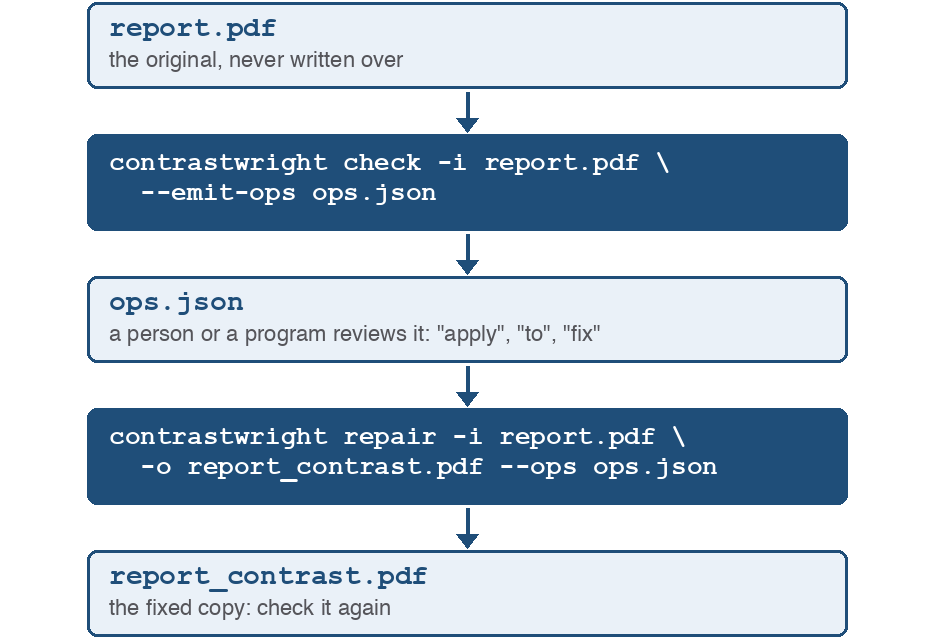
Figure 5. The reviewed repair in three steps: check with --emit-ops reads report.pdf and writes ops.json; a person or a program reviews ops.json, its apply, to and fix members; repair with --ops makes exactly those changes, in report_contrast.pdf, which is then checked again.
Between the two commands, open ops.json in any text editor or read it from a program. To leave a change out, set its "apply" to false. To give a change another color, edit its "to". Everything else in the file is information.
One change per color pair
One color is usually set on many runs of text, so the file groups the failures by color pair: “this gray becomes that gray, in these 43 places” is one decision, not 43. A change gathers the findings whose text color, background, size class and opacity are the same, and a single new color serves all of them.
The file of proposed changes
The file is JSON. It names the document it was made from and how it was measured:
{
 "version": 1,
 "tool": "contrastwright",
 "filename": "report.pdf",
 "inputHash": "sha256:c270d744...",
 "wcagLevel": "AA",
 "largeText": 18.0,
 "pages": "all",
 "ops": [ ... ],
 "manual": [ ... ]
}
| Member | What it holds |
|---|---|
| version | 1, or 2 when some change offers the Outline fix (Chapter 10). |
| tool, filename | The tool that wrote it, and the input as it was named. |
| inputHash | A fingerprint of the input's bytes. A review applies to that document and no other. |
| wcagLevel, largeText, pages | The -l, --large and -p it was measured with; pages is "all" or a list such as "2-4,7". |
| strokes, outlineSmall | Version 2 only: the Outline fix's options, which a repair then measures with too. |
| maxShift | With --max-shift: the limit it was made with (Chapter 11). |
| ops | The changes a repair can make, one per color pair. A change whose text is on a layer that is off is listed too; a repair leaves that text as it is, and says so. |
| manual | The failures no machine fix reaches, grouped the same way, with the reason. |
Each change in ops looks like this:
{
 "op": "recolorText",
 "key": "#949494|#ffffff|N|a1.000",
 "apply": true,
 "from": "#949494",
 "on": "#ffffff",
 "to": "#767676",
 "fromDocument": "R=148 G=148 B=148",
 "onDocument": "paper white",
 "toDocument": "R=118 G=118 B=118",
 "required": 4.5,
 "worstRatio": 3.0334070615768813,
 "newRatio": 4.542224959605253,
 "runs": 43,
 "sample": "FAIL 3.03:1 - #949494 clears the large-text bar but this run...",
 "pages": [ 1 ],
 "findings": [ "C0002", "C0003", "C0004", "C0005" ],
 "greyOnly": false
}
| Member | What it holds |
|---|---|
| key | The change's name, which the findings' opKey matches. It holds # and |, so quote it on a command line. |
| apply | true as written: make the change. false leaves it out. |
| from, on, alpha | The text color, its background, and its opacity when it is translucent. |
| to | The new color, as #rrggbb: the tool's proposal, or yours. |
| fromDocument, onDocument, toDocument | The same colors as the document names them; toDocument is the new color as the repair writes it into the text's own color space. |
| required, worstRatio, newRatio | The ratio needed, the worst ratio among the change's runs now, and the worst one to reaches. |
| runs, sample, pages, findings | How many runs the change makes, a sample of their text, their pages, and the findings' ids as in the report. |
| greyOnly | true when some run in the change is set in a color space that holds only a gray: choose a gray for it. |
Version 2 adds fix and the Outline fix's members (Chapter 10), and --max-shift adds shift and overShift (Chapter 11). A repair reads only key, apply, to, and in version 2 fix and the outline's to: the rest is there for the person or program reviewing.
Failures with no machine fix
Each entry in manual has key, noFixReason, from, on, alpha, a suggested color and its newRatio where there is one, and the same counts and lists as a change. Its noFixReason says why no repair makes the change:
| noFixReason | Why there is no machine fix |
|---|---|
| no-passing-colour | No color of this hue reaches the ratio on this background. At 50% opacity, not even black does. No suggestion. |
| spot-colour | A spot color is an ink, not a lightness. No suggestion: the finding names the ink and its tint, for the designer to choose another. |
| raster-backdrop | The background was sampled from a rendering of the page. |
| colour-space | A color the text paints is in a space that cannot hold the new value: Lab, an ink, a palette, a gray outline round colored text, or an outline in which no color reaches the ratio as the page draws it. |
The reasons keep the spelling they were given when the file was first defined, so a program that reads them keeps working.
What a reviewed repair does
repair --ops makes the changes marked "apply": true, each to its "to", and leaves every other fixable finding as it is, and says so:
Recolored 43 text runs on 1 page
1 finding left unchanged: the review did not approve its change.
It still writes -o, as an unchanged copy if nothing was approved. Nothing in the file about ratios or backgrounds is believed: each approved color is measured again, run by run, against the document as this repair finds it, at each run's own opacity.
What it refuses
A review that cannot be followed exactly is refused, with exit 1 and nothing written. Before any work:
- a file that is not a version 1 or 2 file of proposed changes;
- a file made from a different document, by its fingerprint: a review of one PDF cannot be applied to another, or to the same one after it changed;
- a file measured with another -l, --large or -p;
- an apply that is not true or false, a to that is not #rrggbb, a fix the tool does not make, or one change approved twice.
After measuring:
- an approved change the document does not have, or has no machine fix for;
- a to that does not reach the ratio required for every run of its change, on that run's own background;
- a to that a color space the text is set in cannot hold.
Each refusal says what to correct:
contrastwright: the review would recolor #949494|#ffffff|N|a1.000 to #8a8a8a,
which reaches 3.45:1 on #ffffff for C0002; 4.50:1 required
contrastwright: nothing was written: the review in review.json needs
correcting first
The messages are on one line each; they are broken here to fit the page.
Testing a review
Add --dry-run to a reviewed repair to test the review without writing the PDF. It makes the same refusals, or lists the changes it would make, each in its approved color:
contrastwright repair -i report.pdf -o fixed.pdf --ops ops.json --dry-run
That is the exact test. To judge a single color while choosing it, ask the contrast verb (Chapter 12): with the change's key and the PDF, it judges the color the way the repair will.
A color chosen by its look
A color picker hands back a hex code, which is how a color looks on screen. For text the page draws differently from its numbers, such as text in CMYK, the hex is not what the page would show if it were written by arithmetic: #6e6e6e written as the textbook CMYK is drawn as #87888b, 3.54:1 on white, where #6e6e6e itself reaches 5.09:1. So a color you choose is written as the ink that is drawn at its lightness: for text in black ink alone on white, #6e6e6e is written as K=71, which is drawn as #6c6c6e, 5.23:1. Text in black ink alone stays in black ink alone, and a color of another hue is written in the inks its arithmetic gives. Where no ink can be drawn as dark as the color you chose, the darkest it can is written, and judged like any other.
10. The Outline Fix
A recolor is the first fix and the default. The Outline fix is offered beside it, for a person to choose: the text keeps its own color, and its letters are outlined in a color that reaches the ratio against the background. It is the yellow on white that a recolor would turn dark gold, kept yellow and drawn round in dark gold.
WCAG 2.2's definition of the contrast ratio takes a narrow border round letters as part of the letters, so an outlined letter is judged by its outline, as Chapter 6 describes. The tool does not outline text on its own: an outline is made where a reviewed file of proposed changes chose it, or, with --max-shift, where the plan proposes it in place of a recolor that would move a color too far (Chapter 11).
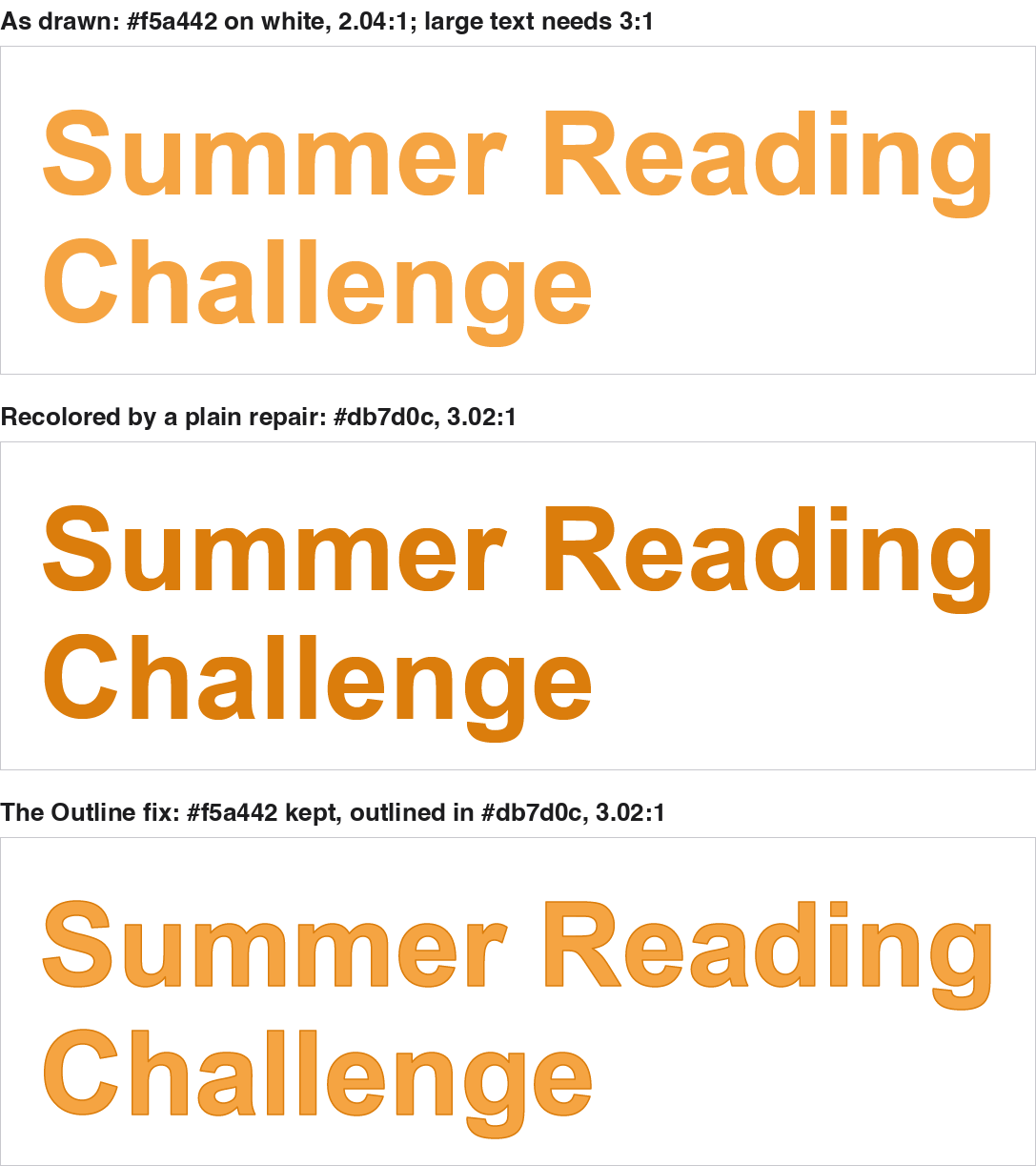
Figure 6. A sample flyer's 40-point heading, Summer Reading Challenge, three ways: as drawn, #f5a442 on white at 2.04:1, where large text needs 3:1; recolored by a plain repair to #db7d0c, 3.02:1; and with the Outline fix, its #f5a442 kept and its letters outlined in #db7d0c, 3.02:1.
Asking for it
contrastwright check  -i report.pdf --strokes outline --emit-ops ops.json
contrastwright repair -i report.pdf -o fixed.pdf --ops ops.json
--strokes outline asks the check to offer the Outline fix wherever it can be made. The text report then adds a line under each finding: the outline it offers, or why it has none:
         suggest #b19100 (same hue) to reach 3.00:1
         or outline it #b19100, 0.50pt, the fill kept: 3.03:1
         no outline: normal-size text, where an outline closes the letters'
counters (--outline-small offers one)
The lines are one line each in the report; the last is broken here to fit the page.
Between the two commands, choose the outline for a change by setting its "fix" to "outline" in the file, and edit the outline's "to" if you want another color. A repair given --strokes outline measures the same way and reports the same offers, but without --ops or --max-shift it outlines nothing.
Where it is offered
The Outline fix is offered for large text only, unless you add --outline-small: at 12 points, a half-point outline covers about half the width of a typical letter's stem, and the letter loses its shape. The background must have been read from the page content, as for every machine fix. Text with an outline already keeps it: the outline is recolored where it falls short, widened to half a point where it is thinner, and made solid where it is dashed.
Where there is no Outline fix, the JSON report and the file of proposed changes say why in one word, and the text report in a sentence:
| Reason | Why there is no Outline fix |
|---|---|
| raster-backdrop, undetermined | The background was not read from the page content. |
| small-text | Normal-size text; --outline-small offers it one. |
| render-mode | The text is drawn only as an outline already; it is recolored as it is. |
| type3-font | A Type 3 font draws its letters by itself, and cannot be outlined. |
| uneven-scale | The text is drawn stretched more one way than the other, so no one line width describes its outline. |
| spot-colour | A spot color: an outline in another ink is a decision for the press. |
| colour-space | The outline's color space cannot take the color. |
| no-passing-colour | No color along the text's own color's path reaches the ratio. |
| mixed-outlines | No one outline color serves every run of the change, as with black set in RGB on some runs and in CMYK on others. |
Its color and its width
The outline's color is found from the text's own: for text with no outline yet, from its fill, written in the fill's own color space, so CMYK stays CMYK and a color in a profile keeps it; for text with an outline, from the outline. So it keeps the hue. It is judged at the outline's own opacity, which the fix never changes.
The outline is half a point wide as drawn on the page, or the outline's own width where that is wider, whatever scaling the page applies to the text. Its corners and ends are made round, since a sharp join puts a spike on every corner of a letter, and it is drawn solid.
In the file of proposed changes
Where some change offers an outline, the file is version 2, so that a tool that knows only version 1 refuses it rather than recolor a change whose review chose the outline. Every change then has a fix, which the tool writes as "recolor": the recolor is proposed, and the outline offered. With --max-shift, a change the limit holds back can have "outline" there instead (Chapter 11). A change every run of which can be outlined in one color has an outline:
"fix": "recolor",
"outline": {
 "to": "#b19100",
 "toDocument": "R=177 G=145 B=0",
 "width": 0.5,
 "newRatio": 3.0348654507047166
},
Any other change has an outlineReason, one of the reasons above. To choose the outline, change "fix" to "outline". The repair measures the outline again, run by run, at each run's own opacity and against its own background, and refuses the review, writing nothing, if any run cannot take the outline or its color does not reach the ratio. A color of your own in the outline's "to" is written as the ink that is drawn at its lightness, as for a recolor (Chapter 9).
In the JSON report each finding has an outlineFix: {"offered": true} with the outline's to, toDocument, width and ratio, or {"offered": false} with the reason.
11. Keeping a Design Close
A recolor keeps the hue and moves only the lightness, but some colors have to move a long way to pass. Yellow on white is the usual case: #ffd100 becomes #b19100, a dark gold, which reads but is no longer the brand's yellow. --max-shift sets how far a recolor may move a color before it is held back for a person to decide.
Setting a limit
contrastwright check  -i report.pdf --strokes outline --max-shift 0.15 \
    --emit-ops ops.json
contrastwright repair -i report.pdf -o fixed.pdf --strokes outline \
    --max-shift 0.15
The limit is a lightness, greater than 0 and less than 1: the change in the L of HSL between the color as the page draws it and the color a recolor would give it. 0.15 is 15%, and keeps a design close. A change that moves exactly the limit is within it. Without --max-shift, every recolor is made as before.
What the limit does
A change within the limit is recolored, as ever. A change that would move further is held back:
- Where --strokes outline offers it an Outline fix, its outline is proposed in its place: the text keeps its color and is outlined (Chapter 10).
- Otherwise its recolor is proposed but not approved: the text is left as it is, for a person to decide.
The text report says so under the finding:
         suggest #b19100 (same hue) to reach 3.00:1
         its recolor moves the lightness 0.153, past --max-shift 0.15: held
back, for a review to approve
On the sample report of Chapter 8, a plain repair turns the white text on the green panel near-black, a move of 0.89 in lightness. With --max-shift 0.15 that change is held back for a person, and so are the footer's grays, at 0.18, and the library's name, at 0.16; the chart caption's gray, at 0.14, is recolored as before.
The report's lines are one line each; the second is broken here to fit the page. The JSON report adds maxShift, and shift and overShift on each finding a repair could recolor: how far its recolor would move, and whether that is past the limit.
Who decides
A repair without --ops makes the plan as proposed: it recolors the changes within the limit, outlines those it proposes outlining, judging each outline as a reviewed one is judged, and leaves the rest as they are:
Recolored 2 text runs and outlined 2 on 1 page
1 finding left unchanged: its recolor would move the lightness further than
--max-shift 0.15.
A review decides for itself. In the file of proposed changes, a held-back change has "apply": false, or "fix": "outline" where its outline is proposed, and its shift and overShift say why. Change them as for any review: repair --ops does what the review says, whatever --max-shift proposed, so a reviewer can still choose the recolor of a change the limit held back.
Use --max-shift when a design's colors matter more than reaching the ratio by recoloring alone: a brand palette, a printed piece whose colors were approved, a document a designer will finish by hand.
12. Judging One Color Pair
contrast judges one pair of colors, exactly as the check judges a run of text: blended at the text's opacity, against the ratio its level and size require. It reads no PDF, so it answers at once, and it prints one line of JSON, so a program can ask it while a person picks a color. ContrastWright Studio asks it the same way.
contrastwright contrast --fg "#949494" --bg "#ffffff"
The answer, shown here on several lines:
{"fg":"#949494","bg":"#ffffff","alpha":1.0,"fgDrawn":null,
 "large":false,"wcagLevel":"AA","ratio":3.0334698257384747,
 "required":4.5,"pass":false,"suggested":"#767676",
 "suggestedRatio":4.542224959605253,"fgDocument":null,
 "suggestedDocument":null,"outlineDrawn":null,
 "outlineDocument":null,"outlineRatio":null}
It exits 0 when the pair passes, 2 when it fails, and 1 when an argument is wrong, such as a color it cannot read.
Options for contrast
| Option | Meaning |
|---|---|
| --fg C | The text color: #rgb, #rrggbb, or #rrggbbaa with its opacity (required). |
| --bg C | The color behind it, as it is seen: #rgb or #rrggbb, with no opacity (required). |
| --alpha A | The text's opacity, from 0 to 1, in place of any in --fg (1 without either). |
| --size PT, --bold | The text's size on the page, and whether it is bold; without --size it is judged as normal text. |
| -l, --large | The level and the large-text size, as for check (Chapter 4). |
| --space K | Also name the color, and any suggestion, as a repair would write them into text of the kind K: gray, rgb, cmyk or lab. |
| --palette F | Also name the nearest color in the palette file F that passes (below). |
| -i F, --page N, --change K | Judge the color as the text of one change in a PDF is drawn (below). |
| -i F, --check-pages L, --change K | In place of --page: judge the color for every run of the change, exactly as a reviewed repair will. |
| --fix outline, --outline-small | With --check-pages: judge the color as the change's outline instead. |
An opacity in --fg is in steps of 1/255: #00000080 is 128/255, 0.502, not 0.5, which is enough to move a ratio from 3.97:1 to 4.00:1. Give --alpha for an exact one.
The answer
| Member | What it holds |
|---|---|
| fg, bg, alpha | The pair asked about, and the text's opacity. |
| large, wcagLevel | Whether the text counts as large, and the level. |
| ratio, required, pass | The ratio at full precision, the ratio needed, and whether the pair passes. |
| suggested, suggestedRatio | A passing color of the same hue and its ratio; null when the pair passes, or when no color of its hue can. |
| fgDocument, suggestedDocument | With --space, or with --change: the color and the suggestion as a repair would write them, such as C=0 M=0 Y=0 K=42. |
| fgDrawn | With --change: the color the page draws for the text, which ratio is worked from. |
| outlineDrawn, outlineDocument, outlineRatio | With --check-pages: the outline that reads worst, as drawn, as written, and its ratio. |
| seen | For translucent text only: its color as seen, blended with the background. |
| palette | With --palette: the nearest passing palette color, or null. |
Every member is always there, as null where it does not apply, except seen, palette, and the fix and width that an answer for --fix outline adds.
A color as a repair would write it
--space names the color and the suggestion in a kind of text, the way a repair would write them:
contrastwright contrast --fg "#949494" --bg "#ffffff" --space cmyk
gives "fgDocument":"C=0 M=0 Y=0 K=42" and "suggestedDocument":"C=0 M=0 Y=0 K=54". The ratio and the hex codes do not change. A gray holds only a gray, so with --space gray a color that is not one is named in RGB.
Without a PDF, contrast draws nothing, so its CMYK is the textbook formula's, and the page would draw K=54 lighter than #767676. For text in CMYK, ask about the change itself, as the next section describes.
Judging a change in its PDF
For text the page draws differently from its numbers, such as CMYK, a spot ink or any color on a page that blends, no arithmetic gives the color. So contrast can ask about one change in its document, by the change's key in a file of proposed changes (Chapter 9):
contrastwright contrast --fg "#6e6e6e" --bg "#ffffff" -i brochure.pdf \
    --page 1 --change "#818284|#ffffff|N|a1.000|inkcef989c1"
--page takes the key of such a change, which ends in |ink and eight hex digits; for any other change, use --check-pages, below. It checks that page as check does, without drawing it, finds the change's runs by its key, and judges the color as a reviewed repair will: written as the ink drawn at its lightness (Chapter 9), drawn as the text is, against the background. fgDocument names the ink it is written as, and fgDrawn the color drawn. Put the key in double quotes: it holds # and |.
Text that is both filled and outlined is judged run by run, because one change's outlines can differ. Give the change's pages, as its "pages" in the file, with --check-pages in place of --page:
contrastwright contrast --fg "#6e6e6e" --bg "#ffffff" --size 14 \
    -i brochure.pdf --check-pages 1 --change "#999999|#ffffff|N|a1.000"
The pages are checked, and the color judged for every run of the change, its fill and its outline, each on its own background, exactly as repair --ops judges it. It costs a check of those pages, still without drawing them. With --fix outline, the color is judged as the change's Outline fix instead (Chapter 10).
A color a run cannot hold, or a change whose runs on that page are outlined when --page was given, is refused, with exit 1.
Palettes
A palette file names a brand's approved colors:
{ "name": "Example brand",
  "colors": [ { "name": "Green",      "hex": "#009758" },
              { "name": "Dark Green", "hex": "#00653a" } ] }
A plain list, [ "#009758", "#00653a" ], is read too. The colors are opaque, #rrggbb or #rgb. With --palette, the answer gains the palette color that passes on the background and is nearest the original, by the CIEDE2000 measure of color difference, a tie going to the earlier entry:
"palette":{"name":"Dark Green","hex":"#00653a",
           "ratio":7.185457030338044,"deltaE":17.67004929094352}
It is null when no palette color passes. CIEDE2000 measures near colors well, which is what a palette's shades of one color are; across very different colors it only ranks them, and a saturated color can come out nearer a mid gray than black does.
13. Drawing a Page
render draws one page of a PDF as a viewer shows it, on white, with its annotations and its text smoothed for reading, into a PNG picture. It prints one line of JSON saying how the page was drawn, which is what lets a program draw a finding's box onto the picture. ContrastWright Studio's Page tab shows each finding on its page this way.
contrastwright render -i report.pdf --page 1 -o page-1.png
The answer, shown here on several lines:
{"page":1,"pageCount":1,"dpi":96.0,"width":816,"height":1056,
 "matrix":[1.3333282470703125,0.0,0.0,-1.3333282470703125,
           0.0,1055.9959716796875],
 "rotate":0,"cropBox":[0.0,0.0,612.0,792.0],
 "output":"/Users/me/page-1.png"}
Options for render
| Option | Meaning |
|---|---|
| -i, --input F | The PDF (required). |
| --page N, -p N | The page to draw, counting from 1 (required). One page: a range is refused. |
| -o, --output F | The PNG to write (required). Never the input, and never a folder. |
| --dpi N | The picture's resolution, from 36 to 600 dots per inch (96 without it). The PNG records it. |
The picture is 8-bit RGB. A page over 100 megapixels is refused, asking for a lower --dpi: 600 dots per inch on a tabloid page is 67 megapixels, and a 36 by 48 inch poster at 300 is 155. render exits 0 when the PNG was written, and 1 otherwise, with the reason and no PNG left behind. Nothing but the JSON line is printed on the standard output, not even the version line, so a program can read it whole.
The matrix
The matrix is the point of the answer. It maps a point of a finding's bbox, in PDF points in the page's own space before rotation or cropping, to a pixel of the PNG, counted from its top left corner with rows growing down. For a matrix [a, b, c, d, e, f] and a point (x, y):
column = a*x + c*y + e
row    = b*x + d*y + f
It is the very matrix the page was drawn with, and the one the tool measures with when it samples a background from a rendering, so a box drawn over the picture lands where the measurement looked. To draw a finding's box, map its four corners and take their bounds: the matrix already holds the page's rotation and crop, so no arithmetic of your own is needed for either. rotate and cropBox are there for information. The figure in Chapter 4 was drawn this way: each box is a finding's bbox from the JSON report, mapped through the matrix of a page drawn at 110 dots per inch. The matrix's numbers can be off by a few thousandths of a pixel, as above.
The picture differs from the drawing a check samples in one way: its text is smoothed for reading, where the check's drawing leaves it sharp, because it samples the pixels round each letter.
14. The License
check, contrast and render run without a license. What a license buys is repair: a fixed copy of a PDF. This chapter says which license the tool answers to, and how to see the one it finds.
Two products
Two products run this tool, each with its own license:
| Product | Code | What it licenses |
|---|---|---|
| ContrastWright | CTWR | This tool, on its own: every verb, from a terminal, a script or a server. A run that names no product runs as ContrastWright. |
| ContrastWright Studio | APCC | The desktop app. It runs the tool only for what the app starts: a repair it runs names --product APCC and carries a ticket the app made for exactly that PDF. A ContrastWright Studio license used from the command line repairs nothing. |
The license number is entered when the product is installed, and the installer keeps it where the tool reads it. The tool itself never changes a license.
Seeing the license the tool finds
contrastwright license
It prints one line of JSON and exits 0. Shown here on several lines, for a computer with a good ContrastWright license:
{"checked":"installed","product":"CTWR","productName":"ContrastWright",
 "licence":"CTWR_10","number":"PPPP-HHHL-BBVV-****-****-SSSS",
 "licensed":true,"problem":"","message":"License is valid.",
 "enforced":true,"repair":true,"ticketed":false,"ticketKey":false}
| Member | What it says |
|---|---|
| checked | "installed", the license this computer holds, or "candidate", a number given with --verify. |
| product, productName | The product asked about: CTWR, ContrastWright, unless --product names APCC. |
| "licence" | The license the product answers to, such as CTWR_10. The member keeps the spelling it was first given. |
| number | The license number, never whole: its random part and check digits are starred. |
| licensed | Whether the number is good for this product, here. |
| problem, message | When it is not, one word for a program and a sentence for a person (below). |
| enforced | Whether this build of the tool requires the license for repair. |
| repair | Whether repair runs: licensed, or not enforced. For APCC, it means with the app's ticket. |
| ticketed, ticketKey | Whether the product repairs only with a ticket (APCC does), and, for such a product, whether this build holds the key to check its tickets. Both are false for ContrastWright. |
problem is one of blank, mistyped, not-a-number, wrong-length, expired, wrong-product, wrong-platform, wrong-version, wrong-computer, demo or invalid, and empty when the license is good.
Checking a number before it is installed
--verify checks a license number you give, rather than the one installed, against what it says it is for. It installs nothing:
contrastwright license --verify PPPP-HHHL-BBVV-RRRR-CCCC-SSSS
A good number for another Appligent product says so: its problem is wrong-product, and for names the license it is good for, because “you mistyped it” and “you have a number for another product” need different answers.
When there is no license
Where the license is enforced, a repair with no good ContrastWright license refuses before doing any work, with exit 3, and writes nothing. --dry-run is a repair too, and is refused the same way; check --emit-ops still shows the changes a repair would make (Chapter 9). check, contrast and render run as before.
With -v, a licensed repair names its license on its first line, such as:
info: contrastwright licensed as CTWR_10 (ContrastWright) - licensed
(License is valid.)
The line is one line; it is broken here to fit the page.
15. Scripts, Exit Codes and Messages
The tool is built to be run by scripts and servers: it says what it found in its exit code, it keeps its reports and its messages apart, and its JSON is meant to be read by a program. This chapter collects what a script needs.
Exit codes
| Exit | Meaning |
|---|---|
| 0 | It ran, and nothing failed. For contrast: the pair passes. A warning alone, such as a page that is only a picture, leaves it 0. |
| 2 | It ran, and found contrast failures. For repair, 2 means the input had failures, whatever the repair did about them. For contrast: the pair fails. |
| 1 | It could not do its job: it could not open the file, an option or a value was wrong, a review was refused, or a file it was asked to write could not be written. The reason is on its last line that starts “contrastwright:”. A --report that repair cannot write is the exception: the reason is printed, and the exit stays what the check found. |
| 3 | repair was refused: this computer has no good license for it (Chapter 14). |
A script can rely on these: exit 2 is a result, not an error. But exit 0 is not a pass by itself: the tool also exits 0 when some text could not be measured, or none was. Read the report's measured counts before calling a file clean.
What goes where
- The standard output carries the version line, a report printed in the terminal, and a repair's summary: “Recolored 55 text runs on 1 page”, “Wrote …”.
- The standard error carries the tool's messages, each starting “contrastwright:”, and the lines -v adds.
- contrast, render and license print one line of JSON on the standard output and nothing else.
So a script that wants the report writes it to a file with -o, and keeps the standard error for its log.
Is this file clean?
A file passes when the check exits 0, found no failures, measured some text, and left none undetermined. From the JSON report:
| Member | For a clean file |
|---|---|
| summary.error | 0: no failures. |
| measured.runs | More than 0: text was measured. |
| measured.undetermined | 0: no text whose background was not settled. |
| measured.imageOnlyPages | Empty: no page that is only a picture. |
ContrastWright Studio reads the same counts before it calls a file clean.
Checking a folder
In Terminal, or a shell script on a Mac, this checks every PDF in a folder and writes a JSON report beside each:
for f in reports/*.pdf; do
  contrastwright check -i "$f" -f json -o "${f%.pdf}-contrast.json"
  echo "$f: exit $?"
done
In PowerShell on Windows:
Get-ChildItem reports\*.pdf | ForEach-Object {
  $out = Join-Path $_.DirectoryName ($_.BaseName + "-contrast.json")
  contrastwright check -i $_.FullName -f json -o $out
  "$($_.Name): exit $LASTEXITCODE"
}
And to fix every file, writing each fixed copy beside it with _contrast added to its name:
for f in reports/*.pdf; do
  contrastwright repair -i "$f" -o "${f%.pdf}_contrast.pdf" \
      --report "${f%.pdf}-before.txt"
done
Run the same loop twice and the second run also fixes the first run's copies: keep the fixed copies in a folder of their own.
What -v prints
-v writes, on the standard error, the document's page count, then one line per page checked:
pages: 39
  page 1: 39 text runs, 1 fill, 2 images, 0 shadings, 0 runs skipped,
0 leaders skipped [paths 1 seen / 1 filled / 0 lost, 0 unmodeled elems]
Each page's line is one line; it is broken here to fit the page. pages: N is the document's page count, whatever -p selects, and the page lines carry the document's page numbers, so a program can show “page 12 of 39” as it goes. A page that is only a picture ends its line with “-- image-only page”, and text hidden under a shape adds a line after its page's.
Messages
The tool's messages start “contrastwright:”. The ones a script meets most often:
| Message | What it means, and what to do |
|---|---|
| could not open "…" | The file is missing, is not a PDF, or is damaged. Check the path; open it in a PDF viewer. |
| -o names the input file itself (…); the input is never written over | An output names the PDF being read. Give it another name (Chapter 4). |
| -o and --report name the same file (…) | Two outputs name one file. Give each a file of its own. |
| -f csv needs an -o file to write to | CSV and JSON go to a file: add -o. |
| unknown option "…", unknown level "…" | A misspelled option or value, or an option this verb does not take. For check and repair, the help follows the message. |
| the document is signed (…) | repair refuses a signed document: --signed warn writes it anyway, and it must be signed again (Chapter 8). |
| the document's security settings do not allow it to be changed | repair cannot write it. Remove the restriction with the document's password, or ask its author. |
| the review would recolor … which reaches … | A color in a reviewed file of proposed changes does not pass for every run. Choose a darker or lighter one (Chapter 9). |
| nothing was written: the review in … needs correcting first | A reviewed file was refused. The lines before it say why. |
A message's wording can change from one version of the tool to the next. A script should go by the exit code, and read the message only to show it to a person.
16. Known Limitations
The tool measures what a PDF paints, and a PDF can paint in more ways than any tool models. This chapter lists what the tool does not model, and how each one shows in a report. Most are rare; a few err toward reporting a failure rather than hiding one, which is the right direction for an accessibility check.
Colors
- Colors are measured as the Adobe PDF Library draws them, at its default settings. For CMYK grays that agrees within an 8-bit step with U.S. Web Coated (SWOP) v2, a common default CMYK working space. A viewer set to another working space, or showing Overprint Preview, draws CMYK differently, and so does a printing press.
- Gray and RGB in a color profile, and calibrated gray and RGB, are computed on a page that does not blend. Their numbers are taken as they are, without the profile's curves. For an sRGB profile that is exact; for another it is close: a gray of 0.5 in a gamma-2.2 profile is drawn as #818181, where the numbers say #808080. On a page that blends they are drawn and measured as drawn, and CMYK in a profile always is.
- Spot inks are measured as they are drawn on screen. Overprinting is not simulated. Text in several inks at once (DeviceN) or in an indexed palette is not measured, and a panel in one is sampled from a rendering.
- Translucent text on a page that blends is blended here in sRGB, after its color is drawn, where the page blends it in its own color space: a small difference, and only for text that is both.
- A form's own default color spaces are not read. A device color is drawn in the page's default color space when the page names one, but a form drawn on the page can name its own, and its colors are then measured as on the page.
Backgrounds
- A background very close to the text's own color can be missed. A rendering is sampled ignoring every pixel within a small distance of the text's colors, as its letters, and every color that covers less than a tenth of the sample, as noise. So text that runs onto a panel of nearly its own color can be measured against the rest of its background, and pass.
- A shape's clipping path is not looked at. A panel is taken where its outline paints, so a panel clipped away from under the text still counts as its background.
- A soft mask is not modeled. An opacity mask, a feather or a drop shadow makes what is painted after it partly transparent, by an amount the tool does not read: a panel painted under one is taken as opaque.
- Opacity inside a form is multiplied by the opacity the form is drawn at, where PDF sometimes replaces it. That reports more transparency than there is, only when both set one, and errs toward reporting a failure.
- The rendering's filter for a run's own letters knows the page's blending, not a form's. Text inside a form that blends in a space of its own, over a background only the rendering can see, can have some of its own pixels counted as background.
- A repair can stop a page from blending. A repair rewrites each page it changes, and keeps only the resources the new content uses. A page that blended only because it named transparency nothing used loses it, and its colors are then drawn, and measured by a re-check, as on a page that does not blend.
Text that is covered or clipped
- Text under a later picture, or only partly covered, is measured as if it showed. The background is what is painted before the text, and of what is painted after it only an opaque shape that covers all of it is looked at (Chapter 6). So text a photograph is later placed over, invisible on the page though a screen reader still reads it, is measured against what is under it.
- Text drawn outside its own clip is measured as if it showed. A run's clipping path is not read.
- An outline that fails round a fill that passes is not reported, since the letter reads by its fill (Chapter 6). An outline is judged on its own only when a repair writes it.
Spaces, leaders and pictures
- Whether a run is only spaces is decided by what its font says. A font that names its glyphs keeps a visible glyph measured whatever else it claims, but a composite font names none, and there the tool has only the font's word for what each character is. A font that mapped a visible glyph to a space would have it skipped.
- A leader is known by its characters, not by where it sits. A run of one leader character repeated five times or more is taken for decoration wherever it is: a fill-in line of low lines on a form, a rule typed as hyphens, or “.....” in a table. A leader drawn one dot to a run is not recognized, and is measured.
- A picture is recognized only when it fills the page. The image-only warning needs pictures over 90% of the page. Text in a smaller picture, such as a figure with its labels drawn into it, is not measured, and only the report's last lines say so. Lettering converted to outlines is neither text nor a picture, so a page of it is neither measured nor named.
Glossary of Terms
Alpha
How solid a color is painted, from 0 (fully transparent) to 1 (fully opaque). The tool measures translucent text as a reader sees it, blended with what is behind it.
Background
What is painted behind a run of text, against which its contrast is measured: the bare page, a filled shape, a picture, or a halo. A PDF has no background color of its own; the tool finds it from what was painted before the text, or from a drawing of the page.
CMYK
A color given as amounts of cyan, magenta, yellow and black ink, as for print. The tool measures CMYK text as the page draws it, which can differ from simple arithmetic, and a fix keeps it in CMYK.
Color space
The system a PDF names a color in, such as RGB, gray, CMYK, a color profile, Lab or a spot ink. A fix writes the new color into the text's own color space.
Contrast ratio
WCAG's measure of the difference in lightness between two colors, from 1:1 (the same) to 21:1 (black on white), computed from their relative luminance.
Finding
One failure in a report: a run of text, or the pieces of one stretch of a line that fail alike, with its page, place, colors, ratio and any suggested color.
Fixed copy
The PDF a repair writes, with the failing text recolored. A repair never writes over its input.
Halo
A copy of text's own letters stroked under it, so the stroke shows round the letters. A halo wide enough is taken as the text's background; a narrower one counts as part of the letters.
Hex code
A color written as # and six hexadecimal digits, giving its red, green and blue amounts, such as #767676. The tool writes every color this way, as it is seen on screen.
Large text
Text of 18 points or more, or 14 points or more when bold, which WCAG lets meet a lower contrast ratio: 3:1 at Level AA, 4.5:1 at Level AAA. The size is the one a reader sees, after the page's scaling.
Leader
The row of dots or dashes a table of contents draws from an entry to its page number. It is decoration, and the tool skips it.
Level AA
The level of WCAG 2.2 conformance most laws and policies require. Its text contrast criterion, 1.4.3 Contrast (Minimum), asks 4.5:1 of normal text and 3:1 of large text.
Level AAA
WCAG 2.2's highest level of conformance. Its text contrast criterion, 1.4.6 Contrast (Enhanced), asks 7:1 of normal text and 4.5:1 of large text.
Lightness limit
The most a recolor may move a text color's lightness, set with --max-shift. A change that would move further is held back, or outlined in its place.
Outline fix
A fix that keeps the text's own color and outlines its letters in a color that reaches the ratio. It is made only where a review chose it, or a lightness limit proposes it.
Proposed changes
The file check --emit-ops writes: the changes a repair would make, one per color pair, for a person or a program to review before repair --ops makes them.
Relative luminance
How light a color is to the eye, from 0 for black to 1 for white, as WCAG defines it. The contrast ratio is computed from it.
Rendering
A drawing of a page that the tool makes to find a background the page content cannot settle, such as a picture or a gradient. --dpi sets its resolution, and --no-raster turns it off.
Review
A reading of a file of proposed changes, in which a person or a program approves or leaves out each change and may choose its color.
Run
A piece of text a PDF draws in one go, with one font, size and color: a line, a word, or part of one. The tool measures each run.
Spot color
A color printed with an ink of its own, such as a PANTONE ink, rather than mixed from cyan, magenta, yellow and black. The tool measures it as drawn on screen, and never changes it.
Suggested color
A color of the same hue as the text that reaches the ratio, moved in lightness only as far as it needs to be. A repair writes it.
Undetermined
Text whose background or color could not be settled, so it was not measured. It is counted, and never counted as passing.
Warning
A report entry that is not a contrast failure, such as a page that is only a picture, whose text could not be measured. A warning alone leaves the exit code 0.
WCAG 2.2
The Web Content Accessibility Guidelines, version 2.2, from the World Wide Web Consortium. Its success criteria 1.4.3 and 1.4.6 set the contrast text needs.