
1. Introduction
ContrastWright™ Studio checks the color contrast of the text in PDF files against the Web Content Accessibility Guidelines (WCAG) 2.2, explains every failure in plain words, and writes a copy of each file with the text colors it can fix by itself fixed. Text that is too light for what is behind it is one of the most common reasons a document fails an accessibility review, and one of the hardest to find by eye: a gray that looks fine on a bright monitor can be unreadable to a reader with low vision, on a phone in sunlight, or on a printed page.
ContrastWright Studio is the desktop front end for ContrastWright, Appligent's command-line contrast tool, whose command is contrastwright. Every number ContrastWright Studio shows, from each contrast ratio to each suggested color, comes from that tool. The app adds no contrast arithmetic of its own, so the window, the reports it saves and the command line always agree.
ContrastWright Studio runs on macOS and on Windows. This guide covers both, and says where they differ.
What ContrastWright Studio does
- Checks any number of PDF files in one run, against WCAG 2.2 Level AA (success criterion 1.4.3, Contrast (Minimum)) or Level AAA (1.4.6, Contrast (Enhanced)).
- Measures each piece of visible text against what is actually behind it: the bare page, a filled shape, or, for text on a picture or anything else the page content cannot settle, a drawing of the page.
- Lists every failure with its page, its text, a sample of it painted in its own colors, the contrast ratio it reaches and the ratio it needs.
- Shows each failure on a drawing of its page.
- Groups the failures by color pair and proposes, for each pair that one can fix, a new text color of the same hue that passes.
- Lets you leave any proposed change out, or give it a color of your own, which the tool judges before it is accepted.
- Writes a fixed copy of each file it can fix, named name_contrast.pdf, and checks that copy again. The original file is never changed.
- Saves the tool's report as text, as a spreadsheet (CSV) or as JSON, and an accessible PDF report in which the pages with failures (up to 25 of them) are drawn with their failing text numbered: one PDF report for each file.
What it does not do
ContrastWright Studio measures the contrast of text, and nothing else. It does not check the contrast of graphics and controls (WCAG 1.4.11), the use of color alone to carry meaning (1.4.1), images of text (1.4.5), text inside pictures, or the appearance of annotations and form fields. It never repaints a background, and it never writes over a PDF you give it.
A clean result is not a claim that a document conforms to WCAG. It says that the text ContrastWright Studio could measure meets the contrast ratio you asked for, and no more. Chapter 3 explains what is measured and what is not.
How this guide is organized
| Chapter | What it covers |
|---|---|
| 2. Quick Start | Checking and fixing your first files, in six steps. |
| 3. Color Contrast and WCAG 2.2 | What a contrast ratio is, what WCAG asks of text, and what ContrastWright Studio measures. |
| 4. Installing and Starting ContrastWright Studio | What ContrastWright Studio needs on a Mac and on Windows, installing and removing it on Windows, where it looks for its tools, and where it keeps its settings. |
| 5. The ContrastWright Studio Window | A tour of the window, its menus on a Mac and on Windows, and its keyboard shortcuts. |
| 6. Adding PDF Files | Dragging files and folders in, the Add buttons, and removing files. |
| 7. The Check Tab | The options a check uses: level, pages, large text, rendering and saved reports. |
| 8. Checking Files | Running a check, the Result column, the status line, and stopping. |
| 9. The Results Tab | Each failure: its colors, its ratios, its background and what Fix would do; and how colors are named, in hex or as in the document. |
| 10. The Page Tab | Each failure shown on a drawing of its page, and how to step from one to the next. |
| 11. The Fixes Tab | The changes Fix will make, the ones it cannot, and choosing your own. |
| 12. Fixing Files | Writing fixed copies, where they go, and reading the result of a Fix. |
| 13. Reports | Text, spreadsheet, JSON and PDF reports, saved beside each PDF or exported, for one file or for each of several. |
| 14. Settings | Where ContrastWright Studio finds the contrastwright tool and the layout engine. |
| 15. Output and Troubleshooting | What the tool said about a file, and what to do about common messages. |
| 16. Accessibility of ContrastWright Studio | Using ContrastWright Studio with VoiceOver on a Mac, and from the keyboard on a Mac or on Windows. |
| 17. The contrastwright Command-Line Tool | Running the same checks from a script, on a Mac or on Windows. |
Conventions in this guide
- Words ContrastWright Studio shows on screen, such as button names and messages, are quoted exactly as they appear.
- Menu commands are written as a path, such as File > Add Folder….
- Keyboard shortcuts are given for both systems: the Mac's with its key symbols, such as ⌘R for Command-R and ⇧⌘R for Shift-Command-R, and Windows' as its menus write them, such as Ctrl+R and Ctrl+Shift+R. Chapter 5 lists them all.
- Colors are written as the tool writes them: a hexadecimal code such as #767676, giving the red, green and blue amounts of the color.
2. Quick Start
This chapter checks a few PDF files and writes fixed copies of them, using ContrastWright Studio's standard options: WCAG 2.2 Level AA, every page, large text from 18 points. Each step points to the chapter that tells the whole story.
- Open ContrastWright Studio, as you open any app; on Windows it is in the Start menu. If the status line at the bottom of the window says that contrastwright was not found, see Chapter 4 before you go on.
- Drag one or more PDF files, or a folder holding them, onto the PDF files list on the left of the window. You can also click Add Files…, choose File > Add Folder…, or, on a Mac, drop PDFs on the ContrastWright Studio icon (Chapter 6).
- Look over the Check tab. Its standard settings suit most documents; Chapter 7 explains each one.
- Click Check, or press ⌘R (Ctrl+R on Windows). ContrastWright Studio checks every file in the list, one at a time, and fills in the Result column: “✓ passes”, “✗ 28 fail”, and so on (Chapter 8).
- Select a file to see what failed. The Results tab lists each failing piece of text, painted in its own colors; the Page tab shows the failures on the page, and its arrow keys step from one to the next; the Fixes tab lists the color changes Fix will make, and the failures it cannot fix (Chapters 9 to 11).
- Click Fix, or press ⇧⌘R (Ctrl+Shift+R on Windows). Fix works on the files selected in the list, or on all of them when none is selected: with the one file from step 5 still selected, the button reads Fix Selected and fixes only that file, so Command-click it first (Ctrl+click on Windows) to fix them all. ContrastWright Studio writes a fixed copy of each file beside the original, named name_contrast.pdf, then checks the copy again. The Result column says what is left: “✓ fixed 5” when nothing is. A file with nothing Fix can change gets no copy (Chapter 12).
To keep a record of a check, click Export Report… (⌘E, or Ctrl+E on Windows) and choose the report to save: a PDF report for people, or the tool's report as text, as a spreadsheet or as JSON. Export PDF Report… (⇧⌘E, or Ctrl+Shift+E) goes straight to the PDF report (Chapter 13).
Note: Fix changes the color of text only, never a background. Text on a picture, and a few other kinds of failure, are left for a person, and the Fixes tab says why.
What the first results usually show
A first check often finds many failures that come from a few colors. A document that sets its captions in a light gray fails once for every caption, but the Fixes tab shows them as one change: that gray, on that background, becomes a darker gray of the same hue. Fixing a handful of color pairs often fixes hundreds of failures.
Some failures are not best fixed by changing the text's color. Text on a photograph is the most common: the background varies under every letter, so ContrastWright Studio reports a suggested color and the reason it did not apply one. White text on a brand color that is too light for it is another: Fix can make the text dark enough to pass, but the better fix is usually a darker panel in the source document. Untick that change on the Fixes tab to leave it for the designer (Chapter 11).
3. Color Contrast and WCAG 2.2
Contrast is the difference in lightness between text and what is behind it. The Web Content Accessibility Guidelines measure it as a contrast ratio, computed from the relative luminance of the two colors: a number from 1:1, for text the same color as its background, to 21:1, for black text on white. The higher the ratio, the more readers can read the text, whatever their eyesight, screen or lighting.
The contrast ratio
Only lightness counts, not hue. A red and a green of the same lightness have a ratio near 1:1, however different they look to most readers, and they look alike to a reader who cannot tell red from green. That is why the colors ContrastWright Studio proposes keep the hue of the original and change only how light or dark it is.
A few examples, as the contrastwright tool measures them on a white background:
| Text color | Ratio | At Level AA |
|---|---|---|
| #000000 (black) | 21.00:1 | Passes at every level. |
| #595959 | 7.00:1 | Passes, at Level AAA too. |
| #767676 | 4.54:1 | Passes: the lightest gray that does. It fails Level AAA, which asks 7:1. |
| #777777 | 4.47:1 | Fails, by a hair, as normal text. |
| #949494 | 3.03:1 | Fails as normal text; passes as large text, which needs 3:1. |
What WCAG asks of text
WCAG 2.2 sets two contrast success criteria for text, one at each of its upper levels of conformance. ContrastWright Studio checks against one of them, the one you choose on the Check tab.
| Level | Success criterion | Normal text | Large text |
|---|---|---|---|
| AA | 1.4.3 Contrast (Minimum) | 4.5:1 | 3:1 |
| AAA | 1.4.6 Contrast (Enhanced) | 7:1 | 4.5:1 |
Level AA is the level most accessibility laws and policies require, and ContrastWright Studio's standard choice. A ratio must be met, and is never rounded up to: #777777 reaches 4.478:1, and fails a requirement of 4.5:1. The tool's messages, its text and spreadsheet reports, and ContrastWright Studio show every ratio cut to two places, never rounded, so it reads 4.47:1, and a failing ratio never reads as high as the ratio it needs.
Large text
Large text needs less contrast. WCAG counts text as large from 18 points, or from 14 points when it is bold. ContrastWright Studio measures the size a reader sees, after every scaling the page applies, so a 6-point font drawn four times its size is 24-point text. The Check tab can move the large-text size; bold text always counts as large from 4 points below it (Chapter 7).
Text runs
A PDF does not store words or lines. It stores runs of text, each drawn in one go with one font, one size and one color. A run can be a whole line, a single word, or part of one, depending on how the PDF was made: one word in one of Appligent's test files arrives as two runs, “c” and “aption”, and a kerned “Yellow” in another as four, “Y”, “e”, “ll” and “ow”. ContrastWright Studio measures each run, but it reports the pieces of one stretch of a line that fail alike as one failure: that “Yellow” is one finding, not four, and so is a heading a PDF draws word by word. The pieces must fail in exactly the same way, with the same colors, background, size and ratio, and follow one another along one line, no more than a couple of spaces apart. A passing run between them, another color, or the gap between two columns keeps two failures apart. So the Results tab lists what a reader sees, words and lines, and a long document's thousands of runs give far fewer findings. The Fixes tab gathers them into color pairs (Chapter 11).
Text a reader cannot see is not measured: invisible text, such as the hidden layer of words that character recognition lays over a scanned page; text painted fully transparent, at no size, or in the spot ink named None, which marks nothing; runs of nothing but spaces; and text hidden under a shape drawn over it. These are counted as skipped.
Text is hidden when a filled shape painted after it covers all of it, opaquely, and the page as drawn shows nothing but that shape where the text is: a legend left behind a panel, or a page number a sidebar is painted over. The page drawing decides it, so a shape that only partly covers the text, lets it show through, is clipped short or sits on a layer that is turned off leaves the text measured, and so does text under a picture. Hidden text is counted on its own, so a report can say there is some: a reader cannot see it, but a screen reader may still read it out.
What is behind the text
A PDF has no background color. There is only the order in which things are painted: under a piece of text there may be the bare page, a filled shape, a picture, or several of those on top of one another. The contrastwright tool finds each run's background in two ways, in order:
- From the page content. It looks through what was painted before the text, topmost first. When nothing is painted under the run, the background is the bare page, which is white; when the topmost thing under it is an opaque filled shape that wholly contains it, judged by the shape's outline, the background is that shape's color. A shape in a spot (Separation) ink counts like any other: the tool draws the ink to learn its color. Text inside a hole in a frame is measured on whatever shows through the hole. Most text is settled this way, and every such answer can be traced to the page content.
- From a rendering. Anything else under the run, such as a picture, a gradient, a translucent shape, a shape that covers only part of the run, or a color the tool cannot read from the content, means the tool draws the page and samples the color under the run, ignoring the run's own letters so that the text cannot vote for its own background.
When neither settles it, the run is reported as not measured, and never counted as passing. So is text whose own color the tool cannot read, such as a DeviceN or pattern color. Text in a spot ink is measured as the ink is drawn on screen, at its tint, and its finding names the ink. Where a run crosses more than one background, the worst part is reported: a line that is readable for most of its length and unreadable at its end is still unreadable.
The second way can be turned off on the Check tab. Text over pictures and gradients is then reported as not measured, which is faster, and every answer can be traced to the page content (Chapter 7).
What is not checked
ContrastWright Studio checks success criteria 1.4.3 and 1.4.6 for visible text whose background can be resolved. The text, JSON and PDF reports each say what is not checked: 1.4.11 non-text contrast, 1.4.1 use of color, 1.4.5 images of text, text inside images, text under shadings or patterns whose background varies across the letters, annotation and form-field appearances, and any criterion about the document's meaning.
Text WCAG does not require to pass
WCAG exempts some text from its contrast requirements: text that is pure decoration, text that is part of a logo or brand name, text that is part of an inactive control, and text in a picture that also holds significant other content. The contrastwright tool recognizes one kind by itself: the row of dots or dashes a table of contents draws from an entry to its page number, a leader, which it skips and counts on its own. It cannot tell the others from the rest of the text, and measures them. A finding of this kind is correct arithmetic, but it may not be a failure of the success criterion. Decide each one.
Remember: A clean result is not a conformance claim. It says that the text ContrastWright Studio could measure meets the ratio you asked for, at the level you chose. Conformance with WCAG takes every other success criterion as well.
4. Installing and Starting ContrastWright Studio
ContrastWright Studio is an app for macOS and Windows that runs Appligent's contrastwright command-line tool for you. It needs that tool to do anything at all, and one more program, PageWright's layout engine, to make PDF reports. This chapter says where ContrastWright Studio looks for each, how to install it on Windows and remove it again, how to start it, and where it keeps its settings and its working files.
What you need
| Item | What and where |
|---|---|
| A Mac or a PC | A Mac with Apple silicon running macOS 15 Sequoia or later, or a PC with 64-bit Windows 10 or Windows 11. |
| The contrastwright tool | On a Mac, /Applications/Appligent/ContrastWright/contrastwright, where Appligent installs it. On Windows, C:\Program Files\Appligent\contrastwright.exe, where ContrastWright Studio's Setup installs it. It does every check, every fix and every drawing of a page. Settings can point ContrastWright Studio at another copy (Chapter 14). |
| The layout engine, for PDF reports only | On a Mac, /Applications/Appligent/pagewrightapp, where PageWright installs its layout engine. On Windows, C:\Program Files\Appligent\pagewrightapp.exe, where ContrastWright Studio's Setup installs it. Without it, everything else works, and ContrastWright Studio says that a PDF report cannot be made when you ask for one. |
On a Mac, ContrastWright Studio itself is a single application: put it wherever you keep your applications. On Windows, its Setup program installs it, as the next section describes.
Installing on Windows
ContrastWright Studio for Windows comes as one Setup program. It installs the app, the contrastwright tool, the layout engine and the Adobe PDF Library they are built on, and Microsoft's Visual C++ runtime when the PC's is missing or older. Setup writes to Program Files, so Windows asks for an administrator's permission when it starts.
- Quit ContrastWright Studio if it is open. Setup does not go on while ContrastWright Studio or one of its tools is running, because Windows cannot replace a file that is in use: it names what is running, and asks you to quit ContrastWright Studio and run Setup again.
- Run Setup and follow its pages. Tick Create a desktop shortcut on the way if you want one.
- When the files are in place, Setup asks for your license number, unless this PC already has a valid one. Type or paste the number from your order and click Next. To go on without one, leave the box empty, click Next, and click Yes when Setup asks whether to go on without a license number; you can run Setup again to enter it later.
- On its last page, Setup offers to start ContrastWright Studio.
Setup puts the app in C:\Program Files\Appligent\ContrastWright Studio, and the contrastwright tool and the layout engine in C:\Program Files\Appligent itself, beside the Adobe PDF Library they are built on. It adds that folder to the PATH, so contrastwright runs from any Command Prompt or PowerShell window opened afterwards (Chapter 17). In the Start menu it adds ContrastWright Studio, ContrastWright Studio Users Guide and Uninstall ContrastWright Studio, under Appligent.
Setup does not make ContrastWright Studio the app for PDF files: double-clicking a PDF still opens it in your usual PDF viewer. To install a newer version, run its Setup: it installs over the one that is there.
Removing ContrastWright Studio from Windows
Choose Uninstall ContrastWright Studio in the Start menu, or find ContrastWright Studio in Windows Settings, under Apps, and choose Uninstall. That removes the app and its Start menu items. The files Setup put in C:\Program Files\Appligent are marked as shared, since other Appligent products use that folder too: for each one no installed program uses any more, Uninstall asks “Remove Shared File?”. Choose Yes, or Yes to All, to remove them, or No to keep a file; the question itself advises No if you are unsure.
Your settings stay, so they are there again if you reinstall: delete the ContrastWright folder in %APPDATA% to remove them too. Fixed copies and reports are never touched.
Starting ContrastWright Studio
Open ContrastWright Studio as you open any app; on Windows it is in the Start menu. Its window opens with an empty list, and the status line at the bottom says what to do first: “Drag PDF files or folders onto the list, choose options on the Check tab, then click Check.”
If the contrastwright tool is not where ContrastWright Studio looks for it, the status line says so instead, and names the place: “contrastwright was not found at /Applications/Appligent/ContrastWright/contrastwright. Install it, or set its location in Settings.” On Windows the place is C:\Program Files\Appligent\contrastwright.exe. Install the tool (on Windows, run ContrastWright Studio's Setup again), or open Settings (Chapter 14) and point ContrastWright Studio at it.
To see which version of the tool ContrastWright Studio is using, choose Help > About ContrastWright Studio. The About window shows ContrastWright Studio's own version and the tool's version line, such as “contrastwright 1.0 (Oct 25 2026), APDFL21.0.0a”.
ContrastWright Studio has one window, and closing it quits the app. A check or a fix in progress is stopped first.
Opening PDFs from the Finder or File Explorer
On a Mac you can give ContrastWright Studio files without opening its window first: drop PDFs on the ContrastWright Studio icon in the Dock or in the Finder, or Control-click a PDF and choose Open With > ContrastWright Studio. ContrastWright Studio opens if it is not running, and the files join its list. The icon takes PDF files only; a folder goes onto the window, or in with File > Add Folder… (Chapter 6).
On a Mac, ContrastWright Studio registers itself as an alternate app for PDF files. It never makes itself the default: double-clicking a PDF still opens it in your usual PDF viewer.
On Windows, a PDF opened with ContrastWright Studio from File Explorer, with Open with or by dropping it on the app's desktop shortcut, starts a new copy of ContrastWright Studio with that file in its list, even when one is open already. To add files to the window you have open, drag them onto it, or use Add Files… (Chapter 6).
Where ContrastWright Studio keeps things
| What | Where |
|---|---|
| Your options and settings | The file prefs.json in a folder named ContrastWright: on a Mac in your Library's Application Support folder (~/Library/Application Support/ContrastWright), on Windows in your AppData\Roaming folder (%APPDATA%\ContrastWright). It holds the Check tab's options, the Show and Colors choices on the Results tab, the Save fixed files choice, the width of the PDF files list, the report format you last chose in Export Report…, and any tool or engine location you set in Settings. If the file cannot be read, ContrastWright Studio renames it prefs.json.unreadable- followed by the date and time, rather than overwrite it, and starts with its standard options. |
| Working files | The reports the tool writes for ContrastWright Studio to read are kept in a folder of their own in the system's temporary folder (on Windows, %TEMP%), one for each time ContrastWright Studio runs. ContrastWright Studio deletes that folder when it quits. |
| Your results | Fixed copies go beside the original files, or into a folder you choose under Save fixed files. Reports saved beside each PDF always go into that PDF's own folder. Exported reports go where you save them. |
5. The ContrastWright Studio Window
Everything ContrastWright Studio does happens in one window. On its left is the list of PDF files and the buttons that act on it; on its right, four tabs about the file you have selected, with a divider between the two sides; along the bottom, the status line and the four buttons that start the work: Export Report…, Export PDF Report…, Fix and Check.
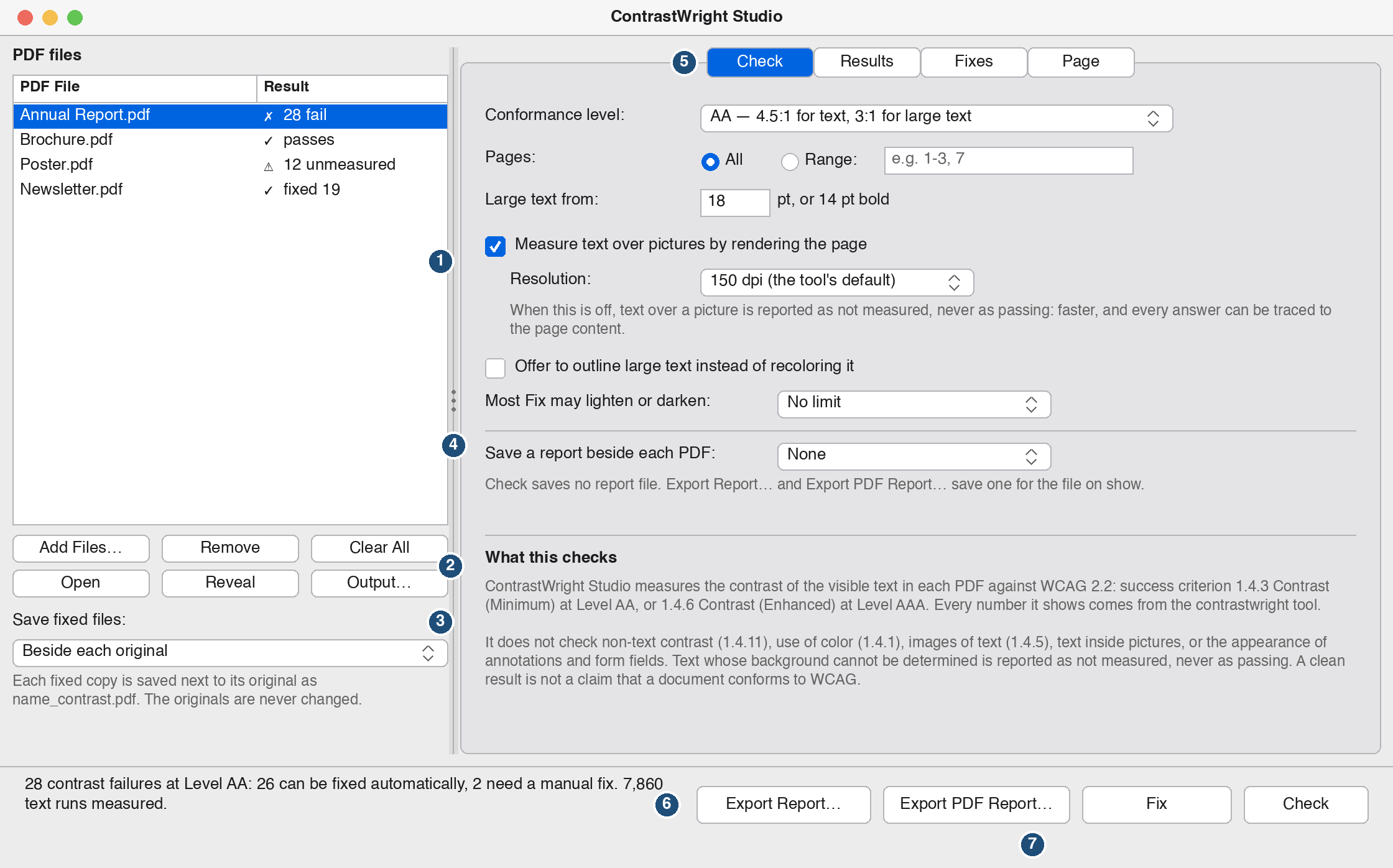
Figure 1. The ContrastWright Studio window in outline, with the Check tab on show. The numbers mark the parts listed under the figure.
The figure is drawn from the window's own layout, with its own words, as the window looks on a Mac; the four files in its list are examples. On Windows the window has Windows' own title bar, with the File, Edit and Help menus under it, and the four tabs' names line up at the left instead of in the middle. The figure's numbers mark:
- The PDF files list, with each file's result.
- The buttons that add and remove files, and that open, reveal and explain the selected one.
- Save fixed files: where Fix puts the copies it writes.
- The divider between the two sides: drag it to widen the file list.
- The four tabs, here with the Check tab on show.
- The status line, here giving the selected file's result.
- The four buttons that start the work: Export Report…, Export PDF Report…, Fix and Check.
The left side: your files
- The PDF files list, with two columns: PDF File, the file's name, and Result, what the last check or fix found (Chapter 8). Drag PDFs or folders here.
- Add Files…, Remove and Clear All, which add files to the list and take them out of it (Chapter 6).
- Open, Reveal and Output…, which act on the selected file. Open opens its fixed copy when it has one, and the PDF itself when it does not, in your PDF viewer. Reveal shows the same file in the Finder, or in File Explorer on Windows. Output… shows the commands ContrastWright Studio ran for the file in its last check or fix, and what the tool said (Chapter 15).
- Save fixed files, which says where Fix saves the copies it writes: beside each original, or in a folder you choose (Chapter 12). The note under it repeats the choice in words.
Widening the file list
A long file name or Result can be cut short in the PDF files list. To read it, drag the divider between the list and the tabs to the right: the list and its two columns widen, and the tabs give up the room. Double-click the divider to put the list back to its standard width, the width it has when ContrastWright Studio is first opened.
- The list cannot be made narrower than its standard width, and the tabs keep the room their widest row needs, so how far the list widens depends on the window: by about a quarter in a window of the size ContrastWright Studio opens at, and further in a wider one.
- From the keyboard, Tab to the divider (Chapter 16), then press Right Arrow to widen the list or Left Arrow to narrow it, 20 points a press.
- ContrastWright Studio remembers the width from one launch to the next. The window itself always opens at its standard size: when that is too narrow for the width you chose, or when you make the window narrower, the list is shown narrower, and widening the window gives the width back.
The right side: the four tabs
| Tab | What it holds |
|---|---|
| Check | The options a check uses: the WCAG level, the pages, the large-text size, whether text over pictures is measured by drawing the page, and whether a report is saved beside each PDF (Chapter 7). |
| Results | Every failure in the selected file, each a finding: its page, its text, its colors painted, its ratio and the ratio it needs, its size, and what Fix would do; and the Colors menu, which names colors in hex or as in the document (Chapter 9). |
| Fixes | The same failures gathered into color pairs: the changes Fix will make by itself, which you can review, and the failures that need a person (Chapter 11). |
| Page | A drawing of the page a failure is on, with every failure on that page outlined (Chapter 10). |
The tabs, and the Open, Reveal and Output… buttons, always show one file: the file selected in the list, or the only file when the list holds just one. With several files selected, the Results, Fixes and Page tabs each say so, such as “Several files are selected. Select one to see its findings.”
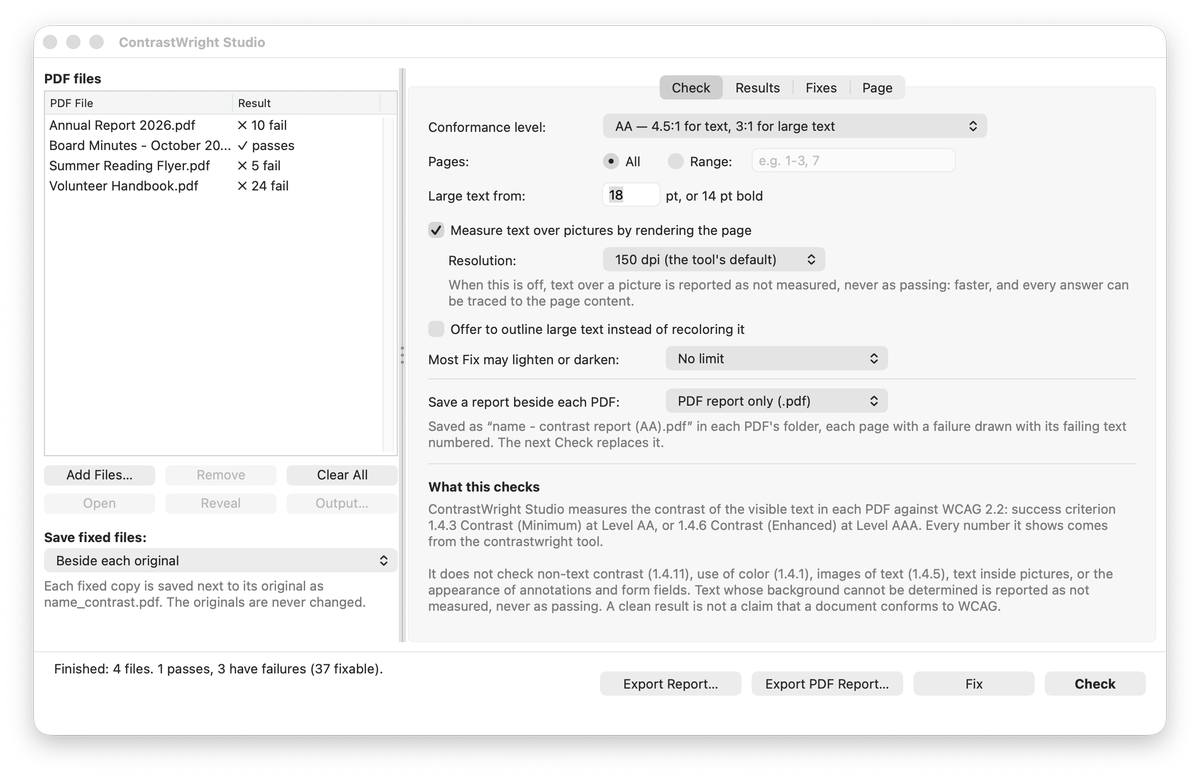
Figure 2. ContrastWright Studio on a Mac after a check of four files: each file's result in the list, the Check tab on show, and the status line summing up.
- The status line says what ContrastWright Studio is doing while it works, and afterward sums up what it found. Between runs it gives the selected file's result in a sentence.
- The progress bar, shown during a run, counts the files done and moves through the pages of the file being checked.
- Export Report… asks which report to save, a PDF report, text, a spreadsheet or JSON, and saves the selected file's; with several files it offers a PDF report for each. Export PDF Report… goes straight to the PDF report, or one for each of several files (Chapter 13).
- Fix writes a fixed copy of the selected files, or of every file when none is selected, and checks each copy again (Chapter 12). It reads Fix Selected when only some of the files are selected.
- Check checks every file in the list (Chapter 8).
While a run is going, the button that started it becomes Stop, and the others are dimmed until it ends.
The menus hold the same commands on a Mac and on Windows, but two of them are in different places. On a Mac, Settings… and Quit ContrastWright Studio are in the application menu, ContrastWright Studio, at the left of the menu bar. On Windows the menus are in the window, under its title bar, and Settings… and Exit are at the bottom of the File menu.
| Menu | Command | What it does |
|---|---|---|
| File | Add Files… | Adds PDF files to the list. |
| File | Add Folder… | Adds the PDFs in a folder. |
| File | Check | Checks every file in the list, as the Check button does. |
| File | Fix | Fixes the selected files, or every file, as the Fix button does. It reads Fix Selected when only some files are selected. |
| File | Stop | Stops the run in progress. |
| File | Export Report… | As the Export Report… button. |
| File | Export PDF Report… | As the Export PDF Report… button. |
| ContrastWright Studio on a Mac; File on Windows | Settings… | Where ContrastWright Studio finds the contrastwright tool and the layout engine (Chapter 14). |
| ContrastWright Studio on a Mac | Quit ContrastWright Studio | Saves your options and quits. |
| File on Windows | Exit | Saves your options and quits, as closing the window does. |
| Edit | Undo, Cut, Copy, Paste, Delete, Select All | For the text you type in the window's fields. |
| Help | ContrastWright Studio Users Guide | Opens this guide in your PDF viewer. |
| Help | About ContrastWright Studio | ContrastWright Studio's version and the version of the contrastwright tool it uses. |
On Windows, Alt and a menu's underlined letter open that menu from the keyboard: Alt+F for File, Alt+E for Edit and Alt+H for Help.
Keyboard shortcuts
The menus' shortcuts use the Command key on a Mac and the Ctrl key on Windows:
| On a Mac | On Windows | Action |
|---|---|---|
| ⌘O | Ctrl+O | Add Files… |
| ⇧⌘O | Ctrl+Shift+O | Add Folder… |
| ⌘R | Ctrl+R | Check every file in the list. |
| ⇧⌘R | Ctrl+Shift+R | Fix the selected files, or every file. |
| ⌘. | Ctrl+. | Stop the run in progress. |
| ⌘E | Ctrl+E | Export Report… |
| ⇧⌘E | Ctrl+Shift+E | Export PDF Report… |
| ⌘, | Ctrl+, | Settings… |
| ⌘Q | None | Quit ContrastWright Studio. On Windows, choose File > Exit, or close the window. |
| ⌘Z, ⌘X, ⌘C, ⌘V, ⌘A | Ctrl+Z, Ctrl+X, Ctrl+C, Ctrl+V, Ctrl+A | Undo, Cut, Copy, Paste and Select All, in the Edit menu, for the text you type in the window's fields. |
These keys are the same on both:
| Keys | Action |
|---|---|
| Delete | In the PDF files list: remove the selected files from the list. |
| Up and Down Arrow | In a list, move through its rows. On the Page tab, while the page has the keyboard, go to the previous or next page with findings (Chapter 10). In Export Report…'s question, choose the format before or after (Chapter 13). |
| Left and Right Arrow | On the Page tab, while the page has the keyboard, go to the previous or next finding (Chapter 10). With the divider selected, which Tab reaches, narrow or widen the file list. In Export Report…'s question, as Up and Down Arrow. |
| Double-click a file | Show its Output… (Chapter 15). |
| Double-click the divider | Put the file list back to its standard width. |
6. Adding PDF Files
ContrastWright Studio works on a list of PDF files. You can build the list in four ways, and mix them: drag files and folders onto the window, use the Add buttons and commands, or, on a Mac, drop files on the ContrastWright Studio icon or open PDFs with ContrastWright Studio from the Finder. Removing a file from the list never touches the file itself.
Four ways to add files
| Way | What it adds |
|---|---|
| Drag and drop | PDF files and folders dragged from the Finder, or from File Explorer on Windows, onto the PDF files list, or anywhere on the window. |
| Add Files… (⌘O, or Ctrl+O on Windows) | The button under the list, or File > Add Files…. The Add PDF Files dialog shows PDFs only, and you can select several at once. |
| File > Add Folder… (⇧⌘O, or Ctrl+Shift+O on Windows) | The PDFs in the folder you choose in the Add the PDFs in a Folder dialog. |
| The ContrastWright Studio icon, on a Mac | PDF files dropped on ContrastWright Studio in the Dock or the Finder, or opened with Open With > ContrastWright Studio. The icon takes PDF files only, not folders. On Windows, a PDF opened with ContrastWright Studio from File Explorer starts a new copy of the app instead (Chapter 4). |
A folder, dropped on the window or added with Add Folder…, adds the PDFs directly inside it, in order of their names. PDFs in folders inside it are not added: add those folders too.
After files arrive, the status line says how many PDFs the list now holds: “9 PDFs ready. Choose options on the Check tab, then click Check.”
What is not added
- A file whose name does not end in .pdf (in capitals or not).
- A file whose name begins with a period, which a Mac treats as hidden. Some disks hold hidden companions of each file, such as ._report.pdf, which are not PDFs.
- A file already in the list.
If nothing could be added and the list is empty, the status line says so: “No PDFs were added. Only files ending in .pdf, or folders holding them, are listed.”
A file that is in the list but is not really a PDF, or is damaged, is added like any other; its check then says “✗ can't open” (Chapter 8).
Removing files
- Remove takes the selected files out of the list. The Delete key does the same when the list is active.
- Clear All empties the list.
Neither deletes anything from your disk: the PDFs, their fixed copies and any reports stay where they are.
Sorting the list
Click the PDF File or Result column title to sort the list by it; click again to reverse the order. The list cannot be sorted while a check or fix is running.
Note: Files cannot be added or removed while ContrastWright Studio is checking or fixing. The Add and Remove buttons are dimmed, and a file dropped on the window meanwhile is refused: “Wait for the run to finish before adding files.”
7. The Check Tab
The Check tab holds the options every check and every fix uses. Its standard settings, WCAG 2.2 Level AA on every page with large text from 18 points, suit most documents. ContrastWright Studio remembers what you set here from one launch to the next, and every option is sent to the tool explicitly, so Output… always shows exactly what was asked.
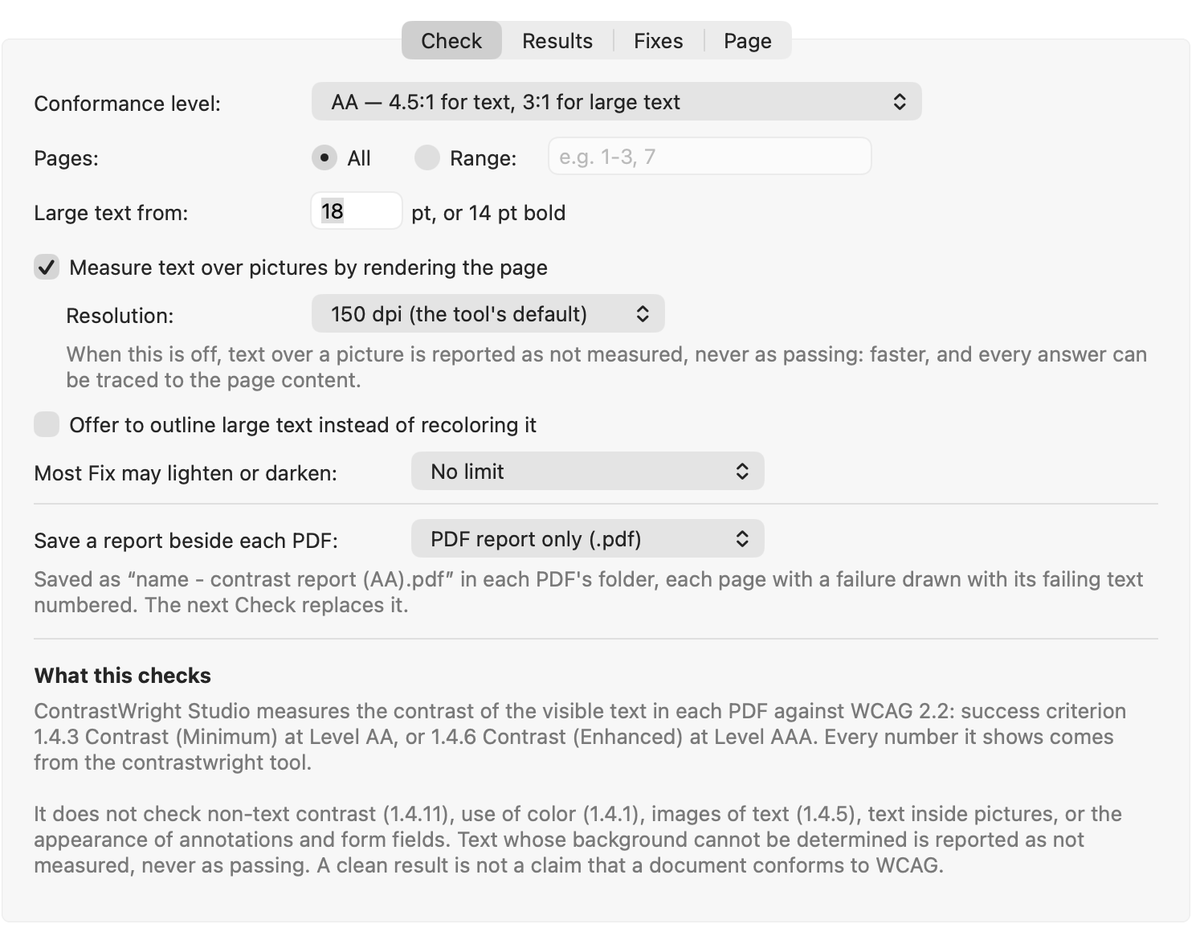
Figure 3. The Check tab: Level AA on every page, large text from 18 points, text over pictures measured by rendering the page, and a PDF report saved beside each PDF.
The options
| Option | Choices | What it does |
|---|---|---|
| Conformance level | “AA — 4.5:1 for text, 3:1 for large text” (the standard choice), or “AAA — 7:1 for text, 4.5:1 for large text” | The WCAG 2.2 level to check against: success criterion 1.4.3 at Level AA, 1.4.6 at Level AAA. |
| Pages | All (the standard choice), or Range: page numbers and ranges such as 1-3, 7 | Which pages are checked, and fixed. Page numbers count from 1, the first page of the file, whatever numbers the document prints on its pages. |
| Large text from | A size from 6 to 96 points; 18 is the standard and WCAG's | The size at which text counts as large and needs less contrast. Bold text counts as large from 4 points less: the note beside the field says “pt, or 14 pt bold” for 18. |
| Measure text over pictures by rendering the page | On (the standard choice) or off | On: text whose background is a picture, a gradient, or a mix of shapes, is measured from a drawing of the page. Off: such text is reported as not measured. |
| Resolution | 72 dpi (fastest), 96 dpi, 150 dpi (the tool's default, and the standard choice), 200 dpi, 300 dpi (slowest) | How finely a page is drawn to measure what is behind its text. Used only when the option above is on. |
| Offer to outline large text instead of recoloring it | Off (the standard choice) or on | On: the check also offers, for large text that fails, to keep its color and outline its letters in a color that reads. Fix still recolors every change unless you choose the outline for it on the Fixes tab (Chapter 11), or the lightness limit below proposes it. |
| Most Fix may lighten or darken | No limit (the standard choice), Up to 15%, Up to 20%, Up to 25%, Up to 30% | How far Fix may move a text color's lightness to make it pass. A change that needs more is not recolored: with outlines offered, a change that can be outlined is outlined instead, and any other waits on the Fixes tab, unticked (Chapter 11). |
| Save a report beside each PDF | None (the standard choice), Text (.txt), Spreadsheet (.csv), JSON (.json), PDF report only (.pdf) | Check can also save reports for each file next to it: the tool's report in this format with the PDF report beside it, or the PDF report alone (Chapter 13). |
Pages
A range is page numbers and ranges separated by commas, such as 1-3, 7 or 2-5, 9, 12-14. Spaces do not matter. A range must count up (3-1 is refused) and start from page 1 or later.
ContrastWright Studio checks the field before a run starts, because the tool itself would quietly read 3x as page 3, and would skip a page the document does not have without a word. A page beyond the end of the document is still skipped: a file whose pages in the range are all past its end measures no text, and its result is “– no text”, never a pass.
Large text
Type a plain number: digits and at most one period, such as 18 or 14.5. A comma is not accepted as a decimal point (14,5 is refused), because the tool reads only a period. The note beside the field shows the bold size that follows from yours: 4 points less.
WCAG defines large text as 18 points, or 14 points bold. Change the size only when a policy you work to defines large text differently.
Text over pictures
With Measure text over pictures by rendering the page on, contrastwright draws a page whenever the page content alone cannot say what is behind a run of text, and measures the color under the run in the drawing. Higher resolutions measure small text over busy pictures more finely, and take longer.
With it off, text whose background is not settled by the page content is reported as not measured, never as passing. The note under the option sums it up: “When this is off, text over a picture is reported as not measured, never as passing: faster, and every answer can be traced to the page content.”
Note: Fix never changes text whose background was measured from a drawing of the page. Such a failure is always left for a person, with a suggested color when one of the same hue can pass and the text is not in a spot ink (Chapter 11).
Outlines
WCAG 2.2 counts a thin border around letters as part of the letters, so text that is too light on its background can keep its color and still pass when its letters are outlined in a color that reaches the ratio against the background. Brand colors are the usual case: yellow text on white, recolored, becomes dark gold; outlined, it stays yellow, drawn round in dark gold.
With Offer to outline large text instead of recoloring it on, each check also works out, for every change Fix can make, whether its text can be outlined: an outline 0.5 points wide on the page, in a color found from the text's own along its own color space, which reaches the ratio against the background as the page draws it. The Fixes tab offers it beside the recolor, in its Fix menu (Chapter 11).
Only large text is offered an outline: at 12 points an outline 0.5 points wide covers about half of a letter's stem. Text that is outlined already is offered its own outline, recolored where it falls short and widened where it is thinner. Text drawn as an outline only, text in a Type 3 font, text drawn stretched more one way than the other, text in a spot ink, and text whose background was not read from the page content is not offered one; the line under the Fixes list says why.
Keeping a design close
Fix keeps a color's hue and moves its lightness until the text passes. For most grays the step is small. A light brand color can need a long one, and the color it ends as may no longer read as the brand's: yellow body text, #ffd100, on white becomes #8e7400, an olive.
Most Fix may lighten or darken sets how long that step may be, as the change in lightness: the L of HSL, from 0% for black to 100% for white, measured on the colors as the page draws them. #ffd100 to #8e7400 is a change of 22.2%; a gray darkened from #888888 to #767676 is 7.1%. A change within the limit is made as before. One that needs more is not recolored:
- With Offer to outline large text instead of recoloring it on, a change the check can outline is outlined instead: its text keeps its color, and its letters are outlined in one that reaches the ratio.
- Any other change is held back. The Fixes tab shows it unticked, its How column reading “held back”, and Fix leaves its text as it is. Tick it to recolor it anyway (Chapter 11).
No limit, the standard choice, makes every change Fix can make. The limit is sent to the contrastwright tool with every check and every fix (--max-shift), so the Fixes tab shows exactly what Fix will do. It is dimmed when the installed tool does not offer it.
Saving a report beside each PDF
With a format chosen, each file's check is followed by a second run of the tool that saves its report in the PDF's folder, named after the PDF and the level, “Annual Report - contrast report (AA).txt”, or .csv or .json; then the PDF report beside it, “Annual Report - contrast report (AA).pdf”, which draws the pages with failures, up to 25 of them, their failing text numbered. PDF report only (.pdf) saves the PDF report alone. The next Check replaces them. The note under the choice says where the reports go, and warns when the layout engine that makes the PDF report is missing: the tool's report is still saved without it (Chapter 13).
What this checks
The bottom of the tab says, in a few lines, what ContrastWright Studio checks and what it does not, as Chapter 3 explains: the contrast of visible text against WCAG 2.2, and not non-text contrast, use of color, images of text, text inside pictures, or annotations and form fields. It ends: “A clean result is not a claim that a document conforms to WCAG.”
When an option is wrong
Before any check or fix, ContrastWright Studio makes sure that everything typed on the tab is a value the tool will read as meant, and lists every problem at once:
- “Pages must be page numbers and ranges, such as 1-3, 7 -- or choose All.”
- “Large text must be a size from 6 to 96 points, such as 18 or 14.5.”
- With PDF report only chosen: “A PDF report needs the layout engine (pagewrightapp), which is not at /Applications/Appligent/pagewrightapp. Install PageWright, set the engine's location in Settings, or choose another report.” On Windows it names C:\Program Files\Appligent\pagewrightapp.exe, which ContrastWright Studio's Setup installs.
- For a Fix: “The folder for fixed files is no longer there. Choose another under Save fixed files.”
Nothing runs until they are corrected.
When options change
A run reads the options once, when it starts. A change made while files are being checked applies to the next run.
A file's results belong to the options it was checked with. Fix uses the options set now, and measures each file again with them as it fixes it. The one exception is a file whose changes you reviewed on the Fixes tab: your choices belong to the check they were made on, so if the options have changed since, Fix leaves that file alone and says why (Chapter 11).
Remember: An option the installed contrastwright tool does not offer is dimmed and never sent, so an older copy of the tool still works, without that feature.
8. Checking Files
Check measures the text contrast of every file in the list, one file at a time, with the options on the Check tab. It writes nothing into your PDFs. Each file's result appears in the Result column as soon as that file is done, and the status line sums up the run at the end.
Running a check
- Add the files to the list (Chapter 6) and set the options on the Check tab (Chapter 7).
- Click Check, or press ⌘R (Ctrl+R on Windows). Check measures every file in the list, whichever files are selected.
- Watch the Result column and the status line. Each file waiting its turn reads “waiting”, the file being measured “checking…”, and the status line says where the tool has got to: “Checking 3 of 9: Annual Report.pdf — page 12 of 39…”.
While the check runs, the window stays usable: you can select files and read the tabs of those already done. The Check button reads Stop until the run ends.
Most files take a second or two. A page whose text sits over pictures takes longer when Measure text over pictures by rendering the page is on, because the tool draws the page to measure it; a higher resolution takes longer still.
The Result column
| Result | Meaning |
|---|---|
| ✓ passes | No failures, nothing that could not be measured, and some text was measured. |
| ✗ 28 fail | 28 failures: pieces of text that do not reach the ratio they need, each a word, a line or part of one (Chapter 3). The status line says how many Fix can fix by itself. |
| ⚠ 12 unmeasured | No failures in the text that could be measured, but 12 runs of text could not be measured: their background could not be resolved, or their own color is one the tool cannot read, such as a DeviceN or pattern color. This is not a pass. |
| – no text | No text was measured: the pages hold only pictures, or the page range lies past the end of the document. This is not a pass either. |
| ✗ can't open | The tool could not open the file: it is not a PDF, it is damaged, or it needs a password to open. A PDF whose password only restricts printing or editing opens and is checked as usual. |
| ✗ failed | The tool could not finish, or wrote no report ContrastWright Studio could read. The status line gives the tool's own reason. |
| ✗ missing | The file is no longer where it was added from. |
| stopped | The run was stopped before this file was finished. |
A file that has failures and some text that could not be measured shows its failures; the status line adds how many runs could not be measured. Text that could not be measured is never counted as passing, anywhere in ContrastWright Studio.
After a Fix, the Result column shows what the check of the fixed copy found instead: “✓ fixed 5”, “◐ 4 fixed · 4 manual” and so on (Chapter 12).
The status line
When a run of several files ends, the status line sums it up by outcome, for example (a run of one file ends with that file's own sentence instead):
“Finished: 9 files. 1 passes, 7 have failures (206 fixable), 1 could not be checked. Select a file to see why, or double-click it for contrastwright's output.”
Select a file to read its own result in a sentence or two. For a file with failures, that sentence says how many there are, how many Fix can fix by itself, and how much text was measured:
“28 contrast failures at Level AA: 26 can be fixed automatically, 2 need a manual fix. 7,860 text runs measured.”
For a file the tool could not check, the sentence starts “Failed:” and gives the tool's reason, such as “Failed: contrastwright: could not open "brochure.pdf" (APDFL error 1073938471)”. Output… holds everything the tool printed (Chapter 15).
Stopping a check
Click Stop, which is the Check button while a check runs, or press ⌘. (Command-period), or Ctrl+. on Windows. The status line says “Stopping…”: ContrastWright Studio starts no more files and gives the file in progress half a second to finish. If it has not finished by then, the tool is stopped. Press Stop again to stop at once.
The files a stopped run never reached keep the result they had before, or read “stopped”. The status line counts what was done: “Stopped after 4 of 40 files: 2 pass, 2 have failures (31 fixable).”
Anything the stopped step was writing outside ContrastWright Studio's working folder, such as a report beside the PDF, is removed, but only a file that run created. A file that was there before is never deleted.
Closing the window, or quitting ContrastWright Studio, during a run stops it at once.
Checking again
Click Check again whenever you like: after changing the options, after fixing a file's source document, or to confirm a result. Each check replaces the file's previous results. If a file has changed on disk since it was added, the new check measures it as it is now.
9. The Results Tab
The Results tab lists every failure in the selected file: one row, or finding, for each failure — a run of text that fails, or the pieces of one stretch of a line that fail alike, such as a word a PDF draws in four runs (Chapter 3) — with a sample painted in its own colors, the text on its background, so that you see the problem instead of decoding it. Select a row to read, under the list, exactly why it fails, what is behind it, and what Fix would do about it.
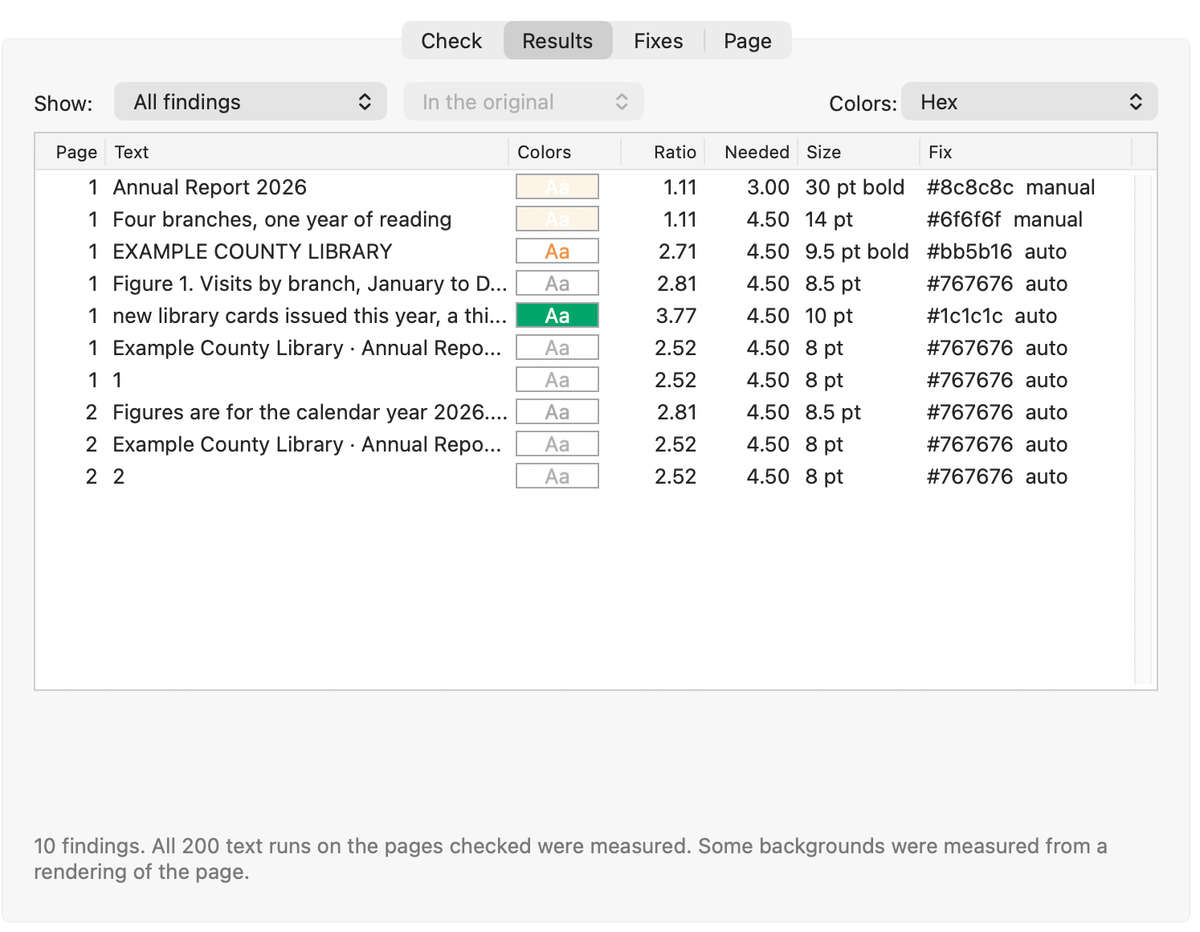
Figure 4. The Results tab for Annual Report 2026.pdf: its 10 failures, each with its page, its text in its own colors, the ratio it reaches and the ratio it needs, its size and its fix.
Choosing what to show
Two menus at the top left of the list choose the findings shown, and the line under the list counts them: “28 findings.”, or “2 of 28 findings shown.” when some are hidden.
| Show | Lists |
|---|---|
| All findings | Every failure (the standard choice). |
| Fixable automatically | Only the failures Fix changes by itself. |
| Need a manual fix | Only the failures that need a person: Fix will not change them (Chapter 11 says why for each). |
The second menu matters after a Fix. “In the original” lists what the check found in your file; “In the fixed copy” lists what is still failing in the copy Fix wrote. After a Fix, the tab shows the fixed copy; choose In the original to look back. Before a Fix the menu is dimmed.
Naming colors: hex, or as in the document
The Colors menu, at the top right of the list, chooses how ContrastWright Studio names a color.
| Colors | Names a color |
|---|---|
| Hex | By its hex code, such as #009757: the color as a screen shows it (the standard choice). |
| As in the document | By its values in the color space the PDF writes it in, the way a design application names a swatch, so that you can find it in the source document. |
As in the document, each kind of color space has its own words:
| Color space | Example | Its values |
|---|---|---|
| CMYK | C=100 M=0 Y=70 K=20 | Each ink, as a percentage. |
| RGB | R=0 G=151 B=87 | Red, green and blue, from 0 to 255. |
| Gray | Gray K=40 | The percentage of black: Gray K=0 is white, Gray K=100 is black. |
| Lab | L=55 a=-45 b=20 | Lightness from 0 to 100, then the a and b values. |
| Spot ink | PANTONE 200 C 100% | The ink's own name, as the document names it, and its tint. |
A background the document does not paint is named for what it is: “paper white” for the bare page, “rendered R=… G=… B=…” for a background measured from a drawing of the page, and “undetermined” for one that could not be measured. Translucent text is named by its own color and its opacity, such as “C=0 M=0 Y=0 K=42 at 85% opacity on paper white”. In hex it is named by the color seen through it, the color its ratio is measured from. A suggested color is named as Fix would write it into the text's own color space: the suggestion for CMYK text is a CMYK color. A color in a space with no values of these kinds, such as an indexed color, is named in RGB. In hex, a spot ink is named by the color it is drawn in on screen, and the tool's line under the list names the ink as well: “PANTONE 200 C at 100%, drawn #c12031”.
The choice applies wherever ContrastWright Studio names a color: the Colors and Fix columns and the lines under this list, the Fixes and Page tabs, Choose Color…'s messages, and the text, spreadsheet and PDF reports you save or export from then on (Chapter 13). The samples and swatches are painted the same either way, and the ratios do not change: a ratio is always measured from the colors as a screen shows them. ContrastWright Studio remembers the choice from one launch to the next.
Words take more room than hex codes. As in the document, the Fix column here and the Change and On columns on the Fixes tab are wider, and the Text and How columns give up the room; a wider window gives every column more. Drag the edge of a column's title to change its width. A name too long for its column is cut short, and the lines under the list give it in full.
The columns
| Column | What it shows |
|---|---|
| Page | The page the text is on, counting from 1. |
| Text | The failing text, as the PDF stores it: a word, a line, or part of one, its pieces joined, with a space where a word ends (Chapter 3). |
| Colors | A sample, “Aa” painted in the text's color on its background's color. Behind the sample are its words, such as “#9a9a9a on #ffffff”, or “R=154 G=154 B=154 on paper white” as in the document, which VoiceOver reads on a Mac. |
| Ratio | The contrast ratio the text reaches, such as 4.29. |
| Needed | The ratio it needs, such as 4.50: set by the level, and by whether the text is large. |
| Size | The size a reader sees, such as “11 pt” or “16 pt bold”. |
| Fix | What the next Fix does with it: “#767676 auto” when Fix changes the text to that color by itself; “#5e5e5e manual” when that color is suggested but a person must apply it; “manual” when no color of the same hue passes, or the text is in a spot ink, for which the tool suggests none. It follows the choices on the Fixes tab (Chapter 11): “#8e7400 held back” for a change a lightness limit held back, “#949494 left as it is” for one you unticked, “outline #b19100” for one outlined, keeping its color, and “#6e6e6e your color” for a color you chose. As in the document, the colors are named in words, such as “R=118 G=118 B=118 auto”. |
Ratios are shown as the tool prints them: cut to two decimal places, never rounded. A ratio just short of its need therefore always reads under it, 4.4999:1 as 4.49 against 4.50 needed, and the verdict is made on the full value.
Click a column title to sort the list by it, and again to reverse the order. Page, Ratio, Needed and Size sort as numbers.
For translucent text, the sample shows the color as a reader sees it, blended with its background: that is the color the ratio is measured from.
A finding in detail
Select a finding, and two lines under the list describe it. The first is the finding's number, the success criterion and level, and the tool's own sentence:
“C0001 · 1.4.3 Contrast (Minimum), AA — 4.29:1 for normal text (#7a7a7a on #ffffff); 4.50:1 required”
The second says where its background came from, what the tool proposes, the color space its color is written in, and where the text is on the page, as a box in PDF points (left, bottom, right, top; a point is 1/72 inch):
“Background: nothing is painted behind it, so the page's white · Fix changes it to #767676 (same hue) · color written in DeviceRGB · at [64 615.5 90.3 630.2]”
As in the document, both lines name the colors in words: “4.29:1 for normal text (R=122 G=122 B=122 on paper white)” and “Fix changes it to R=118 G=118 B=118 (same hue)”.
The background is described in one of these ways:
| Background | Meaning |
|---|---|
| Background: nothing is painted behind it, so the page's white | The text sits on the bare page. |
| Background read from a filled shape in the page content | A colored panel, box or band is behind the text. |
| Background measured from a rendering of the page | A picture, a gradient, a translucent shape, or anything else the page content cannot settle is behind the text: the color was sampled from a drawing of the page. |
For a finding that needs a manual fix, the second line gives the reason instead of the change, such as “manual fix, suggested #5e5e5e (same hue): the background was measured from a rendering, not read from the page content”.
Selecting a finding also makes it the one the Page tab shows (Chapter 10).
The line under the list
Under the findings, a line counts them, then says how much of the file's text was measured. Text that could not be measured has no finding of its own, since the tool reports only how much of it there was, so on this tab this line is the only place it appears:
- “28 findings. All 7,860 text runs on the pages checked were measured.”
- “3 findings. 12 text runs could not be measured: the background behind them could not be resolved. They are not counted as passing. 152 other runs were measured.”
It adds “Some backgrounds were measured from a rendering of the page.” when the tool had to draw a page, and counts the invisible or blank runs it skipped. Where some of them were hidden under a shape drawn over them (Chapter 3), it says how many: “526 runs a reader cannot see were skipped: 357 invisible or blank, and 169 hidden under shapes drawn over them.”
When there is nothing to show
- A file not yet checked: “Annual Report.pdf has not been checked yet. Click Check to measure it.”
- A file whose check failed: its name, “could not be checked:”, and the reason.
- A file with no failures: an empty list, and the line under it, “0 findings.”, then how much was measured.
10. The Page Tab
The Page tab shows a failure where a reader meets it: on a drawing of its page, made by the contrastwright tool, with every failure on that page outlined and the one you selected marked. It answers the question a list cannot: which caption, which heading, which line in the footer is it?
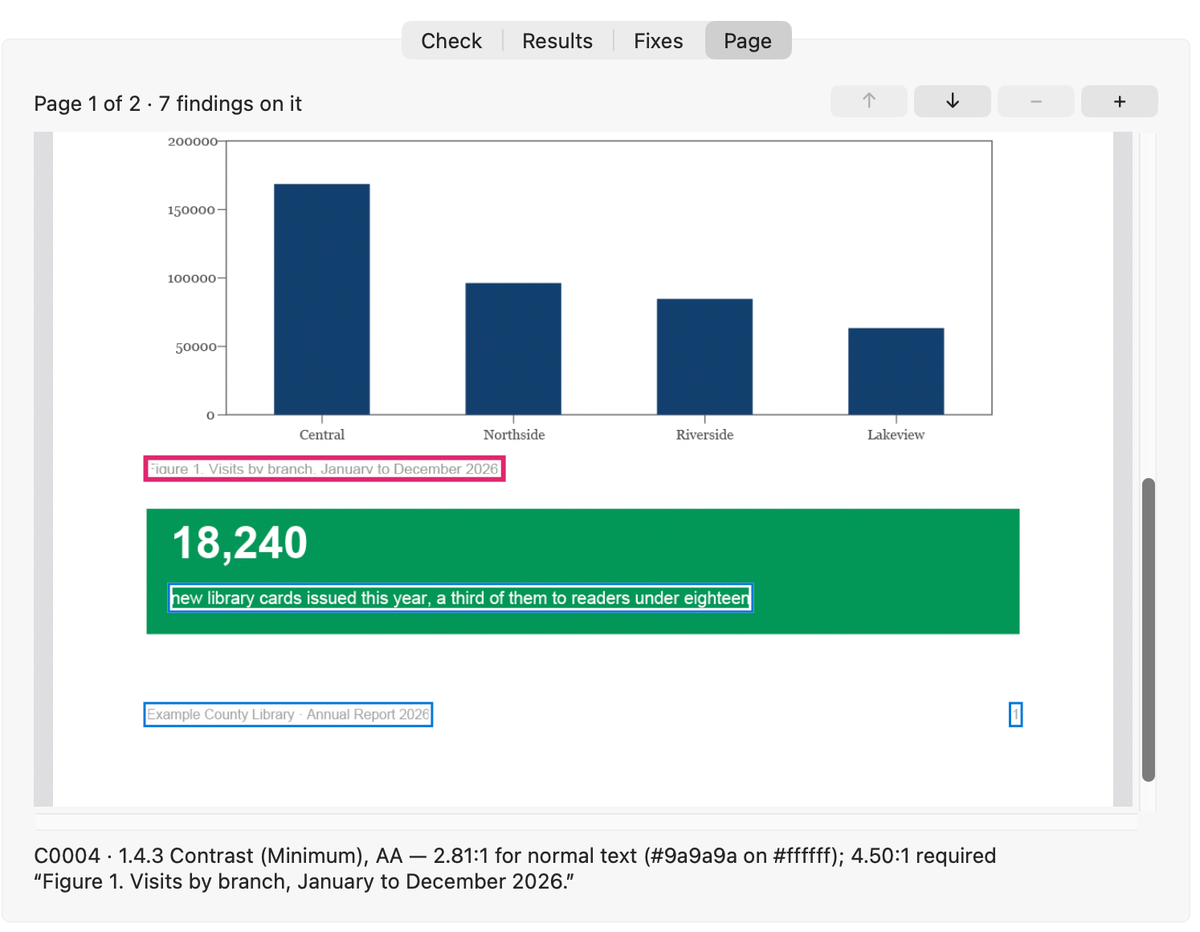
Figure 5. The Page tab on page 1 of Annual Report 2026.pdf: the selected failure, a figure caption, is outlined in magenta, and the page's other failures in blue.
What the tab shows
The tab shows the page of the selected finding: the finding you last selected on the Results tab, or clicked or stepped to on this one, or else the file's first finding. Its title names the page, how many pages the document has, and how many failures are on it: “Page 3 of 39 · 4 findings on it”.
- The page is drawn as a PDF viewer shows it, turned the way a reader sees it, and fitted to the width of the tab, which scrolls to the selected finding.
- Every failure on the page is outlined in blue, over a thin white edge, so that the outline shows on a dark panel and on a white page alike.
- The selected finding is outlined more heavily, in magenta.
- Under the page, two lines repeat the selected finding's first detail line from the Results tab and quote its text, cut short with “…” when it is too long to fit.
The first time a page is shown, the tab reads “Drawing page 3…” for about a second while the tool draws it. A page once drawn is shown at once the next time, until the file is checked or fixed again.
Working with the page
- Click an outline to select that finding. It becomes the selected finding on the Results tab too, when the Show menu there lists it. Where outlines overlap, the smallest under the pointer wins, so a word inside a larger box can still be picked.
- Click − to show the page smaller, and + to show it larger. There are four sizes: the page fitted to the tab's width, then 1.5, 2 and 3 times that. Each size is drawn afresh, at a resolution that suits it.
- Scroll with the scroll bars, a mouse wheel or a trackpad. Above the first size, a scroll bar under the page moves it from side to side.
Going from finding to finding
Two buttons at the top right, ↑ and ↓ beside − and +, take you from one page with findings to the next, passing over the pages that have none. The arrow keys do the same, and also step from finding to finding.
- Click ↓ to go to the next page that has findings, or ↑ to go back to the previous one. The page opens on its first finding. A button is dimmed when there is no such page: ↑ on the first page with findings, ↓ on the last.
- Down Arrow and Up Arrow do the same as ↓ and ↑.
- Right Arrow selects the next finding and Left Arrow the previous one, in the order in which the PDF report numbers them: page by page, and on each page in the report's own order (Chapter 13). Past a page's last finding, Right Arrow goes on to the first finding of the next page with findings.
- Nothing wraps around: Left Arrow does nothing at the first finding and Right Arrow at the last, and Up Arrow and Down Arrow do nothing on the first and last pages with findings.
The arrow keys work while the page has the keyboard. It takes the keyboard when the Page tab comes up, when you click the page, and when you click ↑ or ↓; click a list or a field, and the keys are theirs again. Each step selects a finding and scrolls the page to show it. As with a click on an outline, it becomes the selected finding on the Results tab when the Show menu there lists it; otherwise the Results tab keeps the row it had. The steps go through every finding the page outlines, whatever the Show menu lists.
The fixed copy
The Page tab follows the Results tab's choice between the original and the fixed copy. After a Fix it shows the fixed copy's page, and its title says so: “Page 3 of 39 of the fixed copy · 1 finding on it”. The buttons and the arrow keys then go through the fixed copy's findings. Choose In the original on the Results tab to see the original's page again.
When there is no page to show
- Before a check: “Annual Report.pdf has not been checked yet. Click Check, then see its findings on their pages here.”
- With several files selected: “Several files are selected. Select one to see its pages.”
- When the tool could not draw a page: “contrastwright could not draw page 3:”, followed by its reason.
Note: The drawing on the Page tab is a picture, which a screen reader cannot read. On a Mac, VoiceOver reads the same findings in the Results list, whose detail line gives each one's position on the page (Chapter 16).
11. The Fixes Tab
The Fixes tab shows the selected file's failures the way Fix sees them: gathered into color pairs, one row for each text color on each background (and, within a pair, for normal and large text, and for each opacity, which need different ratios). A PDF usually sets a color once and draws many runs of text with it, so all the runs of one pair are changed together, in one change. The tab lists the changes Fix will make by itself first, then the failures it leaves for a person, with the reason for each.
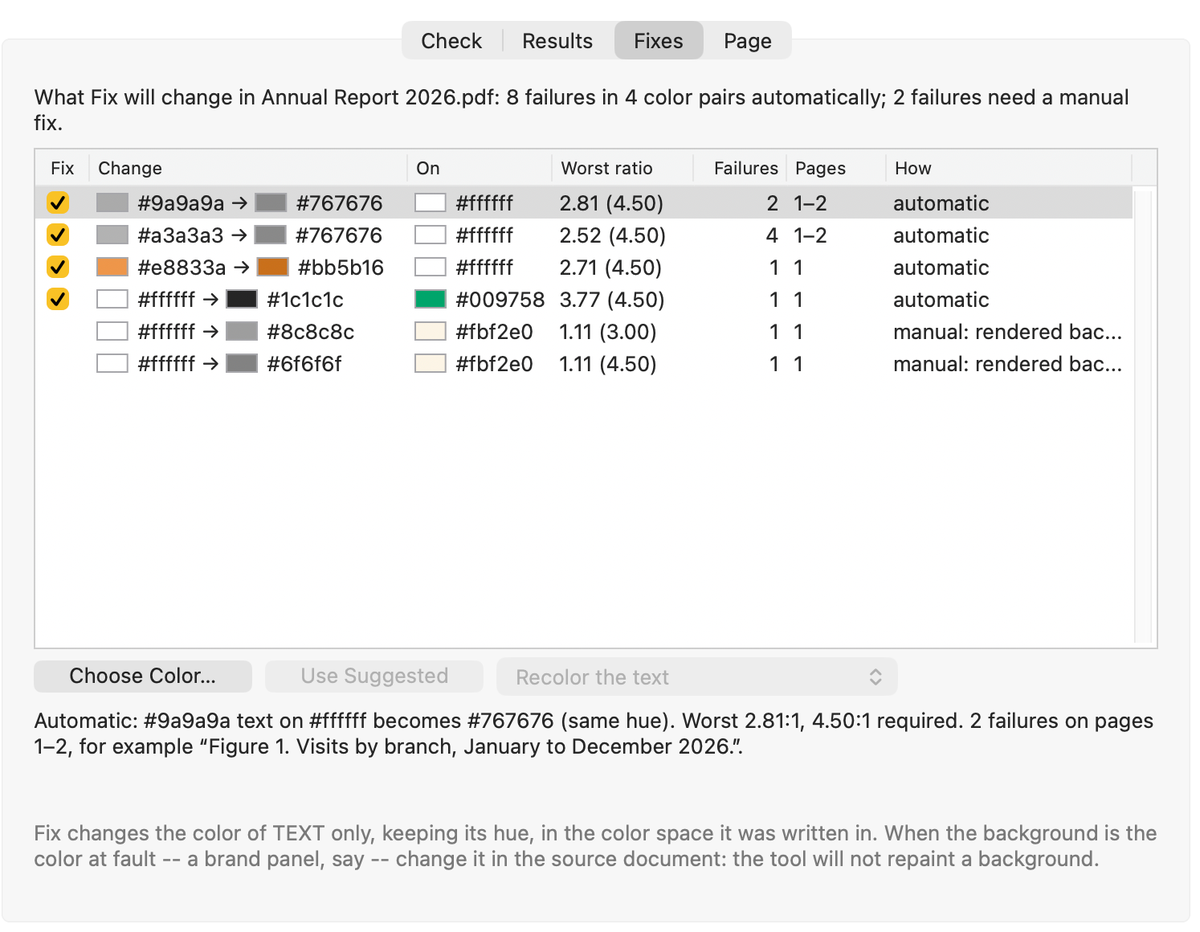
Figure 6. The Fixes tab for Annual Report 2026.pdf: six color pairs, four that Fix recolors automatically and two on a picture that need a manual fix, with the first pair selected and described under the list.
The sentence over the list
Over the list, a sentence sums up what Fix will do to the file:
“What Fix will change in thresholds.pdf: 5 failures in 2 color pairs automatically.”
It counts failures, as the Results tab lists them. It adds those that need a manual fix (“; 4 failures need a manual fix”), those you have chosen to leave as they are, and those a lightness limit set on the Check tab held back (“; 1 failure held back by the lightness limit”, Chapter 7). For a file with no failures it reads “What Fix will change in brochure.pdf: nothing. The check found no contrast failures.”
The columns
| Column | What it shows |
|---|---|
| Fix | A box on each automatic change: ticked, Fix makes the change; unticked, it leaves that text as it is. A change the lightness limit held back starts unticked. A row with no box is a manual fix, which Fix does not make. |
| Change | The text's color now, and the color Fix gives it, each with a swatch: “#949494 → #767676”. A change you outline shows the outline's color, its swatch drawn as an outline: “#ffd100 → #b19100”, with How saying “outline”. A manual fix shows the color the tool suggests, or “none” when no color of the same hue passes. |
| On | The background, with a swatch. |
| Worst ratio | The lowest ratio among the pair's runs, and in parentheses the ratio they need: “3.03 (4.50)”. |
| Failures | How many failures the pair holds, as the Results tab lists them: thresholds.pdf's #949494 pair is 4 failures, which the PDF draws in 43 runs of text. |
| Pages | The pages they are on, such as “1–4, 7”. |
| How | “automatic”; “manual:” and a short reason; “left as it is” for a change you unticked; “held back” for a change the lightness limit held back; “your color, 5.09:1” for a color you chose; “outline, color kept” for a change outlined, or “your outline, 21.00:1” in an outline color you chose. |
Click a column title to sort the list by it. Worst ratio and Failures sort as numbers.
The colors are named as the Colors menu on the Results tab chooses (Chapter 9): in hex, as in this chapter, or as in the document, such as “C=0 M=0 Y=0 K=42 → C=0 M=0 Y=0 K=54” for text set in CMYK. A color pair whose runs are written in two color spaces names its color in each, such as “R=148 G=148 B=148 / C=0 M=0 Y=0 K=42”: Fix writes the new color into each run's own space. The swatches are the same either way.
A change in detail
Select a row, and a line under the list says it in full:
“Automatic: #949494 text on #ffffff becomes #767676 (same hue). Worst 3.03:1, 4.50:1 required. 4 failures on page 1, for example “FAIL 3.03:1 - #949494 clears the large-text bar but this run...”.”
For translucent text, the line adds the opacity it is drawn at (“Drawn at 85% opacity; the ratios allow for it.”). For text written in a color space that holds only grays, it adds “Its color space holds only grays, so only a gray can replace it.”
When the file was checked with Offer to outline large text instead of recoloring it (Chapter 7), the line also names the outline a change can have instead: “Or Outline, in the Fix menu: the text keeps its color, its letters outlined 0.5 pt wide in #b19100, 3.03:1.” A change that cannot be outlined says why: “No outline is offered: it is normal-size text, where an outline would close up the letters.”
With a lightness limit set on the Check tab (Chapter 7), a change whose recolor would go past it says so. One outlined in its recolor's place: “Outlined: #ffd100 text on #ffffff keeps its color, its letters outlined 0.5 pt wide in #b19100, 3.03:1 on #ffffff. Proposed in place of its recolor to #b19100, which would change the lightness 15.3%, more than the 15% allowed.” One held back: “Held back: #ffd100 text on #ffffff keeps its color. Its recolor to #8e7400 would change the lightness 22.2%, more than the 15% allowed. Tick it to recolor it anyway.”
Why a failure needs a manual fix
Fix changes a run's text color only when it can do so safely, unattended, and know that the result passes. Otherwise it leaves the run for a person, and the How column says why:
| How | Reason |
|---|---|
| manual: rendered backdrop | The background was measured from a rendering, not read from the page content: good enough to report a failure and suggest a color, not to rewrite the file unattended. |
| manual: spot color | The text is in a spot (Separation) ink, an ink rather than a lightness. Fix never changes one, and the tool suggests no color: the finding names the ink and its tint, for the designer to choose another. |
| manual: color space | A color this text paints is in a color space that cannot take the new color, such as Lab, or a gray outline around colored text. |
| manual: no passing color | No color of the same hue reaches the required ratio on this background, or none does while the text is translucent. |
Text on a picture, on a gradient or on a translucent panel is measured from a rendering, so it is always a manual fix, usually “manual: rendered backdrop”. Text in a spot ink is always a manual fix too, “manual: spot color”. Text in a process color on a solid panel in a spot ink is another matter: the panel's color is read from the content, so Fix changes that text as it would on any panel, the text's color and never the panel's.
Each manual row still shows the color the tool suggests, when there is one, so that whoever fixes the source document knows what to aim for.
Note: Fix changes the color of TEXT only, keeping its hue, in the color space it was written in. When the background is the color at fault (a brand panel, say), change it in the source document: the tool will not repaint a background.
That last case is common. White text on a medium green panel (#009758) reaches 3.77:1, and the color Fix proposes for it is a near-black, #1c1c1c: correct arithmetic, and usually the wrong design. The better fix is a darker green panel, which only the source document can make. Untick such a change to leave the text as it is, and send the finding to the designer.
Reviewing the changes
You can decide, change by change, what Fix does.
Leaving a change out
Untick a change's Fix box. Its How column reads “left as it is”, the sentence over the list counts its failures as left as they are (“4 failures left as they are, as you chose”), and the line under the list says: “Left as it is, as you chose: #949494 text on #ffffff keeps its color. Fix would have made it #767676 (same hue).” Tick the box again to put the change back.
Choosing your own color
Select an automatic change and click Choose Color…. A color picker opens, showing the color the change has now: the Colors window on a Mac, the Color dialog on Windows.
- On a Mac, choose a color from a palette of your organization's colors, by its hex code, or with any of the window's pickers, then close the Colors window. It has no OK or Cancel button: closing it, by its close button or with Escape, takes the color it shows. While it is open the status line says so: “Choose a color for the #949494 text on #ffffff in the Colors window, then close it: closing takes the color it shows (Use Suggested then puts back #767676).”
- On Windows, click one of the Basic colors, or click Define Custom Colors >> and type the color's Red, Green and Blue values, from 0 to 255: a hex code's three pairs of digits are those values in hexadecimal, so #6e6e6e is 110, 110, 110. Click OK to take the color, or Cancel to leave the change as it was.
The contrastwright tool then judges your color exactly as the check judged that text: on the same background, at the same size and weight, against the same level, and at the text's opacity when it is translucent. A color that passes is taken, and the How column reads “your color, 5.09:1”, with the ratio the tool measured. A color that does not pass is refused, and the change keeps the color it had:
“#999999 reaches 2.84:1 on #ffffff, and 4.50:1 is needed, so it was not taken. Choose a darker or lighter color. The change keeps #767676, the color contrastwright suggests.”
Text written in a color space that holds only grays takes only a gray, with equal amounts of red, green and blue: any other color is refused before it is judged.
Text in CMYK, in a color with its own ICC profile, or on a page that blends its colors is drawn by the PDF renderer as something other than its numbers: 50% black ink shows as #949599. For such text the tool reads the page to see how it is drawn, and takes your color by its look. Fix writes the ink that the page draws at your color's lightness, in the text's own inks where they serve, so black-ink text stays in black ink, and the tool judges the color the page will then show. #6e6e6e chosen for black-ink text on white is written as 71% black, which the page draws #6c6c6e, so the line under the list says: “Your color: #818284 text on #ffffff becomes #6e6e6e, written as C=0 M=0 Y=0 K=71 and drawn #6c6c6e, which contrastwright measures at 5.23:1.” The swatch in the Change column shows the color drawn.
Text drawn with an outline as well as a fill is judged with its outline. Fix writes each outline in its own ink at your color's lightness and judges it at the outline's own opacity, so a color is taken only if every outline of the change passes too. #6e6e6e chosen for gray text outlined in black ink, one line of it stroked at 80% opacity, reaches 5.09:1 as the fill, but that outline, written as C=0 M=0 Y=0 K=71 and drawn #6c6c6e, reaches 3.47:1, so it is not taken.
As in the document, the color you chose is named as Fix will write it into the text's own color space: #6e6e6e chosen for black-ink text on white is “C=0 M=0 Y=0 K=71”. For a pair whose runs are in two color spaces, it is named in the space of the pair's first run.
Outlining instead of recoloring
A change the check offered an outline for (Chapter 7) can keep its text color and be outlined instead. Select it, and choose “Outline it, keeping its color” in the Fix menu beside Use Suggested; “Recolor the text” goes back. The menu is dimmed for a change that has no outline to offer, and for every change of a file checked without the option.
The change's text then keeps its color, and Fix strokes its letters 0.5 points wide in the color the tool found, which reaches the ratio against the background. The Change column reads “#ffd100 → outline #b19100”, the How column “outline, color kept”, and the line under the list: “Outlined: #ffd100 text on #ffffff keeps its color, its letters outlined 0.5 pt wide in #b19100, 3.03:1 on #ffffff.”
While a change is outlined, Choose Color… chooses the outline's color. The tool judges it as the outline of every run of the change, against the background, exactly as Fix will, and a color that falls short is refused: “#808080 as the text's outline reaches 2.70:1 on #ffd100, and 3.00:1 is needed, so it was not taken.” A color that passes is taken, and the How column reads “your outline, 14.38:1”.
Changes the lightness limit held back
With a lightness limit set (Chapter 7), a change whose recolor would move its lightness further starts unticked, its How column reading “held back”, and Fix leaves its text as it is. That is the limit's doing, not yours: the sentence over the list counts it on its own (“1 failure held back by the lightness limit”), and after a Fix the status line and the PDF report say its failures were held back, never that they were left by choice.
Tick the change, or choose a color for it, to recolor it anyway: Fix then makes the change as you chose it. A change outlined in its recolor's place can be recolored instead: choose “Recolor the text” in the Fix menu.
When the limit holds back every change of a file, Fix does not run for it, and the status line says so: “Nothing to fix: the lightness limit set on the Check tab held back every change. Tick one on the Fixes tab to recolor it anyway, or choose a higher limit. No copy was written.”
Going back to the suggestion
Select a change you have ticked or unticked, recolored or outlined, and click Use Suggested. The change goes back to what the tool proposes: the recolor, in its color, in the Fix; or, with a lightness limit, the outline it proposed in the recolor's place, or the change held back. Use Suggested is dimmed for a change that is already as the tool proposes it.
How long your choices last
Your choices stay with the file while it is in the list; removing it, clearing the list or quitting ContrastWright Studio discards them. A new check of the same file, unchanged, with the same options, keeps them, change by change. A check of a file that has changed, or with other options, starts again from what the tool proposes, because the changes it proposes may no longer be the same ones.
Remember: The tool judges a chosen color against each pair's background rounded to a whole color code, and Fix then measures every run against its own background exactly. A color that passes by a hair can still be refused when you click Fix (Chapter 12): choose one a little darker or lighter.
After a Fix
Once a file has been fixed, the sentence over the list says what Fix changed: “What Fix changed in thresholds.pdf, saved as thresholds_contrast.pdf: 1 failure in 1 color pair; 4 failures left as they are, as you chose.”
The boxes stay live: they are your choices for the next Fix. If you change them, the sentence says so, so that it never describes changes the last Fix did not make: “Since the last Fix (saved as thresholds_contrast.pdf) the choices have changed. Fix again to change 5 failures in 2 color pairs automatically.”
12. Fixing Files
Fix writes a copy of each PDF with the text colors the tool can fix by itself fixed, then checks that copy again, so that the Result column says what is really left in it. Your original files are never changed: every fixed copy is a new file, named after its original with _contrast added, such as Annual Report_contrast.pdf.
Running a Fix
- Choose where the fixed copies go, with Save fixed files under the list (below).
- Select the files to fix, or select none to fix them all. With only some files selected, the Fix button reads Fix Selected.
- Click Fix, or press ⇧⌘R (Ctrl+Shift+R on Windows).
A file does not need a check first: Fix measures each file as it fixes it, with the options on the Check tab. Each file is fixed, then checked again, before the next one starts; its Result cell reads “fixing…” and then “re-checking…”, and the status line says “Fixing 2 of 5: …” and “Re-checking the fixed copy of …”.
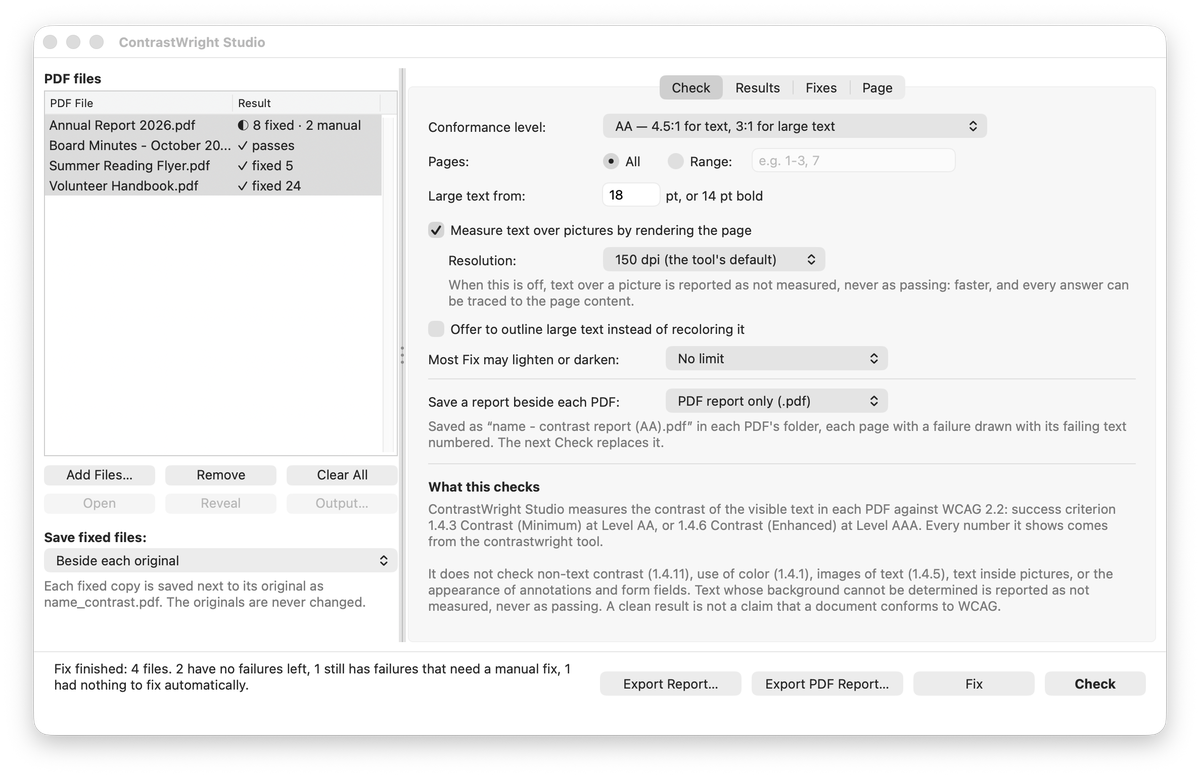
Figure 7. After a Fix of the four files: the flyer and the handbook fixed, the minutes passing, and the annual report with 8 failures fixed and 2 that need a manual fix.
Stop works as it does for a check (Chapter 8): the file in progress has half a second to finish, and a fixed copy that run was still writing is removed.
Note: If you stop a Fix while it is replacing a fixed copy that was already there, that copy may be left incomplete. Fix the file again.
Where fixed copies go
| Save fixed files | Where each copy goes |
|---|---|
| Beside each original | In the same folder as its original (the standard choice). |
| In folder: name | In the folder you last chose. Point at the note under the menu to see the folder's full location. |
| Choose Folder… | Asks for a folder (Save the Fixed Files In), then uses it. |
Every copy is named name_contrast.pdf, wherever it goes, so it never replaces its own original. There is no choice to replace the originals, on purpose: the tool never writes over a file it was given, and ContrastWright Studio does not work around that.
Before anything is written, ContrastWright Studio makes sure no copy would overwrite something it should not:
- Two files whose copies would have the same name, such as two report.pdf files from different folders saved into one chosen folder: “Two of the files would be saved as the same fixed file: … Save fixed files beside each original instead, or fix those files one at a time.”
- A copy that would replace another file in the same Fix: “The fixed copy of one file would replace another file in this Fix: … Fix them one at a time, or remove that file from the selection.”
- Copies already there, from an earlier Fix: “Replace 1 existing fixed file?” — “Each name_contrast.pdf already there is overwritten by the new fixed copy. The original PDFs are never changed.” Click Replace to go on, or Cancel to stop before anything is written.
What Fix changes, and what it does not
Fix changes the color of text, and nothing else. For each color pair it can fix, it gives the text a new color of the same hue and saturation, only as much darker or lighter as the ratio needs, and writes it back in the color space the text was written in: gray text stays gray, CMYK text stays CMYK, and a color with an ICC profile keeps its profile. The text itself, where it sits and everything else on the page are left as they were, and a tagged document keeps its tags.
Fix does not repaint a background, change text in a spot ink, or change text whose background was measured from a drawing of the page, which includes text on a picture or a gradient. Text in a process color on a solid spot-ink panel is fixed as on any panel. It does not rewrite a Lab color, or text whose outline is in a color space that cannot hold the new color. Those failures stay in the fixed copy, as manual fixes (Chapter 11).
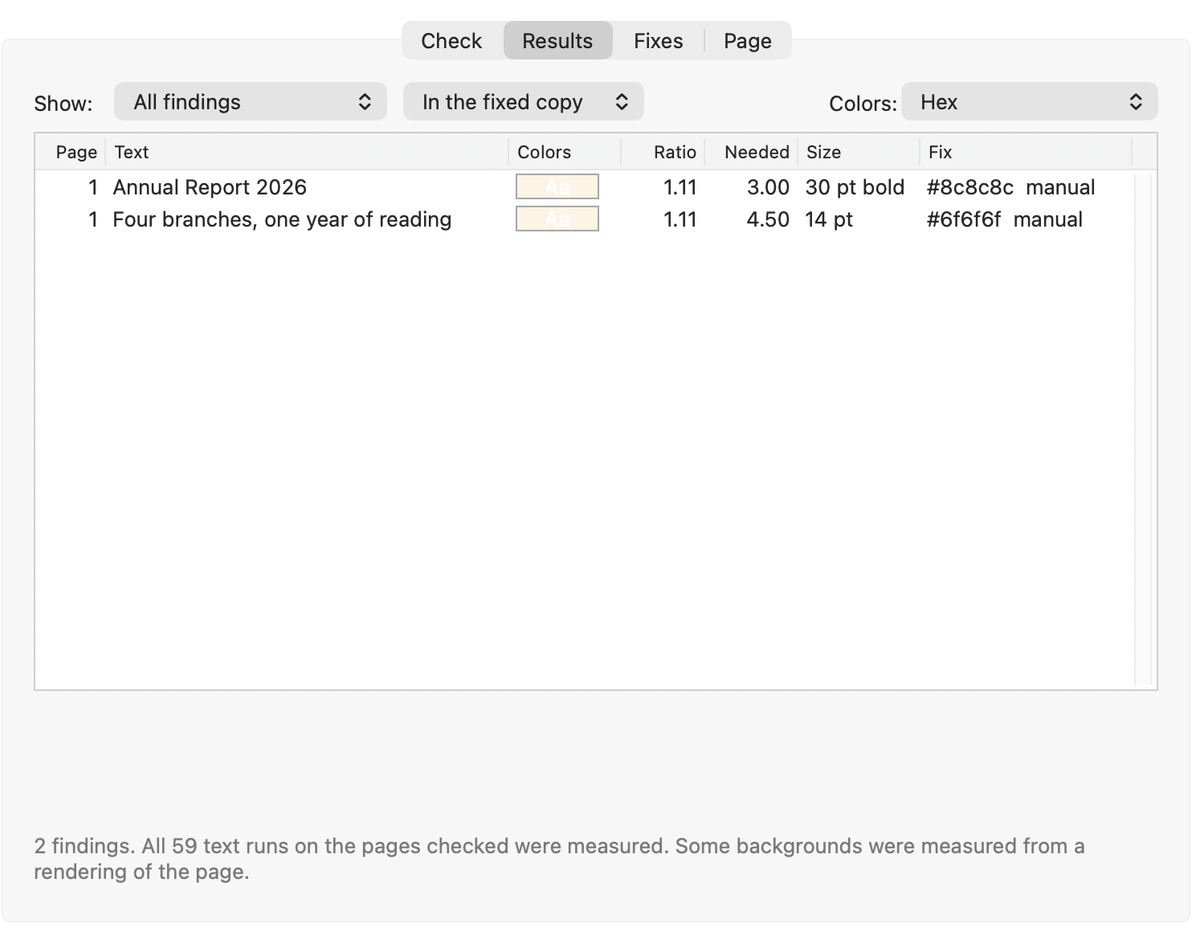
Figure 8. The Results tab showing the fixed copy of Annual Report 2026.pdf: the two lines of its cover, set on a picture, are left for a manual fix.
When you have reviewed a file's changes on the Fixes tab, Fix makes exactly the changes ticked there, in the colors chosen there. Without a review, it makes every automatic change, in the colors the tool proposes.
With a lightness limit set on the Check tab (Chapter 7), what the tool proposes keeps to it: a change whose recolor would move the lightness further is outlined in its recolor's place where the check offered an outline, and is otherwise held back. Without a review, Fix does exactly that; a change you tick on the Fixes tab is recolored past the limit, as you chose.
Files Fix leaves alone
- A file whose last check, made with the options set now, found nothing Fix could fix: “Nothing to fix automatically.” and the check's summary, ending “No copy was written.” A file with no failures at all says “Nothing to fix.”
- A file whose changes are all unticked on the Fixes tab: “Nothing to fix: every change is unticked on the Fixes tab. No copy was written.”
- A file whose every change the lightness limit held back, when its check was made with the options set now: “Nothing to fix: the lightness limit set on the Check tab held back every change. Tick one on the Fixes tab to recolor it anyway, or choose a higher limit. No copy was written.”
- A file whose changes you reviewed under other options: “Your choices for this file belong to a check made with other options than the ones set now. Set the options back, or Check the file again and choose again.”
When Fix runs but finds nothing it can recolor, it keeps no copy, and the Result column shows the check's result again. If a copy from an earlier Fix was there and you chose to replace it, that file now holds an unchanged copy of the original, and the status line says so. When it was the lightness limit that held back every change, the status line says that instead: “Nothing was changed: the lightness limit set on the Check tab held back every change.”
The Result column after a Fix
| Result | Meaning |
|---|---|
| ✓ fixed 5 | Fix recolored the text of 5 failures, and the check of the fixed copy finds none. |
| ◐ 4 fixed · 4 manual | 4 failures recolored; the fixed copy still has 4 that need a manual fix (see Fixes). |
| ◐ 1 fixed · 4 kept | The failures left are all in text you chose to leave as it is, or that the lightness limit held back: “The re-check still finds 1 failure, in the text held back by the lightness limit set on the Check tab.” |
| ◐ 26 fixed · 9 left | Failures are left both in text you chose to leave, or the lightness limit held back, and in text that needs a manual fix. |
| ◐ 26 fixed · 3 unmeasured | No failures in the text the check of the copy could measure, but some it could not measure: not a pass. |
| ◐ 26 fixed · no text | The check of the fixed copy measured no text, so it cannot say what is left. |
| ◐ 26 fixed · not re-checked | The copy was written, but its check failed or was stopped, so what is left in it is not known. |
| ⚠ 26 fixed · 3 left | The check of the fixed copy still finds failures the tool calls fixable, which Fix should have fixed: a defect in the tool. Please send the file to Appligent. |
| ✗ choices refused | The tool refused your choices from the Fixes tab before writing anything (below). |
The status line gives the details in a sentence, such as: “Recolored 5 failures and saved “thresholds_contrast.pdf”. The re-check finds no contrast failures at Level AA.” A Fix that outlined some changes says so: “Recolored 5 failures and outlined 5, and saved “brochure_contrast.pdf”.” Both count failures, as the Results tab lists them; the tool's own line, under Output…, counts the runs of text it changed: “Recolored 55 text runs on 1 page” for the same Fix of thresholds.pdf. At the end of a run it sums up all the files: “Fix finished: 9 files. 5 have no failures left, 1 still has failures that need a manual fix, 3 had nothing to fix automatically.”
When your choices are refused
Before it writes anything, the tool checks that your choices still describe the file, and measures every chosen color again, against every run it would recolor. It refuses, and writes nothing, when:
- the PDF has changed since it was checked: “Nothing was written: the PDF has changed since it was checked, so your choices no longer describe it. Check it again, then choose again.”
- the choices belong to a check made with other options: “Nothing was written: your choices belong to a check made with other options. Check the file again with these options, then choose again.”
- a color you chose fails one of its runs: “Nothing was written: contrastwright refused your choices --” and the tool's reason, then “Choose another color for that change, or Use Suggested, and Fix again.”
Your choices are kept, so you can correct the one at fault and Fix again.
After a Fix
- The Results and Page tabs show the fixed copy. Choose In the original on the Results tab to look back at what the check found before.
- Open and Reveal act on the fixed copy.
- Export PDF Report… saves a PDF report that says what Fix changed and what is left (Chapter 13).
Why the fixed copy can count fewer failures
A fixed copy often holds the same text in fewer, longer runs than the original: when colors change, the PDF Library that writes the copy joins neighboring runs that now share their settings. A failure is already all the pieces of its word or line (Chapter 3), so this seldom changes what the check of the copy finds in the text Fix left unchanged; but two failures of one line that the copy draws as one run come back as one. Nothing is lost: the text is the same, letter for letter. When it happens, the status line says so: “the 5 left out, some now joined: the fixed copy holds their text in fewer, longer runs.”
13. Reports
ContrastWright Studio can keep a record of what a check found in two ways: reports saved beside each PDF every time you check it, or reports you export. A report is either the contrastwright tool's own, as text, a spreadsheet or JSON, or a PDF report made for people, with each failing page drawn. A Check that saves the tool's report saves the PDF report beside it too, and Export PDF Report… makes one PDF report for each file you select.
The formats
| Format | What it holds |
|---|---|
| Text (.txt) | The tool's text report: each failure with its number, criterion, ratio and colors, its text, its position and size, its background and the color the tool suggests; then what the check covers and what it does not. |
| Spreadsheet (.csv) | One row for each failure, for a spreadsheet or a database. Its columns: id, page, severity, criterion, ratio, required, foreground, background, fontSize, bold, largeText, backdrop, suggested, left, bottom, right, top, text, colorSpace, components. |
| JSON (.json) | The tool's full report, for other programs: every failure with every detail the tool measured, and the counts of what was measured, skipped and not measured. |
| PDF report (.pdf) | A report for people, described below: the result, the color pairs as swatches, and every failure on a drawing of its page. One for each PDF, made by PageWright's layout engine. |
How a report names colors
A text, spreadsheet or PDF report names colors as the Colors menu on the Results tab does when the report is made (Chapter 9): by their hex codes, “4.29:1 for normal text (#7a7a7a on #ffffff)”, or as in the document, “4.29:1 for normal text (R=122 G=122 B=122 on paper white)”. In a spreadsheet the words fill the foreground, background and suggested columns, in quotes, since they hold spaces. A JSON report holds both: every color's hex, and beside it the same color in words (Chapter 17).
Saving reports beside each PDF
On the Check tab, choose a format under Save a report beside each PDF (Chapter 7). After each file's check, its reports are saved in the file's folder, named for the file and the level: the tool's report in the format you chose, “Annual Report - contrast report (AA).txt”, or .csv or .json, and beside it the PDF report, “Annual Report - contrast report (AA).pdf”. Choose PDF report only (.pdf) for the PDF report alone. The next Check replaces them.
The file's status line ends by saying what was saved: “Text and PDF reports saved beside it.”, or, for the PDF report alone, “PDF report saved beside it as “Annual Report - contrast report (AA).pdf”.” When one of the two cannot be saved, the line says which, and why: “Text report saved beside it; ⚠ the PDF report could not be saved (no layout engine: see Settings).” Without the layout engine, the tool's report is still saved.
Exporting a report
- Select a file in the list.
- Click Export Report…, or press ⌘E (Ctrl+E on Windows).
- ContrastWright Studio asks which report to save: “Export the contrast report of “Annual Report.pdf” as:”, then PDF report (.pdf), Text (.txt), Spreadsheet (.csv) and JSON (.json), each with a line saying what it holds. The format you exported last is chosen, Text the first time. Choose one and click Export…, or click Cancel to save nothing. A PDF report goes on as Export PDF Report… does (below).
- For text, a spreadsheet or JSON, a save dialog named for the format comes next: Export Text Report, Export Spreadsheet Report or Export JSON Report. Give the report a name. The suggested name is the file's, with the format's ending: “Annual Report - contrast report (AA).txt”. Keep that ending: it is the format you chose that counts, not the ending you type, and a name that ends otherwise is refused (below). On a Mac the dialog names the report it saves: “The contrast report as text (.txt), from a fresh check with the Check tab's options.” On Windows its Save as type holds that format alone, such as Text (*.txt), and a name typed without an ending is given the format's.
- Click Save. While the report is made, Export Report… reads Stop; when it is done, the status line says where it went: “Report saved as “Annual Report - contrast report (AA).txt” in “Reports”.”
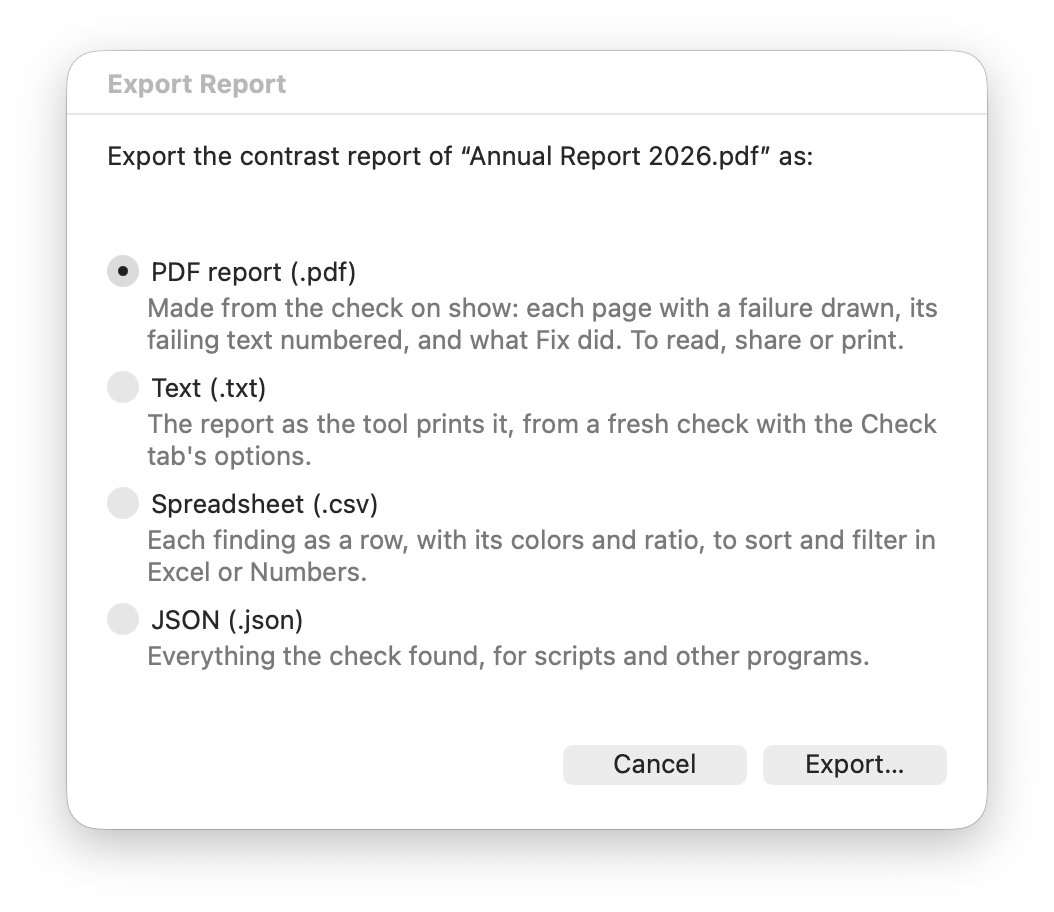
Figure 9. Export Report asks which report to save for Annual Report 2026.pdf: a PDF report, text, a spreadsheet or JSON, each with a line saying what it holds.
A text, spreadsheet or JSON report is a fresh check with the options on the Check tab, written straight from the tool, so it says exactly what those options say. Each is one file's report. With several files selected, or none when the list holds several, the question offers the PDF report alone, one for each file: “Export a PDF report for each of 3 files, into a folder you choose. Text, a spreadsheet and JSON are one file's report: select one file for those.” The other three formats are dimmed, and Export… goes on as Export PDF Report… does for several files (below).
From the keyboard, Down Arrow or Right Arrow chooses the next format and Up Arrow or Left Arrow the one before, going round at either end and passing over a dimmed one. Return (Enter on Windows) clicks Export…, and Escape clicks Cancel. On a Mac, the formats take the keyboard when the Keyboard navigation setting is on (Chapter 16).
Exporting PDF reports
A PDF report describes the check the tabs are showing, with what Fix did, so a file must have been checked first, and its report is named for the level of that check. Export PDF Report… makes one without asking which report; Export Report… makes one when you choose PDF report.
- Select a file in the list.
- Click Export PDF Report…, or press ⇧⌘E (Ctrl+Shift+E on Windows). Or click Export Report…, choose PDF report and click Export….
- In the Export PDF Report dialog, give the report a name ending .pdf. The suggested name is the one a Check gives it: “Annual Report - contrast report (AA).pdf”.
- Click Save. While the report is made, Export PDF Report… reads Stop, or Export Report… when you began there; when it is done, the status line says where it went and how long it is: “PDF report saved as “Annual Report - contrast report (AA).pdf” in “Reports” (5 pages).”
For several files at once, select them in the list, or none when the list holds several, and click Export PDF Report…, or click Export Report… and then Export…: with several files its question offers the PDF report alone. In the Export PDF Reports dialog, choose a folder: each file gets its own report there, named as a Check names it. A file not yet checked has no report to make and is left out: on a Mac the dialog says so beforehand, and on both systems the status line says so at the end (“Left out, not checked yet: 1 file.”). When a report of the same name is already in the folder, ContrastWright Studio asks before replacing it. When the run ends, the status line counts what was saved: “Saved 10 PDF reports in “Reports”.”, or “Saved 9 of 10 PDF reports in “Reports”. ⚠ Not saved: Brochure.pdf (the PDF is no longer there).”
The PDF report
A PDF report is a tagged PDF/UA-1 document, in US English, on Letter-size pages. It holds:
- A heading with the file's name, its page count, the day it was checked, the level and criterion, and the large-text size.
- A banner with the result in a word and a sentence: FAILS, NOT A PASS, NO TEXT or PASSES; after a Fix, FIXED or PARTLY FIXED, with what is left said as the status line says it.
- At a glance: the counts, in cards. Before a Fix: failures, those Fix can fix automatically, those that need the source changed, and the text measured. After a Fix: the failures found in the original, the failures Fix recolored (or changed, with how many it outlined), the failures left in the fixed copy, and the text measured. Where text was hidden under a shape drawn over it (Chapter 3), the measured card counts it among the runs skipped as invisible, blank or hidden, and a line under the cards says how many runs lie hidden, which a screen reader may still read out.
- After a Fix, What Fix changed: each color pair and what became of it — the tool's color, a color chosen in the app with its ratio, outlined with its color kept, left as it is by choice, held back by the lightness limit (“held back: its recolor would change the lightness 22.2%, more than the 15% allowed”), or a manual fix. A pair the limit had outlined in its recolor's place says so too. A report of a file checked with a lightness limit (Chapter 7) names it in the line under its title, “lightness limit 15%”, and over the color pairs says what Fix does past it.
- Color pairs: each text color on each background, as swatches, as the Fixes tab lists them, with its worst and needed ratios, its fix, its failures and its pages.
- Findings by page: each page with a failure, drawn as contrastwright draws it, its failing text outlined and numbered to match the table under it. At most 25 pages are drawn; when there are more, the report says “Pictures are shown for 25 of the 30 pages with failures; the rest are listed by their text.”
- After a Fix, Left in the fixed copy: the failures the check of the copy still finds, page by page.
- What this check covers: the tool's own sentences on what it checked and what it did not.
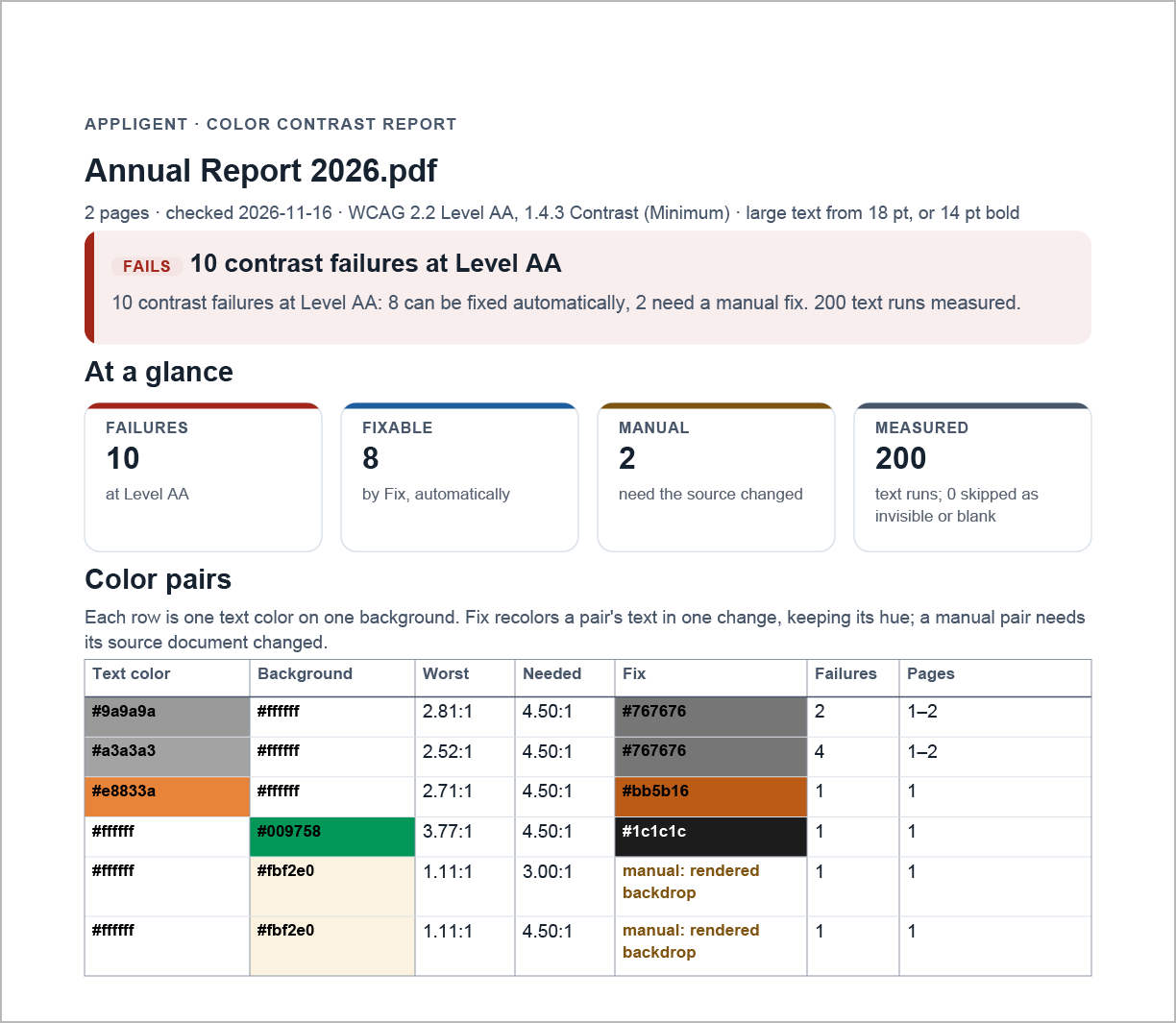
Figure 10. The first page of the PDF report for Annual Report 2026.pdf: the result, the counts at a glance, and the color pairs with their fixes.
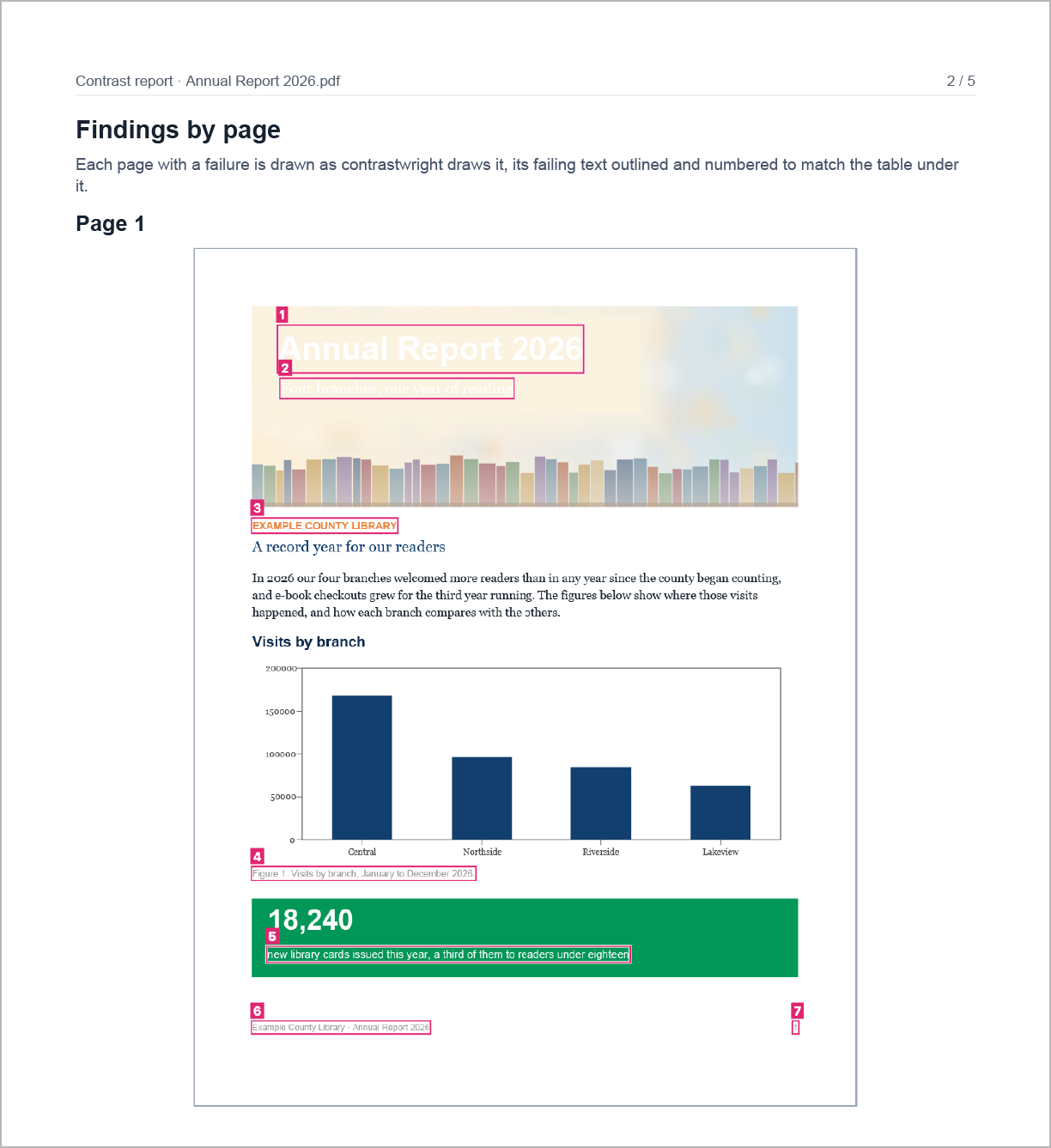
Figure 11. Findings by page in the same PDF report: page 1 of the annual report, drawn with its failing text outlined and numbered to match the table under it.
A report about contrast has to pass its own check. Every text color in the report reaches at least 4.5:1 on what it sits on. The colors the report is about appear only as swatches, never as text, and each swatch is labeled with its hex code, or its words as in the document, in black or white, whichever reads.
The line under the report's heading gives the day of the check, and from page 2 on the footer names it again with the version of the contrastwright tool that made it. That day is the day of the check, not of the export, so a report exported later still says when the file was checked.
When a report is refused
| Message | What to do |
|---|---|
| “Check the file first: the PDF report is made from its check, and from what Fix did.” | Check the file, then export again. |
| “Check the files first: each PDF report is made from its file's check.” | Check the files, then export again. |
| “A text report's name ends .txt. Give it a name that does.”, or the same for a spreadsheet report (.csv), a JSON report (.json) or a PDF report (.pdf) | Give the report a name with its format's ending. For another format, export again and choose that one. |
| “Two of the files would be saved as the same report: …” | Two files of the same name, from different folders, would share a report name in the chosen folder. Export their reports one at a time, or into different folders. |
| “The report cannot replace a PDF in the list or a fixed copy. Give it another name.” | Choose another name. No report is ever written over a PDF you are checking or its fixed copy. |
| “That is a folder. Give the report a file name.” | Type a file name, not a folder's. |
| “A PDF report needs the layout engine (pagewrightapp), which was not found at …” | On a Mac, install PageWright. On Windows, run ContrastWright Studio's Setup again, which installs the engine where ContrastWright Studio looks for it. Or set the engine's location in Settings (Chapter 14). |
14. Settings
Settings says where ContrastWright Studio finds the two programs it runs: the contrastwright tool, which does every check, fix and drawing, and PageWright's layout engine, which makes PDF reports. Most people never need to change either.
To open Settings on a Mac, choose ContrastWright Studio > Settings…, or press ⌘,. On Windows, choose File > Settings…, or press Ctrl+,. The window is called ContrastWright Studio Settings.
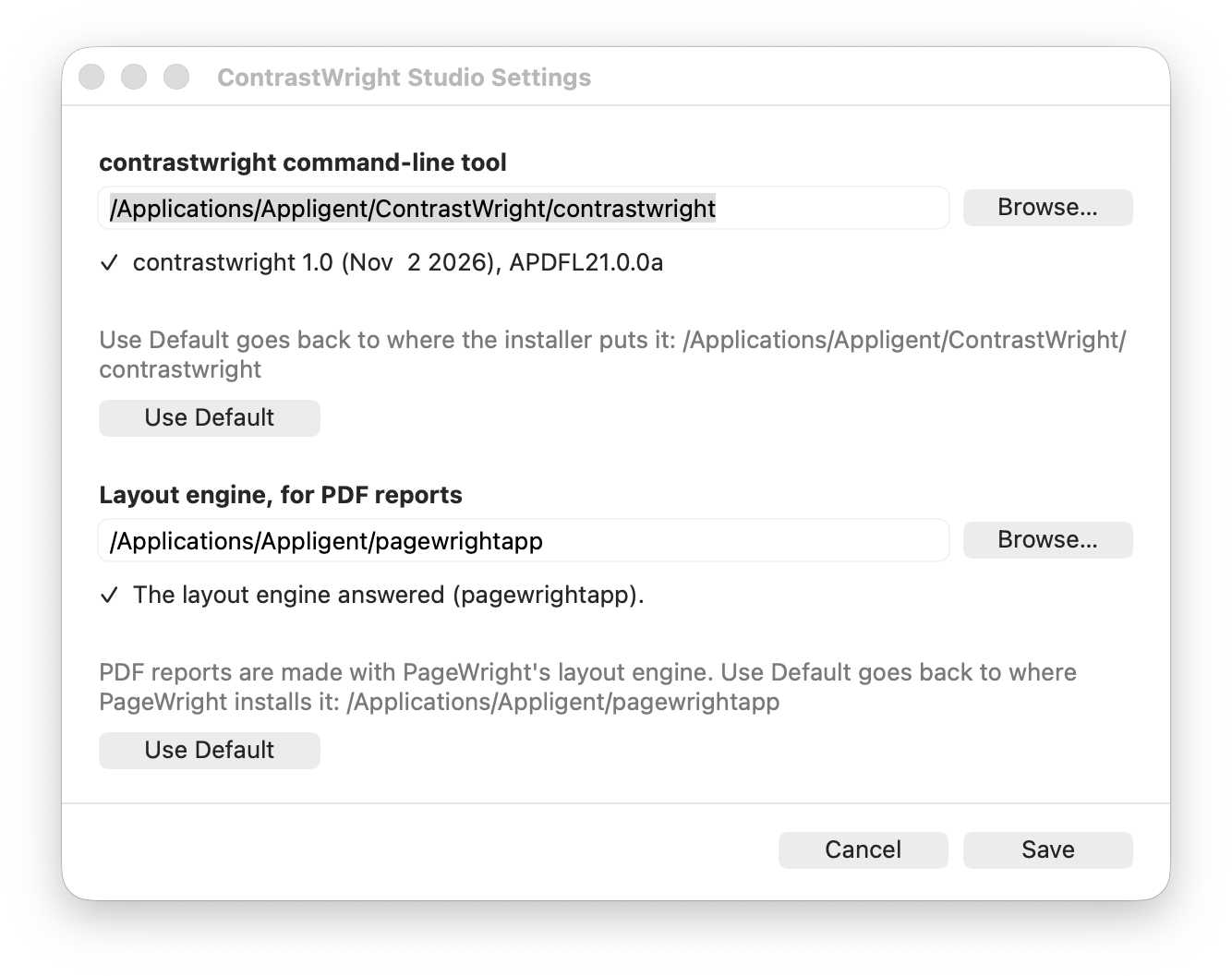
Figure 12. Settings on a Mac: the contrastwright tool and PageWright's layout engine where the installers put them, each with the answer it gave.
The contrastwright command-line tool
The first field holds the tool's location. The line under it says, as you type, what the program at that location says about itself:
- “✓ contrastwright 1.0 (Oct 25 2026), APDFL21.0.0a”: the tool answered with its version.
- “✗ There is no contrastwright tool at that path.”
- “✗ That file did not answer like contrastwright (exit 1).”: there is a file, but it is not the tool.
Browse… chooses the tool in a dialog. Use Default goes back to where the installer puts it, which the note under the field names: “Use Default goes back to where the installer puts it: /Applications/Appligent/ContrastWright/contrastwright” on a Mac, and C:\Program Files\Appligent\contrastwright.exe on Windows.
The layout engine, for PDF reports
The second field holds the location of PageWright's layout engine, pagewrightapp. On a Mac, PageWright installs it at /Applications/Appligent/pagewrightapp; on Windows, ContrastWright Studio's Setup installs it at C:\Program Files\Appligent\pagewrightapp.exe. It too is checked as you type:
- “✓ The layout engine answered (pagewrightapp).”
- “✗ There is no layout engine at that path, so PDF reports cannot be made.”
- “✗ That file did not answer like the layout engine (exit 0).”
Browse… and Use Default work as they do for the tool. Without the engine, everything but PDF reports works: a Check still saves the tool's report beside each PDF, and says that the PDF report could not be saved.
Saving
Click Save to keep the locations, or Cancel to leave them as they were. A location the same as the standard one is stored as “the standard one”, so that if a later version of ContrastWright Studio looks elsewhere by default, your settings follow it.
After a Save, ContrastWright Studio asks the tool again what it can do. A feature the tool in use does not offer is turned off rather than failing: an older contrastwright without page drawing leaves the Page tab saying so, one that cannot take a review leaves the Fixes tab read-only, and an option it does not list is dimmed on the Check tab.
15. Output and Troubleshooting
ContrastWright Studio keeps everything the contrastwright tool said about each file. When a result surprises you, Output… shows the commands ContrastWright Studio ran and the tool's own words, and this chapter lists the messages you are most likely to meet and what to do about them.
Output…
Select a file and click Output…, or double-click the file in the list. The window, titled with the file's name and “contrastwright output”, shows:
- the file's result, in the sentence the status line gives it;
- Command: the first command ContrastWright Studio ran for the file, exactly as it ran it;
- contrastwright reported: everything the tool printed for the file in its last check or fix, and for any report exported since. Each command comes first, after a $, and what it printed ends with its exit code, such as [exit 2].
Copy All puts the command and the output on the clipboard; Save… saves them as a text file, named for the file with “ - contrastwright output.txt”. Send that file with any question to Appligent.
The tool's exit codes mean:
| Exit | Meaning |
|---|---|
| 0 | The tool ran, and nothing failed. |
| 2 | The tool ran, and found contrast failures. For a fix, 2 means the original had failures, whatever the fix did about them. |
| 1 | The tool could not do its job: it could not open the file, or it refused what it was asked to do. Its reason is the last line that starts “contrastwright:”. |
Messages and what to do
| Message | What it means, and what to do |
|---|---|
| “contrastwright was not found at …” | The tool is not where ContrastWright Studio looks for it. Install it (on Windows, run ContrastWright Studio's Setup again), or set its location in Settings (Chapter 14). |
| “✗ can't open”, with “could not open” and an APDFL error number in the status line | The file is not a PDF, is damaged, or needs a password to open. Open it in a PDF viewer to see which. A file that needs a password to open must have that password removed before it can be checked. |
| “Please correct these first:” | Something must be put right before a run: a value on the Check tab the tool cannot use, a folder for fixed files that is no longer there, or a missing layout engine for PDF reports. The message lists each one (Chapter 7). |
| “⚠ 12 unmeasured” | The background of some text could not be resolved, or the text's own color is one the tool cannot read, such as a DeviceN or pattern color. If Measure text over pictures by rendering the page is off, turn it on and check again. Text the tool still cannot measure needs checking by eye. |
| “– no text” | No text was measured. Check the page range. A scanned page whose words are only an invisible layer over a picture has no visible text to measure: the text a reader sees is part of the picture. |
| Many failures in a header, a footer or a logo | Possibly decoration or a brand name, which WCAG does not require to pass (Chapter 3); a table of contents' row of dots is already skipped. A running header, a footer and a page number need contrast like any other text. Decide each one. |
| “⚠ 26 fixed · 3 left” and “a tool defect” in the status line | The fixed copy still has failures the tool says it can fix. Please send the file to Appligent. |
| “✗ choices refused” | The tool refused your choices from the Fixes tab before writing anything. The status line says why (Chapter 12). |
| “⚠ A PDF report needs the layout engine (pagewrightapp)…” | On a Mac, install PageWright. On Windows, run ContrastWright Studio's Setup again, which installs the engine where ContrastWright Studio looks for it. Or set the engine's location in Settings. |
| “⚠ the PDF report could not be saved (…)”, or “⚠ The reports could not be saved beside it (…)” | The check stands, but a report it saves beside the PDF could not be written; the reason is in parentheses. “no layout engine: see Settings” means the PDF report needs PageWright's layout engine (Chapter 14). Otherwise the PDF's folder may be read-only: export the reports somewhere else. |
| “⚠ The layout engine warned: …” | The PDF report was saved, but something in it may be missing, such as a page picture. Output… has every warning. |
| “Wait for the run to finish before adding files.” | Files cannot be added during a check or a fix. Add them when it ends. |
| “The ContrastWright Studio Users Guide was not found in this app…” | This guide is missing from ContrastWright Studio. Reinstall ContrastWright Studio. |
| “An unexpected error occurred.” | Something went wrong inside ContrastWright Studio. The message names it; please send it to Appligent with what you were doing. |
Getting help
Write to Appligent at support@appligent.com. Include the version line from Help > About ContrastWright Studio, the Output… text for the file (Save… writes it to a file), and, when you can, the PDF itself.
16. Accessibility of ContrastWright Studio
An accessibility checker should be usable by everyone who checks documents for accessibility. On a Mac, ContrastWright Studio's lists are published to VoiceOver as tables and its painted colors are given words; on a Mac and on Windows alike, its commands can be reached from the keyboard. Its own reports, and this guide, are tagged PDF/UA-1 documents that pass their own contrast check.
VoiceOver on a Mac
The three lists, the PDF files list and the Results and Fixes lists, are tables to VoiceOver, named “PDF files”, “Results” and “Fixes”, each with its column titles. VoiceOver reads each cell in words, including the cells ContrastWright Studio paints or shortens on screen:
| List and column | On screen | VoiceOver says |
|---|---|---|
| PDF files, Result | ✗ 55 fail | 55 failures |
| PDF files, Result | ◐ 4 fixed · 4 kept | 4 fixed, 4 kept |
| PDF files, Result | ⚠ 3 fixed · 2 left | warning: 3 fixed, 2 left |
| Results, Colors | A painted “Aa” sample | #9a9a9a on #ffffff |
| Results, Fix | #767676 auto | #767676, fixed automatically |
| Results, Fix | #5e5e5e manual | #5e5e5e suggested, needs a manual fix |
| Fixes, Fix | A check box | A check box named for its change, such as “Fix #ababab to #767676”, ticked or not |
| Fixes, Change | Two swatches and an arrow | #ababab to #767676 |
| Fixes, Worst ratio | 2.30 (4.50) | 2.30, needs 4.50 |
| Fixes, Pages | 1–4 | 1 to 4 |
VoiceOver names the colors as the Colors menu on the Results tab does (Chapter 9). As in the document, the Colors cell above is said as “R=154 G=154 B=154 on paper white”, and a Fix box is named “Fix R=171 G=171 B=171 to R=118 G=118 B=118”.
What VoiceOver does in a list is what the mouse does: pressing a Fix box ticks or unticks it, and the sentence over the Fixes list changes with it; pressing a column title sorts by it; selecting a row selects that file or finding, and the rest of the window follows.
The lists stay current by themselves: when a check finishes a file, its Result cell is said as it is now. A very long list, such as a report of thousands of findings, is brought up to date in short steps once it stops scrolling, so it stays quick to move through.
The divider between the PDF files list and the tabs is a splitter to VoiceOver, named “File list divider”, whose value is the list's width in points. VoiceOver can widen and narrow the list with it, 20 points at a time.
The Page tab's drawing is a picture, which VoiceOver cannot read. The Results list holds the same findings: its Text column gives each one's words, and the detail line under the list its position on the page.
Screen readers on Windows
On Windows, ContrastWright Studio does not publish its lists to a screen reader such as Narrator yet: a screen reader cannot read the rows and cells of the PDF files, Results and Fixes lists, nor the Page tab's drawing. The keys below work on Windows too.
The keyboard
- The main commands are in the menus, with shortcuts (Chapter 5): ⌘O, ⇧⌘O, ⌘R, ⇧⌘R, ⌘., ⌘E, ⇧⌘E and ⌘, on a Mac; Ctrl+O, Ctrl+Shift+O, Ctrl+R, Ctrl+Shift+R, Ctrl+., Ctrl+E, Ctrl+Shift+E and Ctrl+, on Windows. The other buttons, such as Remove, Open, Reveal, Choose Color… and Use Suggested, are reached with Tab.
- On a Mac, Tab moves between the window's controls when the Keyboard navigation setting is on (System Settings > Keyboard). On Windows it always does.
- On Windows, Alt+F, Alt+E and Alt+H open the File, Edit and Help menus.
- In a list, Up Arrow and Down Arrow move the selection; in the PDF files list, Delete removes the selected files.
- On the Page tab, while the page has the keyboard, Up Arrow and Down Arrow go to the previous and next page with findings, and Left Arrow and Right Arrow to the previous and next finding (Chapter 10).
- Tab reaches the divider between the PDF files list and the tabs; Left Arrow and Right Arrow then narrow and widen the list (Chapter 5).
- In Export Report…'s question, the format chosen has the keyboard: Up Arrow and Left Arrow choose the format before it, Down Arrow and Right Arrow the one after, Return (Enter on Windows) exports and Escape cancels (Chapter 13). On a Mac the formats take the keyboard when the Keyboard navigation setting is on, as for Tab.
Light and Dark Mode
On a Mac, ContrastWright Studio follows the Light or Dark appearance. Its explanatory notes are drawn in a gray chosen for the appearance in force, so that they stay readable in both. The painted samples and swatches always show the PDF's own colors, whatever the appearance.
17. The contrastwright Command-Line Tool
Every check, fix and drawing of a page ContrastWright Studio makes, it makes by running the contrastwright command-line tool, and the same tool can run on its own: from Terminal or a Command Prompt, in a script, or on a server that checks documents as they arrive. This chapter is a short reference for that use. Output… shows the exact command ContrastWright Studio ran for any file, which is a good place to start a script from.
Where it is, and how it is run
The tool is ContrastWright, Appligent's command-line contrast tool, and its command is contrastwright. On a Mac it is installed at /Applications/Appligent/ContrastWright/contrastwright. That file is a small launcher which sets up the Adobe PDF Library the tool is built on, then runs it, so it works from any folder. On Windows it is C:\Program Files\Appligent\contrastwright.exe, beside that library, and ContrastWright Studio's Setup adds the folder to the PATH, so contrastwright runs from any Command Prompt or PowerShell window opened after the install.
The command's first word is a verb, which says what to do:
| Verb | What it does |
|---|---|
| check | Measures the contrast of the text in a PDF and writes a report. It writes nothing to the PDF. Without a verb, check is assumed. |
| repair | Measures, then writes a copy of the PDF with the failing text recolored. It never writes over its input. |
| contrast | Judges one pair of colors, without reading a PDF. |
| render | Draws one page of a PDF as a PNG picture. |
contrastwright check  -i report.pdf
contrastwright check  -i report.pdf -l aa -f csv -o findings.csv
contrastwright repair -i report.pdf -o report_contrast.pdf
contrastwright contrast --fg "#949494" --bg "#ffffff"
contrastwright render -i report.pdf --page 3 -o page3.png
Put a color in double quotes, as above. Unquoted, a # begins a comment in PowerShell and in a shell script, and the Windows Command Prompt does not take single quotes as quotes; double quotes work in all of them.
Options for check
| Option | Meaning |
|---|---|
| -i, --input F | The PDF to check (required). |
| -o, --output F | Where the report goes; without it, the text report is printed. |
| -f, --format | text, json or csv (text without it). JSON and CSV need -o. |
| --colors W | How the text and CSV reports name colors: hex (without it), or document, as the PDF names them, such as C=100 M=0 Y=70 K=20, R=0 G=151 B=87, Gray K=40 or L=55 a=-45 b=20. A JSON report always holds both. |
| -l, --level | aa or aaa (aa without it). |
| -p, --pages | The pages to check, such as 3, 2-7 or 1,4,9-12 (every page without it). |
| --large PT | The point size from which text counts as large (18 without it); bold from PT minus 4. |
| --dpi N | The resolution of the drawing used to measure text over pictures (150 without it). |
| --no-raster | Never draw a page: report what the page content cannot settle as not measured. |
| --emit-ops F | Also write the changes a repair would make, grouped by color pair, to F. |
| --strokes outline | Also offer, beside each recolor, to keep large text's color and outline its letters in a color that reads (the Outline fix). The --emit-ops file then names each change's outline, or why it has none. |
| --outline-small | With --strokes outline: offer normal-size text an outline too. |
| --max-shift L | The most a recolor may move a text color's lightness, from 0 to 1, such as 0.15 for 15%: the change in the L of HSL between the colors as the page draws them. A change that needs more is proposed as its outline, where --strokes outline offers one, and otherwise is not approved. The reports and the --emit-ops file name the limit (maxShift) and each change's shift; a repair without --ops does as proposed. |
| -v, --verbose | Say what is being measured, page by page, and what could not be. |
| -h, --help | Show every option. |
| --version | Show the tool's version. |
Options for repair
repair takes every option check takes, and these:
| Option | Meaning |
|---|---|
| -o, --output F | The fixed copy to write (required). It must not be the input, however it is spelled. |
| --report F | Also write the check report of the input, as it was before the repair, to F. |
| --dry-run | List the changes that would be made, and write nothing. |
| --ops F | Make only the changes the reviewed file F approves: a file written by --emit-ops, with "apply" set to false on each change to leave out, or a "to" color changed; in a file made with --strokes outline, "fix" set to "outline" on a change to outline instead of recolor, and its outline's "to" changed if you like. The tool refuses, writing nothing, a file made from another PDF or with other -l, --large or -p options, and an approved color that fails. |
repair prints a line saying what it did, such as “Recolored 19 text runs on 1 page”, or “Recolored 5 text runs and outlined 5 on 1 page” when a review chose outlines, and always writes the output file: an unchanged copy when nothing could be fixed. It never outlines text a review did not choose to outline.
Options for contrast and render
| Option | Meaning |
|---|---|
| --fg C, --bg C | contrast: the text color and the color behind it, as #rgb or #rrggbb; --fg can also be #rrggbbaa, with the text's alpha (both required). |
| --alpha A | contrast: the text's opacity, from 0 to 1. |
| --size PT, --bold | contrast: the text's size, and whether it is bold; without --size it is judged as normal text. |
| --palette F | contrast: also name the nearest color in the palette file F that passes. |
| --space K | contrast: also name the text color, and any suggestion, as a repair would write them into text of the kind K: gray, rgb, cmyk or lab. |
| -i F, --page N, --change K | contrast: judge the color as the text of one change is drawn, for text in CMYK, in an ICC profile or on a page that blends: K is the change's key in an --emit-ops file, in quotes, F the PDF it was made from, and N a page that text is on. |
| -i F, --check-pages L, --change K | contrast: in place of --page, check the pages L the change is on and judge the color for every run of it, its fill and any outline, exactly as Fix will. |
| --fix outline | contrast, with --check-pages: judge the color as the change's outline instead, its text keeping its color; the answer's ratio is the outline's, and fix and width say so. Add --outline-small when the --emit-ops file was made with it. |
| --page N | render: the page to draw, counting from 1 (required). |
| --dpi N | render: the picture's resolution, from 36 to 600 (96 without it). |
contrast also takes -l and --large, as check does. It prints one line of JSON with the ratio, the ratio required, whether the pair passes, and a suggested color when it does not. render prints one line of JSON describing the picture it drew.
Every color a JSON report or an --emit-ops file gives as a hex code also comes in the document's words, in a member of the same name ending “Document”: a finding's foregroundDocument, backgroundDocument and suggestedDocument, and its sentence as messageDocument; a change's fromDocument, onDocument and toDocument (suggestedDocument for a failure left for a person). With --space or --change, contrast's answer adds fgDocument and suggestedDocument; with --change, also fgDrawn, the color the page draws; with --check-pages, also outlineDrawn, outlineDocument and outlineRatio, for the outline that reads worst. ContrastWright Studio reads these when its Colors menu is set to As in the document.
A finding is one run of text, or the pieces of one stretch of a line that fail alike (Chapter 3), so every report lists a word the PDF draws in four runs once. A JSON finding of more than one run says how many in runs, and its bbox covers them all. An --emit-ops file's runs counts the runs of each change, beside the findings it lists. repair changes every run of each finding it fixes, and its line counts runs: “Recolored 55 text runs on 1 page” for thresholds.pdf's 5 failures.
The tool's messages use American spelling, but the names and codes in its JSON keep the spelling they were given, so a few are British: an --emit-ops change's greyOnly, and the reasons no-passing-colour, spot-colour and colour-space, in a change's noFixReason and outlineReason and in a finding's outlineFix.
Exit codes
| Exit | Meaning |
|---|---|
| 0 | It ran, and nothing failed (for contrast: the pair passes). |
| 2 | It ran, and found contrast failures (for contrast: the pair fails). |
| 1 | It could not do its job; its reason is on its last line starting “contrastwright:”. |
A script can rely on these: exit 2 is a result, not an error. But exit 0 is not a pass by itself: the tool also exits 0 when some text could not be measured, or none was. Read the report's measured counts (runs and undetermined, in JSON) before calling a file clean, as ContrastWright Studio does. Its skipped count includes text hidden under a shape drawn over it (Chapter 3), which a JSON report also counts on its own as hidden, when there is any; the text report says “skipped 2 (invisible or blank; 2 hidden under a mark painted after them)”.
Every ratio the tool prints, in a message, the text report or the CSV, is cut to two places, never rounded: 4.4999:1 prints as 4.49:1, so a failure never prints as high as its need. The JSON report's ratio, the --emit-ops file's worstRatio and newRatio, and contrast's ratio and suggestedRatio keep the full value, for a script that compares ratios itself.
A report like ContrastWright Studio's
The text report ContrastWright Studio saves beside a PDF is this command's, with the options from the Check tab:
contrastwright check -i "Annual Report.pdf" -l aa --large 18 --dpi 150 \
    -f text -o "Annual Report - contrast report (AA).txt"
In Terminal, the \ at the end of the first line carries the command on to the next. On Windows, type it as one line.
Note: Nothing the tool writes can be its input. It refuses, before doing any work, an -o, --report or --emit-ops that names the PDF it is reading, however the name is spelled.
Glossary of Terms
Alpha
How solid a color is painted, from 0 (fully transparent) to 1 (fully opaque). contrastwright measures translucent text as a reader sees it, blended with what is behind it.
Artifact
In a tagged PDF, content marked as decoration or page furniture rather than part of the document's meaning, such as a running header or a page number. A screen reader skips it. contrastwright measures it like other text, except a leader, the row of dots a table of contents draws, which it skips as decoration.
Background
What is painted behind a run of text, against which its contrast is measured: the bare page, a filled shape, a picture, a gradient, or several of these on top of one another. The tool's own reports call it the backdrop.
Color pair
One text color on one background. The Fixes tab shows one row for each pair, split further where its runs need different ratios (normal and large text, or different opacities), because all the runs of a row are changed together.
Color space
The system a PDF uses to describe a color, such as DeviceRGB, DeviceCMYK, DeviceGray, an ICC-based space, or Lab. Fix writes a new color back in the color space the text was written in. With the Colors menu set to As in the document, ContrastWright Studio names each color by its values in that space, such as C=0 M=0 Y=0 K=42.
Conformance level
One of WCAG's three levels, A, AA and AAA, each adding success criteria to the one before. ContrastWright Studio checks text contrast at Level AA or Level AAA.
Contrast ratio
How far apart two colors are in lightness, from 1:1 (the same) to 21:1 (black on white), computed as WCAG defines it from the relative luminance of each color.
ContrastWright
Appligent's command-line tool that measures the color contrast of the text in PDF files, writes fixed copies, judges single color pairs and draws pages. Its command is contrastwright. Every number ContrastWright Studio shows comes from it.
ContrastWright Studio
Appligent's desktop app, for macOS and Windows, for checking and fixing the color contrast of the text in PDF files. It runs the contrastwright tool and adds no contrast arithmetic of its own.
Finding
One failure, as contrastwright reports it, with a number such as C0001: a run of text that does not reach the contrast ratio it needs, or the pieces of one stretch of a line that fail alike, such as a word a PDF draws in four runs. The Results tab lists them.
Fixed copy
The new file Fix writes for a PDF, named after it with _contrast added. The original file is never changed.
Hex code
A color written as # and six hexadecimal digits, two each for red, green and blue, such as #009757: the color as a screen shows it. ContrastWright Studio names colors this way unless its Colors menu is set to As in the document.
Hue
The quality that makes a color red, green or blue, as distinct from how light or dark it is. Fix keeps each color's hue and saturation, and changes only its lightness.
Large text
Text of 18 points or more, or of 14 points or more when bold, which WCAG lets meet a lower contrast ratio: 3:1 at Level AA, 4.5:1 at Level AAA.
Layout engine
PageWright's pagewrightapp, the program ContrastWright Studio uses to make its PDF reports. On Windows, ContrastWright Studio's Setup installs it.
Manual fix
A failure Fix does not change by itself. The Fixes tab gives the reason and, when there is one, a suggested color for a person to apply in the source document.
PDF/UA
ISO 14289, the international standard for accessible PDF documents. ContrastWright Studio's PDF reports, and this guide, are PDF/UA-1 documents.
Relative luminance
The lightness of a color as WCAG defines it, from 0 for black to 1 for white, weighted for how the eye sees red, green and blue.
Rendering
A drawing of a page, which contrastwright makes to measure the color behind text when the page content alone cannot say what it is.
Review
Your choices on the Fixes tab: which of the proposed changes Fix makes, and in which colors.
Skipped run
A run of text a reader cannot see: invisible, fully transparent, of no size, nothing but spaces, or hidden under a shape drawn over it. contrastwright counts it but does not measure it.
Spot color
A color printed with an ink of its own, held in a PDF as a Separation color space, such as a brand's special ink. contrastwright measures text in a spot ink as the ink is drawn on screen, at its tint, and names the ink; Fix never changes a spot ink, so such text is a manual fix.
Success criterion
One testable requirement of WCAG, such as 1.4.3 Contrast (Minimum), which sets the contrast text must reach at Level AA.
Tagged PDF
A PDF that holds a structure of tags naming its headings, paragraphs, lists, tables and figures, so that assistive technology can read it in order.
Text run
A stretch of text a PDF draws in one go, with one font, size and color: a line, a word, or part of a word. contrastwright measures text run by run, and reports the runs of one stretch of a line that fail alike as one finding.
Unmeasured
Said of text contrastwright could not measure: its background could not be resolved, or its own color is one the tool cannot read, such as a DeviceN or pattern color. Unmeasured text is never counted as passing.
VoiceOver
The screen reader built into macOS, which reads ContrastWright Studio's lists as tables.
WCAG
The Web Content Accessibility Guidelines of the World Wide Web Consortium (W3C). ContrastWright Studio checks against version 2.2. Laws and policies for documents, such as Section 508 in the United States and EN 301 549 in Europe, refer to its Level AA.