



Redax Users Guide

Protect and Secure Sensitive Information of PDF Files

Introduction

What Is Redax?

Redax® is an Adobe® Acrobat® plug-in that automates the time-consuming task of searching for and deleting (redacting) sensitive or private information from PDF documents. You can use Redax together with Adobe Acrobat to redact text, images, and entire pages from PDF documents. You can also integrate Redax workstations with Redax Enterprise Server for a complete client-server PDF redaction solution.

How Redax Can Be Used

Redax has a wide range of uses:

  • Government agencies can redact PDF documents in accordance with FOIA (the Freedom of Information Act) and the Privacy Act.
  • Pharmaceutical companies can redact PDF documents for submission of a preliminary NDA (New Drug Application) or IND (Investigational New Drug) application.
  • Manufacturing and technology companies can protect proprietary information when filing for patents or distributing materials to contractors.
  • Legal professionals can redact private information from public documents before submitting briefs to US courts or agencies that accept electronic filings.

What Redax Offers

Redax offers a host of features to make redacting PDF documents easy.

Markup features

You can mark up, or select, areas for redaction by:

  • Drawing Redax boxes around text and images (bitmap and vector)
  • Placing Full-Page tags on entire pages and page ranges
  • Automatically finding all text that:
    • Is bracketed
    • Matches words and phrases in a redaction list file you create
    • Matches patterns, including Social Security numbers, telephone numbers, postal codes, email addresses, etc.
    • Matches regular expressions you provide
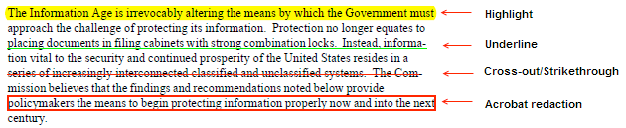
  • Using Acrobat’s text selection tool, highlighting tools (Highlight, Cross Out/Strikethrough and Underline) or Acrobat redaction markup
  • Applying a template to documents where the information to be redacted is always in the same location

Redaction features

When you redact a document, you can:

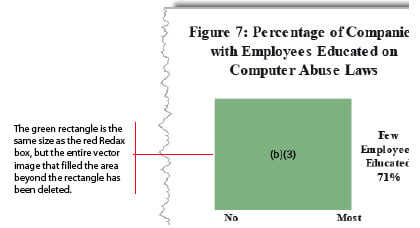
  • Overlay redacted text and images with rectangles in a color and transparency level of your choice
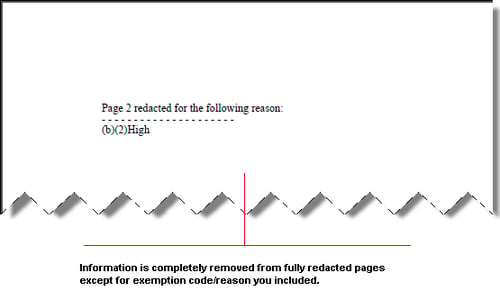
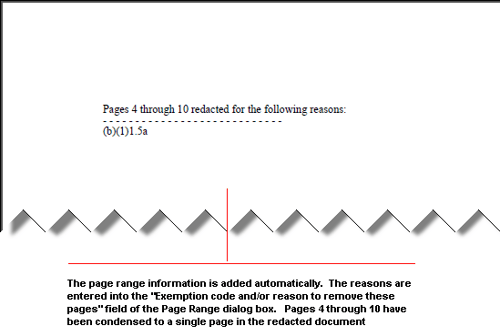
  • Condense redacted page ranges into a single blank page, or leave all of the redacted blank pages in the document
  • Use exemption codes or redact without them
  • Redact selected text or images based on a category

Customization features

You can customize Redax to suit your requirements by:

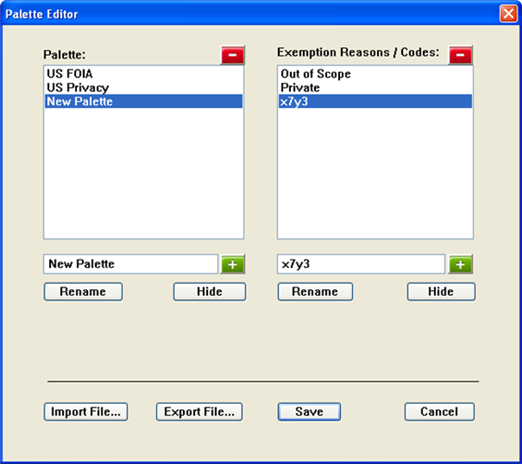
  • Editing the US FOIA and US Privacy exemption code palettes supplied with Redax or creating your own custom palettes
  • Creating redaction list files to automate text markup
  • Creating templates to automate markup of documents where the information to be redacted is always in the same location
  • Setting preferences for Redax boxes and Full-Page tags, which are used to markup information for redaction
  • Setting preferences to define the appearance of redacted areas
  • Setting preferences for a variety of processing options, such as whether to keep bookmarks from the original file in the redacted document

Quality control features

To ensure the quality of redacted documents, you can:

  • Review any preliminary Acrobat Highlights, Underlines or Cross Outs (also called Strikethroughs) or Acrobat redaction markup by:
    • Viewing them in the Acrobat Comments List
    • Printing them with the document
  • Review the Redax boxes and Full-Page tags in your document by:
    • Viewing them with Redax, Acrobat or Acrobat Reader
    • Printing them with the document
    • Generating a Redax report detailing the properties of the Redax boxes in the document
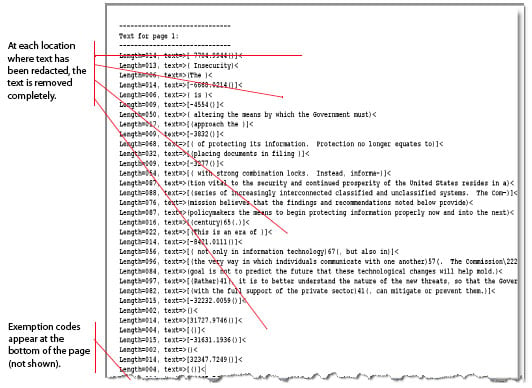
    • Creating text versions of the redacted document and original document and comparing them
    • Removing all annotations from the redacted document, including Redax boxes, to make sure no sensitive information remains

Workgroup features

Redax offers several features to help manage redaction projects with multiple authors:

  • Color-coding of Redax boxes
  • Assigning authors’ names to Redax boxes
  • Creating notes for Redax boxes
  • Marking documents for redaction without Redax using Acrobat’s highlighting tools (Highlight, Cross Out/Strikethrough and Underline)
  • Redax boxes may be viewed in Acrobat and Acrobat Reader without Redax installed

Typical Redax Workflow

A typical redaction project involves these steps:

  1. Set up Redax. Every redaction project has its own unique requirements. When you set up Redax, you customize it for the current project by defining preferences. You can also create or customize exemption code palettes, if you use them, and create redaction list files to automate the markup of text.
  2. Evaluate documents. All PDF documents are different. Some contain only text. Others may contain images, which can be in different formats. And if a document was created by scanning, some of the text may have been converted to an image. Because these and other considerations affect the redaction process, you should evaluate each document before marking it up and redacting it.
  3. Mark up document. To let Redax know which information in the document you want to redact, you mark it, usually with a special annotation called a Redax box.
    Redax offers a number of markup methods. Some are best suited for marking up specific images, passages of text or pages, while others are ideal for automating the markup of large quantities of repeating text, patterns (for example, Social Security numbers) or information that is always in the same location on the page.
  4. Review markup. After you mark up a document, you should check it for accuracy.
  5. Redact document. When your marked up document has been checked for accuracy, it is ready to be redacted.
  6. Review redaction. After you redact a document, you should check it to make sure that everything was redacted as you intended.
  7. Prepare document for distribution. Remove Redax boxes and consider removing other annotations before delivery.

Sample Files

Redax is supplied with several sample files, including:

  • sample_base.pdf is a document you can use for practice before you mark up and redact your own documents. It contains text, a bitmap graphic and multiple vector graphics.
  • sample_find_list.txt is a sample redaction list file. A redaction list file is used to automate the text markup process.
  • sample_regex_list.txt is a sample regular expression file. This file is set up to search for 4-digit years between 1900-2049.

These files are in the samples subdirectory where you installed Redax. The default location for the sample files is:

C:\\Appligent\Redax\Samples.

Conventions Used In This Manual

Instructions for selecting menu items follow this convention:

Select Redax > Reports > Redax Report to File…

The above instruction means:

Select the Redax menu, then select Reports from the Redax menu, and finally select Redax Report from the Reports submenu.

Italics are used to represent variables for which you must substitute a value. For example, nnn-nn-nnnn might be used to represent a Social Security Number. Italics are also used in the text for emphasis.

For More Information

Please refer to the Redax Getting Started and release notes for more information. These documents are located in the default installation directory which can be found at:

C:\Appligent\Redax\

Redax® is a registered trademark of Appligent Inc.

Overview of Redax

Quick Reference Guide for Redax: Overview

Redacting PDF files with Redax

Redax® is an Adobe® Acrobat® plug-in that automates the time-consuming task of searching for and deleting (redacting) sensitive or private information from PDF documents. Use Redax to redact text, images, and entire pages from PDF documents. Redax creates a new redacted version of the document.

Markup features

You can select areas for redaction by:

• Drawing Redax boxes around text and images
• Placing Full-Page tags on entire pages and page ranges
• Automatically finding all text that:

o Matches words and phrases in a redaction list file you create
o Matches patterns, including Social Security numbers, telephone numbers, postal codes, email addresses, etc.
o Matches Regular Expressions (customized patterns)

• Using Acrobat’s text selection tool, highlighting tools (Highlight, Cross Out/Strikethrough and Underline) or Acrobat redaction markup
• Applying a template to documents where the information to be redacted is always in the same location

Customization features

You can customize Redax to suit your requirements by:

• Setting preferences to define the appearance of redacted areas
• Setting preferences for a variety of processing options, such as whether to keep bookmarks from the original file in the redacted document
• Editing the US FOIA and US Privacy exemption code palettes supplied with Redax or creating your own custom palettes
• Creating redaction list files to automate text markup and remove key words and phrases.
• Creating Regular Expressions to find customized patterns of information
• Creating templates to automate markup of documents where the information to be redacted is always in the same location
• Setting preferences for Redax boxes and Full-Page tags, which are used to markup information for redaction

Quality control features

To ensure the quality of redacted documents, you can review the Redax boxes and Full-Page tags in your document by:

• Viewing them with Redax, Acrobat or Adobe Reader
• Printing them with the document
• Generating a Redax report detailing the properties of the Redax boxes in the document
• Exporting text of the redacted document and original document and comparing the text before and after redaction.

Remove all annotations and comments from the redacted document as the final step in the process, to make sure no sensitive information or comments were left in the document as a sticky note.

Quick Reference - Drawing a Redax Box

Quick Reference Guide for Redax: Drawing Redax Boxes and Redaction of PDF Files

Drawing Redax Boxes

Open a PDF document in Acrobat. The Redax menu can be accessed from the Acrobat Toolbar or the side Tool panel in Acrobat. Select Draw Box from the Redax menu (middle of top menu bar in Adobe Acrobat) or Redax Box Drawing Tool from the side Tool menu.

Redax options in the Tools Menu

Your curser will change to a cross hair . Select the area you want to remove from the document by left clicking on your mouse and drawing out a Redax box. Place an exemption code in the box by clicking on one of the codes in the Exemption Code Palettes.

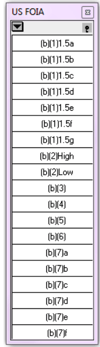
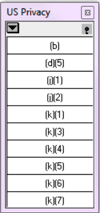
US FOIA exemption codes US Privacy Exemption Codes

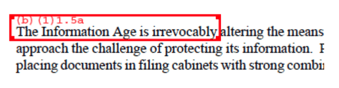
Below is a screen capture showing how it will look:
Redax box showing the exemption code (b) (1) 1.5a

Continue to draw Redax boxes around text or image areas of the document that you want to remove.

  1. During this mark-up and review phase, Redax boxes can be changed, resized or deleted if necessary. To delete a box you have drawn, right click on the box and select Delete from the pop-up menu. To resize a box to make it larger or smaller:
  2. Click on the box to activate it. 2. The box will have square corners as shown in the screen capture above.
  3. Place your curser on one of the corners and drag the box out larger or smaller as needed.

Redacting Your Document

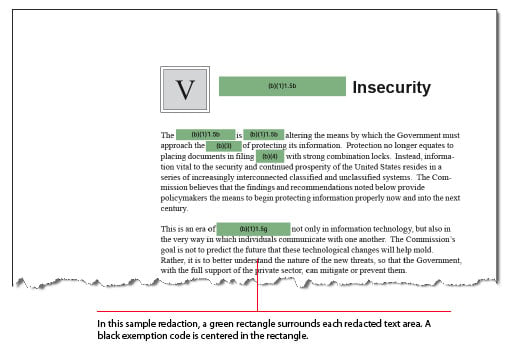
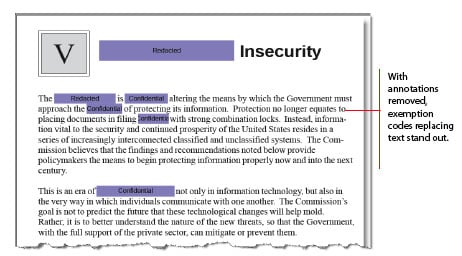
Once you have completed marking areas for redaction and the document has been reviewed, select Redact Document from the Redax menu. Redax will create a new redacted document. The areas you marked for redaction in the original file will not be in the new redacted version of the document. The redacted areas in the new document will still be marked with a Redax box until you select “Remove all Annotations” from the Redax menu. The screen shots below show the redacted area with the Redax box and after it is removed.

Example of a redacted area where the exemption code (b)(1)1.5a is displayed


Workspace

Introduction

When Redax is installed, it adds a menu and a button toolbar to the Adobe Acrobat workspace. In addition, two default exemption code palettes are available for use and can be displayed or hidden by making a selection from the Redax menu.

Redax Menu

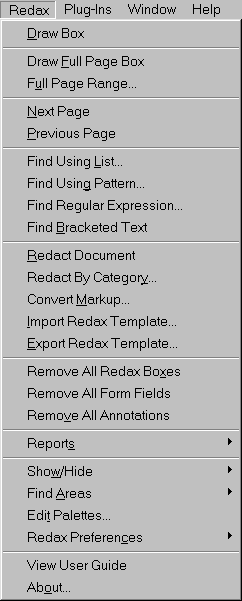
The Redax menu is accessible from the Acrobat menu bar.

The main menu

The main menu provides access to the primary functions in Redax.

Redax Menu

The submenus

The Redax menu includes four submenus:

  • Reports
  • Show/Hide
  • Find Areas
  • Redax Preferences

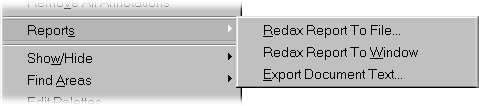
Reports submenu

The Reports submenu lists reports you can use to check your markup and redaction.

Redax report menu

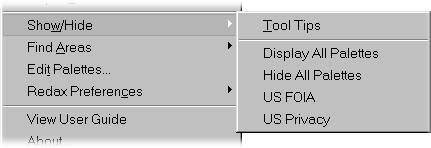
Show/Hide submenu

The Show/Hide submenu displays all of the available exemption code palettes, which you can show or hide.

The exemption code palettes that are installed with Redax are shown below. You can create additional palettes from the Redax Edit Palettes menu, described under Creating a new palette.

Show/Hide menu

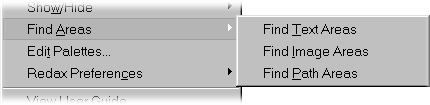
Find Areas submenu

The Find Areas submenu contains Find operations that you can use to evaluate a document before you mark it for redaction.

Find menu options

Redax Preferences submenu

The Redax Preferences submenu displays three options for setting up Redax box preferences as well as redaction preferences.

Redax preference menu

Redax Tools

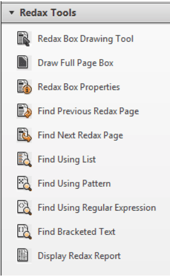
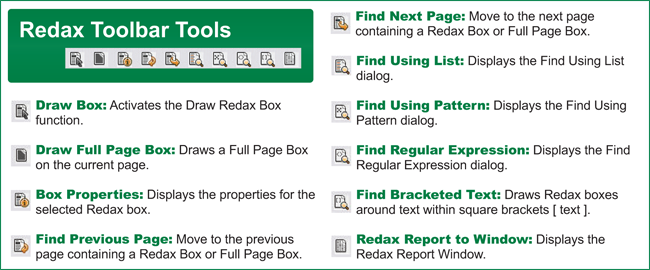
There are ten Redax tools, or buttons, to help you work. You can use these tools, or their corresponding menu commands based on how you prefer to work.

Acrobat X and XI

Acrobat X and XI provide a few ways to access the Redax tools.

  • Click on the Tools menu on the right > Select Redax Tools.
  • Add the icons to the toolbar by clicking the “Customize Quick Tools” icon Customize tool on the toolbar, then select Third-Party Plug-Ins > Redax Tools > Click on an option > Hit the right arrow.
  • Another way to access Quick Tools is to right-click in any open area of the Acrobat toolbar and select Quick Tools.

The figure below helps identify the tools on the Redax toolbar.

Explanation of the Redax toolbar options

Exemption Code Palettes

If you redact with exemption codes, you can quickly add one or more codes to an active Redax box by clicking the corresponding buttons on an exemption code palette.

The following sections describe the default exemption palettes supplied with Redax and explains how to manipulate exemption code palettes. For information about modifying the default palettes or creating your own, see Creating and Customizing Exemption Code Palettes.

The default palettes

Redax provides two default exemption code palettes for the:

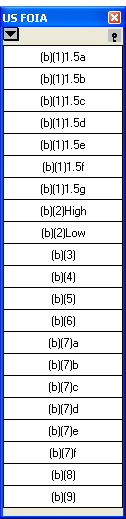
  • United States FOIA (Freedom of Information Act) – US FOIA
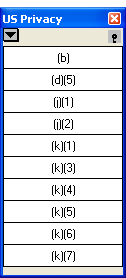
  • United States Privacy Act – US Privacy

The default exemption code palettes are shown in the figure below. (Refer to Exemption Code Palettes, for a summary of the exemption codes.)

Default US FOIA exemption code palette   Default US Privacy exemption code palette

Manipulating the palettes

You can manipulate the exemption code palettes to best suit your needs. The following sections tell you how to:

  • Show and hide a palette
  • Move a palette
  • Resize a palette
  • Close a palette
  • Collapse a palette

Showing and hiding a palette

To display a palette, select Redax > Show/Hide, and then check the palette name.

To hide a palette, select Redax > Show/Hide, and then clear the check box next to the palette name. You can also hide all palettes by selecting Redax > Show/Hide > Hide All Palettes.

Important! If you select Redax > Show/Hide > Palette Name, and the palette does not appear, it may already be set to show but is moved out of the window area where you cannot see it. Select Redax > Show/Hide > Display All Palettes. This brings all palettes to the window for you to see.

Moving a palette

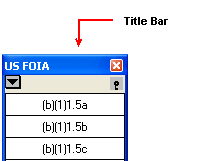
To move a palette, click on its title bar and drag it.

Title bar of the US FOIA palette

Resizing a palette

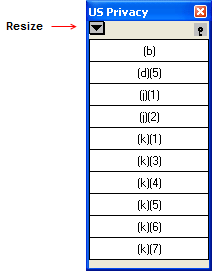
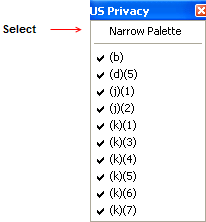
To resize a palette, click on the drop down arrow on the palette and select Narrow Palette. To make the palette larger, click on the drop down arrow and uncheck Narrow Palette. If you remove the check mark next to an exemption code, that exemption code will not display in the Palette window. You will see a blank space in place of where the exemption code would be.

Showing the resize palette window       How to make the palette window narrow

Closing a palette

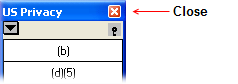
To close a palette, click the X at the top right of window.

How to close the palette window

Collapse a palette

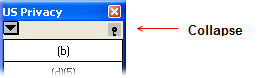
You can leave a palette window open but collapse the exemption codes so they are not in the way. To do this, click on the handle on the right side of the palette window. The title will remain visible but all exemption codes will “disappear” so you can see more of the screen.

How to collapse the palette window


Setting Up For Redaction

Introduction

Although you can use Redax out-of-the-box, it’s best to customize it for your environment and the particular project you are working on. These chapters tells you how to:

  • Set preferences for how you want Redax to work
  • Create redaction list files to be used for automating text markup
  • New in 5.0! Use a pre-defined pattern file to mark all occurrences of text matching one of a pre-defined set of patterns
  • New in 5.0! Use any regular expression to mark occurrences of text matching your preferred regular expression
  • Create or edit existing exemption code palettes
  • Create or edit redaction categories

Lists, Patterns and Regular Expressions – a Brief Introduction

Redax 5 includes powerful tools to help locate and markup PDF content for redaction.

  • Lists allow users to create a set of specific words or phrases to be marked for redaction.
  • Patterns allow users to identify content for redaction in more general terms, such as “social security number” or “email address”.
  • Regular Expressions allow users to develop customized patterns for locating content for redaction.

Advisory: The quality and internal structure of PDF files can vary greatly. Consequently, no warranty is offered with respect to the accuracy with which lists, patterns or regular expression lists used with Redax will locate and mark text. Text that breaks across a line may not be found, or additional text may be selected in such cases. Appligent Document Solutions always recommends a visual review of marked-up documents prior to redaction and release.

Setting Redax Preferences

Introduction

You can set Redax preferences for:

  • Redax boxes
  • Redactions
  • Processing options

Defining Redax Box Preferences

Redax provides two special types of annotations for marking up information to be redacted:

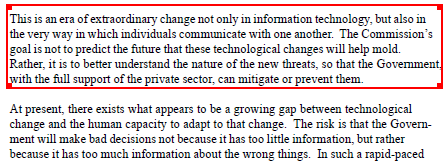
Redax box — Marks specific pieces of information for redaction, such as an image, part of an image, or a segment of text, as shown in the figure below:

Area marked up by a Redax box

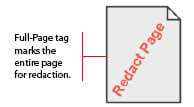
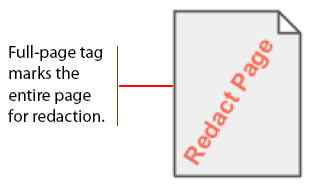
Full-Page tag — Marks an entire page for redaction, as shown in the figure below:

Full page tag

Redax box preferences define default properties of Redax boxes and Full-Page tags. The following instructions explain how to define Redax box preferences for:

  • All Redax boxes and Full-Page tags you create from now on in any documents that are open, as well as documents that you open in the future
  • All existing Redax boxes and Full-Page tags in the current, or active document, plus all Redax boxes and Full-Page tags you create from now on

Note: You can always change the properties of an individual Redax box or Full-Page tag. See Changing Redax Box Properties for information.

To define Redax box preferences

    1. If you want to apply the preferences to existing Redax boxes and Full-Page tags in a particular document, open it and make sure it is the current, or active, document.
    2. Select Redax > Redax Preferences > Redax Box Preferences.

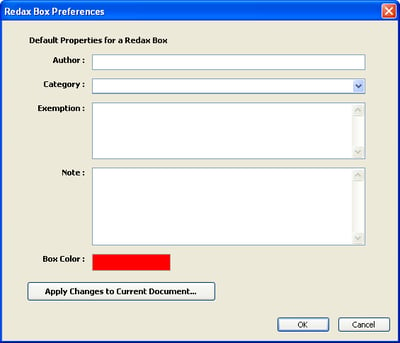
      The Redax Box Preferences dialog box appears.

      Redax box preferences dialog


  1. Change the Redax box properties as desired. The following table describes the properties in detail:
    Property Description
    Author The name of the author to be associated with Redax boxes and Full-Page tags.
    Category A redaction classification to be associated with Redax boxes and Full-Page tags. For example, you might have one category of markup to be used when redacting for local law enforcement agencies and another category to be used when redacting for the general public.
    Exemption A default exemption code assigned to Full-Page tags and to Redax boxes that are manually drawn or applied to any of the following: all bracketed text, all text areas, all image areas, and all path areas. Leave this field blank if you do not want to use a default exemption code.

    Note: The exemption code is the only property that will be visible in the final redacted document.

    Note A note to be associated with Redax boxes and Full-Page tags. This is useful in workgroup environments.
    Box Color The border color of Redax boxes. If more than one person is working on the document, using different box colors is a useful way to keep track of each individual’s markup. To select another color, click in the colored box. In the Color selector that appears, select a color and then click OK.

    Note: This option applies to Redax boxes only; it does not apply to Full-Page tags.

To apply the properties to all Redax boxes and Full-Page tags you create from now on—in any documents that are open, as well as documents that you open in the future—click OK. Your preferences are saved, and the Redax Box Preferences dialog box closes. The properties you defined will be used until you change them.

To apply the properties to all existing Redax boxes and Full-Page tags in the current, or active, document, plus all Redax boxes and Full-Page tags you create from now on, do the following:

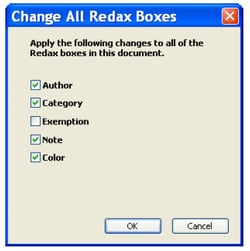
    1. Click Apply Changes to Current Document. The Change All Redax Boxes dialog box appears:

      Change All Redax Box properties dialog


  1. Check the properties you want to apply to all applicable Redax markup in the current document.


    Important! If Exemption is checked, all existing exemption codes in Redax boxes will be replaced with the default exemption code. You should only check Exemption if you wish to have all Redax boxes use the same exemption code.

  2. Click OK.
  3. Click OK again. Your preferences are saved, and the Redax Box Preferences dialog box closes. The properties you defined will be applied to all Redax boxes and Full-Page tags you create from now on, until you change them again.

Defining Redaction Preferences

Redaction preferences determine the appearance of redacted areas in a document. When you define redaction preferences, they are applied to all subsequent redactions, regardless of whether the document being redacted is currently open or closed.

To define redaction preferences:

    1. Select Redax > Redax Preferences > Redaction Preferences

      Note: It does not matter whether or not any documents are open.

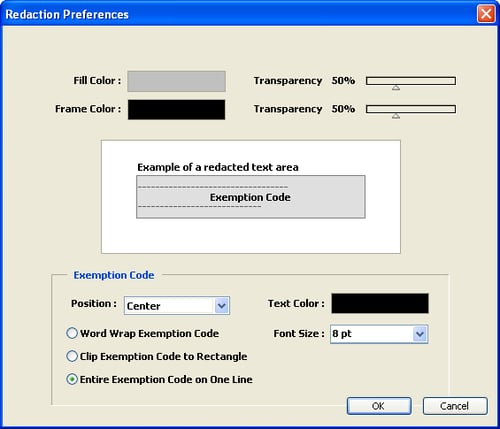
    2. The current redaction preferences are displayed as shown in the figure below.

      Redaction Preferences dialog


  1. Change the redaction preferences as desired. The following table describes the redaction preferences.

    Note: Except Font Size, the preferences in this dialog do not apply to Full-Page tags.


    Type Preference Description
    Redaction Area Fill Color The interior color of redacted areas. To select another color, click in the Fill Color box. In the Color selector that appears, select a color and then click OK.
    Transparency The degree of transparency of the fill color. To decrease transparency, move the slider left. To increase transparency, move the slider right. The minimum transparency level is 25% (mid-way between completely opaque and completely transparent), and the maximum transparency level is 100% (completely transparent).
    Frame Color The border color of redacted areas. To select another color, click in the Frame Color box. In the Color selector that appears, select a color and then click OK.
    Transparency The degree of transparency of the frame color. To decrease transparency, move the slider left. To increase transparency, move the slider right. The minimum transparency level is 25% (midway between completely opaque and completely transparent), and the maximum transparency level is 100% (completely transparent).
    Exemption Code Position Exemption code is located at the top-left of the redacted area, centered in the redacted area, at the bottom-left of the redacted area, or at the bottom of the page.

    Note: On fully redacted pages, the exemption code is placed on the top-left of the page.

    Word Wrap Exemption Code Select this option to word-wrap the exemption code string if it exceeds the width of the redacted area.

    Note: When this option is selected the position will default to top-left. On fully redacted pages, exemption codes strings that exceed the page margins wrap.

    Clip Exemption Code to Rectangle Select this option to truncate the exemption code string if it exceeds the width of the redacted area.
    Entire Exemption Code on One Line Select this option to place the entire exemption code string on one line, even if it exceeds the width of the redacted area. If you select this option and your exemption code is longer than the redacted area, your exemption code may overflow onto other areas on the page.
    Text Color The color of the exemption code text in the redacted area. To select another color, click in the colored box. In the Color selector that appears, select a color and then click OK.

    Note: On Full-Page tags, the text color is black.

    Font Size The size of the exemption code text in the redacted area.

    Note: This option applies to Full-Page tags, as well as redacted image and text areas.

  2. When you are finished defining redaction preferences, click OK. Your preferences are saved, and the Redaction Preferences dialog box closes.

    The redaction preferences you defined will be applied every time you redact a document until you change them again.


Defining Processing Option Preferences

Processing options let you customize the way Redax processes information during markup, redaction, and export (template creation) operations. When you define processing options, they are applied to all subsequent processes of the applicable types, regardless of whether the document being processed is currently open or closed.

To define processing option preferences:

    1. Select Redax > Redax Preferences > Redax Options

      Note: It does not matter whether or not any documents are open.

    2. The current processing option preferences are displayed.

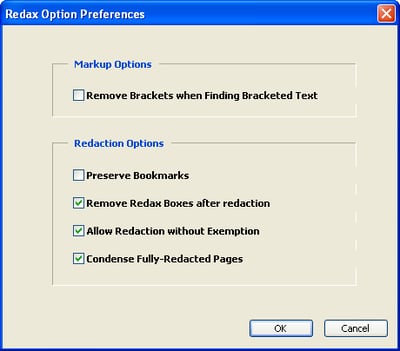
      Redaction Options dialog


  1. Change the processing option preferences as desired. The following table describes the processing option preferences:
    Type Preference Description
    Markup Remove Brackets when Finding Bracketed Text Check to remove brackets when redacting bracketed text. Clear the check mark to keep the brackets.
    Redaction Preserve Bookmarks Check to keep all bookmarks from the original file following redaction. Clear the check mark to remove all bookmarks.
    Remove Redax Boxes after Redaction Check to remove Redax boxes from the redacted file. Clear the check mark to preserve the Redax boxes.

    Note: This option is checked by default.

    Allow Redaction without Exemption Check to allow redaction of information in Redax boxes that do not have any exemption codes. Clear the check mark to prevent redaction of information in Redax boxes that do not have any exemption codes.

    Note: This option is checked by default.

    Condense Fully Redacted Pages Check to collapse consecutive, fully redacted pages into a single page. Clear the check mark to retain each fully redacted page as a separate page.

    Note: This option is checked by default.

  2. When you are finished defining processing option preferences, click OK. Your preferences are saved, and the Redax Option Preferences dialog box closes.

    The processing option preferences you defined will be applied every time you perform the applicable process, until you change them again.

Using Redaction List Files

Introduction

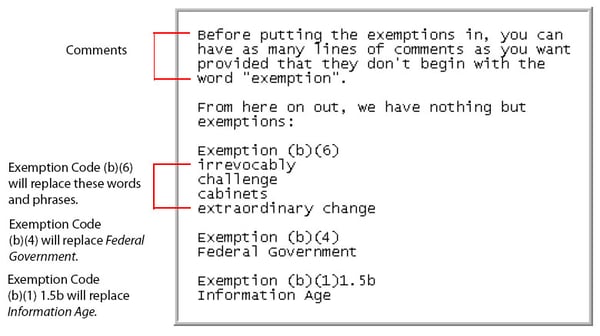
A redaction list file is a text file that lists words and phrases, grouped by exemption code or reason (if applicable), to be redacted from a document. The figure below shows a sample redaction list file, sample_find_list.txt, which is supplied with Redax.

Example of a redaction list file

Applying the redaction list file to a document automates the text markup process. All of the words and phrases in the document matching the words and phrases in the list file are marked with a Redax box. Each Redax box is labeled with the specified exemption code, if any was set.

The following sections explain how to create a redaction list file and provide some tips to help you decide what words and phrases to include.

Creating a redaction list file

List files are plain text (.txt) files that you can create using any word-processor or text editor.

It is best to keep your list files saved in the same directory as the PDF documents for which they have been developed. This makes the files much easier to locate and use. Another option is to create a specific directory in which to save list files and provide specific file names to identify which documents they are to be used for.

To create a list file

    1. Select Redax > Find Using List.

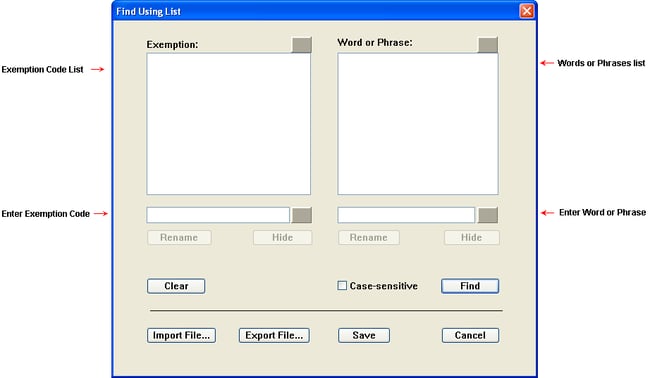
    2. The Find Using List editor opens:

      Find Using List dialog


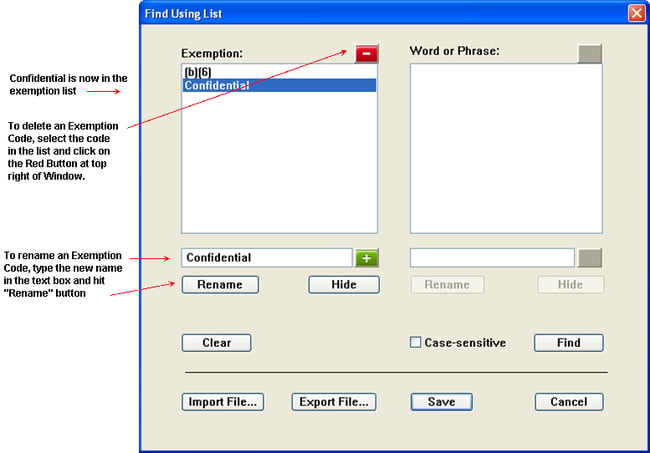
    1. Create an exemption definition by entering an exemption code or reason into the Exemption Code field. Click Add. The code will appear in the Exemption Code list.

      For example, you could use a FOIA (Freedom of Information Act) exemption code:

           Exemption (b)(6)

      Or you could make up your own exemption code, such as:

           Exemption CONFIDENTIAL

      Or you can create an exemption code with no name by placing your cursor in the Exemption Code field without typing anything and clicking Add. The text ~~No Exemption~~ will appear in the Exemption Code list.

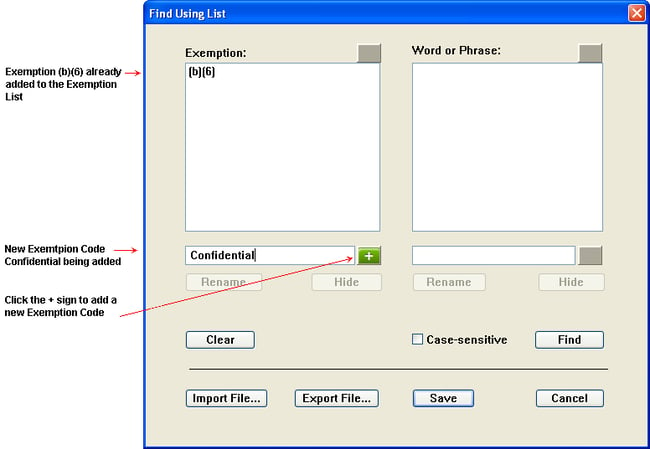
      Confidential is added to the exemption list area of the Find Using List editor as shown below.

      How to add an exemption code to the list file

      How to rename an exemption code in the list


  1. If the Add button under the exemption code list is not displayed, click anywhere in the white space of the exemptions list to display it.
     
    Once an exemption code has been added to the exemption list you can modify it by selecting the exemption code. When the exemption code is selected, the buttons change allowing you to modify the code.

    • To delete an exemption code, select the code in the list. Click Delete. The code will become grayed out and indicate that it is deleted and it will not appear in the list next time the dialog box is opened.
    • To rename an exemption code, select the code in the list and type the new name or correction into the field under the list. Click Rename. The code will appear with the new name in the list.
    • To disable and enable an exemption code, select the code in the list. Click Disable. The code will be appended with “~~inactive” to indicate that it is disabled.


    Note: If you use Export File with disabled exemption codes, they will not be saved in that version of the list file. Exemption codes can only be saved when you Export the file if they are enabled.


    When you need to use that code again, select the code and click Enable. The code is now effective in the list.

    Important! If you choose to have exemptions without reasons or codes in the list file, make sure to set your preferences to Allow Redaction Without Exemption before applying the list file to a document. Defining Processing Option Preferences explains how.


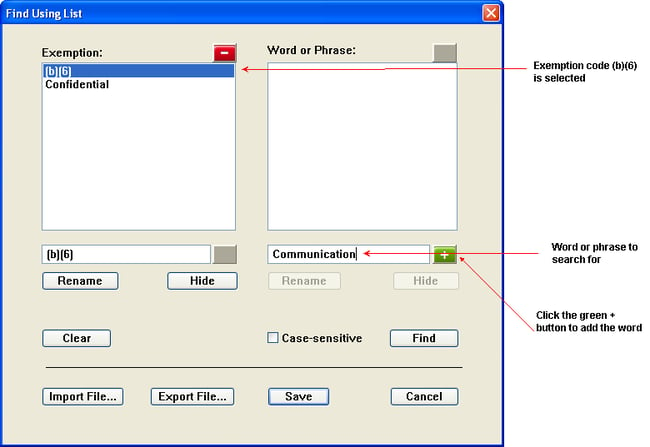
  2. Create a list of Words or Phrases for exemption codes you have defined by adding them into the Words or Phrases list.
     

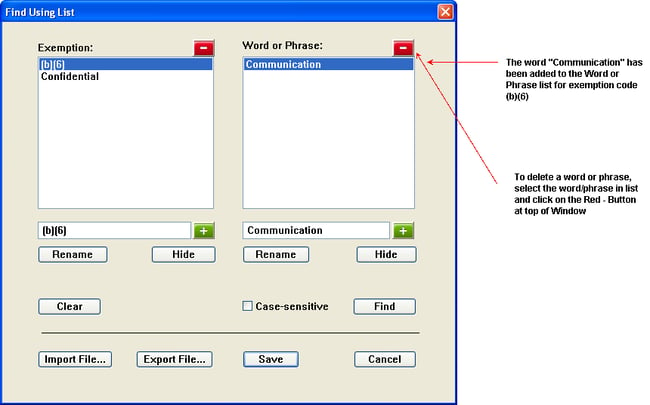
    To add words or phrases, select an exemption code on the exemptions list. Add all of the words and phrases—one word or phrase at a time—for that exemption code. Click Add Item after each word or phrase. The entries will appear in the Word or Phrase list when the exemption code they correspond to is selected as shown in the figure below.

    Note: You cannot specify images for redaction in a redaction list file.


    How to add a word/phrase to the list file
     
    How to delete a word/phrase from a list file
     

    • To delete a word or phrase, select the word and click Delete Item.
    • To rename a word select the word, type the new word or change into the field below the word or phrase list. Click Revise Item.
    • To disable and enable words or phrases select the words or phrases that are not used for a particular document, but may be used in other documents. Click Disable Item. The word will be appended with “~~inactive” to indicate that it is disabled. When you need to use the item later, select the word or phrase. Click Enable Item. It is now effective in that list file.

  3. Repeat steps 3–5 until you are finished. You can specify an unlimited number of exemption lists (exemption codes associated with words and phrases) in one list file. To begin a new set of exemptions and words, click the Clear button to clear out both the exemption codes and words and phrases lists. If you select Clear by mistake, hit the Cancel button. When you re-open the Find Using List dialog, the exemption codes and words/phrases will reappear.

  4. Click Done to save the current list items to be used with Find Using List. The editor window will close.

    Tip! Instead of creating a new file, click Import File to import the sample_find_list.txt file. Then click Export File to save it under a new name. Edit the entries to create your new list file. Click Export File again to save the file again after editing. sample_find_list.txt is located in the samples subdirectory where you installed Redax. In Windows, the default location for the sample files is C:\Appligent\Redax\samples.


Importing list files

  1. Click the Clear button if there are any entries in the exemption codes or words and phrases lists. Importing a file without clearing will add the list file entries to the current list displayed.

  2. Click Import File to open an existing list file (see Creating a redaction list file). A file browser window will open. Locate and choose the list file (“filename.txt”).

  3. Click OK.

Exporting list files

  1. Click Export File to create a new list file for future use. A file browser window will open.

  2. Choose the directory location and give the list file a new name (“newname.txt”) and click Save. You can also modify list files by importing them, making changes, then exporting the file, overwriting the list file that is currently saved.
Redaction list file tips

  • Case. Words are highlighted without regard to case if you do not check the box next to Case-sensitive. For example, if the word “govern” is in your redaction list and the Case-sensitive box is not checked, the words “govern”, “Govern” and “GOVERN” will all be highlighted. If Case-sensitive is checked, only words that are exactly as you have entered them in the words and phrases list will be highlighted.
  • Embedded words. Words in the redaction list will be highlighted in the document even if they are embedded in other words. For example, if the word “govern” is in your redaction list, it will be highlighted even if it is part of the word government or governor.
  • Misspelled words. Misspelled words in the document will not be marked for redaction unless you add possible misspellings to your redaction list.

Using Pattern Files

Introduction

There are many built in patterns that allow you to quickly search through a PDF file to find dates, social security numbers, email addresses, etc.

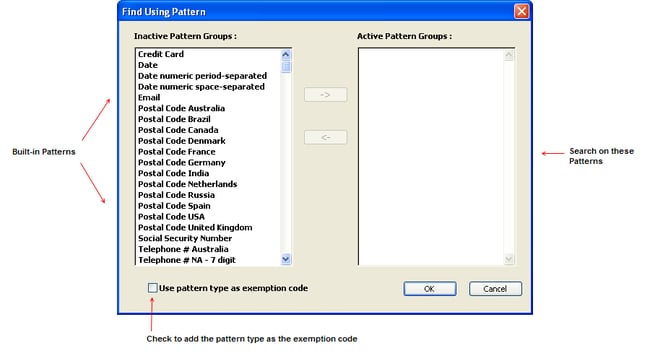
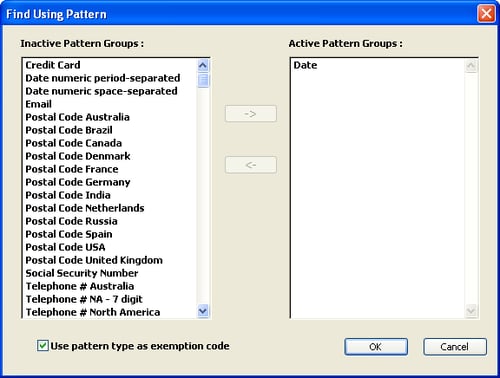
To select a Pattern for Redax to search on, click on the Pattern name under Inactive Pattern Groups > click on the right arrow. The Pattern will appear under Active Pattern Groups. Redax will search for all Patterns in the Active Pattern Group in the open, active document.

Find Pattern list

The example below is searching in a PDF file for the Date:

Example of a date that was found using Find Pattern

Available patterns

The patterns provided with Redax include:

  • Credit Card
  • Date
  • Date numeric period-separated (12.08.2010)
  • Date numeric space-separated (12 08 2010)
  • Email
  • EmailUserName
  • Postal Code Australia
  • Postal Code Brazil
  • Postal Code Canada
  • Postal Code Denmark
  • Postal Code France
  • Postal Code Germany
  • Postal Code India
  • Postal Code Netherlands
  • Postal Code Russia
  • Postal Code Spain
  • Postal Code USA
  • Postal Code United Kingdom
  • Social Security Number
  • Telephone # Australia
  • Telephone # NA – 7 digit (555-1212)
  • Telephone # North America (888) 555-1212
  • Telephone# United Kingdom
  • URL

Using Regular Expressions

Introduction

The “Find Regular Expressions” dialog works in same manner as the “Find Using List” Dialog, but in addition to adding specific words to an exemption code, a regular expression may be used. Additional information about regular expressions can be found in Appendix A: Regular Expressions.

As in the Find Using List, after you click the Find button, Redax draws a Redax box around all text matched by the regular expression. Each box contains the corresponding exemption code. If a regular expression matches part of a word, the whole word will be covered by the Redax box.

An example regular expression search

  1. Open the Redax sample document sample_base.pdf (located in the c:\Appligent\Redax\Samples directory)

  2. Open the Redax > Find Regular Expressions dialog.

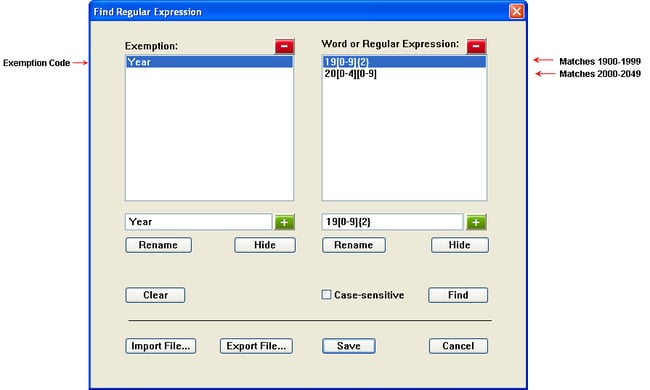
  3. Import the sample file sample_regex_list.txt. You should see the exemption, Year, listed in the exemption window on the left with two lines in the right-hand window:

    Find Regular Expression list file

    See Appendix A: Regular Expressions for an introduction to the concept and references to additional resources.

  4. Click the Find button. Redax will go through and mark all 4-digit numbers between 1900 and 2049, with the exemption code of Year.

    A segment of the output for this example is displayed in the figure below:

         Example found by running Find Regular Expression


Using Exemption Code Palettes


Using Redaction Categories

Introduction

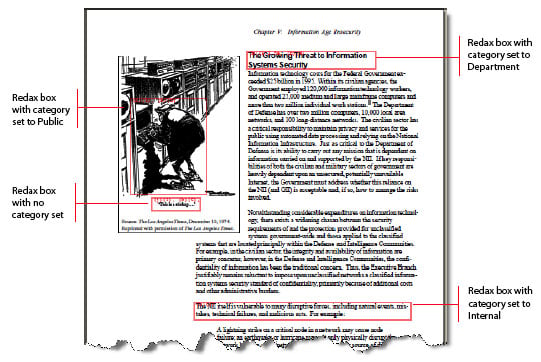
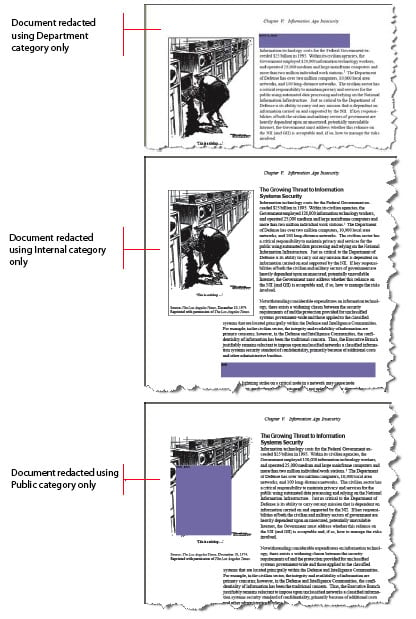
Categories are classifications that can be defined to selectively redact text and images based upon the intended recipient of the redacted documents. For example, you might have one category of markup to be used when redacting for discovery documents in a legal case and another category to be used when redacting documents for the general public.

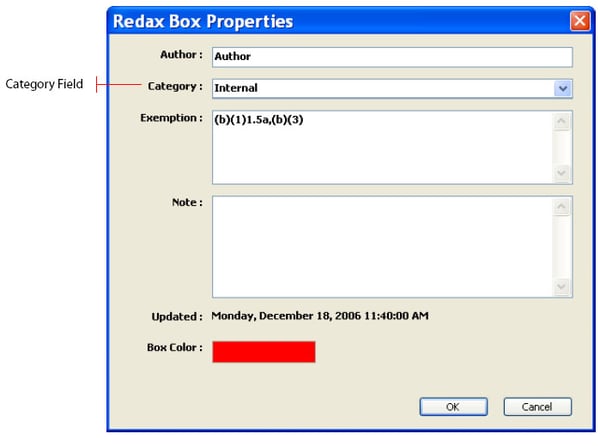
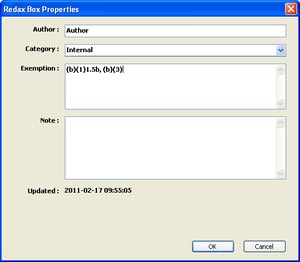
Categories are defined in the Redax box properties as shown in the figure below.

Redax box properties showing category

Defining a category

  1. Always begin by saving a copy of your document as a “working document.”

  2. Create your markup using any of the methods described in Markup Methods.

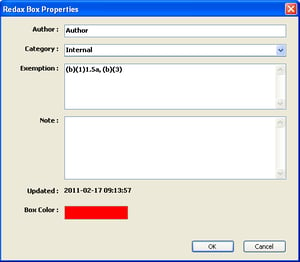
  3. Categories are defined in the Redax Box Properties of a Redax box. Open the Redax Box Properties by double-clicking on a Redax box in the document. The Redax Properties Box will open as shown in the figure above.

  4. Enter a category definition in the Category Field. You can assign one category to each Redax box.

  5. Click OK. Once you add the first category, it will now appear on a list which is available any time you open a Redax Properties Box in this document.

Adding more than one category

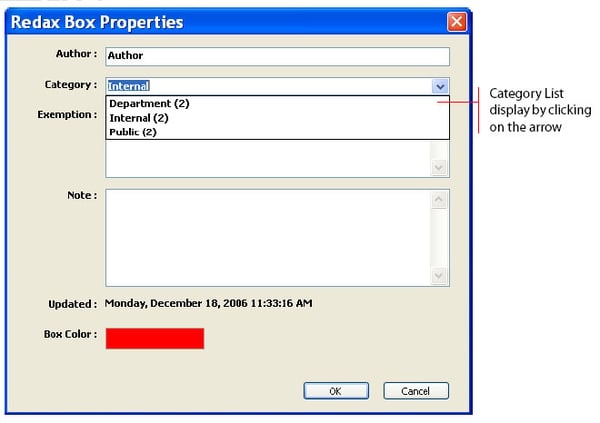
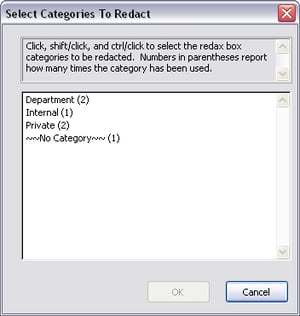
As you add different categories to the Redax Properties Box within a document, the Category field will display a list of categories that are available within the document you have open, as shown in the figure below. The number in parentheses indicates the current number of occurrences of each Redax box assigned to that category in the document.

How to view a list of categories in file

You can chose from the list of categories by clicking on the arrow at the right side of the Category field and moving your cursor to the category you want. The one you choose will appear in the field.

You can apply different categories to different Redax boxes within a document. Each Redax box can only have one category assigned to it.
When you have completed setting the category for the Redax box, click OK to save your changes.

Now that you have set categories for specific Redax boxes, you will be able to create different redacted versions of the same original document depending upon the purpose of the final redacted document.

Evaluating Your Document

Introduction

Before you mark a PDF document for redaction, you should evaluate it to uncover any special situations that might require your attention. For example, the document might contain an unpredictable mix of images and text. Documents that were converted to PDF format after being scanned with OCR (Optical Character Recognition) software, can be especially problematic in this regard.

The following sections explain how to find:

  • Hidden text. Text can sometimes be hidden behind an image. You need to find hidden text in case it contains words or phrases that require redaction.
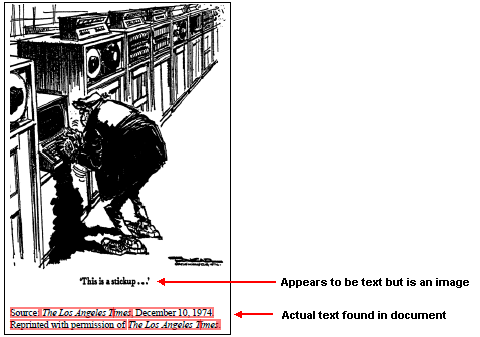
  • Inline character images. These are pictures of text that the OCR process substitutes for text it cannot decipher. You need to find inline character images, because they must be marked for redaction as images, not as text.
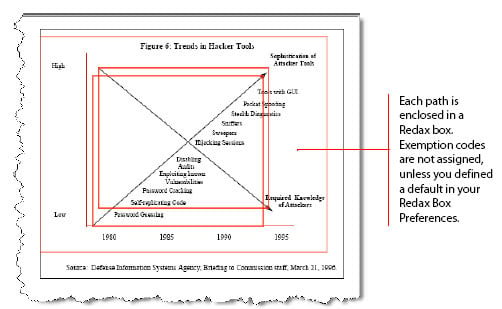
  • Paths in vector images. Vector images are made up of paths–mathematically defined lines and curves with specific start and end points. You need to know where the paths in vector images are located, because vector image markup in Redax is path based.


Before You Begin

It is good practice to create a copy of every document you process with Redax, so that you can work with the copy and keep the original, unmarked file for future use.

To create a copy of a document

  1. Open the document in Acrobat.
  2. Select File > Save As.
  3. Enter a file name and directory location for the copy, and then click Save. The copy you created is displayed and ready for processing with Redax.


Finding and Uncovering Hidden Text

This section explains how to find hidden text in a document and uncover it in case it contains information you want to redact.

Important! If you perform this procedure on a document that already contains Redax boxes, they will be lost.


To find and uncover hidden text

    1. Select Redax > Find Areas > Find Text Areas. 

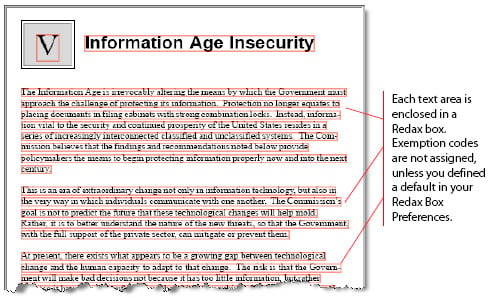
      Redax draws boxes around all text areas (see the figure below) and tells you how many annotations (Redax boxes) have been created.
      Example of text areas that were found in the document


    1. Click OK to continue.

    2. Examine the document for Redax boxes around images. A Redax box around an image indicates that text is hidden beneath the image.

      Note: If you also see visible text that is not enclosed in a Redax box after you run Find Text Areas, it might be an image, as opposed to actual text. To make sure, see Finding Inline Character Images.


      Shows text areas found beneath an image


  1. a. To uncover hidden text, use the Select tool in Acrobat:
    • Acrobat 7:  select Tools > Basic > Select Tool.
    • Acrobat 8 & 9:  select Tools > Select & Zoom > Select Tool.
    • Acrobat X & XI:  select View > Show/Hide > Toolbar Items > Select & Zoom > Select Tool.
       

    b. Move the pointer to the suspect image until it becomes an ‘I-beam’, then click-drag to select the entire image area, including the surrounding Redax box.

    c. Select Edit > Copy to copy the selection to the Clipboard.

    d. In a text editor (e.g., Notepad), paste the selection.

    e. Examine the text that appears in the text editor, and make a note of any words or phrases that should be marked for redaction.

  2. When you are finished evaluating the document for hidden text, remove the Redax boxes by selecting Redax > Remove All Redax Boxes.


Finding Inline Character Images

This section explains how to find inline character images, or pictures of text. Inline character images must be marked for redaction as images, not text.

Important! If you perform this procedure on a document that already contains Redax boxes, they will be lost.


To find inline character images

    1. Select Redax > Find Areas > Find Image Areas.

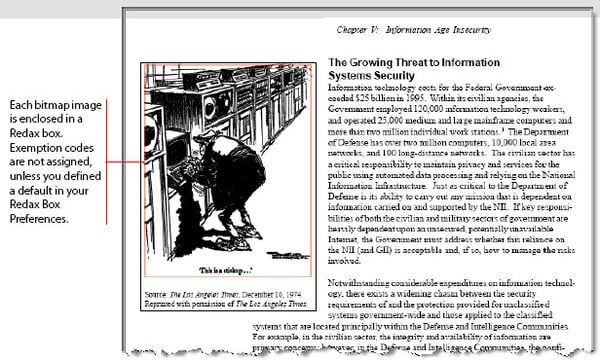
      Redax draws boxes around all bitmap images and tells you how many annotations (Redax boxes) have been created. The figure below shows a sample bitmap image with a Redax box drawn around it.

      Marked up image


  1. Click OK to continue.

  2. Examine the document for Redax boxes around text.
     
    A Redax box around text indicates that the text is actually an image of text, or an inline character image.

    Note: If you see any images that are not enclosed in Redax boxes, they are vector images. See Finding Paths in Vector Images, below, for more information.


  3. If you see any inline character images that are candidates for redaction, make a note of it.

    When you mark an inline character image for redaction, you must treat it as an image, not text. The only way to mark images is with the Draw Box tool. This tool is described in Manually Drawing a Redax Box.

  4. When you are finished evaluating the document for inline character images, remove the Redax boxes by selecting Redax > Remove All Redax Boxes.


Finding Paths in Vector Images

This section explains how to find vector images and their constituent paths. When you mark a vector image for redaction, it is important to know where the paths are.

Important! If you perform this procedure on a document that already contains Redax boxes, they will be lost.


To find paths in vector images

    1. Select Redax > Find Areas > Find Path Areas.

      Redax draws boxes around all of the paths in all vector images and tells you how many annotations (Redax boxes) have been created. The figure below shows a sample vector image with Redax boxes drawn around its paths.
      Shows path areas marked up


  1. Click OK to continue.

  2. Examine the document and note where the paths are in the vector images you want to redact. When you mark a vector image for redaction, each path that’s included in the markup area will be redacted from start to end, even if you only mark up part of the path.

    Tip! For future reference, print the vector images you plan to redact. See Printing a Document with Redax Markup for instructions.

  3. When you are finished evaluating the document for paths in vector images, remove the Redax boxes by selecting Redax > Remove All Redax Boxes.


Check Document Security

To redact any PDF document the file must not be encrypted. To check this, open the document you want to redact and choose File > Document Properties. When the dialog window opens choose the Security tab and make sure the Security Method is set to “No Security.”

Marking Up Your Redax Document

Introduction

This chapter describes the general process of marking up, or selecting, areas of a document for redaction:

  • Markup Types describes the different types of markup used in Redax.
  • Markup Methods provides an overview of the Redax markup methods.

And these chapters describe the process in detail for the three markup methods:

  • Applying Redax Markup Directly explains how to use markup methods in which Redax markup is applied directly, without any intervening Acrobat markup.
  • Applying and Converting Acrobat Markup explains how to use markup methods in which Acrobat markup is applied first and then converted to Redax markup.
  • Using a Redax Template explains how to create and apply a Redax template for marking information by its location in the document.


Markup Types

Three different types of markup are used in Redax:

  1. Redax boxes, including Full-Page tags
  2. Acrobat Markup — Highlight, Cross Out (Strikethrough) and Underline Tools
  3. Acrobat Redaction Markup boxes

Redax Boxes. A Redax box is a special box with a colored border, as shown in the figure below. It marks a specific piece of information for redaction, such as an image, part of an image or a segment of text. Five of the markup methods discussed in this chapter produce Redax boxes. These include manually drawing a Redax box, marking bracketed text, marking text with the Acrobat text selection tool, applying markup to a document with a Redax template, and converting Acrobat markup to Redax boxes.

Example of a Redax box drawn around an area

Note: The Redax boxes you apply to your document may have a different border color, depending on how your Redax Box preferences are set. (See Defining Redax Box Preferences)


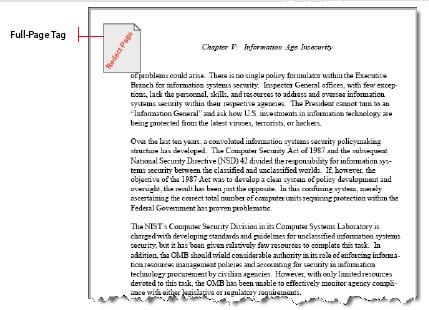
Full-Page Tags. A Full-Page tag is a special annotation placed in the upper-left corner of a page to mark the entire page for redaction (see the figure below). Two markup methods discussed in this chapter produce Full-Page tags. These include marking up the current page (Redax > Draw Box Full Page) and marking up a page range (Redax > Full Page Range).


Full page tag

Acrobat Markup. Acrobat markup includes Highlights, Underlines, Cross Outs (Strikethroughs) and Acrobat redaction markup as shown in the figure below. The figure below shows the four types of Acrobat markups.
Example of a highlight, underline, strikethrough and Acrobat redaction markup

Acrobat Redaction Markup. In Acrobat you can draw redaction annotations anywhere in your document. Redax also supports redaction of this markup.

Shows an Acrobat redaction markup


Markup Methods

The table below provides an overview of the markup methods available in Redax. The sections that follow explain how to apply them. Most organizations use a combination of methods. To select the ones that are best for you, consider your work environment, the volume of documents processed and the types of information you typically redact.

Type Markup Method Description
Applying Redax Markup Directly Manually draw a Redax box Lets you manually draw a Redax box around an image, part of an image, or a text area using the Redax Draw Box tool. This is the only method available for marking up individual images, but one of many methods for marking up text.
Mark the current page Marks the current page for redaction by placing a Full-Page tag in the upper-left corner of the page.
Mark a page range Marks a range of pages for redaction by placing a Full-Page tag in the upper-left corner of each page selected for the range.
Mark all bracketed text Draws Redax boxes around all text surrounded by brackets. This method is frequently used in legal offices, where brackets are used to denote confidential information.
Mark text with the Acrobat text selection tool Lets you select text for redaction using the Acrobat Select Tool. When you assign an exemption code to the selection, it becomes a Redax box.
Applying
and
Converting
Acrobat
Markup
Mark text based on a predefined redaction list Draws a Redax box around all text matching words and phrases in a predefined redaction list.
Mark text that matches a pattern Draws a Redax box around all text matching patterns that you select, for example, Social Security number.
Mark text that matches a regular expression Draws a Redax box around all text matching words and phrases predefined in a regular expression list.
Use the Acrobat highlighting & redaction annotation tools Lets you select text for redaction using the Acrobat commenting tools (Highlight, Cross Out (Strikethrough), Underline) and the Acrobat redaction markup. You can either convert the Acrobat markup to Redax boxes or redact it directly.
Convert Acrobat markup Lets you convert Acrobat markup (Highlight, Cross Out (Strikethrough), Underline) and Acrobat redaction markup to Redax boxes or redact them directly, without first converting to Redax boxes. During conversion, each type of Acrobat markup can be assigned a different exemption code. You have an option to automatically remove Redax boxes from the redacted file.

Note: This method is required as a second step when marking text with Acrobat highlighting tools.

Using a
Template
Use a Redax template Places predefined Redax boxes in specified positions on a page or range of pages, based on a Redax template that you create. This method is ideal for marking up documents where information is located in the same position on multiple pages.

Applying Redax Markup Directly

Introduction

The following sections describe markup methods that apply Redax markup, Redax boxes or Full-Page tags to your document directly, without any intervening Acrobat markup:

  • Manually drawing a Redax box
  • Marking the current page
  • Marking a page range
  • Marking text that matches a list file
  • Marking text that matches a pattern
  • Marking text that matches a regular expression
  • Marking all bracketed text
  • Marking text with the Acrobat text selection tool

Manually drawing a Redax box

Use this method to draw a Redax box around text, an image or part of an image. This is one of many methods for marking text, but the only method for marking images.

  1. Select Redax > Draw Box to activate the Draw Box tool.

    Shortcut: Click the Draw Box button on the toolbar to highlight it.

    (Redax Tools explains how to access the Draw Box button.) The pointer changes to a crosshair.


  2. Position the crosshair where you want to begin drawing and left click on the mouse.

  3. Drag to draw a box around the area you want to redact.

    Important! If you are marking up text or a bitmap image, any character or part of the image the Redax box covers will be redacted. If you are marking up a vector image, every path the Redax box touches will be redacted from start to end, even if the box only touches part of the path.

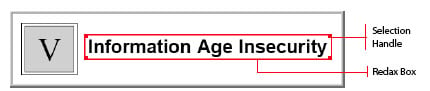
    When you release the mouse button, the Redax box appears with a selection handle in each corner (see the figure below), indicating that the box is active and can be manipulated. (For information on manipulating Redax boxes, see Modifying Your Markup.) A default exemption code is displayed in the upper-left corner of the Redax box if you defined one (see Defining Redax Box Preferences).


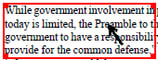
    Shows how you can resize the Redax box by using the selection handle
     
    Exemption code palettes also appear, unless they are in a hidden state. (See Showing and Hiding a Palette for information about displaying hidden palettes. See Defining Processing Option Preferences for information about allowing redaction without exemption codes.)

  4. To add an exemption code, click the appropriate palette button.

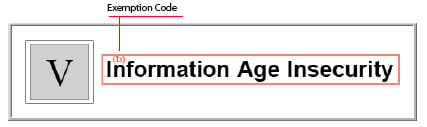
    Note: You can add multiple exemption codes to Redax boxes, if needed. The exemption code appears in the upper-left corner of the Redax box, as shown in the figure below.


    Exemption code displaying inside a Redax box

  5. Repeat steps 2-4 until you are finished marking up text and images with the Draw Box tool.

  6. Select File > Save to save the markup.

Marking the current page

Use this method to mark the entire current page for redaction.

  1. Go to the page you want to mark for redaction.

  2. Select Redax > Draw Full Page Box.

    Shortcut: Click the Draw Full Page Box button to highlight it. (Redax Tools explains how to access the Draw Full Page Box button.) A Full-Page tag is placed in the upper-left corner of the page, as shown in the figure below. If you defined a default exemption code, it is assigned to the tag. (For information about defining a default exemption code, see Defining Redax Box Preferences).


    Full Page tag

  3. To add an exemption code, click the Full-Page tag to select it, and then click the appropriate palette button. (If the palette you want to use is not visible, select Redax > Show/Hide, and then check the palette to display it.) You can add multiple exemption codes, if needed.

    Note: You can change the exemption code by double-clicking in the Full-Page tag. You can also exemption codes as a tooltip when you move the pointer over the Full-Page tag.

    Tip! If you want the final redacted document to indicate the pages that were redacted, you can add that information as a custom exemption code. Double-click the Full-Page tag to display the Redax Properties dialog box, type the information you want to appear on the redacted page, and then click OK. You can include as many exemption codes/reasons as needed, as long as they are separated by commas.


  4. Repeat steps 1-3 until you are finished marking up individual pages.

  5. Select File > Save to save the markup.

Marking a page range

Use this method to mark a range of pages for redaction.

  1. Select Redax > Full Page Range.

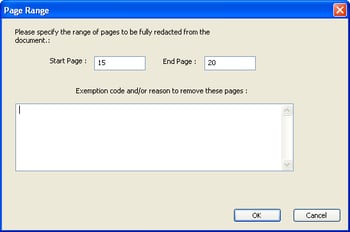
    The Page Range dialog box appears as shown in the figure below:

    Full tag page range dialog

  2. Enter the following:

    • Start Page. The first page in the range you want to mark for redaction. (The default value is the current page.)
    • End Page. The last page in the range you want to mark for redaction. (The default value is the last page of the document.)

      Note: Use PDF page numbers, which appear on the status bar–not page numbers that might be displayed in the document.

    • Exemption code and/or reason to remove these pages. Enter one or more exemption codes or reasons for redaction. If you enter multiple exemption codes, place commas between them. If you do not want to use an exemption code, do not place any text in this area.


      Note: There is a 255 character limit to this field.

      Note: If you have checked the option to Condense Fully Redacted Pages under Redax Options (Redax Menu > Redax Preferences > Redax Options), there will be a single page for the page range in the redacted document. See Setting Redax Preferences for more information.


  3. Click OK.

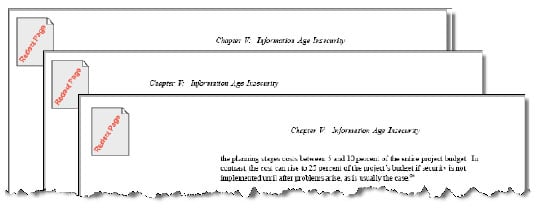
    A Full-Page tag is placed in the upper-left corner of each page in the range you specified. (See the figure below.)

    Note: You can display the exemption code by double-clicking in the Full-Page tag. You can also display the exemption code as a tooltip when you move the pointer over the Full-Page tag.


    Shows 3 pages with a full page tag on each page

  4. Repeat steps 1-3 until you are finished marking up page ranges.

  5. Select File > Save to save the markup.


Marking text based on a redaction list

Use this method to add Redax boxes around all of the words and phrases in your document that match words and phrases in a redaction list. To learn how to create a redaction list, see Creating a Redaction List File.

To mark matching words and phrases in a redaction list:

  1. Select Redax > Find Using List. The Find Using List editor opens.

  2. Click Import File to select a redaction list file that you have already created.

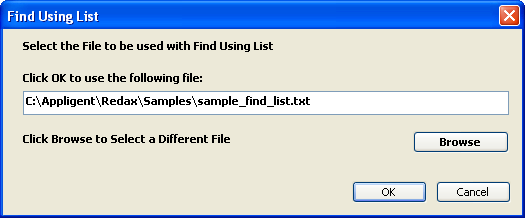
    • A file browse window opens.
    • Click OK to use the last list file used that is displayed.
    • To use a different list file, click the Browse button, select a file. Click Open, then OK.
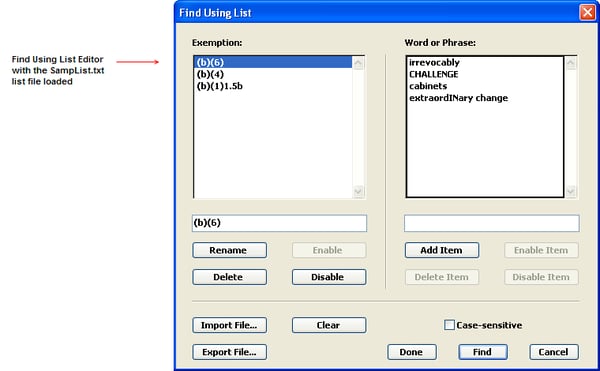
    • The Find Using List Editor opens with the list file loaded (see the figure below):

    Dialog for selecting a Find Using List file to import

    Find Using List dialog that shows the contents of the sample SampList.txt file

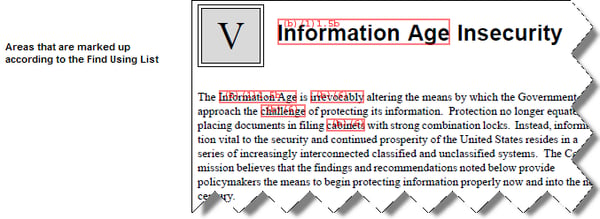
  3. Click Find at the bottom of the Find Using List editor to perform a search using the current list.Redax searches through the document. Each time it finds text that is contained in the words or phrases list for each exemption code in the exemptions list, it adds a Redax box around the text and annotates it with the exemption code specified for that word or phrase in the list file (see the figure below).
    Marked up areas with exemption codes

  4. Select File > Save to save the marked up file.


Marking text that matches a pattern

Use this method to add Redax boxes around all of the text in your document that matches one or more of these patterns:

  • Credit Card
  • Date
  • Date numeric period-separated (12.08.2010)
  • Date numeric space-separated (12 08 2010)
  • Email
  • Postal Code Australia
  • Postal Code Brazil
  • Postal Code Canada
  • Postal Code Denmark
  • Postal Code France
  • Postal Code Germany
  • Postal Code India
  • Postal Code Netherlands
  • Postal Code Russia
  • Postal Code Spain
  • Postal Code USA
  • Postal Code United Kingdom
  • Social Security number
  • Telephone # Australia
  • Telephone # NA – 7 digit (555-1212)
  • Telephone # North America (888) 555-1212
  • Telephone# United Kingdom
  • URL

To mark up all text that matches one or more patterns

  1. Select Redax > Find Using Pattern. The Find Using Pattern dialog box appears (see the figure below).

    Find Pattern dialog

  2. For each pattern in the Inactive Patterns Groups list that you want to mark, select the pattern and then click the right arrow button.

    The selected pattern is moved to the Active Pattern Groups list.

  3. For each pattern in the Active Pattern Groups list that you do not want to mark, select the pattern and then click the left arrow button.

    The selected pattern is moved to the Inactive Pattern Groups list.

  4. When the patterns you want to search for are in the Active Pattern Groups list and the patterns you do not want to search for are in the Inactive Pattern Groups list, click OK.Redax searches through the document. Each time it finds the selected pattern, it adds a Redax box to the area.

    Note: If you select “Use pattern type as exemption code” (see Step 1), the pattern type will be added to the Redax box and used as the exemption code. For example, if you are searching for “date”, then “date” will appear in the redacted area as the exemption code. Leave this unchecked if you wish to search and redact without exemption codes.

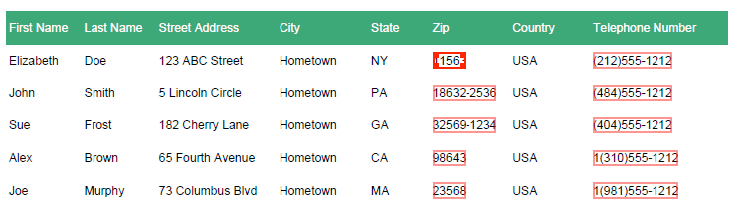
    The figure below shows some sample results from pattern matching on zip code and telephone number.

    Examples of zip codes and telephone numbers found from running Find Pattern

  5. Select File > Save to save the marked up file


Marking text that matches a regular expression

Use this method to add Redax boxes around all of the text in your document that matches the regular expressions you have defined.

To mark up all text that matches regular expressions

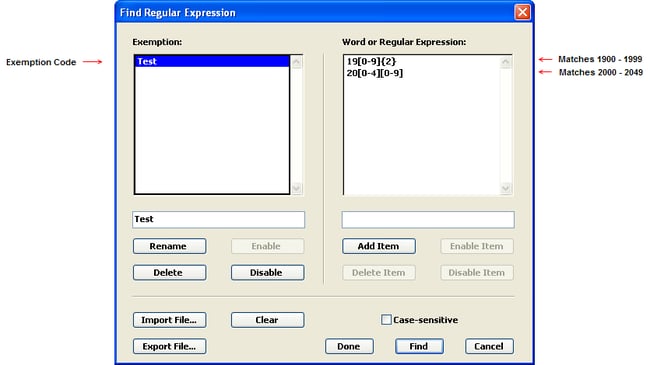
  1. Select Redax > Find Regular Expression. The Regular Expression dialog box appears.

    Find Regular Expression dialog

  2. The “Find Regular Expressions” dialog works in the same manner as the “Find Using List” Dialog with regular expressions taking the place of words and phrases. Additional information about regular expressions can be found in Appendix A: Regular Expressions.

  3. Click Find at the bottom of the Find Regular Expressions editor to perform a search using the active set of regular expressions.Redax searches through the document. Each time it finds text that is contained in the regular expressions for each exemption code in the exemptions list, it adds a Redax box around all text matched by the regular expression. Each box contains the corresponding exemption code.

    Note: If a regular expression matches part of a word, the whole word will be covered by the Redax box.


Example:

Open the Redax sample document sample_base.pdf (located in the c:\Appligent\Redax\Samples directory)

Open the Redax > Find Regular Expressions dialog.

Import the sample file sample_regex_list.txt. You should see the exemption, Year, listed in the exemption window on the left with two lines in the right-hand window:

19[0-9]{2} matches 1900-1999
20[0-4][0-9] matches 2000-2049   See Appendix A for a more detailed explanation.

Click the find button. Redax will mark all 4-digit numbers between 1900 and 2049, with the exemption code of Year. A segment of the output for this example is displayed in the figure below.

Marked up areas found from running Find Regular Expressions


Marking all bracketed text

Redax can draw Redax boxes around text surrounded by brackets. This method is frequently used in legal offices where brackets are used to denote confidential or privileged information.

Before you begin, make sure to indicate whether you want the brackets to be marked for redaction, as well as the enclosed text. See Defining Processing Option Preferences for details. In addition, if you want to apply an exemption code or reason to the bracketed text, define it in your preferences. For more information, see Defining Redax Box Preferences.

To mark all text between square brackets

  1. Select Redax > Find Bracketed Text. Redax searches through the document. Each time it finds text between square brackets [ ], it draws a Redax box around the text and overlays it with the default exemption code, if one has been defined. (Defining Redax Box Preferences explains how to define a default exemption code.)

  2. Select File > Save to save the markup.

Applying and Converting Acrobat Markup

Introduction

Four Redax markup methods let you apply Acrobat markup (Highlights, Cross Outs (Strikethroughs), Underlines and Acrobat redaction markup) to your document. After you apply the Acrobat markup, you can either convert it to Redax markup or redact it directly. The following sections explain how to apply, check and convert the Acrobat markup:

  • Marking text with Acrobat highlighting tools
  • Checking Acrobat markup
  • Converting Acrobat markup to Redax markup

For information about redacting Acrobat markup directly, see Redacting Acrobat Markup.

Marking text with Acrobat Highlighting tools

Use this markup method to manually mark text in your document using any of the Acrobat highlighting tools (Highlight, Cross Out (Strikethrough), Underline, Redaction).

You can use different highlighting tools to represent different exemption codes. Or, if you don’t normally use exemption codes but work in a group environment, each author can use a different tool. Later, when the Acrobat markup is converted to Redax markup or redacted, an exemption code or author ID can be assigned based on the Acrobat markup type.

To apply Acrobat markup using Acrobat highlighting tools:

  1. Click the highlighting tool you want to use the Highlight, Cross Out (Strikethrough) or Underline tool:

    If the Highlighting Toolbar isn’t visible, display it:

    • In Acrobat X & XI, select the Comment Pane on right side of screen > Annotations. You can also select View > Comment > Annotations.
    • In Acrobat DC, select Tools > Comment.  
  2. Drag to select the text you want to mark.

    The selected text is marked.

  3. Repeat steps 1–2 until you are finished marking text.

  4. Select File > Save to save the Acrobat markup.

  5. Check your markup. For instructions, see Checking Acrobat Markup.

  6. Either convert your Acrobat markup to Redax boxes or redact it directly.

    • For instructions on converting Acrobat markup to Redax boxes, see Converting Acrobat Markup to Redax Markup.
    • For instructions on redacting Acrobat markup directly, see Redacting Acrobat Markup.


Checking Acrobat markup

Before you convert the Acrobat markup to Redax boxes or redact it, you should review it. The following section explains how to check your markup using the Comments List in Acrobat.

Checking Acrobat markup in the comments list

The Acrobat Comments List displays all of the Acrobat markup in a document plus other comments, such as notes, stamps and text edits. You can quickly review all of the markup in your document from the Comments List.

To check Acrobat markup using the Comments List:

    • Acrobat 7, select View > Navigation Tabs > Comments.
    • Acrobat 8 & 9, select View > Navigation Panel > Comments.
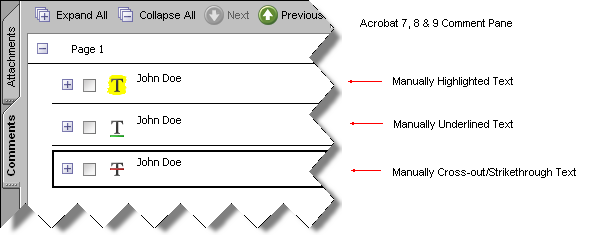
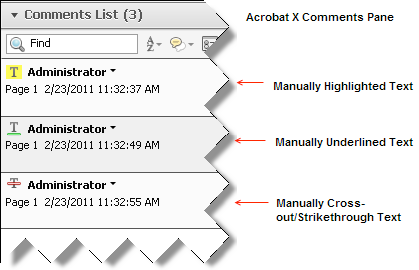
    • Acrobat X, select View > Comment > Annotations. In the side bar, select Comments List. You can also select Comment on the right side of the screen and then select Comments List.The figure below shows how Comments appear in Acrobat 7, 8 & 9.

    Comment pane displaying an example of a highlight, underline and strikethrough example

    In Acrobat X, comments appear on the right side of the screen.

    Comments pane in Acrobat

  1. Use the scroll bars or the Next and Previous buttons to quickly move through the Comments List.

  2. For each entry in the list:

    • Click anywhere in the row to highlight the corresponding text markup in the document.
    • Review the highlighted text. If the highlighted text should not be redacted, you can remove the markup by pressing the Delete key.

For additional information about the Comments List, see the Acrobat help.

Converting Acrobat markup to Redax markup

After you apply Acrobat markup to a document and check it for accuracy, as described in the previous sections, you can either convert the Acrobat markup to Redax markup or redact it directly. Converting the Acrobat markup to Redax markup is generally the best course of action if you are using other markup methods that apply to Redax markup.

The following section explains how to convert Acrobat markup to Redax markup. For information about redacting Acrobat markup directly, see Redacting Acrobat Markup.

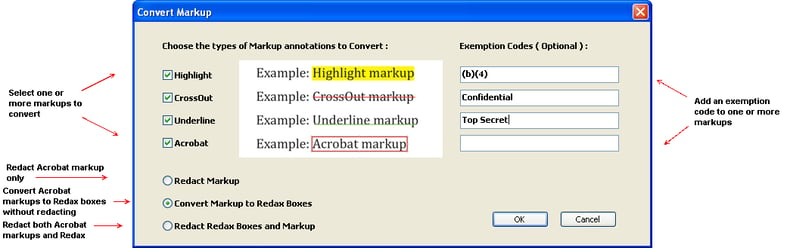
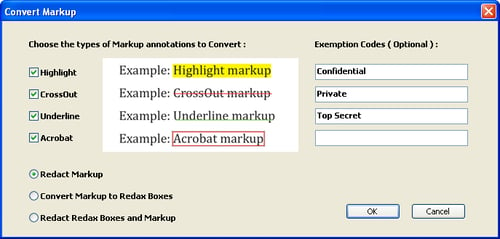
  1. Select Redax > Convert Markup. The Convert Markup dialog box appears (see the figure below).

    Convert Markup dialog

  2. Select one or more of the following markup types to convert: Highlight, Cross Out (Strikethrough), Underline or Acrobat Redaction markup.

  3. (Optional) Assign an exemption code to each type of markup you are converting.

    This exemption code is added to any existing exemption codes, such as those assigned with a redaction list or defined in your Redax Box Preferences. See Defining Redax Box Preferences. It does not replace existing exemption codes.

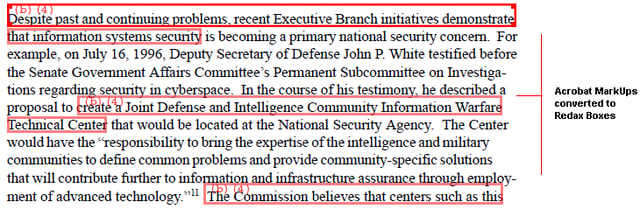
  4. Choose an option to execute by clicking the small circle to the left of the option. For this example, we will select “Convert Markup to Redax Boxes”.Convert Markup to Redax Boxes – Redax draws boxes around the Acrobat markup types you selected and inserts any exemption codes that you specified (see the figure below).

    Example of an area where Acrobat markups were converted to Redax boxes

  5. Select File > Save to save the marked up file prior to redaction.

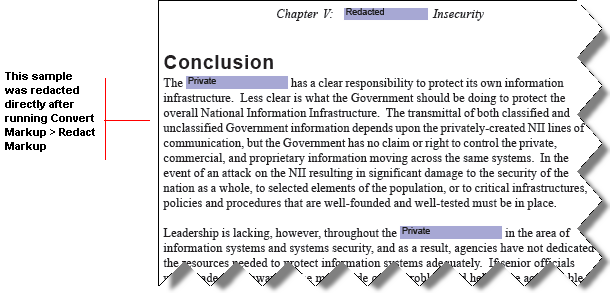
  6. In the dialog, you can choose Redact Markup to redact just Acrobat markups.

    Note: No Redax boxes in the document will be redacted.

    You can also select Redact Redax Boxes and Markup to redact all Redax boxes as well as Acrobat markups.


  7. Click OK.

Using a Redax Template

Introduction

If you repeatedly redact documents in which the information to be redacted is always located in the same position, you can automate the markup process with a Redax template. Simply create a template from an existing document and then apply it to like documents. The following sections explain how.

Important! Redax cannot redact text in active form fields. Before you create a new template from a form or apply an existing template to a form, you need to either flatten or remove the form fields. To remove the form fields, select Redax Menu > Remove All Form Fields.


Creating a Redax template

You can create a single- or multi-page Redax template from a PDF document.

  1. Mark up the document from which you want to create a template, as described in previous sections of this chapter.

    Note: Redax boxes and/or Full-Page Tags are required for Redax templates. You cannot use Acrobat markups.

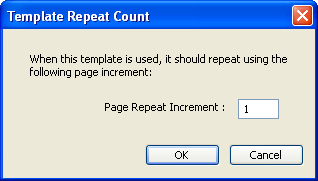
  2. Select Redax > Export Redax Template. The Template Repeat Count dialog box appears (see the figure below)

    Template dialog

  3. Enter the number of pages that make up the template for the Page Repeat Increment. The template must always have Redax boxes on page 1. If your template has Redax boxes on more than one page, the pages must be consecutive.

    Note: If your template is one page, enter 1 in the Page Repeat Increment box. If your template is three pages, enter 3 in the Page Repeat Increment box.

  4. Click OK. A dialog appears that allows you to select an output file.

  5. Specify a name and location for the template file, and then click Save.

Applying a Redax template

You can apply a Redax template to a PDF document that contains any number of copies of the page or set of pages that matches the template. For example, if a document contains 100 copies of a three-page form, a three-page template will be applied 100 times across the document.

Important! The PDF document must meet these requirements:

  • Each set of pages that the template will be applied to must have the same formatting, and be the same size and orientation, as the template document. Otherwise the results will be unpredictable.
  • Remove Active form fields, if present, by selecting Redax Menu > Remove Form Fields.

To apply a Redax template

  1. In the document to which you want to apply a template, select Redax > Import Redax Template. A file selection dialog box appears.

  2. Locate and open the Redax template you want to use. Redax boxes are applied to the document as specified in the template.

  3. Verify the location of the Redax boxes and make manual changes as necessary.

  4. Select File > Save to save the markup.

Reviewing Redax Markup

Introduction

It’s a good idea to review the Redax markup in a document before you redact it. This chapter explains how.

  • Checking Your Markup tells you how to review Redax markup for accuracy.
  • Modifying Your Markup shows you how to correct any problems uncovered during the review.

Checking Your Markup

Redax provides a number of options to make it easier for you to check the Redax markup in your document. The following sections explain how to:

  • Quickly move to pages that contain Redax markup
  • Display exemption codes as tool tips
  • Create a report that catalogs each Redax box and Full-Page tag in the document
  • Print your document with Redax boxes and Full-Page tags


Moving to pages that contain Redax markup

You can easily move to pages that contain Redax boxes or Full-Page tags. To move to a page that contains one or more Redax boxes and Full-Page tags, do one of the following:

To display the next page that contains a Redax box or Full-Page tag:

Select Redax > Next Page, or click the Next Page button in the Redax toolbar. (Redax Tools explains how to access the Next Page button.)

To display the previous page that contains a Redax box or Full-Page tag:

Select Redax > Previous Page, or click the Previous Page button in the Redax toolbar.

Displaying exemption codes as tool tips

In Acrobat, you can display the exemption codes in a Redax box or Full-Page tag as a tool tip. First, make sure Tool Tips are active by selecting Redax > Show/Hide > Tool Tips. To display an exemption code as a tool tip, move the pointer over the markup area. To hide the tool tip, move the pointer away from the markup area.

Creating a Redax report

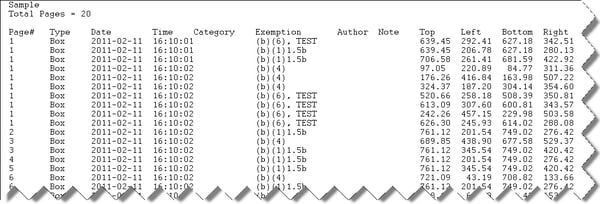
A Redax report is a text file that catalogs each Redax box and Full-Page tag in the document. The file is tab delimited, so you can import it into a spreadsheet or other software for easier analysis or processing. The report can be saved to a file, or displayed in a window. The report contains the following information for each Redax box and Full-Page tag:

  • Page number on which the markup is located
  • Type of Redax markup: Either Page for a Full-Page tag or Box for a Redax box
  • The date and time the markup was created
  • Category assigned to the markup
  • Exemption code(s) assigned to the markup
  • Author assigned to the markup
  • Any note associated with the markup
  • Box coordinates if the Type is Box (Top, Left, Bottom, Right)

The Redax report can be created any time in the redaction process—before or after you redact the document—as long as the document contains Redax boxes or Full-Page tags.

To create a Redax report saved as a file

  1. Select Redax > Reports > Redax Report To File.

    A file selection dialog box is displayed.

  2. Specify a name and location for the report.

  3. Click Save.

  4. Open the report in a text editor (for example, Notepad). The figure below shows typical output from a Redax report.

    Redax report

To create a Redax report in a window

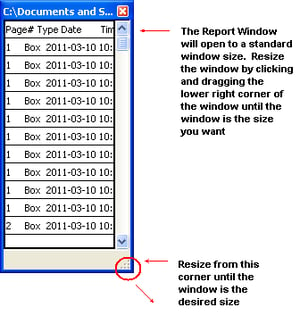
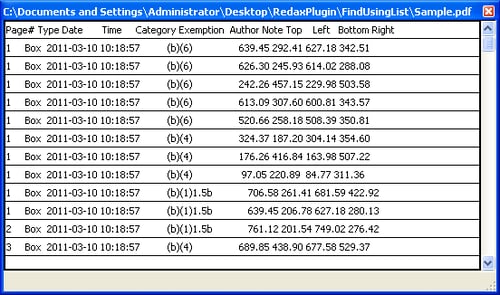
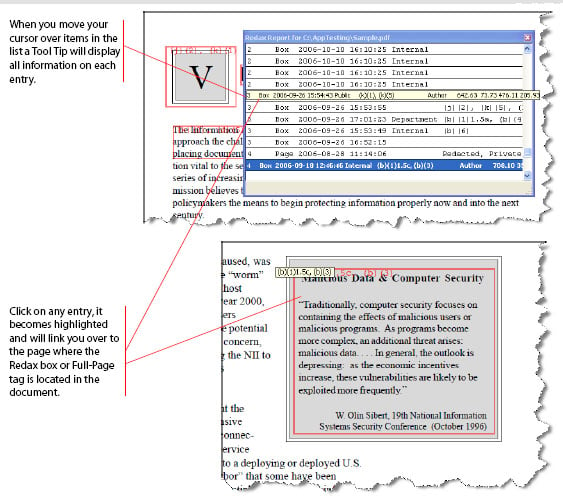
If you select Redax > Reports > Redax Report To Window, the menu will open a window which contains information on all Redax boxes and Full-Page tags that are in the open document. This is useful because the report items in the window are hyper-linked to the Redax boxes and Full-Page tags in the document. You can click on any item in the list and be taken directly to the Redax box or Full-Page tag to review it.

    1. Select Redax > Reports > Redax Report To Window.

      Shortcut: Click the Display Redax Report button on the Tool Bar. (Redax Tools explains how to access the Properties button.)


    2. A window will open with the report information displayed:

      How to resize the Report to Window dialogRedax report to window dialog


  1. The report items in the window are hyper-linked to the Redax boxes and Full-Page tags in the document. You can click on any item in the list and be taken directly to the Redax box or Full-Page tag to review it.

    How to navigate in the Report to Window dialog


Printing a document with Redax markup

If you prefer to review paper documents, you can print Redax boxes and Full-Page tags with your document.

To print a document with Redax markup:

  1. Select File > Print. The Print dialog box opens.

  2. Select a printer.

  3. To make sure the Redax boxes and Full-Page tags print, under Comments and Forms, select Document and Markups. (Acrobat 7.x through Acrobat XI)

  4. Select other print options, if you wish.

  5. Click OK to send the document to the printer.


Modifying Your Markup

You can work with Redax markup in a variety of ways:

  • Change Redax box properties
  • Move or resize Redax markup
  • Delete Redax markup
  • Add, change or delete exemption codes
  • Undo or redo a Redax box


Changing Redax box properties

The following instructions explain how to change the properties of an individual Redax box or Full-Page tag.

Note: If you want to change preferences for all existing Redax boxes and Full-Page tags in the document, or all Redax boxes and Full-Page tags you create from now on, see Defining Redax Box Preferences.


To change the properties of an individual Redax box or Full-Page tag

    1. Double-click inside the Redax box or Full-Page tag for which you want to change properties.

      Shortcut: For Redax boxes, click the Properties button to highlight it. Then click the Redax box. (Redax Tools explains how to access the Properties button.)

      The Redax Box Properties opens. The first figure below shows a sample of a Redax box dialog. The second figure below shows a sample of a Full-Page tag dialog. Note that the second figure does not include the box color option. That is because a Full-Page tag does not have this property.

      Redax box properties dialogFull Page tag properties dialog


  1. Change the Redax box properties as desired (see the table below).

    Property Description
    Author The name of the author to be associated with Redax boxes and Full-Page tags.
    Category A redaction classification to be associated with Redax boxes and Full-Page tags. For example, you might have one category of markup to be used when redacting for local law enforcement agencies and another category to be used when redacting for the general public.
    Exemption A default exemption code assigned to Full-Page tags and to Redax boxes that are manually drawn or applied to any of the following: all bracketed text, all text areas, all image areas and all path areas. Leave this field blank if you do not want to use a default exemption code.

    Note: The exemption code is the only property that will be visible in the final redacted document.

    Note A note to be associated with Redax boxes and Full-Page tags. This is useful in work group environments.
    Box Color The border color of Redax boxes. If more than one person is working on the document, using different box colors is a useful way to keep track of each individual’s markup. To select another color, click in the colored box. In the Color selector that appears, select a color and then click OK.

    Note: This option applies to Redax boxes only; it does not apply to Full-Page tags

  2. Click OK. The changes are applied and the Redax Box Properties dialog box closes.


Moving or resizing Redax markup

If a Redax box does not adequately cover the area you want to redact or covers too much, you can move it or resize it. You can also move and resize Full-Page tags, but your changes will have no effect on redaction. A Full-Page tag always redacts the entire page on which it is located, regardless of its position or size.

To move a Redax box or Full-Page tagHow to move or resize a Redax boxHow to move or resize a Full Page tag

  1. Move the pointer inside of the Redax box or Full-Page tag.

  2. When the pointer changes drag to move the Redax box or Full-Page tag.

To change the size of a Redax box or Full-Page tag

  1. Click inside of the Redax box or Full-Page tag.

  2. Selection handles appear at the corners. You can drag the corners of the box or tag in the direction you want to resize it.

Deleting Redax markup

You can always delete a Redax box or Full-Page tag if the markup is inappropriate.

To delete a Redax box or Full-Page tag

  1. Click inside the Redax box or Full-Page tag you want to delete. Selection handles appear at the corners.

  2. Do one of the following:

    • Press the Delete key.
    • Select Edit > Delete.
    • Right click on the Redax box or Full-Page tag and select Delete.

  3. Click OK to delete the Redax markup or click Cancel to keep it.

    Note: To delete all Redax boxes in the document, select Redax > Remove All Redax Boxes.


Adding, changing or deleting an exemption code

Depending on your settings and the way you marked up your document, the Redax boxes and Full-Page tags in the document may have one or more exemption codes, or none at all. You can add, change or delete exemption codes.

To add one or more exemption codes

  1. Click inside the Redax box or Full-Page tag to which you want to add an exemption code. Selection handles appear at the corners of the Redax box.

  2. Click the palette item for the exemption code or reason you want to add.

    Note: If the exemption code palette you want to use is not visible, select Redax > Show/Hide, and then check the palette name or select Display All Palettes.

    The new exemption code is added.

    Show how multiple exemption codes display in a Redax box

    Note: If you want to add a custom exemption code that isn’t on a palette, follow the instructions for changing or deleting an exemption code, below.

To change or delete an exemption code

    1. Double-click the Redax box or Full-Page tag for which you want to change or delete an exemption code. The Redax Box Properties dialog box is displayed.

      How to delete an exemption code inside a Redax box


  1. In the Exemption box, change or delete one or more exemption codes. (You can also add exemption codes, if you wish.)

    Note: Multiple exemption codes must be separated by commas.


  2. Click OK to save your changes and exit the Redax Properties dialog box.


Undoing or redoing a Redax box

You can undo the last Redax box that was drawn with the Draw Box tool. If you subsequently change your mind following an undo operation, you can redo the Redax box.

To undo a Redax box:

Click Edit > Undo Redax Box.

To redo a Redax box:

Click Edit > Redo Redax Box.

Redacting Your Document

Introduction

After you mark a document for redaction–either with Redax markup or Acrobat markup and redaction boxes–it’s ready to be redacted. This chapter describes the two redaction methods for redacting a document that contains Redax markup or Acrobat markup.

Do not skip the important final steps for redacting your document, which are in these chapters:

  • Checking the Redacted Document shows you how to check a redacted document for accuracy.
  • Preparing the Document for Distribution tells you about some post-redaction steps to ensure the confidentiality of your document.


Redacting Redax markup

You follow the same procedure to redact all Redax markup, that is, information in Redax boxes and pages marked with Full-Page tags.

To redact Redax markup (Redax boxes and Full-Page tags)

  1. Select Redax > Redact Document. Redax creates a new PDF document in a new window, adding a prefix of r_ to the original document name. For example, if the original document name is MySample.pdf, the redacted document name is r_MySample.pdf. In the redacted document, all information marked with Redax boxes and Full-Page tags is completely removed.
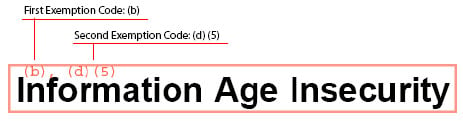
    In addition, depending on your preferences:

    • The redacted area is overlaid by a rectangle in the color and transparency specified in your redaction preferences.
    • Exemption codes, if you redacted with them, are positioned within the redacted area or at the bottom of the page, according to your redaction preferences.
    • Consecutive fully-redacted pages are condensed into a single page or remain as individual pages, according to your processing option preferences.

  2. Select File > Save to save the redacted document. The Save As dialog box is displayed.

  3. Specify a name and location for the redacted document, and then click Save. The redacted document is saved using the name and location you specified.

    The following figures show some examples of redacted text, images, and pages.

    Sample of how redacted areas display

    Redacted area

    Redacted area with (b)(3) exemption code present

    Shows the information that appears on a page that was redacted using a Full Page Tag

    Shows that pages 4 through 10 were fully redacted and condense to one page


Redacting Acrobat markup

You can directly redact Acrobat markup, that is, text marked with Acrobat Highlight, Cross Out (Strikethrough), Underline and/or Acrobat redaction markup.

    1. Select Redax > Convert Markup.

      The Convert Markup dialog box appears (see the figure below).

      Convert markup dialog


  1. Select one or more of the following markup types to redact: Highlights, Cross Outs, Underlines, Acrobat redaction markup.

  2. (Optional) Assign an exemption code to each type of markup you are redacting.

  3. Choose Redact Markup — Redax will redact Acrobat markup only in the current document.

    Note: No Redax boxes in the document will be redacted.


  4. Click OK.

    Dialog that appears when nothing was redacted in the document

    Important! If you choose Redax > Redact Document instead of Redax > Convert Markup, nothing will happen. A message will open letting you know that nothing was redacted.  Redact Document will only redact Redax boxes and Full-Page tags. It is not designed to redact Acrobat markups (Highlights, Cross Outs, Underlines and Acrobat redaction).

  5. Redax creates a new PDF document in a new window, adding a prefix of r_ to the original document name. For example, if the original document name is MySample.pdf, the redacted document name is r_MySample.pdf.In the redacted document, all marked up text is completely removed and appears as you have specified in your preferences. Exemption codes (if you redacted with them) are positioned according to your preferences.

    The following figure illustrates a page redacted from Acrobat markup.

    Example of running Convert Markup and selecting the option to Redact Markup


Redacting by Category

    1. When the document is open, select Redax > Redact by Category.

      The Select Categories To Redact dialog box opens as shown in the figure below:
      Dialog displaying all the categories set in the document


  1. Click, shift/click or ctrl/click to select the Redax box categories you want to redact. The numbers in parentheses report on the number of Redax boxes for each category.You can redact one category or multiple categories. Depending upon which categories you choose, a different set of Redax boxes will be redacted. All other Redax boxes will be ignored.

    Important! You will want to be sure that “Remove Redax boxes after redaction” is checked in your Preferences.  To set, select Redax Menu > Redax Preferences > Redax Options (see Defining Processing Option Preferences).


  2. Click OK.

    Your working document can have different categories applied to many different Redax boxes as shown in the figure below.

    Example of a marked up working document

    The Redax boxes with categories set to the choices you made for redaction will be redacted. The figure below shows an example page redacted for the different categories as were shown in the figure above.

    Example of different areas redacted by using categories


Checking the Redacted Document

Introduction

After you redact a document, carefully review it to verify all information you wanted to redact has been redacted. You can manually inspect all redacted areas of the document. You can also export the redacted document to a text file to see that text has actually been removed. For quality assurance, this text can be compared to the text exported from the original, unredacted document.

Manually Inspecting Redacted Document

To manually inspect all redacted areas, scroll through the document and check to make sure that the information you intended to remove has been removed.

Tip! For areas that were marked up using Redax boxes or Full-Page tags, use the Redax Next & Previous Page buttons or select Redax > Next Page and Redax > Previous Page to quickly move among the pages containing Redax boxes and/or Full-Page tags.

Note: Redax Next Page and Previous Page menu options only work when Redax boxes and/or Full-Page tags are present in the document.


Exporting Redacted Document

To export the redacted document to a text file:

  1. With the redacted document open in Acrobat, select Redax > Reports > Export Document Text.

  2. In the dialog box that appears, specify a name and location for the text file, and then click Save.

  3. In a text editor or word processor, open the exported text file.

The figure below shows a typical example. Each line of text from the PDF document is identified by its page number and line length. Text appears within angle brackets and parentheses:

>(text appears here)<

Deleted text that has been removed is reflected by the blank space in the report. Exemption codes appear at the bottom of each page.

Example of what the file looks like when you Export Document Text


Preparing the Document for Distribution

Introduction

When you’re satisfied with the redacted document, to ensure the confidentiality of your document, remove all annotations in the document, including Redax boxes and Full-Page tags. You can also leave annotations and just remove Redax boxes and Full-Page tags. However, it’s best to remove all annotations before you release the redacted document, so that any identifying notes, hyperlinks to other documents, URLs or other functions, are not mistakenly released with the document.


Removing all annotations

To remove all annotations from the document, including Redax boxes and Full-Page tags:

  1. Select Redax > Remove All Annotations.

    Redax displays a message alerting you that the operation cannot be undone and prompts you for confirmation.

  2. Click OK.

    All annotations, including Redax boxes and Full-Page tags, are removed from the document.

  3. Select File > Save.

    The document is ready for distribution. The figure below illustrates a page from the final redacted document with all annotations removed.

    Example of what the file looks like when you remove all annotations


Removing all Redax boxes

To remove all Redax boxes and Full-Page tags from the document, but no other annotations:

  1. Select Redax > Remove All Redax Boxes.

    Redax displays a message alerting you that the operation cannot be undone and prompts you for confirmation.

  2. Click OK.

    All Redax boxes and Full-Page tags are removed from the document.

  3. Select File > Save.

Troubleshooting And Support

Introduction

This chapter describes what you can do if you do not get the results you expect when you run Redax:

  • Review the troubleshooting checklist
  • Clean suspect PDF files
  • Contacting support


Troubleshooting Checklist

The following sections answer common questions about problems you may have with the following:

  • Installation
  • Files
  • Redaction
  • Printing


Installation

I cannot install Redax.

You must be logged in with administrative privileges to install Redax. See your local system administrator for assistance.

I installed Redax, but I don’t see the Redax menu.

Make sure you are not running Acrobat in certified mode, as follows:

  1. In Acrobat 7, select Edit > Preferences > Startup. In Acrobat 8, 9, X, & XI, select Edit > Preferences > General.

  2. Is the Use only certified plug-ins box in the Application Startup section checked?

    • If yes, you are running in certified mode and must switch to uncertified mode. Go to step 3.
    • If no, you are not running in certified mode. Click Cancel to exit the Startup Preferences, and then go to step 6.

  3. Click the Use only certified plug-ins box to clear the checkmark. A message is displayed, telling you to exit and restart Acrobat to load any non-certified plug-ins that are present.

  4. Click OK to close the message.

  5. Click OK again to exit the Preferences dialog box.

  6. Exit and restart Acrobat. If Redax is installed, you should see the Redax menu.

  7. If the above steps did not work and you are still in certified mode, select Help > Repair Acrobat Installation.

  8. If this option does not work, you may need to uninstall and reinstall Acrobat.

Instead of exemption codes, I see the word “Demo” over my redactions.

You will see the word “demo” in redacted areas when using a Redax evaluation license. In order to remove the “Demo”, you must purchase Redax and update your serial number. See Redax Menu > Enter Redax Serial Number.


Files

I am having problems with a specific PDF file.

It may be broken or corrupt. Try cleaning your file.

I edited my redaction list file, and now I get an error when I try to use it.

The redaction list file is a plain text file. To be safe, always edit it with a text editor (for example, Notepad or BBEdit). If you edit it with a tool that supports different file formats (for example, Microsoft Word), make sure to save the file as Text Only.

I get an error message saying, “You are not authorized to modify this document.”

Your document is secured with an Owner password (also called a Permissions password). You must supply the password before using Redax, as follows:

  1. Do one of the following, depending on your version of Acrobat:

    • Acrobat 7: Select File > Document Properties > Security tab
    • Acrobat 8, 9, X, & XI: Select File > Properties > Security tab

  2. The document security settings are displayed. The Security Method box should say Password Security.

  3. Click Change Settings, enter the Owner password, and then click OK. You are returned to the document security settings.

  4. Click OK. You can now process the document with Redax.


Redaction

I selected text for redaction, but it won’t redact.

Possible problems are:

  • Form Fields. Is the text in or part of an active form field? Redax cannot redact text in active form fields. Before redacting the document, remove the fields by selecting Redax > Remove All Form Fields
  • Exemption Codes. Have you assigned an exemption code to the Redax box? If not, either:
    • Assign a code to the box
    • Make sure you check “Allow redaction without exemption codes”. See Redax Menu > Redax Preferences > Redax Options

I used a redaction list file. Redax found some occurrences of the words, but not others.

Possible problems are:

  • List File Construction. The words and phrases in your list file must be specified correctly. For more information, see Redaction List File Tips.
  • Inline Character Images. If your document is scanned, the OCR software might have replaced all or part of a word in your list with character images. Since the Find Using List feature only finds text, it would miss any words that include character images. These words must be marked up with the Draw Box tool. Refer to Finding Inline Character Images for details.

More text was redacted than I selected.

This can be a problem for small text in which the letters or lines are close together. Make the size of the Redax box a little smaller. Refer to Moving or Resizing Redax Markup.

Sensitive information is still displayed in the comments pane of my redacted document.

Before releasing a document, be sure to remove all annotations.

Select Redax > Remove All Annotations.

How can I use Redax to redact my scanned documents?

Redax only supports PDF documents. To redact any other type of document, convert it to a PDF file first using Adobe Acrobat or your preferred PDF creation software.

My bookmarks disappeared from my redacted document.

Your processing option preferences determine whether bookmarks in the original document are preserved or removed following redaction. For instructions on setting your preferences to preserve bookmarks, see Defining Processing Option Preferences.


Printing

My Redax boxes won’t print.

You must specify an option to print the document with markups (also called comments). See Printing a Document with Redax Markup for detailed instructions.

When I print a redacted document, it uses too much ink/toner.

You can conserve ink by filling redacted areas with blank (white) space or increasing the transparency level of the fill color. Refer to Defining Redaction Preferences.


Cleaning Up PDF Documents

Often running a file through Distiller can fix a lot problems that occur in Redax. If your document contains Redax boxes, you must remove the boxes first to run the file through Distiller. Follow the steps below for saving Redax boxes, running the file through Distiller and then re-importing the boxes.

  1. Back up your original file.

  2. Open the file with Redax boxes (before redaction) and select Redax > Export Redax Template.

    A dialog asks you to enter the number of pages for the Template to repeat. By default, Redax uses the total number of pages in the PDF file. Make sure the number that appears in the box matches the total number of pages in the document.

  3. Click OK and save the template file.

  4. Remove the boxes from the document by selecting Redax > Remove all Redax Boxes.

  5. Select File > Save As and give the file a new name (do not overwrite the original file). Under Save As Type, choose PostScript File (*.ps)

  6. Open Acrobat Distiller (installed with Adobe Acrobat) and browse for this file or go to the directory where the file exists and double click on the file.

  7. Open the newly created file and import the template by selecting Redax > Import Redax Template.

  8. Browse for the template file that you exported and click Open.

Exemption Code Palettes

Introduction

Two default exemption code palettes are supplied with Redax: the FOIA (Freedom of Information Act) palette and the Privacy Act palette. The exemption codes on these palettes are described in this appendix. For information about modifying these palettes or adding new ones, see Creating and Customizing Exemption Code Palettes. To learn how to use exemption code palettes, see Exemption Code Palettes.


Freedom of Information Act (50 U.S.C. 552)

The exemption codes on the default FOIA palette are described below.

(b)(1)

Applies to information which is currently and properly classified pursuant to an Executive Order in the interest of national defense or foreign policy (EO 12958 and DoD Reg 5200.1-R). Information may not be considered for classification unless it concerns:

  • (1.5)(a) military plans, weapons systems, or operations,
  • (1.5)(b) foreign government information,
  • (1.5)(c) intelligence activities (including special activities), intelligence sources or methods, or cryptology,
  • (1.5)(d) foreign relations or foreign activities of the United States, including confidential sources,
  • (1.5)(e) scientific, technological, or economic matters relating to the national security,
  • (1.5)(f) United States Government programs for safeguarding nuclear materials or facilities, or
  • (1.5)(g) vulnerabilities or capabilities of systems, installations, projects or plans relating to the national security.

(b)(2)

Applies to information which pertains solely to the internal rules and practices of the agency; this exemption has two profiles: high and low. The high profile permits withholding of a document which, if released, would allow circumvention of an organization rule, policy, or statute, thereby impeding the agency in the conduct of the mission. The low profile permits withholding if there is no public interest in the document and it would be an administrative burden to process the request.

(b)(3)

Applies to information specifically exempted by a statute establishing a particular criteria for withholding. The language of the statute must clearly state that the information will not be disclosed.

(b)(4)

Applies to information such as trade secrets and commercial or financial information obtained from a company on a privileged or confidential basis which, if released, would result in competitive harm to the company.

(b)(5)

Applies to inter- and intra-agency memoranda which are deliberative in nature; this exemption is appropriate for internal documents which are part of the decision-making process and contain subjective evaluations, opinions and recommendations.

(b)(6)

Applies to information the release of which could reasonably be expected to constitute a clearly warranted invasion of the personal privacy of individuals.

(b)(7)

Applies to records or information compiled for law enforcement purposes that

  • (1.5)(a) could reasonably be expected to interfere with law enforcement proceedings
  • (1.5)(b) would deprive a person of a right to a fair trial or impartial adjudication,
  • (1.5)(c) would reasonably be expected to constitute an unwarranted invasion of the personal privacy of others,
  • (1.5)(d) disclose the identity of a confidential source,
  • (1.5)(e) disclose investigative techniques and procedures, or
  • (1.5)(f) could reasonably be expected to endanger the life or physical activity of an individual.

(b)(8)

Applies to matters that are contained in or related to examination, operating, or condition reports prepared by, on behalf of, or for use of any agency responsible for the regulation or supervision of financial institutions.

(b)(9)

Applies to geological and geophysical information and data, including maps, concerning wells.


Privacy Act (5 U.S.C. 552a)

The exemption codes in the default Privacy Act palette are described below.

(b)

Applies to information concerning other individuals which may not be released without their written consent.

(d)(5)

Applies to information compiled in reasonable anticipation of a civil action proceeding.

(j)(1)

Applies to polygraph records; documents or segregate portions of documents, the release of which would disclose intelligence sources and methods, including names of certain agency employees and organizational components; and documents or information provided by foreign governments.

(j)(2)

Applies to material reporting investigative efforts pertaining to the enforcement of criminal law including efforts to prevent, control, or reduce crime or apprehend criminals, except records of arrest.

(k)(1)

Applies to information and material property classified pursuant to an Executive Order in the interest of national defense or foreign policy.

(k)(3)

Applies to material maintained in connection with providing protective services to the President of the United States or any other individual pursuant to the authority of Title 18, United States Code, Section 3056.

(k)(4)

Required by statute to be maintained and used solely as statistical records.

(k)(5)

Applies to investigatory material compiled solely for the purpose of determining suitability, eligibility, or qualifications for Federal civilian employment, or access to classified information, the release of which would disclose a confidential source.

(k)(6)

Applies to testing or examination material used to determine individual qualifications for appointment or promotion in Federal government service, the release of which would compromise the testing or examination process.

(k)(7)

Applies to material used to determine potential for promotion in the armed services, the disclosure of which would reveal the identity of the person who furnished the material pursuant to a promise that his identity would be held in confidence.

Appendix A: Regular Expressions

Introduction

A regular expression is a flexible pattern used to match (describe) a set of characters. Redax includes the ability to search PDF documents for matches to regular expressions.

This page includes some simple examples, a basic syntax for regular expressions, background information and links to additional resources.


Simple Examples

A period matches any character.

.at

matches any three-character string ending with “at”, including “hat”, “cat” and “bat”.

Brackets are used for a set of available characters, called a character class. A dash can indicate a range of numbers or characters.

[hc]at

matches “hat” and “cat”.

[c-h]at

matches “cat”, “eat”, “fat” and “hat”.

A pipe “|” symbol is used for “or”. Parentheses are used to show grouping.

(19|20)th

matches “19th” and “20th” : the numbers 19 or 20 followed by “th”.

A question mark makes the previous item optional.

Mrs?\.

matches “Mr.” and “Mrs.” The backslash is added to escape the period special character.

Braces indicate a repeat of the previous item.

a{2,4}

matches “aa”, “aaa” and “aaaa”.

An asterisk repeats the previous item zero or more times.

a*

matches “a”, “aa” and “aaa” . . .

A plus repeats the previous item 1 or more times.

a+

matches “aa”, “aaa” and “aaaa” . . .


Sample Regular Expression

From the sample file sample_regex_list.txt, the following two regular expressions (together) will find dates from 1900 to 2049.

19[0-9]{2}

matches 1900-1999: the number 19 followed by a digit from 0 to 9 twice

20[0-4][0-9]

matches 2000-2049: the number 20 followed by a digit from 0 to 4 and a digit from 0 to 9


Regular Expression Basic Syntax Reference

Character Description Example
Any character except [ \ ^ $ . | ? * + ( ) All characters except the listed special characters match a single instance of themselves. { and } are literal characters, unless they’re part of a valid regular expression token (e.g., the {n} quantifier). a matches a
\ (backslash) followed by any of [ \ ^ $ . | ? * + ( ) { } A backslash escapes special characters to suppress their special meaning. \+ matches +
\xFF where FF are two hexadecimal digits Matches the character with the specified ASCII/ANSI value, which depends on the code page used. Can be used in character classes. \xA9 matches © when using the Latin-1 code page.
\t Match a tab character. Can be used in character classes.  
[ (opening square bracket) Starts a character class. A character class matches a single character out of all the possibilities offered by the character class. Inside a character class, different rules apply. The rules in this section are only valid inside character classes. The rules outside this section are not valid in character classes, except for a few character escapes that are indicated with “can be used inside character classes”.  
Any character except ^ – ] \ add that character to the possible matches for the character class. All characters except the listed special characters. [abc] matches a, b or c
\ (backslash) followed by any of ^ – ] \ A backslash escapes special characters to suppress their special meaning. [\^\]] matches ^ or ]
– (hyphen) except immediately after the opening [ Specifies a range of characters. (Specifies a hyphen if placed immediately after the opening square bracket.) [a-zA-Z0-9] matches any letter or digit
^ (caret) immediately after the opening [ Negates the character class, causing it to match a single character not listed in the character class. (Specifies a caret if placed anywhere except after the opening square bracket.) [^a-d] matches x (any character except a, b, c or d)
\d, \w and \s Shorthand character classes matching digits, word characters (letters, digits, and underscores), and whitespace (spaces, tabs, and line breaks). Can be used inside and outside character classes. [\d\s] matches a character that is a digit or whitespace
\D, \W and \S Negated versions of the above. Should be used only outside character classes. (Can be used inside, but that is confusing.) \D matches a character that is not a digit
[\b] Inside a character class, \b is a backspace character. [\b\t] matches a backspace or tab character
. (dot) Matches any single character except line break characters \r and \n. Most regex flavors have an option to make the dot match line break characters too. . matches x or (almost) any other character
\Z Matches at the end of the string the regex pattern is applied to. Matches a position rather than a character. Never matches before line breaks, except for the very last line break if the string ends with a line break. .\Z matches f in abc\ndef
\z Matches at the end of the string the regex pattern is applied to. Matches a position rather than a character. Never matches before line breaks. .\z matches f in abc\ndef
\b Matches at the position between a word character (anything matched by \w) and a non-word character (anything matched by [^\w] or \W) as well as at the start and/or end of the string if the first and/or last characters in the string are word characters. .\b matches c in abc
\B Matches at the position between two word characters (i.e., the position between \w\w) as well as at the position between two non-word characters (i.e., \W\W). \B.\B matches b in abc
| (pipe) Causes the regex engine to match either the part on the left side, or the part on the right side. Can be strung together into a series of options. abc|def|xyz matches abc, def or xyz
| (pipe) The pipe has the lowest precedence of all operators. It instructs the engine to alternate part of the regular expression. abc(def|xyz) matches abcdef or abcxyz
? (question mark) Makes the preceding item optional. Greedy, so the optional item is included in the match if possible. abc? matches abc or ab
?? Makes the preceding item optional. Lazy, so the optional item is excluded from the match if possible. This construct is often excluded from documentation because of its limited use. abc?? matches ab or abc
* (star) Repeats the previous item zero or more times. Greedy, so as many items as possible will be matched before trying permutations with less matches of the preceding item, up to the point where the preceding item is not matched at all. “.*” matches “def” “ghi” in abc “def” “ghi” jkl
*? (lazy star) Repeats the previous item zero or more times. Lazy, so the engine first attempts to skip the previous item, before trying permutations with ever increasing matches of the preceding item. “.*?” matches “def” in abc “def” “ghi” jkl
+ (plus) Repeats the previous item once or more. Greedy, so as many items as possible will be matched before trying permutations with less matches of the preceding item, up to the point where the preceding item is matched only once. “.+” matches “def” “ghi” in abc “def” “ghi” jkl
+? (lazy plus) Repeats the previous item once or more. Lazy, so the engine first matches the previous item only once, before trying permutations with ever increasing matches of the preceding item. “.+?” matches “def” in abc “def” “ghi” jkl
{n} where n is an integer >= 1 Repeats the previous item exactly n times. a{3} matches aaa
{n,m} where n >= 0 and m >= n Repeats the previous item between n and m times. Greedy, so repeating m times is tried before reducing the repetition to n times. a{2,4} matches aaaa, aaa or aa
{n,m}? where n >= 0 and m >= n Repeats the previous item between n and m times. Lazy, so repeating n times is tried before increasing the repetition to m times. a{2,4}? matches aa, aaa or aaaa
{n,} where n >= 0 Repeats the previous item at least n times. Greedy, so as many items as possible will be matched before trying permutations with less matches of the preceding item, up to the point where the preceding item is matched only n times. a{2,} matches aaaaa in aaaaa
{n,}? where n >= 0 Repeats the previous item n or more times. Lazy, so the engine first matches the previous item n times, before trying permutations with ever increasing matches of the preceding item. a{2,}? matches aa in aaaaa


Other Resources

Learn more about regular expressions from Wikipedia.

http://en.wikipedia.org/wiki/Regular_expression

RegexBuddy is an inexpensive Windows utility that makes it easy for non-technical users to develop regular expressions.

http://www.regexbuddy.com

The International Components for Unicode (ICU) provides an excellent User Guide for regular expressions.

http://userguide.icu-project.org/strings/regexp

RegExLib is a regular expressions catalog.

http://www.regexlib.com

Redax Readme

Introduction

Redax® is a plug-in for Adobe® Acrobat® that removes (redacts) user-selected text, images, and entire pages from PDF documents.

These release notes contain last-minute product information and updates. Please refer to the following documentation for additional information:

  • Redax Getting Started
  • Redax User Guide

You can find these documents on the installation CD, in the default installation directory and on our website.

Redax Version Changes

Redax 5.8

  • Ability to customize text for Full Page redactions. You can now set the position (top left, center, bottom left, bottom of page), color and size of the text that is placed on the Full Page redaction. These options can be set at Redax Menu > Redax Preferences > Redax Options
  • Exemption codes placed in a Full Page Tag now appear on screen.  In previous versions, you would see “Redact Page” inside the Full Page Tag
  • Users can markup a file for redaction using the Rectangle Tool inside of Adobe Reader.  Redax now has an option under the Convert Markup dialog to redact Rectangle annotations
  • Two new “Remove” options have been added to the Redax Menu.   These options are
    • Remove Redax Boxes from Page – This will remove Redax boxes only on the current page
    • Remove Full Page Tags – This will remove Full Page Tags within the document.  You have the option of selecting which pages or page ranges you want to remove the Full Page Tags from

Redax 5.6

  • Some customers would receive a message stating “Error in Redax Command. Bad Parameter” while trying to redact a file.  This version contains a fix for those problem files.

Redax 5.5

  • Exemption codes now appear correctly on rotate pages. NOTE: Exemption codes may not display correctly on rotated pages if Position is set to WordWrap under Redaction Preferences.

Redax 5.0.5

  • Support for Acrobat XI (11)
  • Redact tagged PDF files.  In previous version of Redax you would have to remove the tags from a file before redacting
  • Changes to some dialogs (Find Using List, Find Regular Expressions and Edit Palettes) to be compatible with Acrobat XI (11)

Redax 5.0

New Features

  • More Patterns! New additions include dates, URLs, email addresses, credit card numbers and many more. Optionally, apply the pattern type as the exemption code.
  • Support for Regular Expressions! Now Redax users can create their own patterns.
  • New option to remove all form fields. Redax does not allow redaction of files containing active form fields. Now Redax gives you a way to easily remove all form fields from your document before redacting.
  • The Report window now remains open until you choose to close it.
  • Redax 5.0 now allows you to redact a file multiple times.
  • New markup engine adds list and other automated markup up to 30 times faster than before.
  • Support for redacting Type 0 and Type 3 fonts.
  • JPEG 2000 images are now supported.

Changes in behavior

  • When running Find Using List, Redax now applies Redax boxes to areas instead of highlights. This allows users to easily create a Report without the additional step of converting highlights to Redax boxes.
  • The Redax Preferences are now three sub-menus instead of one dialog with three tabs. To access the preferences, select Redax > Redax Preferences.
  • The menu item Draw Box Full Page has been changed to Draw Full Page Box.
  • The Next and Previous menu items and buttons now navigate to pages that include Full-Page tags as well as Redax boxes.
  • The ‘Full Page Operations’ menu no longer exists. To remove Full-Page tags, you can now use Remove All Redax Boxes. This option will remove boxes as well as Full-Page tags throughout the document.

Fixed in 5.0 release

  • In previous releases if you were in “Draw Box” mode and you clicked the mouse, small Redax boxes would be drawn on the page. You now need to click and drag the mouse in order for Redax boxes to be drawn on the page.
  • Older versions of Redax would redact text above and/or below a Redax box if any adjoining text areas (including line spacing) were touched by the Redax box. The current version of Redax will only redact characters contained within a Redax box.

Known Issues

The following are known issues in Redax 5.0.

  • The palette windows always open at the top right of the screen. If you move the palette windows they will appear at the top right of the screen again when Acrobat is re-opened.
  • Scrolling through the report window in Acrobat X may cause an error, the solution is to force-quit and restart Acrobat.
  • Redax does not support redacting tagged PDF. Tags need to be removed from a file before it can be redacted. Acrobat Pro makes it easy to remove tags with the Optimizer. For Acrobat Standard users, re-distilling the PDF will eliminate the tags.
  • The categories displayed in the Redax Preferences or Redax Box Properties dialogs may display small check boxes next to each Category name. These can be ignored.

Adobe Website Message

If users do NOT have Redax installed and click on a Redax box they will be prompted to search Adobe’s website for a Redax plug-in. Choose No.

Exemption Codes

Regardless of other settings, when word-wrap is set, exemption codes are located in the top-left corner of the redacted area. Exemption codes placed at the bottom of the page do not wrap.

If an exemption code exceeds the width of the Redax box, it appears to be clipped. You can view the full exemption code in a tooltip by moving the pointer over the Redax box, or in the Redax Box Properties dialog box by double-clicking the Redax box.

Find Path Areas

It is not recommended to use the Redax > Find Areas > Find Path Areas feature on documents containing graphics or drawing areas made up of large numbers of paths. In such cases, Redax produces a huge number of Redax boxes which dramatically increase the file size and takes a very long time to process.

Find Using List Editor

If the list window is completely full and there is no white space to click into, you are unable to add more exemption codes. The work-around is to create a new List file in a text-editor and import the file into the Find Using List Editor.

You can use the Export File… and Import File… buttons in the Find Using List editor to save your existing list to a text file. Then use a text editor such as Notepad to add the additional information.

Markup Find Using List/Find Using Patterns

There is some overlap in the Social Security number and zip code patterns. For example, a pattern search on either Social Security number or zip code will find this pattern: nnnnn-nnnn.

Bitmap Images

When bitmap images are redacted, the redacted portion of the image is replaced with white or other color as selected in Redaction Preferences. Occasionally in some files, black is used instead. When this occurs, the redacted image area appears darker than other redacted areas.

Under Acrobat 7, on pages that contain images, the text and images might at times appear to be slightly grayed following redaction.

Redax Boxes

Redax boxes drawn in versions of Redax prior to 5.0 are not automatically updated. For example, exemption codes might be displayed above the Redax box rather than within it, or the Redax box might not be visible.

To update the Redax boxes in your document:

  1. Select Redax > Redax Preferences > Redax Box Preferences
  2. Click Apply Changes to Current Document.
  3. Clear all of the check boxes in the Change All Redax Boxes dialog box, and then click OK.

Redax is a registered trademark of Appligent Inc.

© 2024 Appligent, Inc.

Back to top