
1. Introduction
ContrastWright™ Online checks the color contrast of the text in a PDF against the Web Content Accessibility Guidelines, WCAG 2.2, in your web browser. You sign in at contrastwright.cloud, choose a PDF, and a minute or two later you have its report: on screen, as a PDF report to keep or pass on, and as data for a program. There is nothing to install.
This guide is for anyone who uses ContrastWright Online: to check a document before it is published, to find out why a document failed someone else's check, or to see what an accessibility review will say about the colors in a design.
What ContrastWright Online does
It measures every piece of visible text in your PDF against what is actually painted behind it on the page, at the size a reader sees it, in the colors the page shows. For each text color on each background that fails, it says where the text is, what its colors and contrast ratio are, which ratio it needed, and which color of the same hue would pass. It draws each page that has a failure, with the failing text outlined and numbered.
It checks two WCAG success criteria: 1.4.3 Contrast (Minimum), at Level AA, or 1.4.6 Contrast (Enhanced), at Level AAA. You choose the level for each check (Chapter 4).
What it never does
- It never changes your PDF. It suggests colors; changing them is up to you, in the document's source or with ContrastWright Studio (Chapter 7).
- It does not keep your PDF. The file is deleted from the server as soon as it has been checked, whether the check succeeded or not. Only the report is kept, for 30 days (Chapter 8).
- It does not decide the rest of WCAG. A report that finds no failures says that the text it measured has enough contrast, and nothing more (Chapter 6).
The three forms of a report
| Form | What it is for |
|---|---|
| The report on screen | Reading the result at once: a summary, the failing color pairs with the colors that would pass, and the pages that have failures, drawn with each failure numbered. |
| The PDF report | Keeping the result, or sending it to the person who will fix the document. It holds the same findings, and is itself an accessible, tagged PDF that passes its own contrast check. |
| Data (JSON) | A program: every finding with its page, place, colors, ratio and suggested color, as ContrastWright's own report writes them. |
Chapter 5 goes through each.
ContrastWright Online, ContrastWright Studio and ContrastWright
Appligent makes ContrastWright in three forms, and all three run the same checking tool, so they give the same answer about the same file:
- ContrastWright Online, the subject of this guide, checks a PDF in a web browser.
- ContrastWright Studio is a desktop app for macOS and Windows. It checks, shows each failure on its page, and fixes the colors it can fix, writing a corrected copy of the PDF.
- ContrastWright is the command-line tool, for scripts and servers that check or fix many files without a person.
Studio and the command-line tool each have a guide of their own. The reports ContrastWright Online makes name the fixes Studio can make for you.
Conventions in this guide
- The names of buttons, fields, pages and messages are written as they appear on screen, such as Choose a PDF.
- Colors are written as hexadecimal codes, such as #767676, giving the red, green and blue amounts of the color as it is seen on screen. Every report writes them this way.
- A contrast ratio is written as the reports write it, such as 4.49:1, cut to two decimal places, never rounded up (Chapter 3).
- The limits this guide gives, such as 50 MB and 10 checks a day, are the ones ContrastWright Online starts with. The Check a PDF page always says the ones in force.
2. Your Account
Your email address is your account: you sign in with it and a password of your own, and the codes and invitations ContrastWright Online sends go to it. This chapter covers making an account, signing in and out, keeping a browser signed in, choosing a new password when you have forgotten yours, and the Your account page, where you change your name, your address or your password, turn on two-step sign-in, see the browsers signed in to your account and sign them all out, or delete the account.
What you need
- A current web browser: Safari, Chrome, Edge or Firefox, on a computer, a tablet or a phone.
- An email address you can read, for the code that confirms it, or for the invitation that brings you in.
- The address of ContrastWright Online: https://contrastwright.cloud.
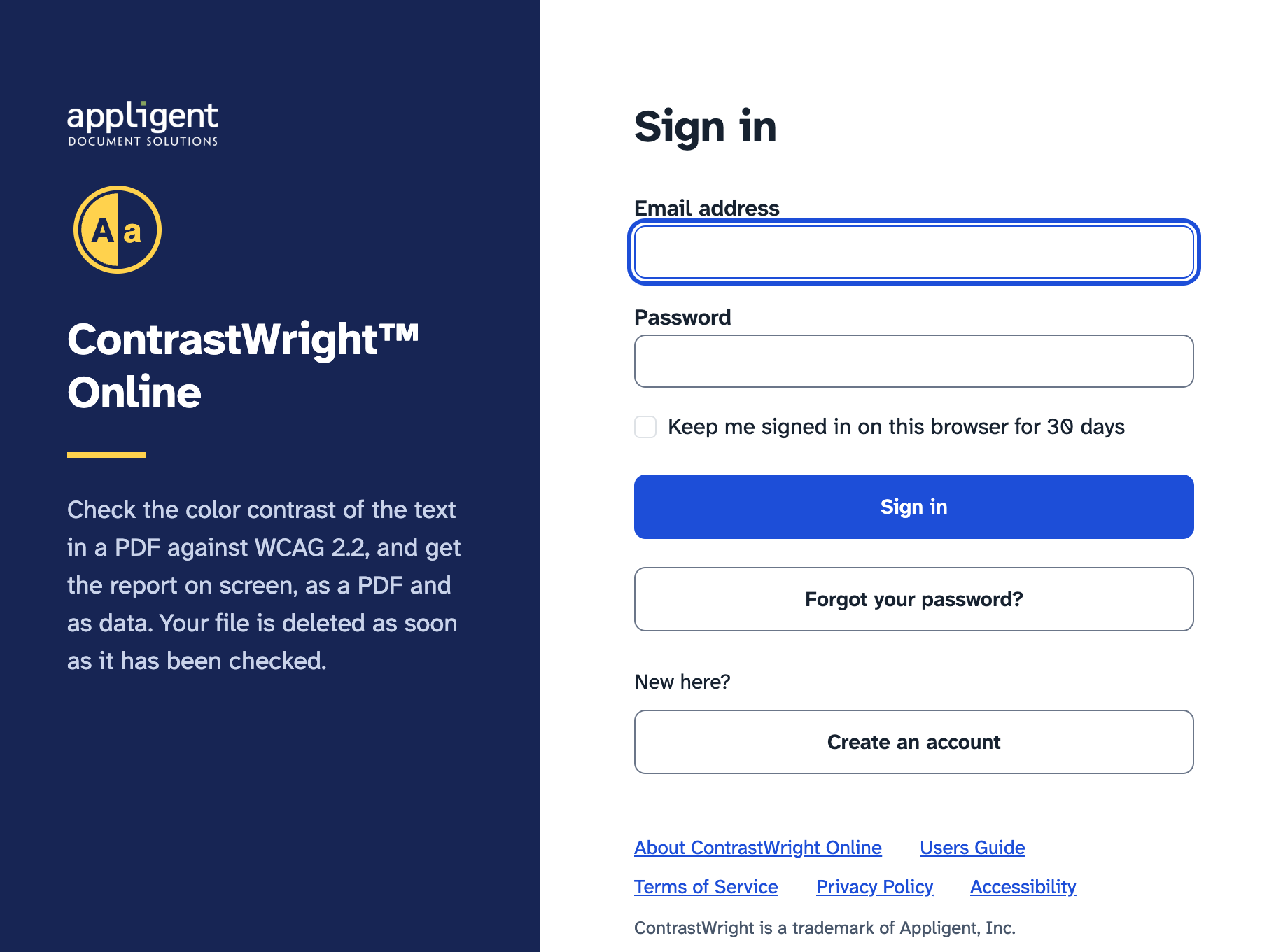
Figure 1. The Sign in page: on the left a navy panel with the ContrastWright Online mark and a sentence saying what it does; on the right the Email address and Password fields, the Keep me signed in on this browser for 30 days box, the Sign in button, New here? with a Create an account button, and links to the Terms of Service, the Privacy Policy and the Accessibility statement.
Joining by invitation
While ContrastWright Online is open to invited people only, the Sign in page has no Create an account button, and an account is made from an invitation that Appligent sends you by email.
- Open the link in the invitation. It opens the Create your account page, with the address the invitation was sent to already filled in. You cannot change it: the account is for that address.
- Type your name in Your name (optional), if you want it on your account.
- Type a password in Password, at least 10 characters, and the same password again in The same password again.
- Press Create account. You are signed in, and the Check a PDF page appears.
The invitation itself confirms your address, so this way has no code to type. An invitation works once, for 7 days. If it has been used, has run out, or was replaced by a newer one for the same address, the page says This invitation can't be used; ask for a new one.
Note: A password manager or the browser may offer to fill in or make up the password. That works, but if Create account then asks for at least 10 characters when you gave more, type or paste the password into both fields yourself and press it again.
Making an account yourself
When ContrastWright Online is open to everyone, the Sign in page shows New here? and a Create an account button.
- Press Create an account.
- Type your email address, your name if you want it, and a password of at least 10 characters, twice.
- Press Create account. The page changes to Verify your email address, and says that a 6-digit code was sent to your address.
- Find the email, from ContrastWright Online, and type its code in 6-digit code.
- Press Verify. You are signed in.
A code works for 30 minutes, and for five tries. If it has run out, or the email has not arrived after a few minutes, press Send a new code; look in your junk mail folder too. You can ask for up to five codes in an hour. Each new code replaces the one before it.
If you leave before typing the code, the account waits for it: sign in later with the same address and password, and a new code is sent and asked for before anything else.
Choosing a password
A password needs at least 10 characters, and cannot be your email address or one of the most common passwords, such as 1234567890. Anything you can type counts: letters, numbers, spaces, punctuation and characters of any language. A phrase of several ordinary words is long, easy to remember and hard to guess. ContrastWright Online keeps only a one-way scramble of your password, from which it cannot be read back, so nobody at Appligent can tell you what it is.
Signing in
- Go to https://contrastwright.cloud.
- Type your address in Email address and your password in Password.
- To come back to this browser without signing in, tick Keep me signed in on this browser for 30 days (Keeping a browser signed in, below).
- Press Sign in, or press Return or Enter. The Check a PDF page appears, saying who is signed in.
If your account has two-step sign-in on, the page asks next for a code: type the 6-digit code your authenticator app shows, or one of your recovery codes, and press Verify. You have 5 minutes for it; Back to sign in starts again.
After five wrong passwords in a row, the account is locked for 15 minutes, and the page says so; choosing a new password with Forgot your password? ends the lock at once. A wrong address and a wrong password get the same answer, so nobody can use the page to find out who has an account. Many failed sign-ins from one network also pause sign-ins from it for a while; the page says when to try again.
Signing out
Press Sign out in the bar at the top of any signed-in page. The page loads again at Sign in, and the session you were using ends: the links on its report pages stop working too. Sign out when you have finished on a computer other people use.
A browser stays signed in for at most 12 hours, and is signed out once it has gone unused for 2 hours; then you sign in again, unless the browser is kept signed in.
Keeping a browser signed in
Tick Keep me signed in on this browser for 30 days as you sign in, and that browser goes straight to your checks whenever you come back, with no password, even after it has been closed or left for hours. It stays signed in until 30 days after it was last used: each visit starts the 30 days again. With two-step sign-in on, it takes effect once your code is right, and from then on that browser asks for no code either. Tick it only on a computer that you alone use.
Signing out on that browser ends it. A new password changed on Your account, turning two-step sign-in on, and new recovery codes keep it on the browser where you made the change and end it on every other. Sign out everywhere, and a new password chosen with Forgot your password?, end it on every browser. Your account lists each browser kept signed in (Browsers signed in, below).
The browser keeps it in a cookie that no page can read, and each visit replaces it. If a copy of an old one is ever used, ContrastWright Online takes it as stolen and signs every browser of the account out at once: sign in again, and change your password.
A forgotten password
- On the Sign in page, press Forgot your password?. The Forgot your password? page appears, with any address you had typed already in its box.
- Type your account's address in Email address, and press Send me a code. The page changes to Choose a new password.
- Find the email, from ContrastWright Online, and type its code in Code from the email.
- Type a new password, at least 10 characters, in New password, at least 10 characters, and again in The same password again.
- Press Change my password. The page says Your password is changed. Press Sign in, and sign in with the new password.
The page answers the same whether or not an account uses the address you type, so nobody can use it to find out who has an account: if no email arrives, check the address, and look in your junk mail folder. A code works for 30 minutes, and for five tries; press Send a new code for another. A new password also ends a lock after too many wrong passwords, and signs out every browser and program signed in to the account.
Your account
Press Your account, in the bar at the top of any signed-in page. It has six parts: Your name, Your email address, Change your password, Two-step sign-in, Browsers signed in, and Delete your account.
Your name
The emails ContrastWright Online sends greet you by the name under Your name. Type it in Name, as it should appear (optional), and press Save the name. Leave the box empty and save, and the emails greet your address instead.
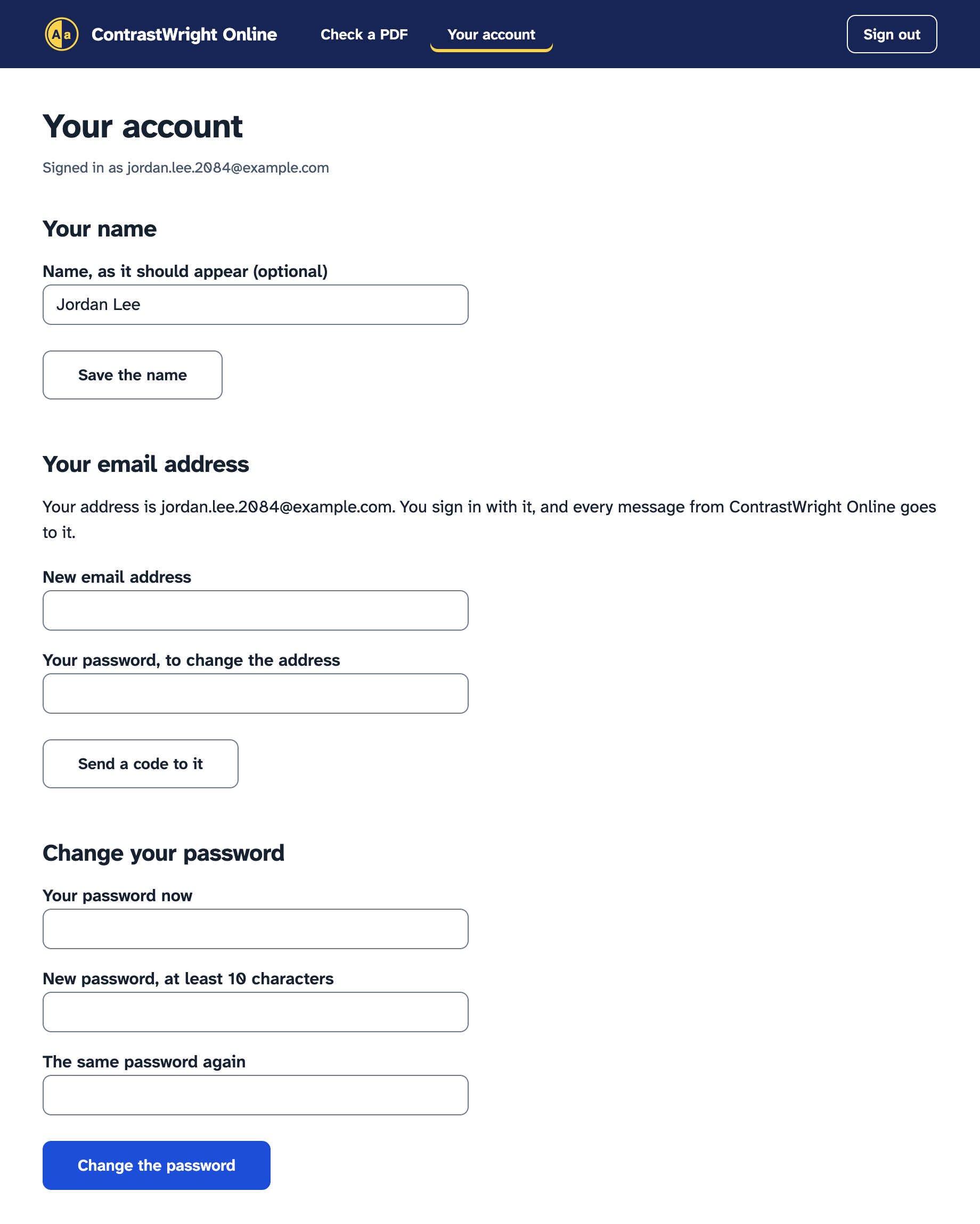
Figure 2. The top of the Your account page: the bar at the top with Check a PDF, Your account marked as the current page, and Sign out; the address signed in; Your name, with its box and the Save the name button; Your email address, saying the address now, with the boxes New email address and Your password, to change the address, and the Send a code to it button; and Change your password, with the boxes Your password now, New password and The same password again, and the Change the password button. Two-step sign-in, Browsers signed in and Delete your account follow below.
Changing your password
- On Your account, type your password now in Your password now.
- Type the new one, at least 10 characters, in New password, at least 10 characters, and again in The same password again.
- Press Change the password. The page says Your password is changed.
Every other browser signed in to your account is signed out, those kept signed in too, and a note saying so is emailed to your address, so that a change you did not make is seen at once: if you get one you did not expect, choose a new password with Forgot your password? straight away, and tell us at support@appligent.com.
Changing your email address
- On Your account, under Your email address, type the new address in New email address, and your password in Your password, to change the address.
- Press Send a code to it. A 6-digit code is emailed to the NEW address: this proves you can read it.
- Type the code in Code sent to the new address, and press Change the address.
The page says Your address is now, with the new one, and you sign in with it from then on. A note is emailed to the old address, so that a change you did not make is seen. Until you type the code, nothing changes; Cancel gives it up. An address another account uses cannot be taken.
Two-step sign-in
With two-step sign-in on, signing in takes a code from an authenticator app on your phone as well as your password, so someone who learns your password still cannot sign in. Google Authenticator, Microsoft Authenticator, 1Password and other such apps work.
- On Your account, under Two-step sign-in, type your password in Your password, and press Turn on….
- Scan the code the page shows with your authenticator app, or type the key under it into the app.
- Type the 6-digit code the app then shows in Code from your authenticator app, and press Turn on.
- The page shows ten recovery codes, this once. Keep them somewhere safe, away from your phone: each one signs you in once if you lose the phone. Press I have kept them.
Turning it on signs out every other browser signed in to your account, those kept signed in too, and a note is emailed to your address. From then on, Sign in asks for a code after your password (Signing in, above). Each code works once, and after five wrong codes in 15 minutes the account takes no more codes until the 15 minutes have passed.
To turn two-step sign-in off, or for ten new recovery codes in place of the old ones, type your password and a code from the app, or a recovery code, and press Turn off or New recovery codes. Signing in with a recovery code uses it up, and an email says how many are left.
Note: If you lose both your phone and your recovery codes, write to support@appligent.com from your account's address. Once Appligent is sure the account is yours, an administrator can turn two-step sign-in off; you are told by email, and you can turn it on again with your new phone.
Browsers signed in
Under Browsers signed in, Your account lists each browser signed in to your account, such as Chrome on a Mac, with when it signed in and was last used; the one you are using says this browser. Below them, each browser kept signed in says so, with the day it ends unless it is used again. If you see one you do not know, press Sign out everywhere, this browser too: every browser signed in or kept signed in to the account is signed out at once, yours too, along with any program signed in with your password, and every report link they were shown stops working. Then sign in again, and change your password.
Deleting your account
Deleting your account deletes it at once, with every report in it. It cannot be undone, so download the PDF reports you want to keep first (Chapter 5).
- On Your account, under Delete your account, type your password in Your password, to delete the account.
- Tick Yes, delete my account and every report in it.
- Press Delete my account. You are signed out, the Sign in page appears, and a note that the account is gone is emailed to its address.
An account cannot be deleted while one of its checks is running: wait for the check to finish. To use ContrastWright Online again afterwards, make a new account, or ask for a new invitation.
3. Contrast and WCAG 2.2
Contrast is the difference in lightness between text and what is behind it. WCAG measures it as a contrast ratio, computed from the relative luminance of the two colors: a number from 1:1, for text the same color as its background, to 21:1, for black text on white. The higher the ratio, the more readers can read the text, whatever their eyesight, screen or lighting.
The contrast ratio
Only lightness counts, not hue. A red and a green of the same lightness have a ratio near 1:1, however different they look to most readers, and they look alike to a reader who cannot tell red from green. That is why the colors ContrastWright suggests keep the hue of the original and change only how light or dark it is.
A few examples, measured on a white background:
| Text color | Ratio | At Level AA |
|---|---|---|
| #000000 (black) | 21.00:1 | Passes at every level. |
| #595959 | 7.00:1 | Passes, at Level AAA too. |
| #767676 | 4.54:1 | Passes: the lightest gray that does. It fails Level AAA, which asks 7:1. |
| #777777 | 4.47:1 | Fails, by a hair, as normal text. |
| #949494 | 3.03:1 | Fails as normal text; passes as large text, which needs 3:1. |
What WCAG asks of text
WCAG 2.2 sets two contrast success criteria for text, one at each of its upper levels of conformance. Each check is made against one of them: the level you choose on the Check a PDF page.
| Level | Success criterion | Normal text | Large text |
|---|---|---|---|
| AA | 1.4.3 Contrast (Minimum) | 4.5:1 | 3:1 |
| AAA | 1.4.6 Contrast (Enhanced) | 7:1 | 4.5:1 |
Level AA is the level most accessibility laws and policies require. A ratio must be met, and is never rounded up to: #777777 reaches 4.478:1, and fails a requirement of 4.5:1.
How ratios are written
The reports write every ratio cut to two decimal places, never rounded: 4.4999:1 is written 4.49:1. So a failing ratio is never written as high as the ratio it needs, and one that passes is never written below it. The data download keeps the full value, such as 4.47808945, for a program to compare exactly.
Large text
Large text needs less contrast. WCAG counts text as large from 18 points, or from 14 points when it is bold. ContrastWright measures the size a reader sees, after every scaling the page applies, so a 6-point font drawn four times its size is 24-point text. Whether text is bold is read from its font.
The Large text from option on the Check a PDF page moves the size from which text counts as large, from 6 to 96 points; bold text then counts as large from 4 points below it. Most checks should keep WCAG's 18 points. A policy of your own may set another size.
Translucent text
Text painted partly transparent is measured as a reader sees it: its color blended with what is behind it. Black text at 50% opacity on white is seen as a mid gray, #808080, and measured at 3.97:1, not at the 21:1 of black.
Colors as the page draws them
A PDF can name a color in many ways: as red, green and blue amounts, as a gray, as cyan, magenta, yellow and black inks for print, through a color profile, or as a named spot ink. What a reader sees is what the page draws, and for some of these that is not what simple arithmetic says. So ContrastWright measures each color as the page draws it on screen, and the reports give that color, as a hexadecimal code.
Text WCAG does not require to pass
WCAG exempts some text from its contrast requirements: text that is pure decoration, text that is part of a logo or brand name, text that is part of an inactive control, and text in a picture that also holds significant other content. ContrastWright recognizes one kind by itself: the row of dots or dashes a table of contents draws from an entry to its page number, a leader, which it skips. It cannot tell the others from the rest of the text, and measures them. Such a finding is correct arithmetic, but it may not be a failure of the success criterion: decide each one.
Remember: A clean report is not a conformance claim. It says that the text ContrastWright could measure meets the ratio of the level you chose. Conformance with WCAG takes every other success criterion as well.
4. Checking a PDF
Everything you do in ContrastWright Online starts on the Check a PDF page, which appears as soon as you sign in. This chapter goes through a check from choosing the file to opening its report.
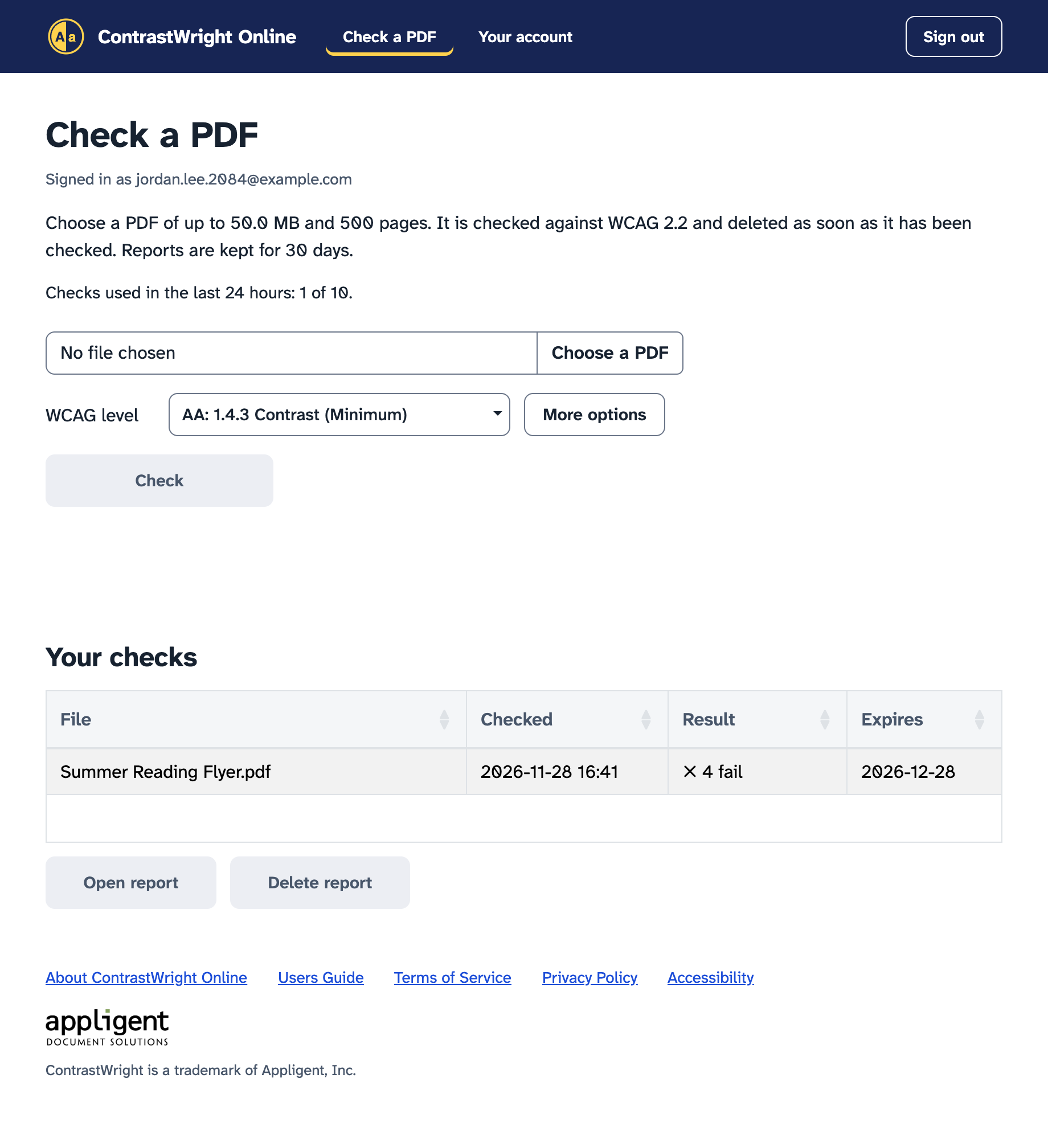
Figure 3. The Check a PDF page: the bar at the top with ContrastWright Online, Check a PDF and Sign out; the address of the account signed in; the sentence giving the limits; the line Checks used in the last 24 hours: 1 of 10; the Choose a PDF button; the WCAG level menu set to AA: 1.4.3 Contrast (Minimum); More options; the Check button; and the Your checks list, with one check of Summer Reading Flyer.pdf whose result is 5 fail.
The page
The sentence under the heading gives the limits in force: the largest file, in megabytes, the most pages a check covers, and how many days reports are kept. The line under it gives how many checks you have used in the last 24 hours, of the number allowed, such as 3 of 10; once they are all used, it also says when the next can start, such as in 2 hours and 15 minutes. Under it are the controls for a new check, and below them, Your checks: every check you have made whose report is still kept, the newest first.
Checking a file
- Press Choose a PDF, and pick the file. The page says Ready to check, with the file's name. A file over the size limit is named with its size and the limit, and cannot be checked.
- Choose the level in WCAG level: AA: 1.4.3 Contrast (Minimum), or AAA: 1.4.6 Contrast (Enhanced). Level AA is the one most laws and policies require (Chapter 3).
- Press Check. The file is sent to the server, and the check starts.
The page reports the check's progress as it goes, in a line that a screen reader reads out as it changes:
| What the page says | What is happening |
|---|---|
| Waiting to start… | The check is queued, and starts in a moment. |
| Waiting: 2 checks ahead of yours. | The server is busy with other people's checks; yours starts when its turn comes. |
| Checking the text on every page… | The text is being measured. A bar shows the page reached, such as page 12 of 39. |
| Drawing the pages that have failures… | Each page with a failure is being drawn for the report. |
| Making the PDF report… | The last step. |
| Done. | Followed by the result in a sentence. The report opens by itself. |
A one-page flyer takes a few seconds; a long report of many pages, a minute or more. You can leave the page while a check runs: it goes on on the server, and its report is in Your checks when you come back.
More options
Press More options for two more fields. Press Fewer options to hide them again; what you typed is kept.
| Field | What it does |
|---|---|
| Large text from, in points | The size from which text counts as large, which needs less contrast (Chapter 3). Leave it empty for WCAG's 18 points, or 14 points bold. Any size from 6 to 96 points can be given; bold text then counts as large from 4 points below it. |
| Pages (all when blank) | Only some pages: page numbers and ranges with commas between them, such as 1-5, 9. Pages are numbered from 1, as a PDF reader numbers them, whatever numbers are printed on them. Use it to check a document over the page limit a part at a time, or to check again only the pages you changed. |
Your checks
The list gives each check's file, when it was checked, its result, and the day its report expires and is deleted.
| Result | What it means |
|---|---|
| passes | No text failed. Every run of text was measured. |
| 5 fail | Five failures, each a stretch of text that does not reach its ratio. |
| 3 unmeasured | Nothing failed, but some text could not be measured, so the file cannot be said to pass (Chapter 6). |
| no text | The file has no text that could be measured, such as a scan with no recognized text. |
| waiting, checking | The check has not finished. |
| not checked | The check could not be made. Select it and press Open report to see why (Chapter 9). |
To see a report again, select its check and press Open report, or double-click it.
Deleting a report
A report is deleted by itself after the days the page gives, but you can delete one sooner: select its check in Your checks, and press Delete report. The button changes to Yes, delete it, and the line under the form asks you to confirm; press Yes, delete it, and the report is deleted at once, with its PDF report and the pages it drew. It cannot be undone. Choosing another check instead cancels the question. A check that is still running cannot be deleted until it has finished.
The day's limit counts the checks of the last 24 hours, from the moment each was queued, including any that could not be made, so deleting a report does not give its check back. Once you reach it, the next one is refused, before the file is sent, until the oldest of them is a day old; the line under the heading says when that is.
Checking a document again
Each check is of the file you send at the time. After you have changed a document, choose the new file and check it again: its report is a new entry in Your checks, and the old one is kept until it expires. To compare, keep the old report's PDF.
5. Reading the Report
When a check is done, its report opens on the Contrast report page. The same findings come in three forms: the report on screen, the PDF report, and the data. This chapter goes through each, using the check of a one-page library flyer with five failures.
The report on screen
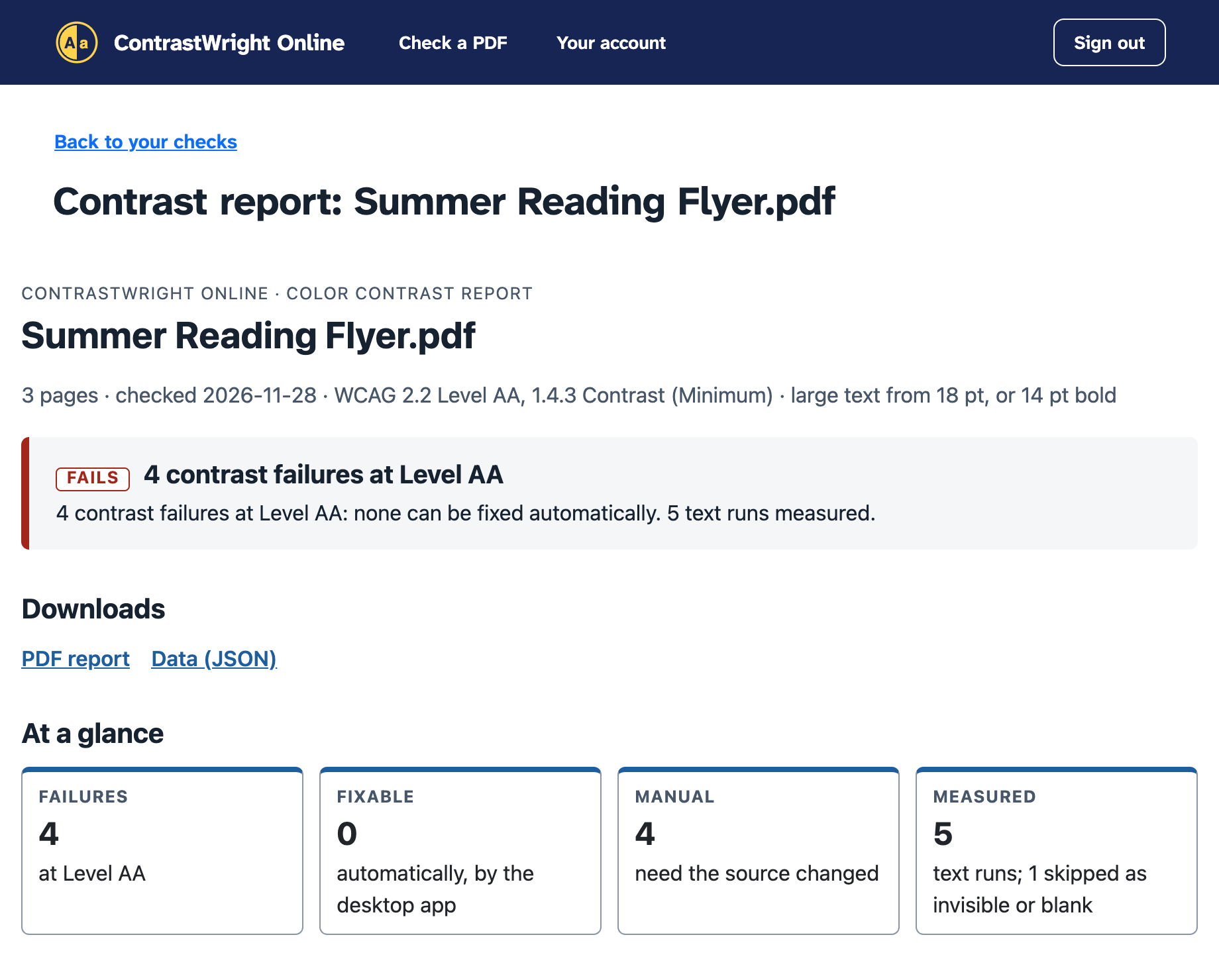
Figure 4. The top of the report on screen for Summer Reading Flyer.pdf: the line saying what was checked, Fails with 5 contrast failures at Level AA, the summary sentence, the two downloads, PDF report and Data (JSON), and the four At a glance boxes: Failures 5, Fixable 5, Manual 0 and Measured 149.
The report reads from the top down, in these parts:
| Part | What it says |
|---|---|
| The heading | The file's name, and a line saying how many pages were checked, when, at which level and success criterion, and the size from which text counted as large. |
| The result | In a word: Passes, Fails, Not a pass (nothing failed, but some text could not be measured) or No text. Then the number of failures at the level checked, and a sentence: how many failures the ContrastWright Studio desktop app can fix by itself, and how many text runs were measured. |
| Downloads | PDF report and Data (JSON), below. |
| At a glance | Four numbers: Failures; Fixable, the failures ContrastWright Studio can fix automatically; Manual, those that need the source document changed; and Measured, the runs of text measured, with any skipped as invisible or blank. |
| Color pairs | One row for each failing text color on each background (below). |
| Findings by page | Each page with a failure, drawn, with its failures outlined and numbered, and a table of them (below). |
| What this check covers | The success criteria checked, and those that are not (Chapter 6). |
The last line names the version of the checking tool that made the report.
Color pairs
A document usually fails in a few color pairs, used again and again: a pale gray for captions, a brand color for headings. The Color pairs table gives each pair once, so you can fix a pair everywhere at once, in a style or a theme.
| Column | What it holds |
|---|---|
| Text color | The color of the failing text, as seen. |
| Background | The color behind it. |
| Worst | The lowest ratio of any failure in the pair. |
| Needed | The ratio it must reach: 4.50:1 or 3.00:1 at Level AA, 7.00:1 or 4.50:1 at Level AAA, by the text's size. |
| Suggested | A color of the same hue that reaches it, moved in lightness only as far as it must. Automatic means ContrastWright Studio can make the change by itself; manual means the text needs changing at its source, for example because its background was read from a picture. |
| Failures | How many failures the pair has. |
| Pages | The pages they are on. |
Each color is shown as a swatch beside its code, and the codes are text, so you can copy one straight into a design app.
Findings by page
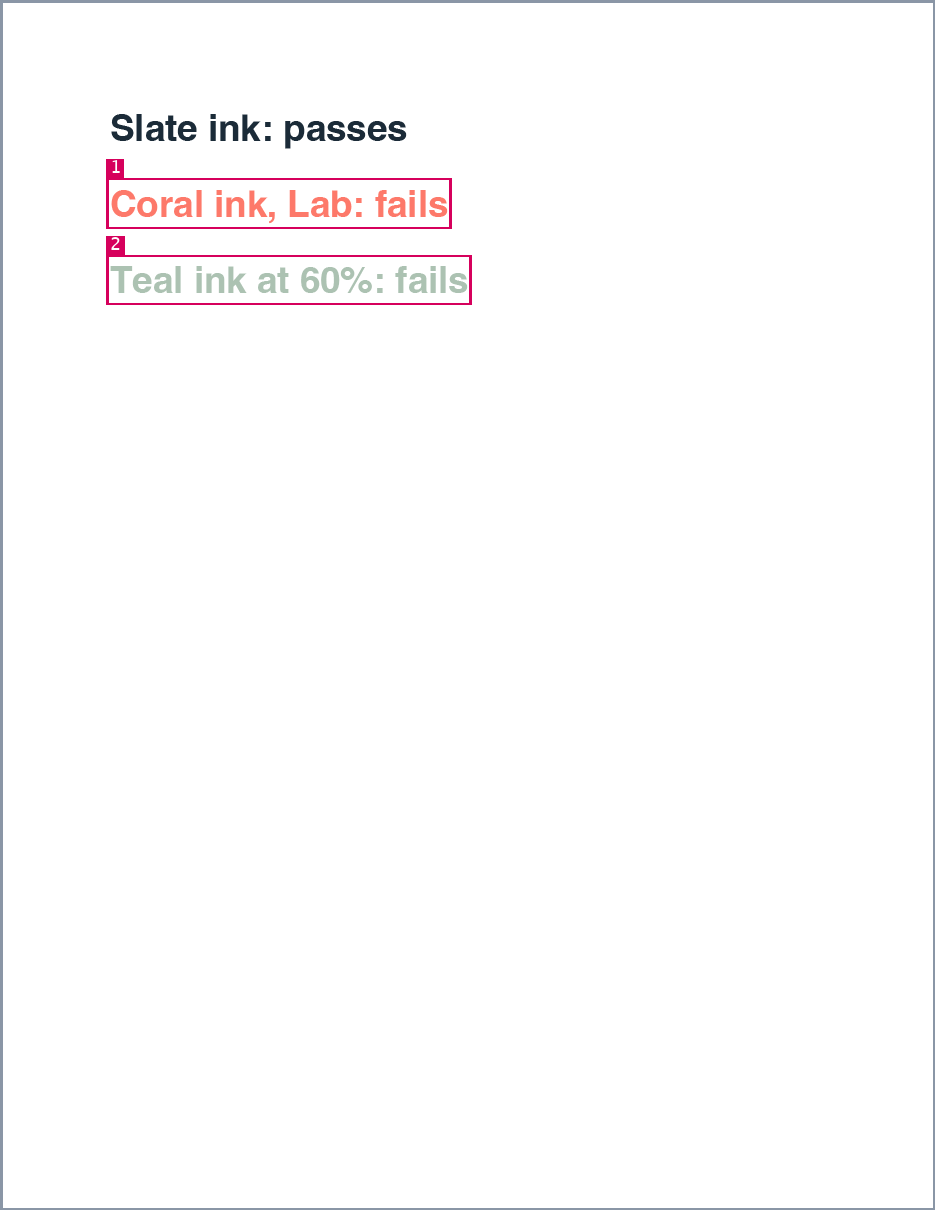
Figure 5. The flyer's page as the report draws it, with its five failures outlined in magenta and numbered 1 to 5: the two lines of the heading Summer Reading Challenge, the subtitle, the word Prizes on a pale blue panel, and the small print at the foot of the page.
Each page with a failure is drawn, its failing text outlined and numbered to match the table under it. The table gives, for each failure:
| Column | What it holds |
|---|---|
| # | The number drawn on the page. |
| Text | The text that fails, as the PDF holds it. |
| Size | The size a reader sees, in points, and bold when it is. |
| Colors | The text's color on its background, and how the background was found: for example, that nothing is painted behind the text, so the page's white, or that it was read from a filled shape. |
| Ratio, Needed | The text's ratio, and the one it must reach. |
| Suggested | The color that would pass, automatic or manual. |
A finding is one stretch of a line that fails alike, so a heading of two lines is two findings, and a failure is what a reader sees, not how the PDF happens to store the text. Up to 25 pages are drawn, the first 25 that have failures; the tables list every failure on every page.
The PDF report
Press PDF report, under Downloads, to save the report as a PDF. It holds the same parts as the report on screen, laid out for paper: the result, At a glance and Color pairs on its first page, then each page with failures, drawn, with its table. Its footer gives the date and the version of the tool that made it.
The PDF report is made to be passed on, to the designer or the team that will fix the document, and it is accessible itself: a tagged PDF that a screen reader can read in order, with every table marked up as a table, every drawn page described, and text that passes its own contrast check.
The data
Press Data (JSON), under Downloads, to save the report as data: the same JSON report the ContrastWright command-line tool writes, for a spreadsheet, a script, or a system that tracks accessibility. Its main members:
| Member | What it holds |
|---|---|
| filename | The name of the file you checked. |
| pageCount, wcagLevel | How many pages the file has, and the level checked. |
| summary | error, the number of failures; warning, the number of warnings (Chapter 6). |
| measured | runs, the runs of text measured; undetermined, those that could not be; skipped, leaders and imageOnlyPages, what was left out and why. |
| findings | One object for each failure or warning: its id, page, text, fontSize, bold and largeText; foreground and background as seen; ratio, to full precision, and required; backdrop, how the background was found; bbox, its place on the page in PDF points; and fixable and suggested, the color that would pass. |
| checked, notChecked | What the check covers, and what it does not, in words. |
The ContrastWright Command-Line Guide describes every member.
Downloading, and the report's links
The two downloads, and the drawn pages, come from links made for the page you have open. They work while it stays open, and stop working once you leave it or sign out, so a link copied from the page cannot be used by anyone else. To keep a report, or to pass it on, download it. To see it again later, open it from Your checks; it is kept until the day in its Expires column.
Press Back to your checks to return to the Check a PDF page.
6. What Is Measured, and What Is Not
ContrastWright measures text a reader can see, against what is behind it. This chapter says which text that is, what happens to text it cannot measure, and what a check does not cover at all, so that you can tell a clean report from one that saw little.
Text a reader cannot see
A run of text is skipped, and counted as skipped, when a reader cannot see it:
- It is invisible: drawn in the invisible mode, such as the hidden layer of words that character recognition lays over a scanned page.
- It is painted fully transparent, or at no size.
- It is nothing but spaces.
- It is hidden: a solid shape painted after it covers all of it, such as a legend left behind a panel. A reader cannot see such text, though a screen reader may still read it out.
The Measured box of the report says how many runs were skipped. A count of skipped text is normal: most documents have some.
Leaders
The row of dots a table of contents draws from an entry to its page number tells a reader nothing, and WCAG exempts text that is pure decoration. So a leader is not measured. A run is a leader when it is one leader character, such as a period or a dash, repeated at least five times, or when the PDF marks it as a layout artifact.
Outlined text and halos
WCAG 2.2 takes a narrow border round letters as part of the letters, and a wide one, a halo, as their background. ContrastWright follows it. Text outlined at least half a point wide passes when either its fill or its outline reads against the background. A halo, a wider outline drawn under the letters, is taken as the text's background, so text on a photograph can pass when its halo gives it enough contrast.
How the background is found
A PDF has no background color of its own. ContrastWright works out what is behind each run of text from what the page painted before it: the bare page, a filled shape, a halo. Where that cannot settle it, as for text on a picture or a gradient, it draws the page and reads the colors under the text. The findings table says, for each failure, how its background was found.
A run whose background or color still cannot be settled is undetermined. It is not a failure, and it is never counted as passing: a report with any undetermined text says Not a pass, and Your checks shows how many runs were unmeasured. Look at that text yourself.
A page that is only a picture
A slide exported as one picture, a scanned page, a brochure page that is one placed image: the words on it are pixels, and a check that measures text has nothing to measure. Such a page is named with a warning, not a failure, so a clean report cannot hide it: success criterion 1.4.5 Images of Text asks a person to look at it. A check that finds no text to measure at all says No text.
What is not checked
A check decides success criteria 1.4.3 and 1.4.6 for visible text whose background can be settled. It does not check, and the end of every report says so:
- 1.4.11 Non-text Contrast: the contrast of icons, charts, borders and controls;
- 1.4.1 Use of Color, and 1.4.5 Images of Text;
- text inside pictures, and lettering converted to outlines in a design app;
- text under gradients or patterns whose background changes across a letter;
- the appearance of annotations and form fields;
- anything about what the document means.
Remember: A report that passes is not a claim that a document conforms to WCAG. It says that the text ContrastWright measured has enough contrast at the level you chose.
7. Fixing What Fails
ContrastWright Online finds and explains contrast failures; it never changes your file. This chapter says how to fix what it finds, and how to tell the failures that can be fixed by a program from those that need a person.
Automatic and manual failures
Every suggested color in a report is marked automatic or manual.
- Automatic: the text can be recolored where it is, keeping its hue, and the page will then pass. ContrastWright Studio and the ContrastWright command-line tool can make the change by themselves.
- Manual: the fix needs a person. The background was read from a picture or a gradient, so a new text color might not pass everywhere; or the text is in a spot ink, which ContrastWright never changes; or no color of the text's hue can reach the ratio on that background, and the background has to change.
The At a glance boxes count each kind: Fixable and Manual.
Fixing at the source
The best fix is in the document the PDF was made from: the Word file, the InDesign layout, the slide deck. Change the color there and make the PDF again, and every later version is right too.
- Start from the Color pairs table. A pair is usually one style: a caption style, a heading color, a theme color.
- Change the style's color to the suggested one, or to any color of your own that reaches the ratio. The suggested color is the closest to the original, of the same hue, that passes.
- Make the PDF again, and check it again.
A manual pair on a picture can often be fixed by darkening or lightening the picture behind the text, adding a solid panel under it, or moving the text off the picture.
Fixing the PDF itself
When the source is not at hand, the PDF can be fixed directly. ContrastWright Studio, Appligent's desktop app for macOS and Windows, checks a PDF as ContrastWright Online does, shows each failure on its page, and fixes the automatic ones in one step, writing a corrected copy and leaving the original as it was. The ContrastWright command-line tool makes the same fixes in a script, for many files at once, and can also outline large text in a passing color instead of recoloring it, or hold back any change that would move a color too far from a design.
Both are sold separately, and each has a guide of its own.
Checking the fix
Check the corrected PDF again in ContrastWright Online. A fix of an automatic pair should leave it with no failure; a pair you fixed by hand may need another try. Keep the PDF reports of both checks, before and after, as a record of the work.
8. Your Files, Privacy and Limits
This chapter says what happens to the files you check and the reports they give, the limits on each account, and where to read the terms and policies.
Your PDF
Your file is sent to the server over an encrypted connection, checked, and deleted as soon as the check ends, whether it succeeded or not. While it waits and while it is checked, it is in a folder that only ContrastWright Online can read. The check runs the file through ContrastWright's own tool, on Appligent's server; nothing is sent anywhere else.
Your reports
A report is kept for 30 days from the end of its check, with its PDF report and the pages it draws, so you can open it again from Your checks. The Expires column gives the day it goes. Then it is deleted, with its files. To delete a report sooner, select it in Your checks and press Delete report (Chapter 4).
Each report belongs to its account: no other account can see it, open it or download it. Its links work only on the page that shows it, while that page is open (Chapter 5).
Your account
ContrastWright Online keeps your email address, your name if you gave one, a one-way scramble of your password, each browser signed in (its kind, its network address, and when it signed in and was last used), each browser kept signed in (its kind, and until when), and a record of signing in and of each check, as the Privacy Policy describes. With two-step sign-in on, it keeps the app's secret sealed under a key of the server's, and your recovery codes only as one-way scrambles. To delete your account and every report in it, use Delete your account on the Your account page (Chapter 2).
The limits
Each account has the limits below, which keep the server quick for everyone. The Check a PDF page says the ones in force, which may differ.
| Limit | To start with | When it is reached |
|---|---|---|
| The size of a file | 50 MB | The file is named with its size and the limit, and is not sent. |
| The pages a check covers | 500 | The check stops. Check a range of pages at a time, with More options. |
| Checks in 24 hours | 10 | The next check is refused until the oldest of them is a day old. Check a PDF shows the count, and when the next can start. |
| The time a check may take | 5 minutes | The check stops. Check fewer pages at a time. |
| How long a report is kept | 30 days | The report and its files are deleted. |
If your work needs more, write to support@appligent.com. For checking large numbers of documents, the ContrastWright command-line tool runs on your own computers, with no limits of this kind.
Terms, privacy and accessibility
The foot of the Sign in, Create an account and Check a PDF pages links to the Terms of Service, the Privacy Policy and the Accessibility statement. Each opens in a new browser tab, so a page you are working on stays where it is.
ContrastWright Online is meant to be used by everyone, and its pages aim at WCAG 2.2 Level AA. Every control can be used from the keyboard alone; each page begins with its own heading; messages and a check's progress are announced as they appear; and every color on the pages passes the contrast check this guide describes. Its text is set in Atkinson Hyperlegible, a typeface the Braille Institute made for readers with low vision. The Accessibility statement says what has been done and what is not yet right. If anything is hard to use with your browser, your assistive technology or your settings, tell us at support@appligent.com.
9. Messages and What to Do
This chapter lists the messages ContrastWright Online shows when something cannot be done, and what to do about each. Any problem not listed here, or one that keeps coming back, can be reported to support@appligent.com.
Signing in and making an account
| The message | What to do |
|---|---|
| The email address or the password is not right. | Check both, and try again. A password is case-sensitive. After five wrong ones in a row the account is locked for 15 minutes. |
| This account is locked for 15 minutes after too many wrong passwords. | Wait 15 minutes, or choose a new password with Forgot your password? on the Sign in page, which ends the lock (Chapter 2). |
| Too many sign-in attempts from your network. | Wait the minutes the message gives. Many people signing in from one office share one network address. |
| The two passwords are not the same. | Type the same password in both fields. |
| That password is one of the most common: choose another. | Choose a password of your own: a phrase of several ordinary words is long and easy to remember. |
| Use at least 10 characters for your password. | Choose a longer one. If a browser or password manager filled the fields in, type or paste the password into both fields yourself. |
| An account already uses that email address. | Sign in with it instead. |
| Sign-up is by invitation only for now. | Open the link in your invitation, or ask Appligent for one. |
| This invitation can't be used | It has been used, has run out after 7 days, or was replaced by a newer one. Ask for a new one. |
| That code is not right, or it has expired. | Check the code against the newest email: each new code replaces the one before it. A code lasts 30 minutes and five tries; press Send a new code for another. |
| No new code was sent: too many have been sent in the last hour. | Use a code already sent, or wait an hour. |
| Too many accounts have been made from this network today. | Try again tomorrow, or from another network. |
Your account
| The message | What to do |
|---|---|
| Your current password is not right. | Type the password you sign in with now in Your password now. If you have forgotten it, sign out and use Forgot your password?. |
| The two new passwords are not the same. | Type the same new password in both fields. |
| To delete your account, tick the box that says so. | Tick Yes, delete my account and every report in it, then press Delete my account again. |
| Your password is not right. | Type the password you sign in with in Your password, to delete the account. |
| A check of yours is running. Delete the account once it has finished. | Wait until Your checks gives the check's result, then delete the account. |
| Too many tries. | Wait the minutes the message gives: each account has a limit on password checks. |
| Another account uses that address. | Choose another address: each address can have one account. |
| That is your address now. | The address typed is already the account's: nothing needs changing. |
| That code is not right, or it has expired. Send a new one. | Type the code from the newest email to the new address; or press Cancel and start again. |
Two-step sign-in
| The message | What to do |
|---|---|
| That code is not right. Enter the 6-digit code your authenticator app shows now, or one of your recovery codes. | Type the code the app shows for ContrastWright Online now: each lasts 30 seconds and works once. Check that the phone's clock is set automatically. |
| Too many codes were tried. Please try again in 15 minutes. | Wait 15 minutes. If you have lost the phone, use a recovery code. |
| The sign-in took too long. Please sign in again. | The code step lasts 5 minutes: sign in again. |
| The setup ran out of time. Start again with Turn on…. | The QR code lasts 10 minutes: press Turn on… again. |
| Two-step sign-in is not available right now. | Tell us at support@appligent.com. |
Checking a file
| The message | What to do |
|---|---|
| (the file) is 62.4 MB; the limit is 50 MB. | Make the file smaller: save it again with smaller pictures, or split it and check the parts. |
| That file is not a PDF. | Choose a PDF. A Word file or a picture must be saved as a PDF first. |
| The file is empty. | Choose the file again; it may not have finished saving. |
| Verify your email address first: enter the code we sent you. | Sign out, sign in again, and type the code that is sent (Chapter 2). |
| You have used your 10 checks for the last 24 hours. The next can start in 2 hours and 15 minutes. | Wait the time the message gives, when the oldest of them is a day old (Chapter 8). The line under Check a PDF's heading gives it too. |
| Large text starts at a size from 6 to 96 points. | Give a size in that range under More options, or leave the field empty. |
| Pages are page numbers and ranges with commas between them, such as 1-5, 9. | Correct the Pages field, or leave it empty for every page. |
| The check covers 612 pages; the limit is 500. | Check the document in parts, with a range of pages under More options, such as 1-500 and then 501-612. |
| The file took too long to check (more than 5 minutes). | Check fewer pages at a time. Very large pages, or pages with many pictures, take longest. |
| The upload failed, or No file arrived. | The connection broke while the file was being sent. Choose the PDF again and press Check. |
| The service is not available right now, or a message that something could not be stored or queued | A fault on the server. Try again in a few minutes, and tell support@appligent.com if it goes on. |
Opening a report
| The message | What to do |
|---|---|
| That check has no report yet. | It is still waiting or checking. Open it once Your checks gives its result. |
| That file could not be checked, with the reason | The reason says what to do; the messages above explain them. The file was deleted, so choose it again for a new check. |
| That report could not be deleted. A check that is still running cannot be. | Wait until Your checks gives its result, then delete it. |
| There is no such report. It may have expired, or been deleted. | Reports are kept for 30 days. Check the file again for a new report. |
A report page left open for a long time may stop showing its pictures or downloads. Press Back to your checks and open the report again.
Glossary of Terms
Alpha
How solid a color is painted, from 0 (fully transparent) to 1 (fully opaque). ContrastWright measures translucent text as a reader sees it, blended with what is behind it.
Automatic
A suggested color ContrastWright Studio or the ContrastWright command-line tool can write by itself: the text is recolored where it is, keeping its hue.
Background
What is painted behind a run of text, against which its contrast is measured: the bare page, a filled shape, a picture, or a halo. A PDF has no background color of its own; the tool finds it from what was painted before the text, or from a drawing of the page.
Color pair
One text color on one background. A report groups its failures by pair, so a pair used throughout a document, such as a caption style, can be fixed once.
Contrast ratio
WCAG's measure of the difference in lightness between two colors, from 1:1 (the same) to 21:1 (black on white), computed from their relative luminance.
Finding
One failure in a report: a run of text, or the pieces of one stretch of a line that fail alike, with its page, place, colors, ratio and any suggested color.
Halo
A copy of text's own letters stroked under it, so the stroke shows round the letters. A halo wide enough is taken as the text's background; a narrower one counts as part of the letters.
Hex code
A color written as # and six hexadecimal digits, giving its red, green and blue amounts, such as #767676. The tool writes every color this way, as it is seen on screen.
Invitation
An email from Appligent with a link that makes an account for its address. It works once, for 7 days.
Large text
Text of 18 points or more, or 14 points or more when bold, which WCAG lets meet a lower contrast ratio: 3:1 at Level AA, 4.5:1 at Level AAA. The size is the one a reader sees, after the page's scaling.
Leader
The row of dots or dashes a table of contents draws from an entry to its page number. It is decoration, and the tool skips it.
Level AA
The level of WCAG 2.2 conformance most laws and policies require. Its text contrast criterion, 1.4.3 Contrast (Minimum), asks 4.5:1 of normal text and 3:1 of large text.
Level AAA
WCAG 2.2's highest level of conformance. Its text contrast criterion, 1.4.6 Contrast (Enhanced), asks 7:1 of normal text and 4.5:1 of large text.
Manual
A suggested color that needs a person: the background was read from a picture, the text is in a spot ink, or no color of the text's hue can pass.
PDF report
The report as a PDF, to keep or pass on: an accessible, tagged PDF with the same findings as the report on screen.
Relative luminance
How light a color is to the eye, from 0 for black to 1 for white, as WCAG defines it. The contrast ratio is computed from it.
Rendering
A drawing of a page that ContrastWright makes to find a background the page content cannot settle, such as a picture or a gradient, and to show each failure in the report.
Run
A piece of text a PDF draws in one go, with one font, size and color: a line, a word, or part of one. ContrastWright measures each run.
Spot color
A color printed with an ink of its own, such as a PANTONE ink, rather than mixed from cyan, magenta, yellow and black. ContrastWright measures it as drawn on screen, and never suggests changing it automatically.
Suggested color
A color of the same hue as the text that reaches the ratio, moved in lightness only as far as it needs to be. A fix in ContrastWright Studio writes it.
Undetermined
Text whose background or color could not be settled, so it was not measured. It is counted, and never counted as passing: a report with any says Not a pass.
Verification code
The 6-digit code ContrastWright Online emails to confirm the address of a new account. It works for 30 minutes and five tries.
Warning
A report entry that is not a contrast failure, such as a page that is only a picture, whose text could not be measured.
WCAG 2.2
The Web Content Accessibility Guidelines, version 2.2, from the World Wide Web Consortium. Its success criteria 1.4.3 and 1.4.6 set the contrast text needs.
Your checks
The list on the Check a PDF page of every check whose report is still kept, newest first.